
1. Introduction
This manual provides comprehensive instructions for the installation, operation, and maintenance of your HITELLARCAM CB54 2K Wireless Outdoor Security Camera with Solar Panel. Please read this manual thoroughly before using the product to ensure correct usage and optimal performance. Keep this manual for future reference.

Image 1.1: HITELLARCAM CB54 2K Wireless Outdoor Security Camera with Solar Panel. This image displays the camera unit connected to its solar panel, with a smartphone screen showing a live feed from the camera.
2. Package Contents
Verify that all items listed below are present in your package:
- HITELLARCAM CB54 Security Camera
- Solar Panel
- Instruction Manual
- Mounting Screws
- Stand
3. Product Overview
The HITELLARCAM CB54 is a 2K wireless outdoor security camera designed for continuous surveillance. It features a solar panel for sustained power, AI motion detection, two-way audio, and IP66 weatherproofing. The camera supports both 2.4GHz and 5GHz Wi-Fi connectivity.
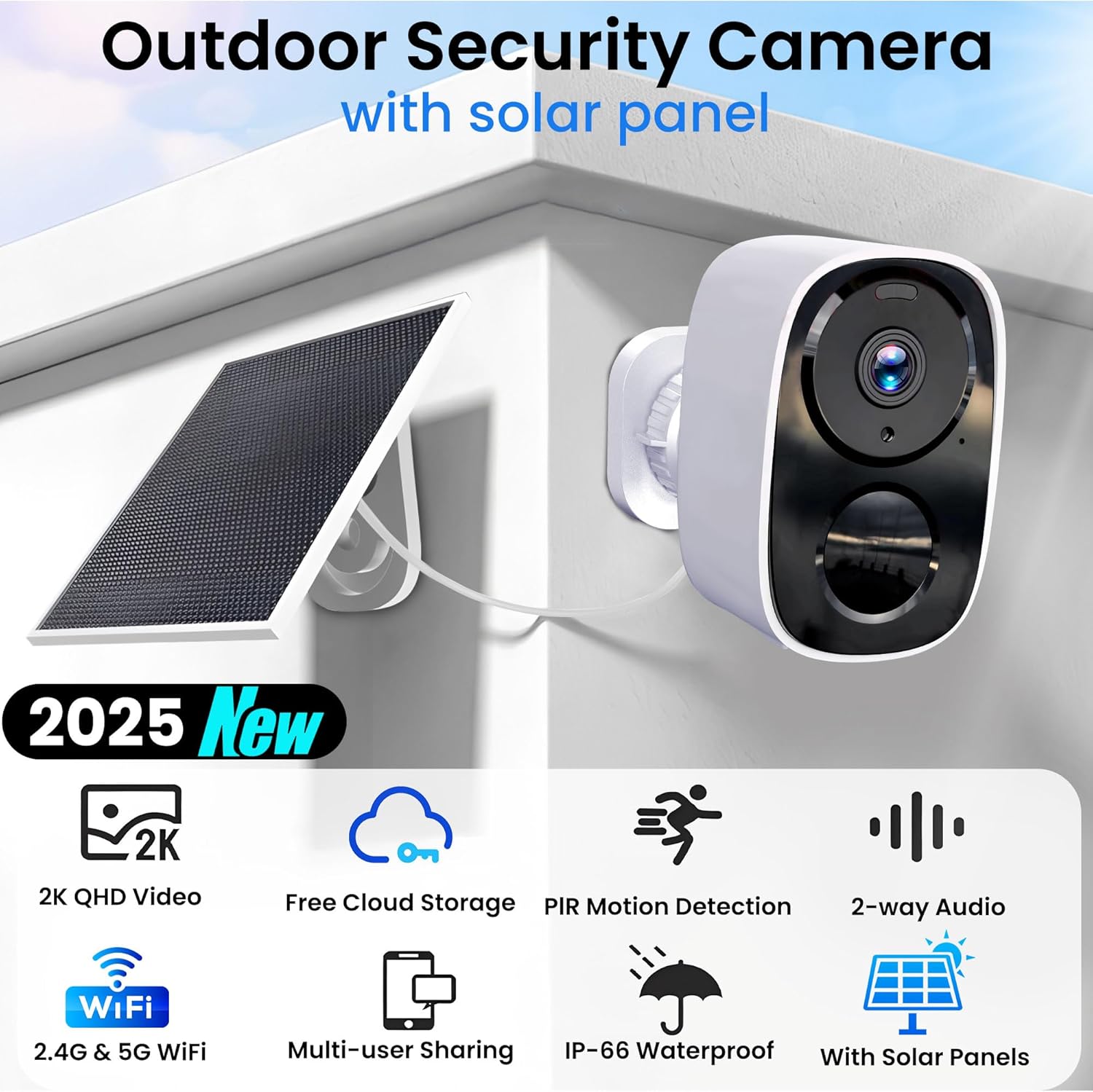
Image 3.1: Key Features of the HITELLARCAM CB54. This graphic highlights features such as 2K QHD Video, Free Cloud Storage, PIR Motion Detection, 2-way Audio, 2.4G & 5G WiFi, Multi-user Sharing, IP-66 Waterproofing, and Solar Panels.
3.1. Components
- Camera Lens: Captures 2K resolution video.
- Infrared LEDs: Provide night vision capabilities.
- Spotlight: Illuminates the area upon motion detection.
- Microphone: For audio input during two-way communication.
- Speaker: For audio output during two-way communication and siren.
- PIR Sensor: Detects passive infrared motion.
- Solar Panel Port: Connects the solar panel for continuous charging.
- SD Card Slot: Supports local storage up to 256GB (SD card not included).
- Reset Button: For factory reset or pairing mode.
4. Setup
4.1. Initial Charging
Before initial use, fully charge the camera's internal battery using a standard USB charger (not included) for at least 5 hours. This ensures the camera has sufficient power for setup and operation before the solar panel takes over.
4.2. App Installation
- Download the O-KAM Pro app from your smartphone's app store (iOS App Store or Google Play Store).
- Install the app on your mobile device.
4.3. Account Creation and Camera Pairing
- Open the O-KAM Pro app and follow the on-screen prompts to create a new user account.
- Once logged in, tap the '+' icon to add a new device.
- Select your camera model from the list.
- Follow the in-app instructions to connect the camera to your Wi-Fi network. The camera supports both 2.4GHz and 5GHz Wi-Fi bands. Ensure your Wi-Fi password is correct.
- A QR code may be displayed on your phone; present this code to the camera lens for scanning. A confirmation sound will indicate successful pairing.
4.4. Mounting the Camera and Solar Panel
The camera and solar panel are designed for outdoor wall mounting. Choose a location that provides optimal sunlight exposure for the solar panel and a clear view for the camera.
- Select Location: Identify a suitable outdoor location for the camera and solar panel. The solar panel should receive direct sunlight for several hours daily.
- Mark Drilling Points: Use the provided stand as a template to mark the drilling points on the wall.
- Drill Holes: Drill pilot holes at the marked points.
- Secure Stand: Attach the camera stand and solar panel bracket to the wall using the mounting screws.
- Attach Camera and Solar Panel: Secure the camera to its stand and the solar panel to its bracket. Adjust their angles for optimal coverage and sunlight exposure.
- Connect Solar Panel: Plug the solar panel cable into the camera's solar panel port.

Image 4.1: Installation of the HITELLARCAM CB54. This image shows a person installing the camera and solar panel on an exterior wall, demonstrating the mounting process.
5. Operating Instructions
5.1. Live View and Recording
Access the O-KAM Pro app to view the live feed from your camera. The camera automatically records events triggered by motion detection.

Image 5.1: Storage Options for HITELLARCAM CB54. This image illustrates the camera's support for free 3-day cloud video history and local storage via an SD card (up to 128GB).
5.2. Motion Detection and Alerts
The camera utilizes advanced AI motion detection to identify movement and reduce false alerts. When motion is detected, the camera can send real-time notifications to your smartphone.
- Configure Sensitivity: Adjust motion detection sensitivity within the app settings to suit your environment.
- Receive Alerts: Ensure app notifications are enabled on your smartphone to receive immediate alerts.

Image 5.2: Deterrent Features of HITELLARCAM CB54. This image shows the camera's ability to deter intruders with a built-in siren, two-way talk, and motion-activated spotlights, alongside a smartphone displaying a PIR motion detection alert.
5.3. Two-Way Audio
The camera features a built-in microphone and speaker, enabling two-way communication through the O-KAM Pro app.
- Initiate Talk: Tap the microphone icon in the live view interface to speak through the camera.
- Listen: Audio from the camera's microphone will be transmitted to your phone.

Image 5.3: Two-Way Audio Functionality. This image depicts a user communicating through the camera via a smartphone, demonstrating the listen and talk back feature.
5.4. Night Vision and Spotlight
The camera is equipped with infrared night vision for clear visibility in low-light conditions. The integrated spotlight can be configured to activate upon motion detection, providing additional illumination and acting as a deterrent.
6. Maintenance
6.1. Cleaning
Regularly clean the camera lens and solar panel surface to ensure optimal performance. Use a soft, damp cloth to gently wipe away dust and debris. Avoid abrasive cleaners or harsh chemicals.
6.2. Battery Management
The integrated solar panel continuously charges the camera's battery. Ensure the solar panel remains free of obstructions (e.g., leaves, snow) to maximize charging efficiency. The camera is designed for continuous operation with adequate sunlight.

Image 6.1: Weatherproof Design of HITELLARCAM CB54. This image illustrates the camera's IP66 rating, indicating its resistance to rain, sun, and snow, and its operational temperature range.
6.3. Firmware Updates
Periodically check the O-KAM Pro app for available firmware updates. Keeping your camera's firmware updated ensures access to the latest features and security enhancements.
7. Troubleshooting
- Camera not connecting to Wi-Fi:
- Ensure your Wi-Fi network is 2.4GHz or 5GHz compatible.
- Verify the Wi-Fi password is correct.
- Move the camera closer to your Wi-Fi router during setup.
- Reset the camera using the reset button and attempt pairing again.
- Battery not charging:
- Ensure the solar panel is clean and free of obstructions.
- Verify the solar panel cable is securely connected to the camera.
- Relocate the solar panel to an area with more direct sunlight exposure.
- Motion detection alerts are too frequent/infrequent:
- Adjust the motion detection sensitivity settings within the O-KAM Pro app.
- Configure detection zones to focus on specific areas.
- Poor video quality:
- Clean the camera lens.
- Ensure a strong Wi-Fi signal at the camera's location.
8. Specifications
| Feature | Specification |
|---|---|
| Model Name | CB54 |
| Brand | HITELLARCAM |
| Indoor/Outdoor Usage | Outdoor |
| Power Source | Battery Powered (with Solar Panel) |
| Connectivity Protocol | Wi-Fi (2.4GHz & 5GHz) |
| Controller Type | O-KAM Pro App |
| Mounting Type | Wall Mount |
| Video Capture Resolution | 2K |
| Wireless Communication Technology | Bluetooth, Wi-Fi |
| Item Dimensions (L x W x H) | 2.25 x 2.25 x 3.25 inches |
| Item Weight | 1.03 pounds |
| Battery Power | 5000 Watt Hours |
| Video Capture Format | MPEG-4 |
| IP Rating | IP66 (Rainproof, Sunproof, Snowproof) |
| Storage | Free Cloud Storage (3-day history), SD Card (up to 256GB) |
9. Warranty and Support
For warranty information, please refer to the documentation provided at the time of purchase or visit the official HITELLARCAM website. For technical support or further assistance, please contact HITELLARCAM customer service.
Manufacturer: HITELLARCAM