
1. Introduction
1.1 Product Overview
This manual provides comprehensive instructions for the ALLIMITY Replacement Voice Remote Control. This remote is designed to be compatible with specific FPD 43-inch 4K 1080p UHD FHD Smart TV models, offering a seamless replacement experience with voice control functionality.
1.2 Package Contents
- 1 x ALLIMITY Replacement Voice Remote Control
1.3 Compatibility
This replacement remote control is compatible with the following FPD Smart TV models:
- FPD Palette-Series CG43-P3
- FPD Canvas-Series CG43-C3
If your TV model is not listed, please contact customer support for assistance.
2. Setup
2.1 Battery Installation
The remote control requires two AAA batteries (not included) for operation. Follow these steps to install the batteries:
- Locate the battery compartment cover on the back of the remote control.
- Press down on the tab and slide the cover downwards to open the compartment.
- Insert two AAA batteries, ensuring the positive (+) and negative (-) terminals align correctly with the markings inside the compartment.
- Slide the battery compartment cover back into place until it clicks securely.

Figure 2.1: Battery compartment with batteries inserted.
2.2 Pairing Instructions
This replacement remote control needs to be paired with your FPD Smart TV before use. The specific pairing process may vary slightly depending on your TV's software version. Generally, the steps involve:
- Ensure your TV is powered on.
- Point the remote control towards the TV's remote control sensor.
- Press and hold the OK button and the Back button (left arrow) simultaneously for a few seconds until a pairing message appears on your TV screen.
- Follow any on-screen prompts to complete the pairing process.
If pairing is unsuccessful, try replacing the batteries or moving closer to the TV. Refer to your TV's original user manual for detailed pairing instructions if needed.
3. Operating Instructions
To ensure proper function, aim the remote control directly at the TV's remote control sensor, avoiding any obstructions.

Figure 3.1: ALLIMITY Replacement Voice Remote Control Layout.
3.1 Basic Remote Usage
The remote control features standard buttons for TV operation:
- Power Button (
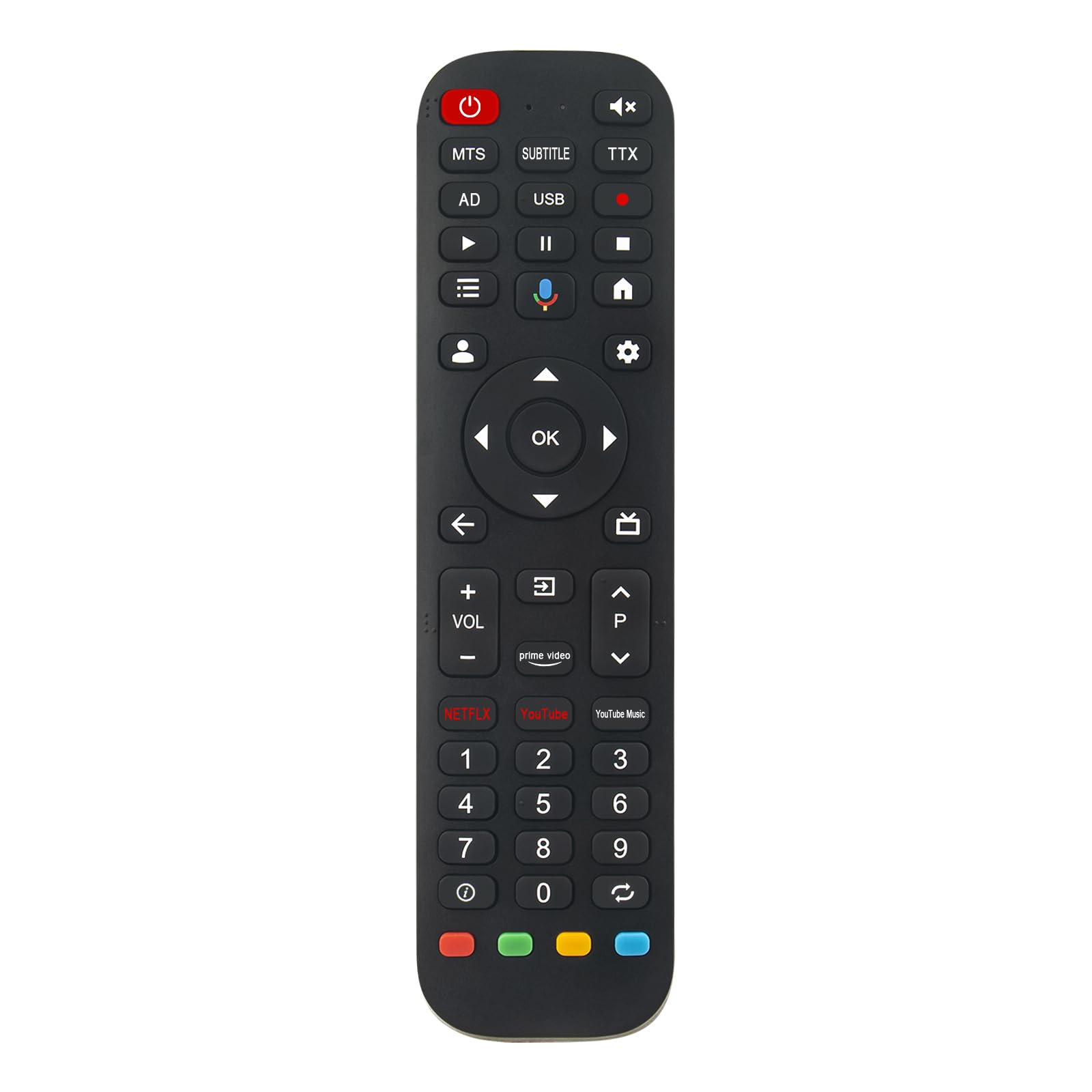 ): Turns the TV on or off.
- Mute Button (): Mutes or unmutes the TV audio.
- Volume Up/Down (VOL +/-): Adjusts the TV volume.
- Channel Up/Down (P +/-): Changes TV channels.
- Navigation Pad (Up, Down, Left, Right): Navigates through menus and options.
- OK Button: Confirms selections.
- Back Button (): Returns to the previous screen or menu.
- Home Button (): Accesses the TV's home screen.
- Input/Source Button (): Selects input sources.
- Number Buttons (0-9): Directly enter channel numbers.
3.2 Voice Control Function
The remote features a dedicated voice control button for convenient command input:
- Press the Microphone Button (
 ) located on the remote.
- Speak clearly into the microphone located at the top of the remote control.
- Release the button once you have finished speaking.
Use voice commands to search for content, open applications, change settings, and more. Ensure your TV is connected to the internet for full voice control functionality.

Figure 3.2: Microphone button for voice control.
3.3 Quick Access Buttons
The remote includes dedicated buttons for popular streaming services:
- Netflix: Launches the Netflix application.
- YouTube: Launches the YouTube application.
- Prime Video: Launches the Prime Video application.
- YouTube Music: Launches the YouTube Music application.
4. Maintenance
4.1 Cleaning
To clean the remote control, use a soft, dry cloth. Do not use liquid cleaners, sprays, or abrasive materials, as these can damage the remote's surface or internal components.
4.2 Storage
Store the remote control in a cool, dry place away from direct sunlight and extreme temperatures. If the remote will not be used for an extended period, remove the batteries to prevent leakage.
5. Troubleshooting
| Issue | Possible Solution |
|---|---|
| Remote is not responding. | Check battery orientation and charge. Replace batteries if necessary. Ensure the remote is aimed directly at the TV sensor without obstructions. Re-pair the remote with the TV. |
| Voice control is not working. | Ensure the remote is properly paired. Check if the TV has an active internet connection. Speak clearly and close to the microphone. |
| Buttons are sticky or unresponsive. | Clean the remote control with a dry cloth. Avoid spilling liquids on the remote. |
| Remote only works intermittently. | Replace batteries. Ensure no strong light sources are interfering with the IR signal. |
6. Specifications
| Feature | Detail |
|---|---|
| Product Dimensions | 5 x 1 x 0.5 inches (12.7 x 2.54 x 1.27 cm) |
| Item Weight | 1 ounce (28.35 grams) |
| Material | Plastic |
| Color | Black |
| Special Feature | Voice Search |
| Power Source | 2 x AAA Batteries (not included) |
| Compatible Devices | FPD 43 Inch 4K 1080p UHD FHD Smart TV (Palette-Series CG43-P3, Canvas-Series CG43-C3) |

Figure 6.1: Remote control dimensions.
7. Support
If you encounter any issues not covered in this manual or require further assistance, please contact ALLIMITY customer support. When contacting support, please provide your TV model number for efficient service.
Contact information can typically be found on the product packaging or the seller's platform where the remote was purchased.