
Introduction
Welcome to the XPPen Magic Note Pad user manual. This guide provides comprehensive instructions on how to set up, operate, maintain, and troubleshoot your new digital memo and notebook. The Magic Note Pad is designed to enhance your note-taking, drawing, and reading experience with its advanced X-Paper display, precise X3 Pro Pencil 2, and versatile Android 14 operating system. Please read this manual carefully to ensure optimal performance and longevity of your device.
Getting Started
Package Contents
Before you begin, please verify that all items are present in your package.

Image: The XPPen Magic Note Pad package contents, showing the tablet, magnetic folio, X3 Pro Pencil 2, power adapter, USB-C cable, four soft pen nibs, and a nib extractor tool.
- XPPen Magic Note Pad (x1)
- Magnetic Folio (x1)
- X3 Pro Pencil 2 (x1)
- Power Adapter (x1)
- USB-C Cable (x1)
- Soft Pen Nibs (x4)
- Nib Extractor Tool (x1)
Charging the Device
For first-time use, it is recommended to fully charge your Magic Note Pad.
- Connect the USB-C cable to the charging port on the Magic Note Pad.
- Connect the other end of the USB-C cable to the provided power adapter.
- Plug the power adapter into a wall outlet.
- The charging indicator light will illuminate. Once fully charged, the indicator may change color or turn off.
The device is equipped with an 8000mAh Lithium-polymer battery, providing ample power for extended use.
Initial Power On and Setup
To power on your Magic Note Pad for the first time:
- Press and hold the power button located on the side of the device until the XPPen logo appears on the screen.
- Follow the on-screen prompts to complete the initial setup, which includes selecting your language, connecting to a Wi-Fi network, and signing in with your Google account.
- The device runs on Android 14, providing a familiar and intuitive user experience.
Stylus Attachment
The X3 Pro Pencil 2 attaches magnetically to the side of the Magic Note Pad for convenient storage and charging. Simply align the stylus with the magnetic strip on the tablet's edge until it clicks into place.
Operating Your Magic Note Pad
Understanding the X-Paper Display
The 10.95-inch X-Paper screen is designed to provide a comfortable, paper-like visual experience. It features nano-AG etching to significantly reduce reflection and glare.
- Three Color Modes: The display offers three distinct color modes to suit various viewing conditions and content types. You can switch between these modes for optimal reading and writing comfort.
- High Refresh Rate: With a 90Hz refresh rate, the screen ensures smooth and clear display of images and videos, enhancing your overall visual experience.
- Color Reproduction: The display supports 16.7 million colors with a typical brightness of 400 nits, allowing for vibrant and accurate color representation.
- Eye Comfort: The X-Paper display is TÜV SÜD certified for low blue light emission and flicker-free imaging, promoting eye comfort during prolonged use.

Image: The XPPen Magic Note Pad showcasing its three color modes for an immersive reading experience.

Image: A visual demonstrating the exceptional display quality and 90Hz refresh rate of the XPPen Magic Note Pad.
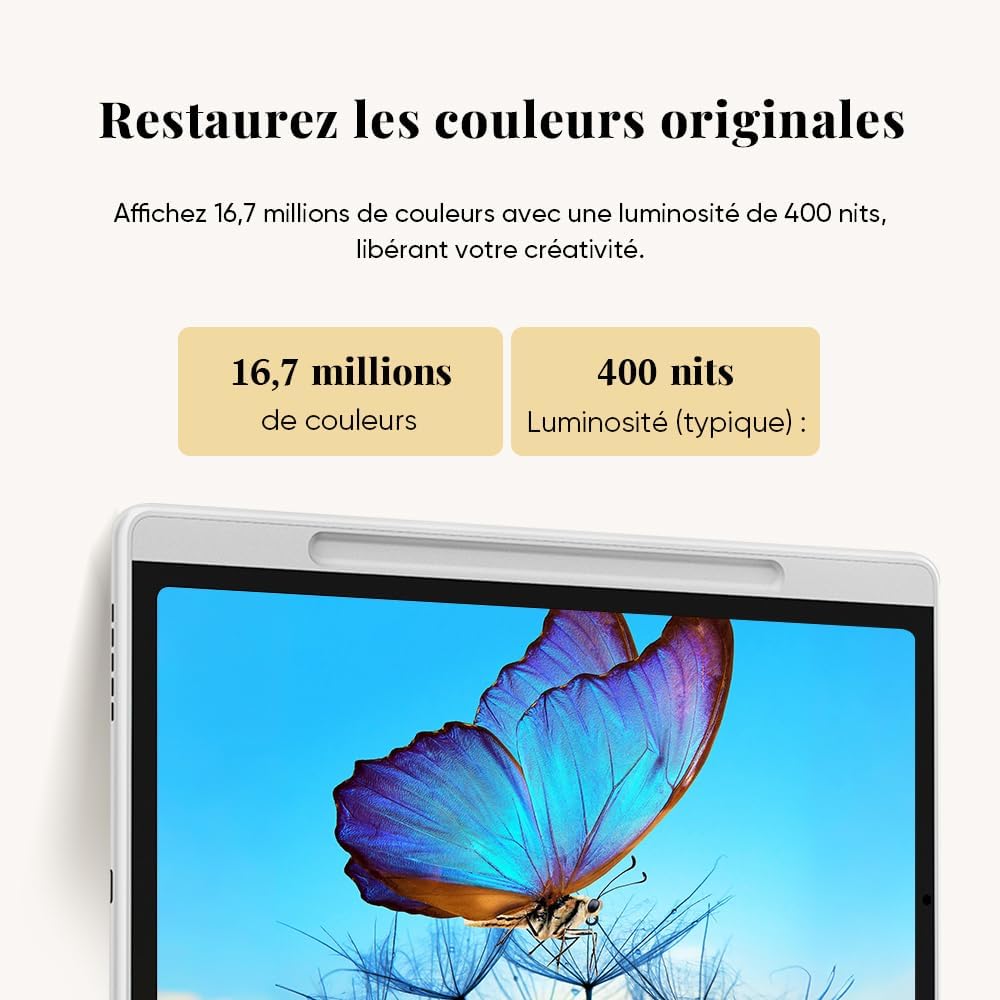
Image: The XPPen Magic Note Pad screen showcasing its ability to restore original colors with 16.7 million colors and 400 nits of brightness.

Image: A user holding the XPPen Magic Note Pad, emphasizing its low blue light and eye comfort features, backed by TÜV SÜD certifications.
Using the X3 Pro Pencil 2
The X3 Pro Pencil 2 is powered by the X3 Pro smart chip, offering an unparalleled writing and drawing experience.
- 16K Pressure Sensitivity: With 16,384 levels of pressure sensitivity, the stylus ensures every stroke is fluid, delicate, and highly accurate, mimicking the feel of traditional pen and paper.
- Soft Pen Tip: The soft pen tip provides a comfortable and natural writing sensation.
- Customizable Shortcut Keys: The stylus features customizable shortcut keys to enhance your productivity and convenience during use.

Image: The X3 Pro Pencil 2, emphasizing its 16K pressure levels and advanced capabilities for precise and fluid strokes.
XPPen Notes Application
The XPPen Notes is the native note-taking application on your Magic Note Pad, designed for capturing inspiration and organizing your thoughts.
- Note-Taking: Easily take class notes, meeting minutes, or personal memos.
- Document Annotation: Annotate PDF documents directly on the device.
- Artistic Creation: Utilize the application for sketching and creating artistic paintings.

Image: The XPPen Magic Note Pad demonstrating the ease and efficiency of note-taking with the XPPen Notes application.
Android 14 Ecosystem and Google Play
Running on Android 14, the Magic Note Pad provides access to a vast ecosystem of applications.
- Google Play Store: Download a wide variety of applications for education, work, and entertainment directly from Google Play.
- Storage: With 128GB of internal storage, you have ample space for your apps, documents, and media files.

Image: The XPPen Magic Note Pad screen with various application icons, illustrating the ability to download countless apps from Google Play.
Maintenance
Cleaning the Screen and Device
To keep your Magic Note Pad in optimal condition:
- Use a soft, lint-free cloth to gently wipe the screen and body of the device.
- For stubborn smudges, slightly dampen the cloth with water or a screen-safe cleaning solution. Avoid harsh chemicals or abrasive materials.
- Ensure the device is powered off and unplugged before cleaning.
Battery Care
To maximize battery life and performance:
- Avoid exposing the device to extreme temperatures (hot or cold).
- Do not allow the battery to fully discharge frequently. Charge it before it drops below 20%.
- If storing the device for an extended period, charge it to about 50% before turning it off.
Stylus Nib Replacement
The X3 Pro Pencil 2 comes with replaceable nibs. If the nib becomes worn or damaged:
- Use the provided nib extractor tool to gently pull out the old nib from the stylus.
- Insert a new soft pen nib firmly into the stylus until it is securely seated.
Troubleshooting
If you encounter issues with your Magic Note Pad, please refer to the following common solutions.
Device Not Turning On
- Ensure the device is sufficiently charged. Connect it to the power adapter and wait a few minutes before attempting to power on again.
- Press and hold the power button for at least 10-15 seconds to perform a forced restart.
Stylus Not Responding
- Check if the stylus is properly attached to the magnetic charging area on the tablet to ensure it's charged.
- Verify that the stylus nib is securely inserted and not worn out. Replace if necessary.
- Restart the Magic Note Pad.
Applications Crashing or Freezing
- Close and reopen the problematic application.
- Clear the app's cache and data from the Android settings (Settings > Apps > [App Name] > Storage > Clear Cache/Clear Data).
- Ensure your applications and the Android system are up to date.
- If issues persist, consider uninstalling and reinstalling the app.
Wi-Fi Connectivity Issues
- Toggle Wi-Fi off and on in the device settings.
- Restart your Wi-Fi router.
- Forget the network and reconnect (Settings > Network & internet > Wi-Fi > [Network Name] > Forget).
Factory Reset
As a last resort for persistent software issues, you may perform a factory reset. Warning: This will erase all data on your device. Back up important files before proceeding.
- Navigate to Settings > System > Reset options > Erase all data (factory reset).
- Confirm your decision and follow the on-screen instructions.
Specifications
Key technical specifications for the XPPen Magic Note Pad:
| Feature | Specification |
|---|---|
| Brand | XP-PEN |
| Model Name | Magic Note Pad |
| Color | Silver |
| Operating System | Android 14 |
| Screen Size | 10.95 Inches |
| Display Type | LCD |
| Refresh Rate | 90Hz |
| Internal Storage | 128GB |
| Connectivity Technology | USB |
| Battery Composition | Lithium-polymer |
| Battery Capacity | 8000mAh |
| Stylus Pressure Sensitivity | 16,384 Levels (16K) |
| Specific Product Uses | Digital Drawing, Note-taking, Reading |
Warranty and Support
Warranty Information
The XPPen Magic Note Pad comes with a manufacturer's warranty. Please refer to the warranty card included in your package for specific terms and conditions.
- Spare parts are available for 5 years from the date of purchase.
- Information regarding guaranteed software updates is not available at this time.
Customer Support
For further assistance, technical support, or warranty claims, please visit the official XP-PEN website or contact their customer service.
Online Resources:www.xp-pen.com


