
SIXTOP B0DXNFK7RH
SIXTOP Android 13 Single Din Car Stereo User Manual
Model: B0DXNFK7RH
Product Overview
The SIXTOP Android 13 Single Din Car Stereo is a versatile in-car entertainment and navigation system featuring a 7-inch flip-out touchscreen. It integrates modern smartphone connectivity with traditional car stereo functions, offering a comprehensive solution for in-vehicle multimedia and communication.
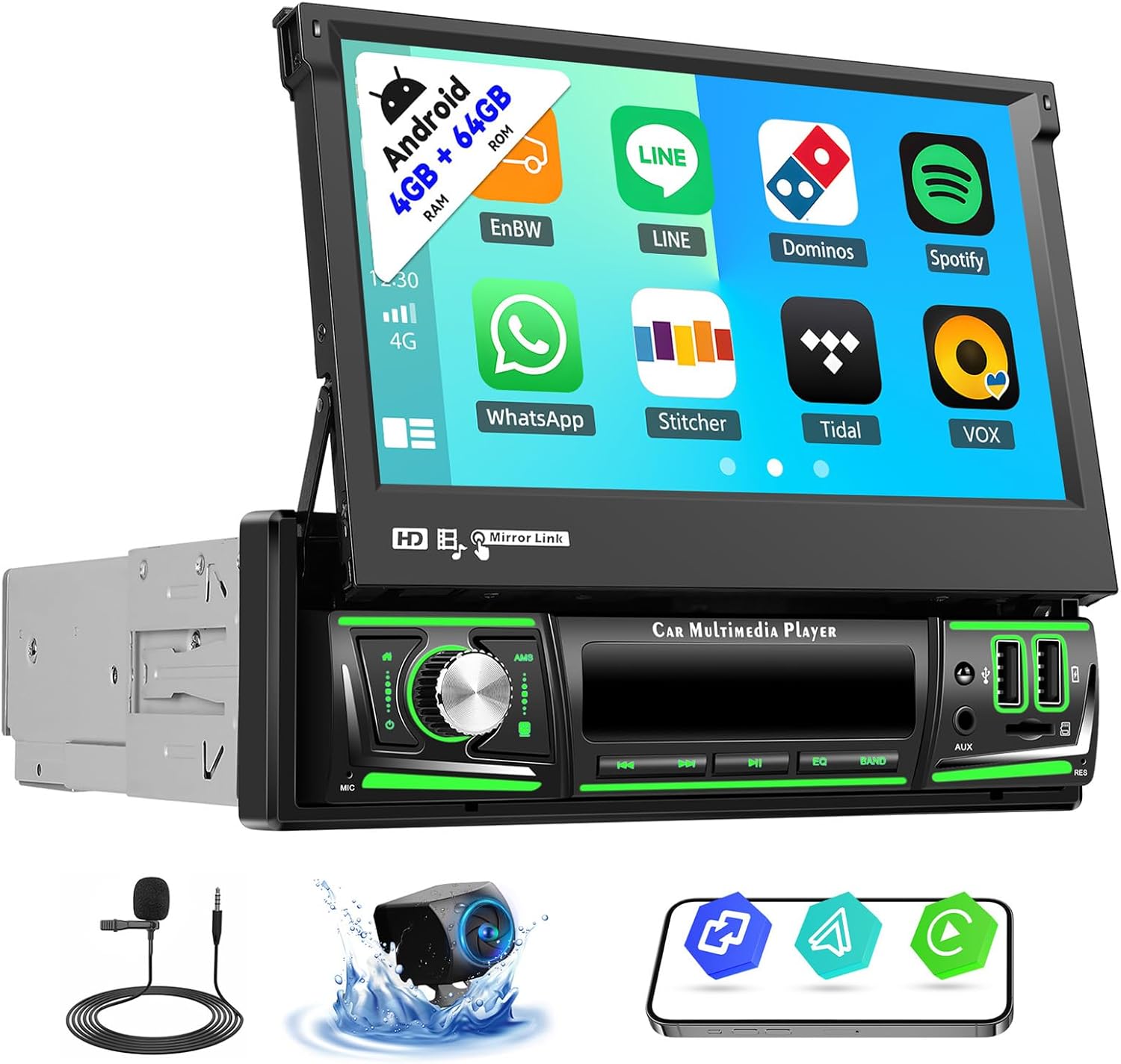
Image: Front view of the SIXTOP Android 13 Single Din Car Stereo, showcasing its 7-inch flip-out touchscreen display, control panel, and various ports. Also shown are the included microphone, AHD camera, and a smartphone screen mirroring icons.
Specifications
| System | Android 13 |
| Screen Size | 7 inches |
| Screen Material | IPS |
| Memory (RAM+ROM) | 4GB (RAM) + 64GB (ROM) |
| Screen Resolution | 1024*600 |
| Power Output | 4*45W |
| Bluetooth Version | 5.0 |
| Work Temperature | -20℃ to 75℃ |
| Radio Band | FM/RDS |
| Reversing Input | AHD/CVBS |
| Carplay/Android Auto | Wireless Connection Only |
| Mirror Link | Wireless Connection Only |
| USB Interface | Double USB |
| Audio Format Support | APE/FLAC/WAV/MP3/WMA etc. |
| Video Format Support | MKV/RMVB/AVI/MP4/MDV etc. |
| Picture Format Support | PNG/JPEG/JPG/GIF/WBMP/BNP etc. |
Package Contents
Verify that all items listed below are included in your package:
- Car Stereo Unit
- AHD Camera
- Microphone
- Power Cable
- Camera + Camera Cable
- GPS Antenna
- Radio Antenna
- USB Cable
- RCA Cable
- Rear View Input Cable
- Accessories (Mounting Brackets, Screws)
- User Manual

Image: Diagram showing the dimensions of the car stereo unit and a visual representation of all included accessories: microphone, user manual, GPS antenna, radio antenna, accessories (keys), USB cable, RCA cable, rear view input cable, power cable, and camera with cable.
Setup and Installation
Professional installation is recommended for car stereo systems. Ensure the vehicle's power is disconnected before beginning installation.
Wiring Diagram
Refer to the provided wiring diagram in the physical user manual for detailed connection instructions. Key connections include:
- Power Connection: Connect the power cable to the vehicle's power supply (ACC, B+, GND).
- Speaker Connections: Connect speaker wires to the corresponding vehicle speakers.
- Antenna Connections: Connect the radio antenna and GPS antenna.
- Camera Input: Connect the AHD camera to the dedicated rear view input.
- USB Ports: Utilize the double USB interfaces for external devices.
- External Microphone: Connect the external microphone for improved call quality.
Initial Power On
- After completing all wiring, reconnect the vehicle's power.
- Turn on the vehicle's ignition. The stereo should power on automatically.
- Adjust the screen angle if necessary using the flip-out mechanism.
Operating Instructions
Apple CarPlay & Android Auto
This unit supports wireless Apple CarPlay and Android Auto. This feature allows synchronization of your phone's apps (navigation, music, calls, messages) to the stereo display for safe in-car use.
- Ensure your phone's Wi-Fi and Bluetooth are enabled.
- Connect your phone to the stereo via Bluetooth.
- Open the "ApplePlay" or "Android Auto" application on the stereo. The connection should establish automatically.
- You can now use voice commands (Siri/Google Assistant) for various functions.

Image: Displays the user interface for Apple CarPlay and Android Auto on the car stereo screen, showing various compatible applications like maps, music, and messaging. Icons for GPS, Message, Music, Dial Number, and Voice Control are also present.

Animated demonstration of Apple CarPlay and Android Auto interfaces, showing how phone applications are displayed and interacted with on the car stereo screen.
Mirror Link
Mirror Link allows you to cast your smartphone's screen directly onto the car stereo display, ideal for viewing videos or other content.
- For iPhone, select "Airplay". For Android phones, select "Android Link".
- Connect your phone to the stereo via Wi-Fi.
- The phone's screen content will now be mirrored on the stereo.

Image: Illustration of the Mirror Link function, showing a smartphone screen being mirrored onto the car stereo display, with icons indicating compatibility for both iOS and Android devices.
Wi-Fi and GPS Navigation
Connect the stereo to a Wi-Fi network to access online content and download applications. The built-in GPS allows for navigation.
- Wi-Fi: Go to Settings > Wi-Fi and connect to an available network. You can then download apps from the Play Store or stream online content.
- GPS: Built-in offline maps are available (requires internet for initial data download). Online maps can be used when connected to Wi-Fi.

Image: Demonstrates the Wi-Fi connectivity feature, showing a user interacting with social media apps on the stereo, and the GPS navigation feature, displaying a map with route information.

Animated demonstration of the Wi-Fi connection feature, showing various applications like YouTube, Facebook, and Spotify being accessed on the car stereo screen.
Bluetooth Function
The Bluetooth 5.0 module enables hands-free calling, phonebook synchronization, and music playback from your mobile device.
- Pair your phone with the stereo via Bluetooth settings.
- Make and receive calls directly from the stereo.
- Stream audio from your phone to the car speakers.
- Synchronize your phone's contact list for easy dialing.

Image: Displays the FM Radio interface with automatic search and radio storage options, and the Bluetooth function interface showing phonebook access and music playback controls.

Animated demonstration of Bluetooth functionality, including making an outgoing call, receiving an incoming call, and playing music from a connected device.
FM/RDS Radio
Access local radio stations with FM and RDS support. The radio supports automatic search and station storage.
- Tune to your preferred FM frequencies (87.5-108 MHz).
- Utilize RDS for station information display.
Steering Wheel Control (SWC)
Control the car stereo using your vehicle's original steering wheel buttons for convenience and safety.
- Navigate to the steering wheel control settings in the stereo menu.
- Follow the on-screen instructions to program each button.

Image: Shows how the steering wheel controls can be configured on the stereo interface, and illustrates the automatic display of the rear view camera feed when reversing.

Animated demonstration of setting up steering wheel controls, showing the process of assigning functions to physical buttons on the steering wheel.
Reversing Display (AHD Camera)
When the vehicle is in reverse gear, the stereo automatically displays the feed from the connected AHD waterproof night vision camera, providing a clear view for safer parking and maneuvering.

Animated demonstration of the rear view camera function, showing the automatic display of the camera feed when the vehicle is in reverse, with parking guidelines.
Split Screen Function
The split-screen feature allows two applications to be displayed and operated simultaneously on the screen.
- Tap the rectangle icon at the top of the screen (usually the recent apps button).
- Select an application and drag it to either the left or right side of the screen.
- Choose a second application for the other side. Both applications can be interacted with independently.

Animated demonstration of the split-screen function, showing how to open and arrange two applications side-by-side on the car stereo display.
EQ Sound Effect & USB/AUX/TF Card Input
Customize your audio experience with the built-in EQ settings. The unit also supports various media inputs.
- EQ: Access the equalizer settings to adjust sound frequencies and presets for optimal audio quality.
- USB: Use the dual USB ports for media playback from USB drives or for charging mobile phones.
- AUX/TF Card: The unit supports AUX input and TF card reading for additional media sources.

Image: Illustrates the EQ sound effect interface with various adjustable settings and the connectivity options for USB, AUX, and TF card inputs, including phone charging capability.

Animated demonstration of the HiFi/EQ settings, showing how to adjust audio parameters and select different sound modes.
Desktop Themes and Color Key Light
Personalize your stereo's appearance with various desktop themes and customizable button lighting.
- Desktop Themes: Long-press a blank space on the homepage to access theme options and select your preferred visual style.
- Color Key Light: The unit features 7-color cycle changing button lights (Red, Green, Blue, Yellow, Cyan, Purple, White).

Image: Shows the car stereo with its control buttons illuminated in various colors, demonstrating the 7-color cycle key light feature.
Maintenance
- Screen Cleaning: Use a soft, lint-free cloth to clean the touchscreen. Do not use abrasive cleaners or solvents.
- Software Updates: Periodically check for software updates to ensure optimal performance and access to new features. Updates can typically be found on the manufacturer's website or through the device's system settings if connected to Wi-Fi.
- General Care: Avoid exposing the unit to extreme temperatures, direct sunlight for prolonged periods, or excessive moisture.
Troubleshooting
| Problem | Possible Cause / Solution |
|---|---|
| No Power | Check power connections (ACC, B+, GND). Verify vehicle's fuse. |
| No Sound | Check speaker wiring. Ensure volume is not muted or too low. Verify audio source. |
| Bluetooth Connection Issues | Ensure Bluetooth is enabled on both devices. Delete previous pairings and re-pair. Restart both devices. |
| CarPlay/Android Auto Not Connecting | Ensure Wi-Fi and Bluetooth are on. Check phone settings for CarPlay/Android Auto permissions. Try a different USB cable if applicable (though this model is wireless). Restart phone and stereo. |
| GPS Signal Weak/Lost | Ensure GPS antenna is properly installed and has a clear view of the sky. Update map data if necessary. |
| Touchscreen Unresponsive | Perform a soft reset (refer to physical manual for reset button location, usually a small pinhole). If issue persists, contact support. |
| Rear View Camera Not Displaying | Check camera wiring and power supply. Ensure the reverse trigger wire is correctly connected. Verify camera settings in the stereo menu. |
For more complex issues, refer to the full user manual or contact customer support.
Warranty and Support
The SIXTOP Android 13 Single Din Car Stereo comes with a 1-Year Warranty from the date of purchase, covering manufacturing defects.
For technical support, warranty claims, or any inquiries, please contact SIXTOP customer service:
- Online Support Email: SIXTOP123@163.com
- Manufacturer: SIXTOP
SIXTOP offers 24 Hours/7 Days Quick Response and Lifetime Technical Support.

Image: A customer service representative wearing a headset, indicating available online support.

Image: Icons representing 24/7 quick response, 1-year replacement policy, and lifetime technical support provided by SIXTOP.
Related documentsB0DXNFK7RH

Ask a question about this manual
Ask about setup, troubleshooting, compatibility, parts, safety, or missing instructions. Manuals+ will review the question and use this page’s manual context to help answer it.