
youkey P320
youkey P320 Wi-Fi Outdoor Camera
Instruction Manual
Introduction
This manual provides detailed instructions for the installation, operation, and maintenance of your youkey P320 Wi-Fi Outdoor Camera. Please read this manual thoroughly before using the product to ensure proper function and safety. The youkey P320 is designed to provide reliable outdoor surveillance with advanced features such as 2.5K resolution, Color24 enhanced night vision, and AI-powered detection.
What's in the Box
Verify that all components are present before proceeding with installation.
- youkey P320 Wired Wire-free Outdoor Camera
- Power Adapter
- Mounting Screws and Wall Plugs
- Instruction Manual (this document)
Product Overview
The youkey P320 camera features a robust design suitable for outdoor environments, equipped with a powerful lens and integrated spotlight for enhanced visibility.

Figure 1: youkey P320 Wi-Fi Outdoor Camera. This image shows the front view of the white bullet-style camera with its lens and integrated spotlight.
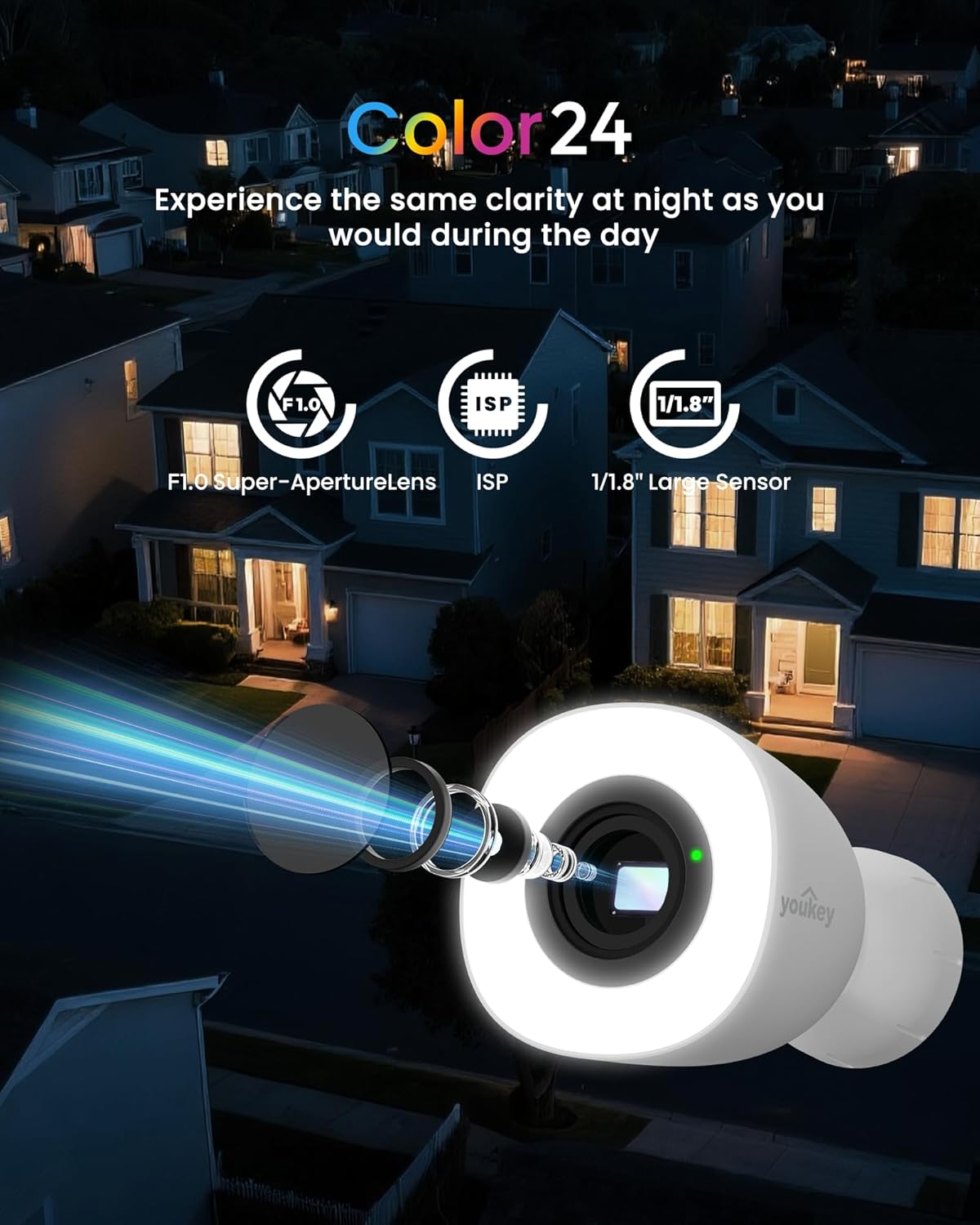
Figure 2: Color24 Night Vision Technology. An exploded view of the camera lens assembly highlighting the F1.0 Super-Aperture Lens, ISP, and 1/1.8" Large Sensor, illustrating how these components contribute to clear night vision.

Figure 3: Adjustable Spotlight for Yard Lighting. This image displays the camera's spotlight illuminating a house entrance, with sliders indicating adjustable light brightness and color temperature settings.

Figure 4: 2.5K QHD Resolution Comparison. A side-by-side comparison showing the superior clarity of 2.5K QHD (4 Megapixels) video capture versus 1080p FHD (2 Megapixels) in a home setting.
Setup
1. Powering On
Connect the provided power adapter to the camera and plug it into a standard electrical outlet. The camera will power on automatically.
2. App Installation and Pairing
Download the official youkey app from your smartphone's app store (iOS or Android). Follow the in-app instructions to add your new camera. The camera supports dual-band 2.4GHz and 5GHz Wi-Fi 6 for stable connectivity and features Bluetooth for quick pairing.

Figure 5: Easy Setup with Wi-Fi 6 and Bluetooth. An illustration showing a smartphone displaying a "Link Successful" message next to the camera, indicating successful pairing via Wi-Fi 6 and Bluetooth.
3. Physical Installation
Choose a suitable outdoor location for mounting the camera. Ensure the area provides a clear view and is within Wi-Fi range. Use the included mounting screws to securely attach the camera to a wall or other stable surface. The camera is IP67 rated for weather resistance and includes a 16-ft cable (9.8 ft main + 6.5 ft extension) for flexible installation.
Operation
1. Live View and Recording
Access the live feed from your camera through the youkey app. You can initiate manual recordings or rely on the 24/7 continuous recording feature (with an installed microSD card).
2. Night Vision and Spotlight Control
The camera automatically switches to Color24 enhanced night vision in low-light conditions, providing full-color images. The integrated 300-lumen spotlight can be adjusted for brightness and color temperature (3000K to 5000K) via the app. It offers three modes: Off, Auto (activates on motion), and Fixed (always on).
3. AI Human/Vehicle Detection
Utilize the NeuraMind On-Device Smart AI Detection to receive real-time alerts for motion, people, and vehicles. This local processing minimizes false alarms. You can also set up customizable detection zones and privacy zones within the app to focus on specific areas and protect sensitive regions.

Figure 6: NeuraMind Smart AI Detection. This image illustrates the camera's AI capabilities, detecting and highlighting a person, a vehicle, and a pet within its field of view.
4. Two-Way Audio and Alarm
Use the two-way talk feature to communicate with visitors or deter intruders. The camera also features a sound and light alarm that can be triggered manually or automatically upon detection.

Figure 7: Sound and Light Alarm. A visual representation of the camera emitting red sound waves and a bright light, with a speech bubble saying "Get away!" to deter an approaching figure.
5. Smart Home Integration
The youkey P320 is compatible with Amazon Alexa and Google Home. You can stream live feeds to compatible devices like Echo Shows or Google Displays and use voice commands for control.
Storage Options
The youkey P320 offers flexible storage solutions for your recordings.
1. Local Storage (MicroSD Card)
The camera supports local storage via a microSD card (not included) up to 256GB. This allows for 24/7 continuous recording without monthly fees. Insert the microSD card into the designated slot on the camera.

Figure 8: Micro SD Card Slot. A close-up view of the camera's side, showing the slot for inserting a 256GB microSD card, with icons for Cloud Storage and Local Storage (Up to 256GB, Not Included).
2. Cloud Storage
Optional cloud storage plans may be available through the youkey app for additional backup and accessibility. Refer to the app for details on subscription options.
Maintenance
- Cleaning: Gently wipe the camera lens and body with a soft, damp cloth. Avoid using harsh chemicals or abrasive materials.
- Firmware Updates: Regularly check the youkey app for available firmware updates to ensure optimal performance and access to new features.
- Cable Inspection: Periodically inspect the power cable for any signs of wear or damage, especially in outdoor environments.
Troubleshooting
| Problem | Possible Cause | Solution |
|---|---|---|
| Camera not powering on | Power adapter not connected; power outlet issue. | Ensure power adapter is securely connected and the outlet is functional. Try a different outlet. |
| Unable to connect to Wi-Fi | Incorrect Wi-Fi password; camera too far from router; router settings. | Verify Wi-Fi password. Move camera closer to router. Ensure router supports 2.4GHz/5GHz and is not blocking new devices. Restart router and camera. |
| Poor video quality at night | Lens obstruction; insufficient ambient light for Color24. | Clean the camera lens. Ensure the spotlight is enabled or adjust its brightness. |
| Frequent false alarms | Detection sensitivity too high; unoptimized detection zones. | Adjust detection sensitivity in the app. Configure detection zones to exclude areas with frequent irrelevant motion (e.g., trees swaying). |
| MicroSD card not recording | Card full; card not formatted; incompatible card. | Format the microSD card via the app. Ensure the card is Class 10 or higher and within the supported capacity (up to 256GB). |
Specifications
| Model Name | P320 |
| Brand | youkey |
| Indoor/Outdoor Usage | Outdoor |
| Connectivity Technology | Wireless (Wi-Fi 6, Bluetooth) |
| Power Source | Corded Electric |
| Video Capture Resolution | 2.5K QHD (4MP) |
| Viewing Angle | 130 Degrees |
| Night Vision Range | 33 Feet (Color24 Night Color) |
| Storage Support | MicroSD card up to 256GB (not included) |
| Weather Resistance | IP67 Waterproof |
| Operating Temperature | -4°F to 122°F (-20°C to 50°C) |
| Dimensions (L x W x H) | 3.16 x 4.96 x 3.16 inches |
| Item Weight | 1.65 pounds |
| Special Features | NeuraMind AI Detection (Motion/Person/Vehicle/Pet/Sound), 2-Way Audio, Dual Band WiFi 6, Color24 Night Vision, Adjustable Spotlight |
Warranty and Support
For warranty information, please refer to the product packaging or the official youkey website. For technical support, product inquiries, or assistance with troubleshooting, please contact youkey customer support:
- Support Email: support@youkey.com
- Support Line: +1 888-555-3333 (Example number, please refer to official documentation for actual number)
- Online Resources: Visit the youkey official website for FAQs, updated manuals, and software downloads.
Related documentsP320


Ask a question about this manual
Ask about setup, troubleshooting, compatibility, parts, safety, or missing instructions. Manuals+ will review the question and use this page’s manual context to help answer it.