
Casaottima B01151001001-1
Casaottima 59 Inch Gaming Desk User Manual
Model: B01151001001-1
Brand: Casaottima
Introduction
This user manual provides comprehensive instructions for the assembly, operation, and maintenance of your Casaottima 59 Inch Gaming Desk. Designed for an immersive gaming experience and efficient workspace, this desk features customizable LED lights, integrated USB charging ports and power outlets, ample storage with fabric drawers, a monitor stand, CPU stand, and a side hook. Its robust construction ensures durability, and the thoughtful design allows for a reversible setup to fit various room configurations.
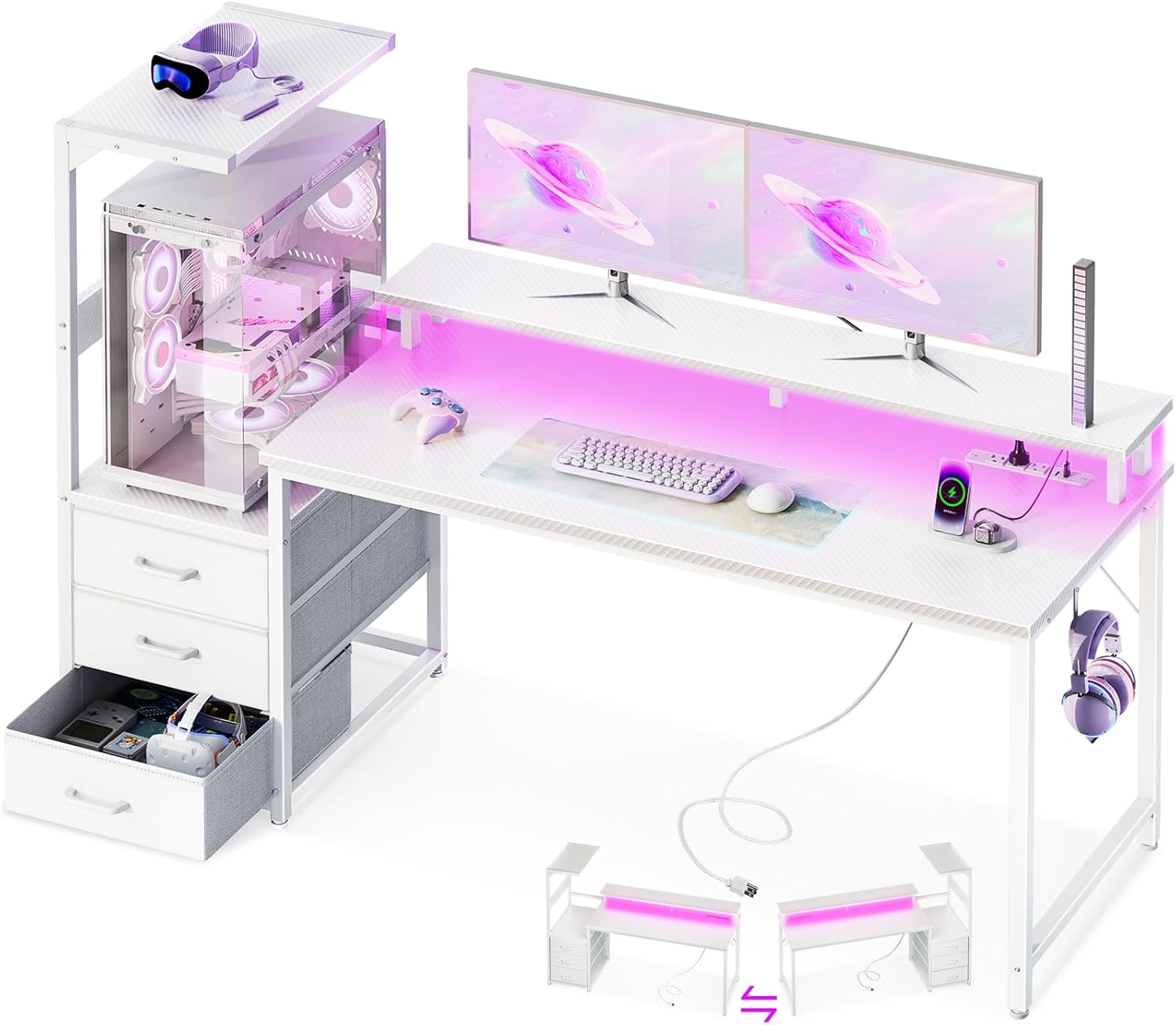
Figure 1: Overview of the Casaottima 59 Inch Gaming Desk, showcasing its LED lighting, monitor stand, and integrated storage solutions.
Safety Information
- Ensure all components are securely fastened during assembly to prevent instability.
- Do not overload the desk or shelves beyond their specified weight capacities. Refer to the specifications section for details.
- Keep electrical components (LED lights, power outlets) away from liquids to prevent electric shock.
- Use only the provided power adapter and cables for the LED lights and power outlets.
- Periodically check all screws and connections to ensure they remain tight.
- Keep small parts out of reach of children during assembly.
Package Contents
Before beginning assembly, please verify that all parts listed in the assembly instructions are present and undamaged. If any parts are missing or damaged, please contact Casaottima customer support.
- Desk frame components (metal legs, crossbars)
- Desktop panels (main desktop, monitor stand)
- Storage unit components (shelves, drawer slides)
- 3 Fabric drawers
- LED light strip with controller
- Integrated power outlet with USB ports and power cord
- Side hook
- Assembly hardware (screws, bolts, wrench)
- Instruction manual
Setup and Assembly
Assembly of the Casaottima Gaming Desk is designed to be straightforward with clear, labeled parts and detailed instructions. It is recommended to assemble the desk with at least two people.
- Unpack and Identify Parts: Carefully unpack all components and lay them out. Refer to the parts list in your included assembly booklet to identify each piece.
- Determine Orientation: The storage unit (with drawers and CPU stand) can be installed on either the left or right side of the desk. Decide your preferred orientation before starting assembly, as there are specific instructions for each configuration in the assembly guide.
- Assemble Frame: Begin by assembling the metal frame components according to the step-by-step diagrams. Ensure all screws are finger-tight initially, then fully tighten once the section is stable.
- Attach Desktop and Shelves: Secure the main desktop panel and the monitor stand to the assembled frame.
- Install Storage Unit: Assemble the storage unit frame and integrate the fabric drawers. The CPU stand shelf can be placed as desired.
- Integrate Electrical Components: Install the LED light strip and the recessed power outlet into their designated slots. Connect the power cord.
- Final Touches: Attach the side hook and adjust the non-slip foot pads to ensure the desk is level and stable on your floor.
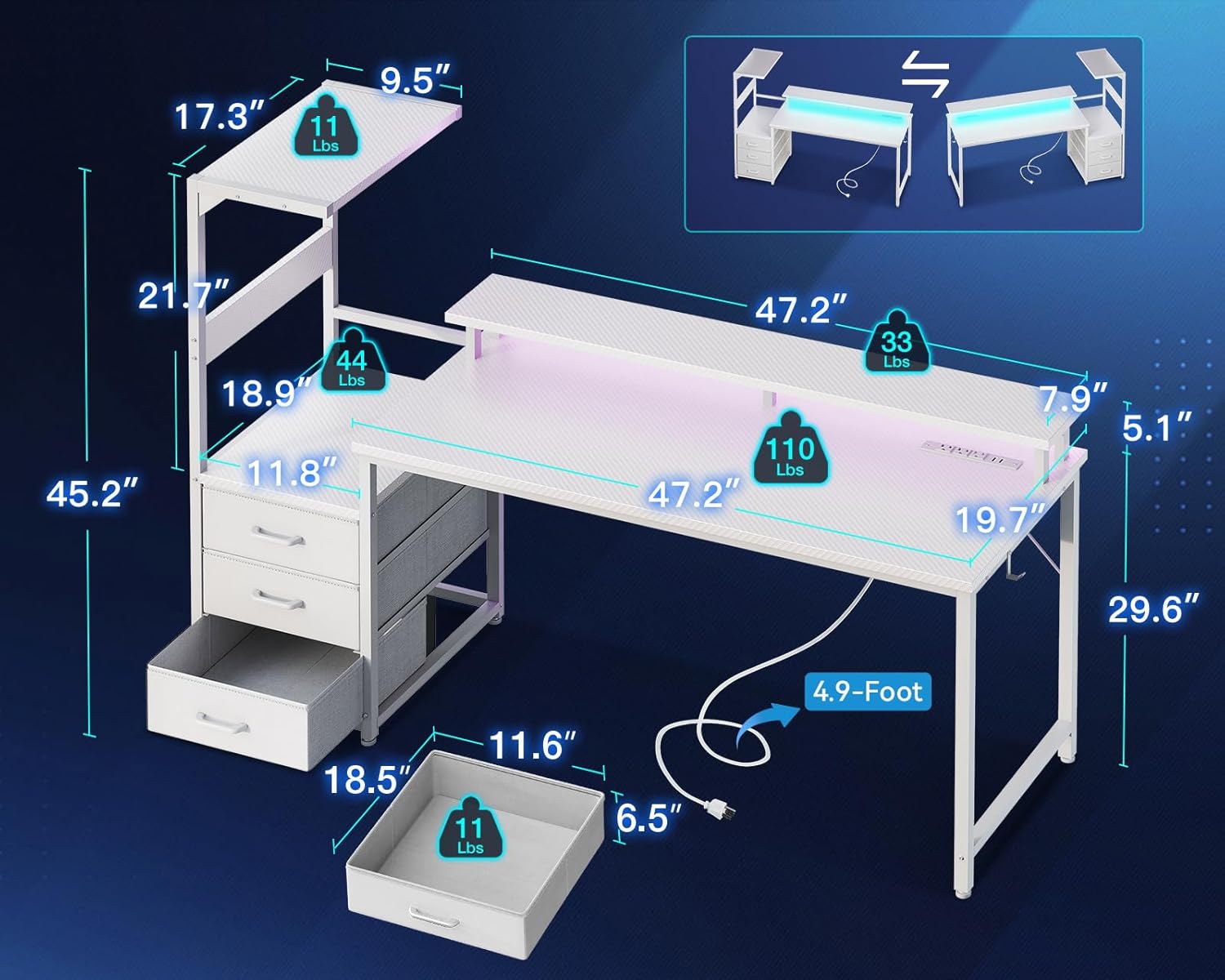
Figure 2: Key dimensions of the desk and its components, useful for planning your setup.

Figure 3: The reversible design allows the storage unit to be placed on either the left or right side of the desk.
Operating Instructions
LED Light Operation
The integrated LED light strip offers customizable lighting to enhance your gaming or work environment. Use the inline controller to adjust settings.
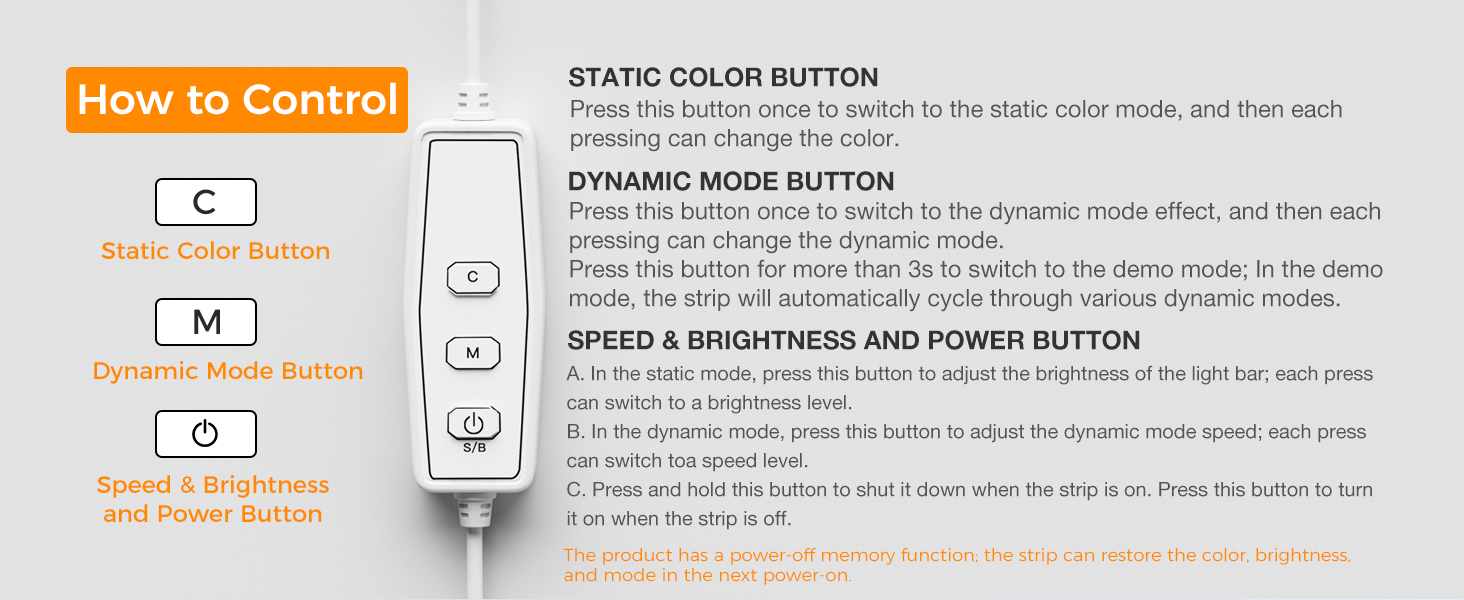
Figure 4: The LED light strip and its control unit, offering various color and mode options.
- C (Static Color Button): Press once to switch to static color mode. Each subsequent press changes the color. There are 10 static colors available.
- M (Dynamic Mode Button): Press once to switch to dynamic mode effects. Each subsequent press changes the dynamic mode. There are 10 dynamic modes (e.g., running, flashing, strobe). Press and hold for 3 seconds to enter demo mode, which cycles through various dynamic modes.
- Power/Speed/Brightness Button:
- In static mode, press to adjust brightness (6 levels).
- In dynamic mode, press to adjust dynamic mode speed.
- Press and hold to shut down the LED strip when it is on. Press once to turn it on when it is off.
- Memory Function: The LED strip has a power-off memory function, retaining your last color, brightness, and mode settings upon next power-on.
USB Ports & Power Outlets
The desk is equipped with a recessed power outlet featuring 3 AC outlets (125V/12A) and 2 USB ports (5V/2A) for convenient charging of up to 5 devices simultaneously.
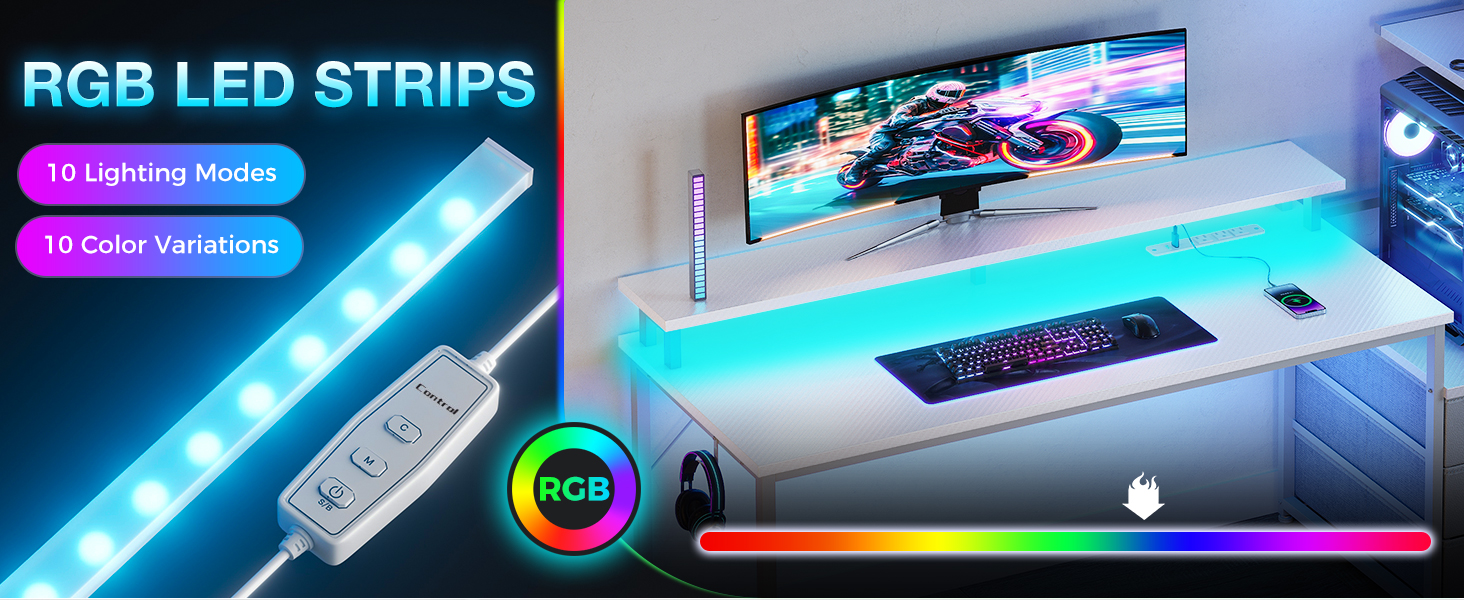
Figure 5: Close-up of the integrated power outlet and USB ports, providing convenient access to power.
- Plug the desk's main power cord into a wall outlet.
- Connect your devices to the AC outlets or USB ports as needed.
- Ensure devices are compatible with the provided voltage and current specifications.
Maintenance
- Cleaning the Desktop: The MDF board desktop is scratch-resistant and waterproof. Wipe surfaces with a soft, damp cloth. Avoid abrasive cleaners or harsh chemicals.
- Fabric Drawers: The fabric drawers can be spot cleaned with a mild detergent and water. Allow to air dry completely before reinserting. Do not machine wash.
- Electrical Components: Ensure the power outlet and LED strip are clean and free of dust. Do not attempt to disassemble or repair electrical components yourself.
- Hardware Check: Periodically check all screws and bolts to ensure they are tight. Re-tighten if necessary to maintain desk stability.
Troubleshooting
| Problem | Possible Cause | Solution |
|---|---|---|
| LED lights not turning on. | Power cord not fully plugged in; LED strip not connected; controller malfunction. | Ensure the desk's power cord is securely plugged into a working wall outlet. Check that the LED strip is properly connected to its controller and the controller to the power source. Press the power button on the controller. |
| USB ports or AC outlets not providing power. | Desk power cord unplugged; circuit overload; faulty outlet. | Verify the desk's main power cord is securely plugged into a live wall outlet. Unplug some devices to check for overload. Test the wall outlet with another device. |
| Desk feels wobbly after assembly. | Loose screws; uneven floor. | Re-tighten all assembly screws. Adjust the non-slip foot pads at the bottom of the desk legs to level the desk on uneven surfaces. |
| Fabric drawers do not slide smoothly. | Improper installation; obstruction. | Ensure the fabric drawers are correctly inserted into their slots. Check for any obstructions within the drawer compartments or on the slides. |
If you encounter issues not listed here or require further assistance, please contact Casaottima customer support.
Specifications
- Brand: Casaottima
- Model Number: B01151001001-1
- Product Dimensions (D x W x H): 19.7"D x 59.45"W x 45.16"H
- Item Weight: 42.55 Pounds
- Color: White
- Base Material: Metal
- Top Material Type: Engineered Wood (MDF Board)
- Number of Drawers: 3 (Fabric)
- Number of Shelves: 2 (including CPU stand shelf)
- Special Features: Reversible design, Built-In Monitor Stand, Ergonomic design, Built-In USB Outlet, LED Light Strip
- Power Outlet: 3 AC Outlets (125V/12A)
- USB Ports: 2 USB Ports (5V/2A)
- Power Cord Length: 4.9-Feet (for integrated power outlet)
- Assembly Required: Yes
- Tools Recommended for Assembly: Wrench (included)
Warranty and Support
Casaottima is committed to providing high-quality products and customer satisfaction. For any questions, concerns, or assistance with your product, please contact our customer support team.
- Customer Support: Casaottima offers 24/7 customer support. Please refer to the contact information provided with your product packaging or visit the official Casaottima website for support details.
- Warranty Information: Specific warranty details may vary. Please retain your proof of purchase and refer to the warranty card included with your product, or contact Casaottima customer support for current warranty terms and conditions.
Official Product Videos
No official product videos from the seller are available for this product at this time.
Ask a question about this manual
Ask about setup, troubleshooting, compatibility, parts, safety, or missing instructions. Manuals+ will review the question and use this page’s manual context to help answer it.