
Bemi BRCT5
Bemi Cognita Tab 5 E-Reader User Manual
Model: BRCT5
1. Introduction
This manual provides essential instructions for the setup, operation, and maintenance of your Bemi Cognita Tab 5 E-Reader. The Cognita Tab 5 is a lightweight e-reader designed for comfortable reading, featuring a 5.76-inch e-paper display, Android 8.1 operating system, and Wi-Fi connectivity. Please read this manual thoroughly to ensure proper use and to maximize your device's potential.
2. Package Contents
Upon unpacking your Bemi Cognita Tab 5, please verify that all the following items are included:
- Bemi Cognita Tab 5 E-Reader
- USB Charging Cable
- Quick Start Guide
- User Manual (this document)
- Warranty Card

Image: Contents of the Bemi Cognita Tab 5 E-Reader package, including the device, charging cable, and documentation.
3. Device Overview
Familiarize yourself with the physical components of your Bemi Cognita Tab 5.
3.1 Front View
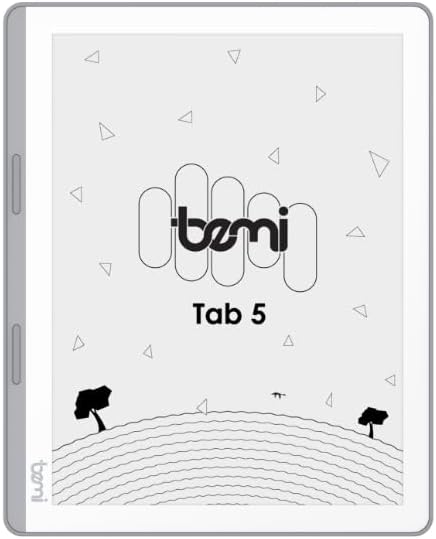
Image: Front view of the Bemi Cognita Tab 5 E-Reader, showing the e-paper display and side buttons.
- E-Paper Display: 5.76-inch screen with 920x680 resolution (198 ppi) and anti-glare coating.
- Page-Turn Buttons: Located on the side for convenient navigation through content.
3.2 Back View

Image: Back view of the Bemi Cognita Tab 5 E-Reader, highlighting its textured surface and branding.
- Rubberized Casing: Provides a secure grip and durability.
3.3 Ports and Buttons
- Power Button: Used to turn the device on/off and put it to sleep.
- USB Port: For charging and data transfer.
- MicroSD Card Slot: For expanding storage up to 64GB.
- Headphone Jack: For audio output.
4. Setup
4.1 Initial Charging
Before first use, fully charge your Bemi Cognita Tab 5. Connect the provided USB cable to the device's USB port and plug the other end into a compatible USB power adapter (not included) or a computer's USB port. The charging indicator will show the charging status.
4.2 Power On/Off
- To Power On: Press and hold the Power button until the screen activates.
- To Power Off: Press and hold the Power button, then select 'Power Off' from the options that appear on the screen.
- To Sleep/Wake: Briefly press the Power button to put the device to sleep or wake it up.
4.3 Basic Navigation
The Cognita Tab 5 features a responsive touchscreen for navigation. Tap to select items, swipe to scroll, and use pinch-to-zoom where applicable. The dedicated page-turn buttons on the side can also be used for navigating through e-books.
4.4 Wi-Fi Connection
To access online content, transfer files wirelessly, or update software, connect your device to a Wi-Fi network:
- Go to Settings from the main menu.
- Select Wi-Fi.
- Toggle Wi-Fi On.
- Select your desired network from the list and enter the password if prompted.
5. Operating Instructions
5.1 Reading E-books
The Bemi Cognita Tab 5 supports various e-book formats including PDF, EPUB, and MOBI. To start reading:
- Navigate to the Books section on your device.
- Tap on the cover of the e-book you wish to read.
- Use the touchscreen or the physical page-turn buttons to navigate through pages.

Image: A person holding the Bemi Cognita Tab 5 E-Reader, demonstrating the reading experience on its e-paper display.
5.2 Adjusting Backlight
The adjustable screen backlight allows for comfortable reading in various lighting conditions. Access backlight settings through the quick settings panel or the main Settings menu to adjust brightness levels.
5.3 File Transfer
You can transfer files to your Cognita Tab 5 via USB or Wi-Fi.
- USB Transfer: Connect the device to your computer using the USB cable. The device will appear as a removable storage drive, allowing you to drag and drop files.
- Wi-Fi Transfer: Ensure both your device and the transmission device are on the same local area network (LAN). On your Cognita Tab 5, navigate to the Wi-Fi Transfer option (often found in the 'Storage' or 'Settings' menu). An IP address will be displayed (e.g., http://172.20.10.8:12580). Enter this address into a web browser on your computer or phone to access the device's storage and transfer files. Do not close this page during transmission.

Image: Screenshots showing the Wi-Fi transfer interface with an IP address and a file management screen on the Bemi Cognita Tab 5 E-Reader.
5.4 Installing Additional Applications
Running on Android 8.1, the Cognita Tab 5 allows for the installation of additional reading applications. You can typically install apps by transferring their APK files to the device and installing them through a file manager, or by using a pre-installed app store if available.
5.5 Audio Features
The device supports audio files and features text-to-speech functionality. Connect headphones to the headphone jack to listen to audiobooks or have your e-books read aloud.
5.6 Special Reading Features
The Cognita Tab 5 includes features to enhance your reading experience:
- PDF Reflow: Optimizes PDF documents for better readability on the smaller screen.
- Dictionary: Look up definitions of words directly from your e-book.
- Translator: Translate words or phrases within your reading material.
6. Maintenance
6.1 Cleaning
To clean the screen, use a soft, lint-free cloth. For stubborn smudges, slightly dampen the cloth with water or a screen cleaner specifically designed for electronics. Avoid harsh chemicals or abrasive materials. For the device body, use a dry, soft cloth.
6.2 Battery Care
To prolong battery life, avoid exposing the device to extreme temperatures. Charge the device regularly, but avoid leaving it fully discharged for extended periods. If storing the device for a long time, ensure it has a partial charge (around 50%).
6.3 Storage
Store your Bemi Cognita Tab 5 in a cool, dry place away from direct sunlight and moisture. Protect the screen from scratches by using a protective cover or case when not in use.
7. Troubleshooting
If you encounter issues with your Bemi Cognita Tab 5, refer to the following common solutions:
- Device Not Turning On: Ensure the battery is charged. Connect the device to a power source and try again. If unresponsive, perform a hard reset by holding the power button for 10-15 seconds.
- Screen Unresponsive: Restart the device. If the issue persists, ensure the screen is clean and free of debris.
- Wi-Fi Connection Issues: Verify your Wi-Fi password. Restart your router and the Cognita Tab 5. Ensure the device is within range of the Wi-Fi signal.
- Slow Performance: Close unused applications. Clear cache if available in settings. Consider performing a factory reset (this will erase all data).
- Battery Drains Quickly: Reduce screen brightness. Turn off Wi-Fi when not in use. Close background applications.
For persistent issues not covered here, please contact customer support.
8. Specifications
| Feature | Specification |
|---|---|
| Model Name | Cognita Tab 5 (BRCT5) |
| Display | 5.76-inch E-Paper, 920x680 resolution (198 ppi), Anti-glare |
| Processor | Cortex-A7 Quad-Core |
| RAM | 1 GB |
| Internal Storage | 16 GB |
| Expandable Storage | MicroSD card up to 64 GB |
| Operating System | Android 8.1 |
| Connectivity | Wi-Fi, USB |
| Special Features | Text-to-speech, Smart Reading, Headphone Jack, Scratch Resistant, Card Support |
| Supported E-book Formats | PDF, EPUB, MOBI, and others |
| Battery Life | Up to 2 weeks (typical usage) |
| Weight | 135g |
| Thickness | 8mm |
9. Warranty and Support
9.1 Warranty Information
Your Bemi Cognita Tab 5 E-Reader comes with a warranty. Please refer to the included Warranty Card for specific terms, conditions, and duration of the warranty. Keep your proof of purchase for warranty claims.
9.2 Customer Support
For technical assistance, troubleshooting beyond this manual, or warranty inquiries, please contact the seller or manufacturer directly. Contact information may be available on the product packaging or the official Bemi website.
Related documentsBRCT5


Ask a question about this manual
Ask about setup, troubleshooting, compatibility, parts, safety, or missing instructions. Manuals+ will review the question and use this page’s manual context to help answer it.