
Introduction
Thank you for choosing the OMAIC AN-MR24gn Magic Remote Control. This universal remote is designed to enhance your LG Smart TV experience with intuitive navigation, voice control, and quick access features. This manual provides detailed instructions for setup, operation, and troubleshooting to ensure you get the most out of your new remote.

Figure 1: OMAIC AN-MR24gn Magic Remote Control (Front and Side View)
This image displays the OMAIC AN-MR24gn Magic Remote Control from both the front and side perspectives, highlighting its ergonomic design and button layout.
Compatibility
The OMAIC AN-MR24gn Magic Remote is universally compatible with a wide range of LG Smart TVs and previous Magic Remote models. Please refer to the list below to confirm compatibility with your device.
Compatible LG Smart TV Remote Models:
- AN-MR23GA/GN
- MR22GA/GN
- MR21GA/GC
- MR20GA
- MR19BA
- MR18BA
- MR650A
- AKB75855501
- AKB76039902
- AKB76043102
Compatible LG TV Series (2018-2024):
- B3/B4/C3/C4/G3/G4/M3/Z3 Series
- OLED85T Series
- QNED75/QNED75A/QNED80URA/QNED80A/QNED80T/QNED85T/QNED89T/QNED90T/QNED99 Series
- UR8000/UR9000 PUA/UT8000/UT9000 Series
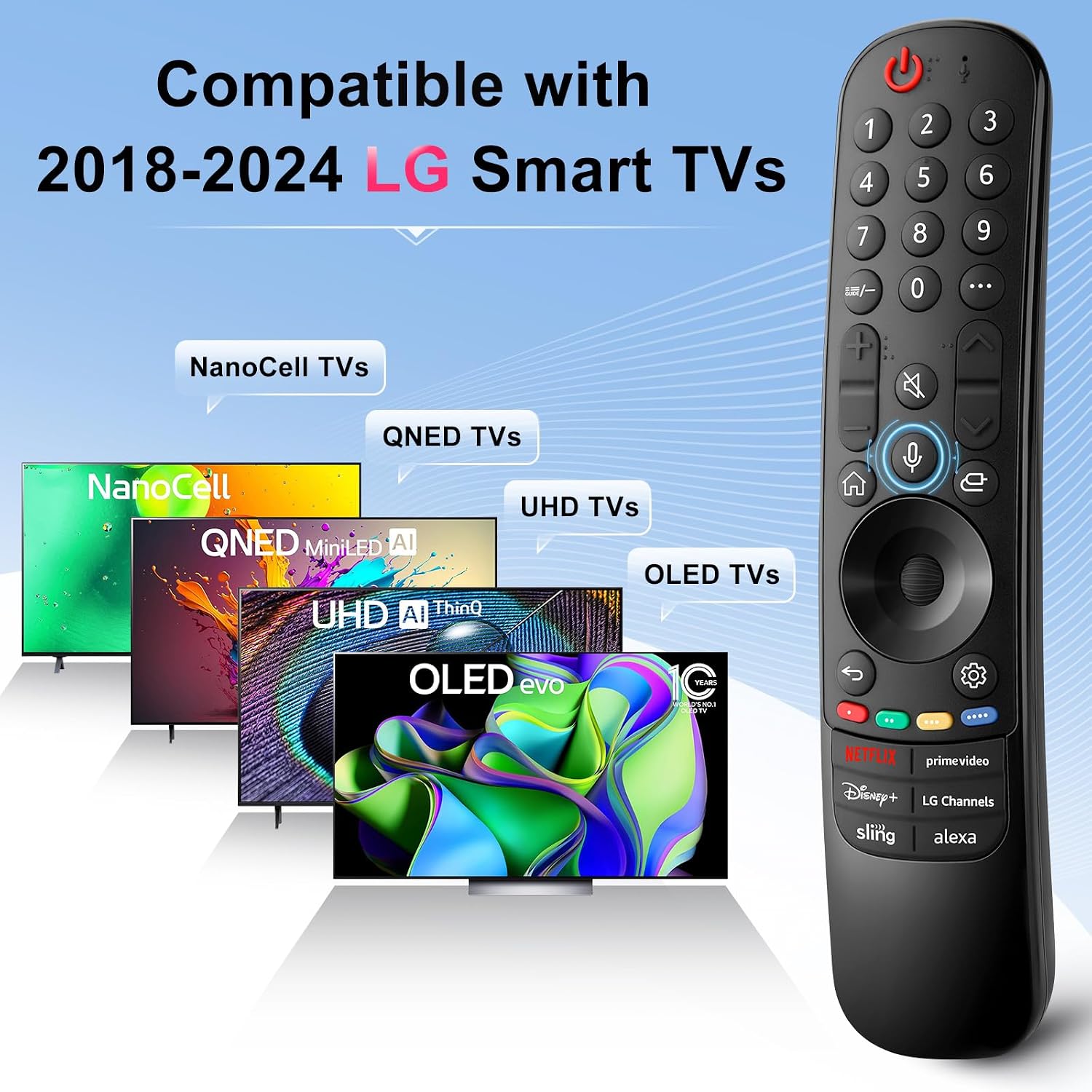
Figure 2: Remote Compatibility with LG TV Types
This image visually confirms the compatibility of the OMAIC AN-MR24gn Magic Remote with various LG TV technologies, including NanoCell, QNED, UHD, and OLED models.
Key Features
The OMAIC AN-MR24gn Magic Remote is equipped with advanced features to provide a seamless and intuitive control experience for your LG Smart TV:
- Quick Navigation: Utilize the integrated cursor and scroll wheel for precise and efficient navigation through menus, apps, and web content.
- Voice Control: Command your TV using simple voice commands to search for content, adjust settings, and more.
- Quick Access Buttons: Instantly launch popular streaming services and LG Channels with dedicated one-touch buttons.
- Stable Performance: Enjoy reliable control from up to 50 feet away, with buttons designed for over 150,000 clicks and a rapid 0.1-second response time.

Figure 3: Cursor and Scroll Wheel Navigation
This diagram illustrates the functionality of the cursor and scroll wheel on the OMAIC Magic Remote, demonstrating how it enables quick and precise navigation on your LG Smart TV screen.

Figure 4: Voice Control Functionality
This image depicts the voice control feature, showing a user interacting with the remote by speaking commands, highlighting the ease of searching and adjusting settings.

Figure 5: One-Click App Shortcut Buttons
This image showcases the dedicated shortcut buttons on the OMAIC Magic Remote, providing direct access to popular streaming applications like Netflix, Prime Video, Disney+, LG Channels, Sling, and Alexa.
Setup
Battery Installation
The OMAIC AN-MR24gn Magic Remote requires two AA batteries (not included).
- Gently slide down the remote control cover located on the back.
- Insert two AA batteries, ensuring correct polarity (+ and -).
- Cover the back cover and fasten it upwards until it clicks into place.
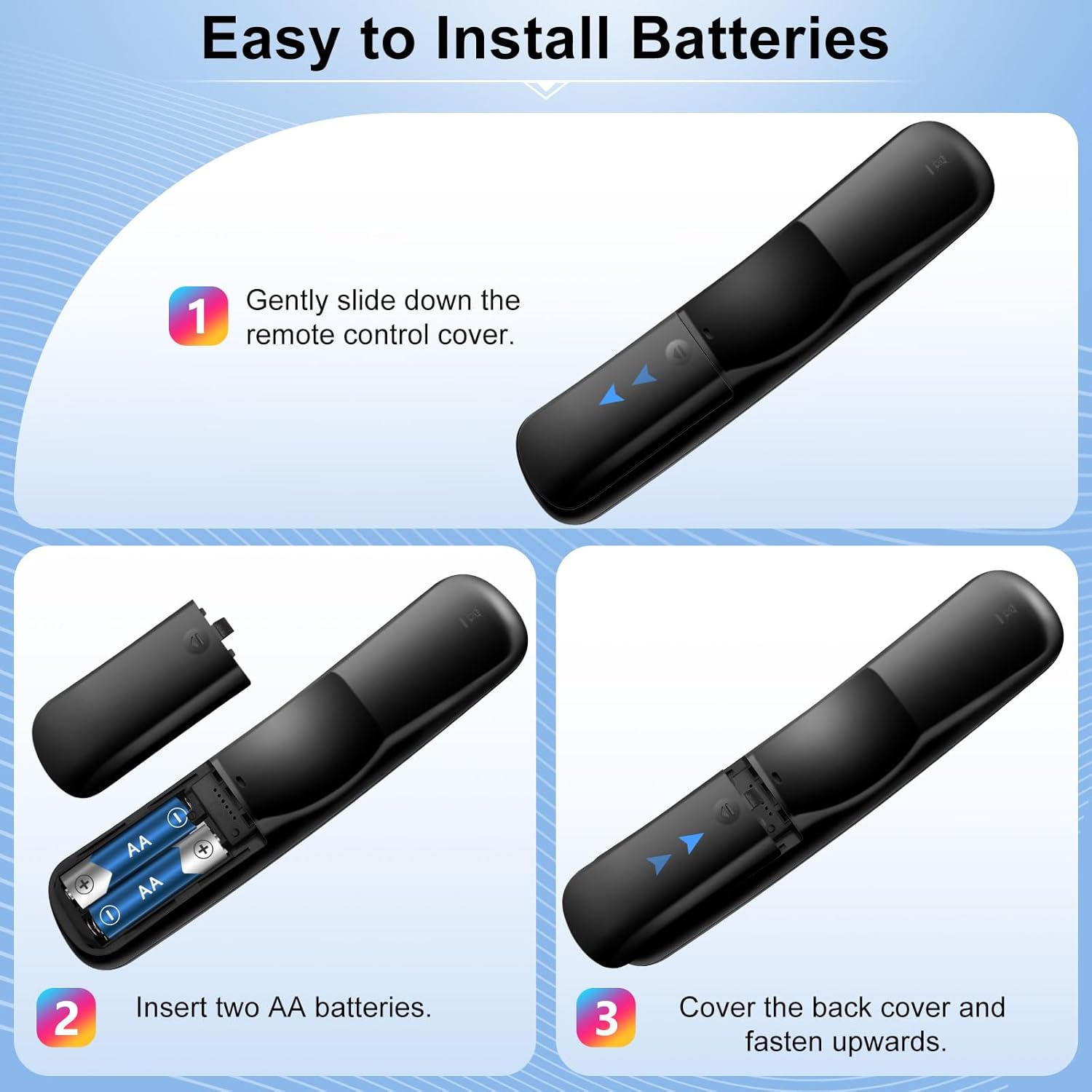
Figure 6: Battery Installation Steps
This visual guide demonstrates the three simple steps for correctly installing AA batteries into the OMAIC Magic Remote Control.
Pairing the Remote
The OMAIC AN-MR24gn Magic Remote is designed for easy pairing with your LG Smart TV. In most cases, simply inserting the batteries will allow it to work immediately. If pairing is required or if you experience issues, follow these steps:
- Reset Remote Control: Hold down the ⌂ (
 ) and ↶ () buttons simultaneously for 10 seconds to reset the remote control.
 - Aim and Connect: Aim the Magic Remote Control at your Smart TV, and then press the Wheel (OK) button. A message confirming "Magic Remote has been successfully registered" should appear on your TV screen after the connection is established.

Figure 7: Registering Your Magic Remote
This image provides a visual guide for registering the OMAIC Magic Remote, showing the combination of Home and Return buttons to reset, and then pressing the Wheel (OK) button to connect to the TV.
Operating Instructions
Basic Navigation
The Magic Remote offers multiple ways to navigate your LG Smart TV:
- Point and Click: Point the remote at the TV screen to move the cursor, then click the Wheel (OK) button to select items.
- Scroll Wheel: Use the scroll wheel to quickly move up and down through lists and web pages.
- Directional Buttons: Use the Up, Down, Left, and Right directional buttons around the Wheel (OK) button for traditional menu navigation.
Voice Control
To use voice control, press and hold the 🎤 (microphone icon) button while speaking your command clearly into the remote. Release the button when you are finished speaking. You can search for content, open apps, or adjust settings using your voice.
Quick Access Buttons
The dedicated quick access buttons at the bottom of the remote provide instant launch for popular applications:
- Netflix
- Prime Video
- Disney+
- LG Channels
- Sling
- Alexa
Button Functions
Below is a detailed description of each button on your OMAIC AN-MR24gn Magic Remote Control, including functions activated by a long-press.
Figure 8: Remote Control Button Functions
This comprehensive diagram labels each button on the OMAIC Magic Remote and describes its primary function, along with any additional functions activated by a long-press (holding for more than one second).
| Button | Function | Long-Press Function (if applicable) |
|---|---|---|
| Power (⑂) | Turns the TV ON or OFF. | N/A |
| Number Buttons (0-9) | Enters numbers. | Launches Quick Help (for '9'). |
| List (−/=) | Checking the saved channels. | Launch Guide. |
| More Buttons (…) | Display the additional buttons on the remote control. | N/A |
| Quick Access (0) | The QUICK ACCESS edit screen appears. | N/A |
| Volume Up/Down (+ / -) | Adjust the volume level. | Configures SAP. |
| Mute (🔇) | Mutes the sound. | Select to turn off the sound from the TV. |
| Channel Up/Down (▲ / ▼) | You can change the channel. | Enter the Accessibility menu. |
| Voice Recognition (🎤) | Push and hold the button while speaking to use the voice recognition function. | N/A |
| Home (⌂) | Displays the Home menu. | Launches the last used app. |
| Input (⎋) | Selects an input source. | Entering into the Home Dashboard. |
| Return (↶) | Move to the previous step. | Closes the menu. |
| Settings (⚙) | Enters the Quick Settings menu. | Enters the All Settings menu. |
| Color Buttons (Red, Green, Yellow, Blue) | Specific functions depending on the current mode or application. | Launch Record (for Red). |
Specifications
Key technical specifications for the OMAIC AN-MR24gn Magic Remote Control:
- Model Number: AN-MR24gn
- Product Dimensions: 7.5 x 1.69 x 1.3 inches (19.05 x 4.29 x 3.3 cm)
- Item Weight: 3.17 ounces (90 grams)
- Power Source: 2 AA batteries (required)
- Max Number of Supported Devices: 99
- Compatible Devices: Television (LG Smart TVs)
- Special Feature: Voice Search, Cursor, Scroll Wheel, Quick Access Buttons
- Operating Range: Up to 50 feet (approx. 15 meters)
- Button Durability: Supports 150,000 clicks per button
- Response Time: 0.1 seconds

Figure 9: Remote Control Dimensions
This image provides a clear visual representation of the OMAIC Magic Remote's dimensions, indicating its length, width, and thickness for reference.
Troubleshooting
If you encounter any issues with your OMAIC AN-MR24gn Magic Remote, please refer to the following common problems and their solutions:
- Remote Not Responding:
- Ensure batteries are correctly inserted with proper polarity.
- Replace old batteries with new AA batteries.
- Ensure there are no obstructions between the remote and the TV's IR receiver.
- Cursor Not Appearing/Moving:
- Re-pair the remote by holding the HOME and RETURN buttons for 10 seconds, then pressing the Wheel (OK) button while aiming at the TV.
- Check if the TV's Magic Remote settings are enabled.
- Voice Control Not Working:
- Ensure you are pressing and holding the Voice Recognition button while speaking.
- Check your TV's network connection, as voice control often requires internet access.
- Verify that voice recognition settings are enabled on your TV.
- Buttons Unresponsive:
- Clean the remote's surface and buttons to remove any debris.
- If specific buttons are consistently unresponsive, consider replacing the remote if it's outside the warranty period.
- Intermittent Connection:
- Minimize interference from other electronic devices.
- Ensure you are within the effective operating range (up to 50 feet).
Warranty and Support
OMAIC provides a 90-day after-sales service for the AN-MR24gn Magic Remote Control. This warranty covers manufacturing defects and ensures product functionality under normal use.
If you have any questions, concerns, or require assistance with your remote control, please do not hesitate to contact our customer support team. We are committed to providing prompt and helpful responses within 24 hours.
Please prioritize contacting us directly for any support needs.