
1. Introduction
This manual provides detailed instructions for the installation, operation, and maintenance of your UNITOPSCI 4GB+64GB Single Din Android Car Stereo. This device features a 7-inch flip-out touchscreen, Wireless CarPlay, Android Auto, GPS navigation, Wi-Fi, Bluetooth 5.0, FM/RDS radio, DSP, USB/TF card/AUX inputs, backup camera support, and steering wheel control compatibility. Please read this manual thoroughly before using the product to ensure proper function and safety.
2. Safety Information
- Always operate the vehicle safely. Distracted driving can lead to accidents.
- Do not attempt to install or service this unit if you are not qualified. Professional installation is recommended.
- Ensure all wiring is correctly connected to prevent short circuits or damage to the vehicle's electrical system.
- Keep the volume at a level that allows you to hear outside traffic and emergency vehicles.
- Avoid exposing the unit to extreme temperatures, direct sunlight for prolonged periods, or excessive moisture.
- Do not block ventilation openings on the unit.
3. Package Contents
Verify that all items are present in the package:
- 1 x Car Stereo Unit
- 1 x Power Cable
- 1 x RCA Cable
- 1 x Rear Camera Cable
- 1 x 6 PIN USB Cable
- 1 x Mounting Bracket
- 1 x Radio Antenna
- 1 x GPS Antenna
- 1 x Microphone
- 1 x User Manual
- 1 x AHD Backup Camera

4. Product Overview
The UNITOPSCI Single Din Android Car Stereo is designed to integrate advanced multimedia and navigation features into your vehicle. It features a motorized 7-inch IPS touchscreen that flips out from a standard single DIN chassis.

Key Features:
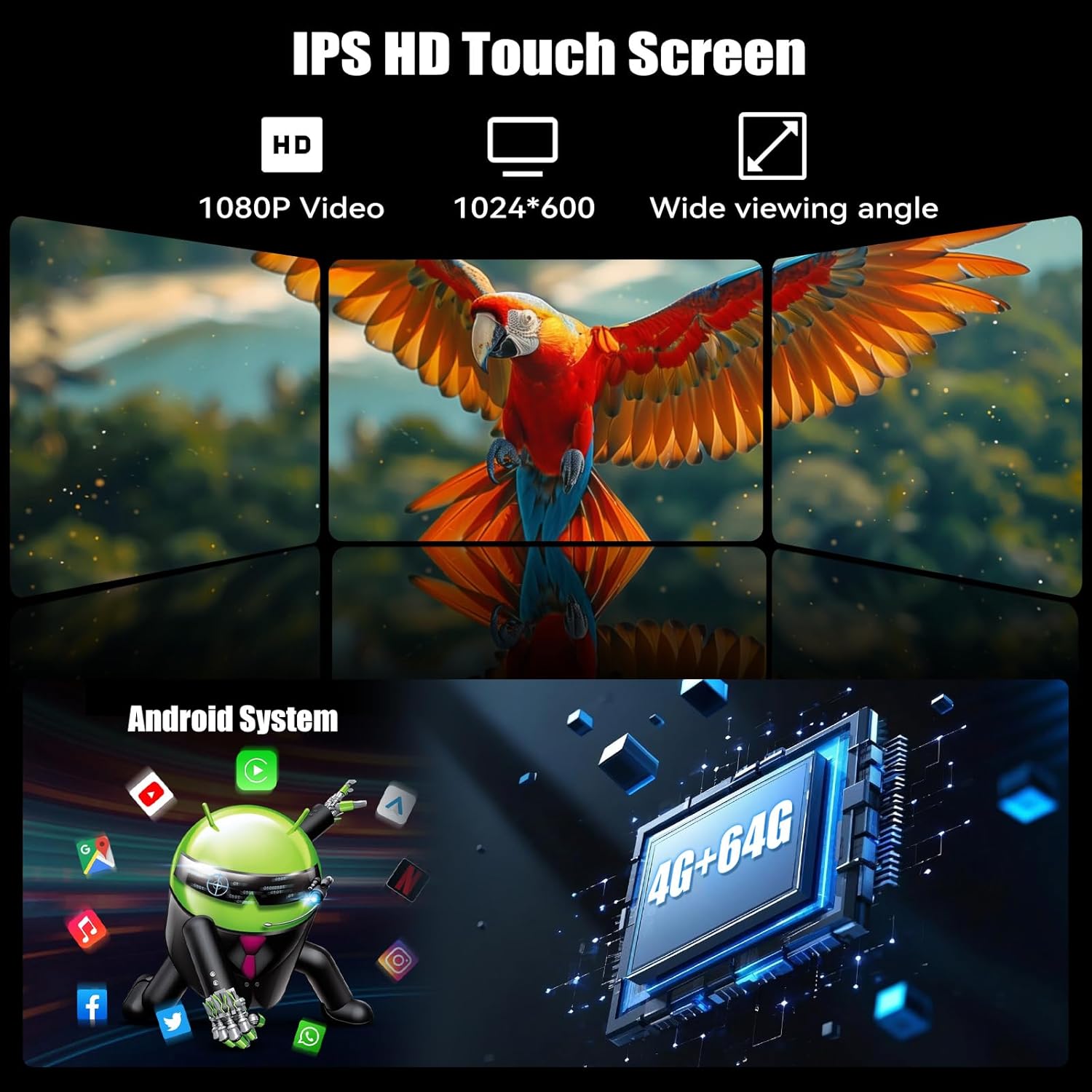
- Android 13 System: Equipped with 4GB RAM and 64GB ROM for smooth operation and ample storage.
- 7-inch IPS Flip-Out Touchscreen: High-definition 1024*600 capacitive display with wide viewing angles.
- Wireless CarPlay & Android Auto: Seamless smartphone integration for navigation, music, and communication.
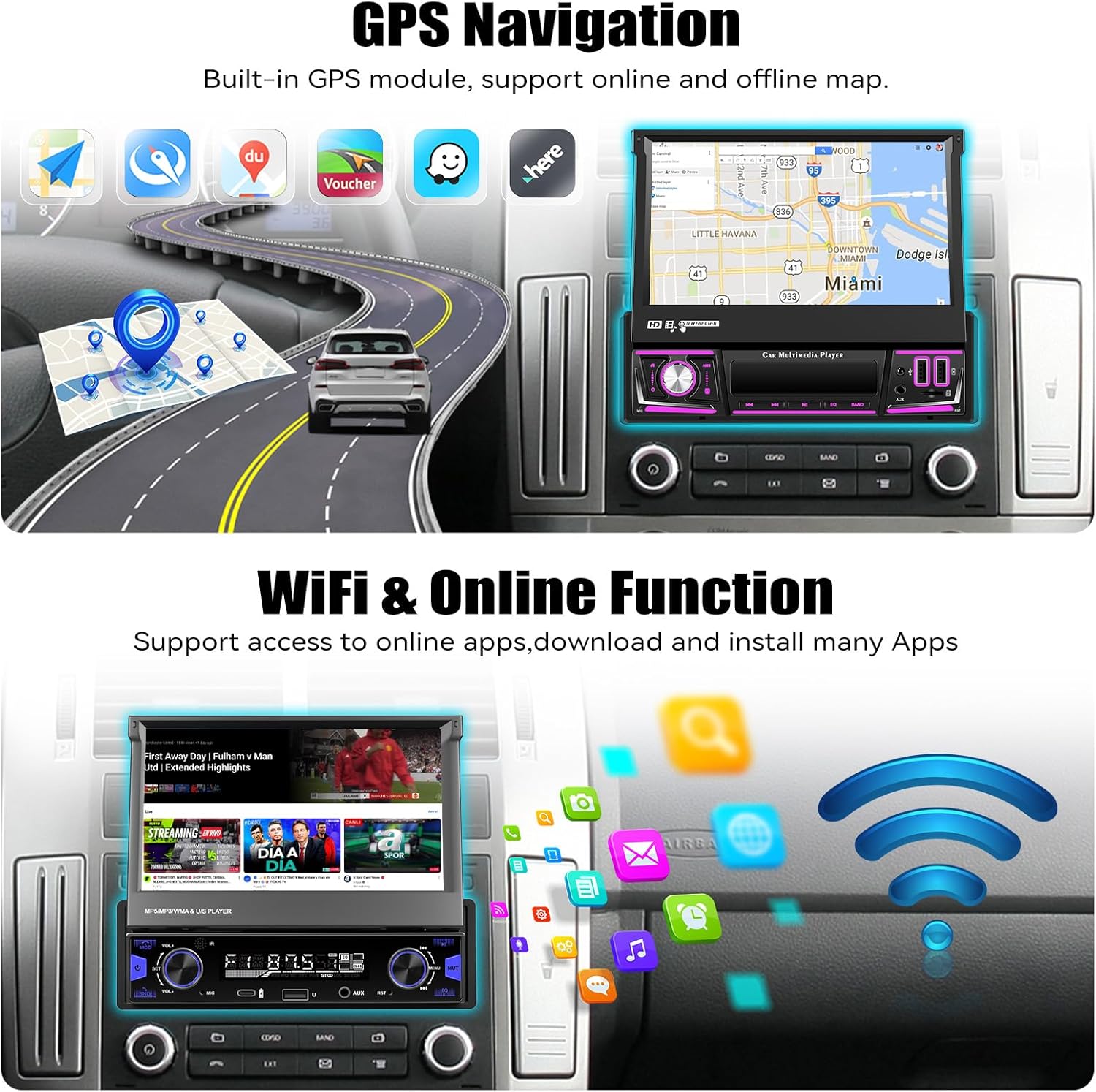
- GPS Navigation: Built-in GPS module supporting online and offline maps.
- Wi-Fi Connectivity: For online functions, app downloads, and internet browsing.
- Bluetooth 5.0: Hands-free calling and audio streaming.
- FM/RDS Radio: 18 preset stations with memory function.
- DSP & EQ Sound: Built-in digital sound processing with customizable EQ settings.
- Multiple Inputs: Dual USB ports, TF card slot, and AUX input.
- AHD Backup Camera: Included for enhanced reversing safety.
- Steering Wheel Control (SWC): Compatible with existing vehicle steering wheel controls.
- Mirror Link: Supports wireless mirroring for Android/iOS devices.
- Split Screen Function: Allows two applications to run simultaneously on the display.
- 7 Color Backlight: Customizable button illumination.
5. Setup and Installation
Important: Due to the complexity of car audio system wiring, professional installation is highly recommended. Incorrect wiring can cause damage to the unit or your vehicle.
5.1 Pre-Installation Checklist
- Disconnect the vehicle's negative battery terminal before starting any electrical work.
- Ensure you have the correct wiring harness adapter for your vehicle model (if not included).
- Confirm the single DIN opening in your dashboard is compatible with the unit's dimensions.
5.2 Wiring Connections
Refer to the wiring diagram provided in the included user manual for specific connections. General connections include:
- Power: Connect the yellow wire to constant 12V, red wire to accessory 12V, and black wire to ground.
- Speakers: Connect speaker wires to the corresponding vehicle speaker wires (e.g., front left +, front left -).
- GPS Antenna: Connect the GPS antenna and mount it in a location with a clear view of the sky (e.g., dashboard, corner of the windshield).
- Rear Camera: Connect the video input from the AHD backup camera to the unit's camera input. Connect the camera's power to the reverse light circuit.
- Microphone: Connect the external microphone for hands-free calling.
- USB Cables: Route the USB extension cables to an accessible location.
- Radio Antenna: Connect the vehicle's radio antenna.
- Steering Wheel Control (SWC): Connect the SWC wires according to your vehicle's wiring diagram.
5.3 Mounting the Unit
- Slide the mounting sleeve into the dashboard opening.
- Secure the sleeve using the bending tabs.
- Carefully slide the car stereo unit into the mounting sleeve until it locks into place.
- Reconnect the vehicle's negative battery terminal.
6. Operating Instructions
6.1 Basic Operation
- Power On/Off: Press the power button (usually the volume knob) to turn the unit on or off.
- Volume Control: Rotate the knob to adjust the volume.
- Screen Adjustment: The 7-inch screen is motorized. Use the screen controls to adjust its angle or retract it.
- Touchscreen Interface: Navigate the Android system by tapping, swiping, and pinching on the capacitive touchscreen.

6.2 Wireless CarPlay & Android Auto
Connect your smartphone wirelessly for an integrated driving experience.
- Ensure Bluetooth and Wi-Fi are enabled on your smartphone.
- On the car stereo, open the CarPlay or Android Auto application.
- Follow the on-screen prompts to pair your phone. Once paired, your phone will automatically connect in the future.


6.3 GPS Navigation
The unit includes a built-in GPS module for navigation. It supports both online and offline map applications.
- Ensure the GPS antenna is properly installed and has a clear view of the sky.
- Use pre-installed navigation apps or download your preferred map applications via Wi-Fi.
- For offline maps, download the necessary map data when connected to Wi-Fi.


6.4 Wi-Fi & Online Functions
Connect the stereo to a Wi-Fi hotspot (e.g., from your smartphone) to access online features.
- Go to Settings > Network & Internet > Wi-Fi.
- Select your desired Wi-Fi network and enter the password.
- Once connected, you can download apps from the Google Play Store, browse the internet, and stream online content.

6.5 Bluetooth 5.0
Pair your mobile phone via Bluetooth for hands-free calling and audio streaming.
- Enable Bluetooth on your phone and the car stereo.
- On the car stereo, search for available devices and select your phone.
- Confirm the pairing code on both devices.
- Once connected, you can make/receive calls and play music wirelessly.


6.6 FM/RDS Radio
Access local radio stations with FM and RDS (Radio Data System) functionality.
- Select the 'Radio' application from the main menu.
- Use the scan function to automatically search for and save available stations.
- Manually tune to frequencies or select from your preset stations.
- RDS provides station information, song titles, and traffic announcements where available.


6.7 EQ Sound Settings
Customize your audio experience using the built-in Equalizer (EQ).
- Access the 'EQ' or 'Sound Settings' option from the main menu or during audio playback.
- Adjust frequency bands, bass, treble, and other audio parameters to your preference.
- Select from various preset EQ modes (e.g., Pop, Rock, Jazz) or create custom settings.

6.8 Backup Camera Operation
The included AHD backup camera automatically displays the rear view when the vehicle is in reverse gear.
- Ensure the camera is properly installed and connected to the reverse trigger wire.
- When shifting into reverse, the screen will automatically switch to the camera view, displaying parking guidelines.


6.9 Steering Wheel Control (SWC)
Program your vehicle's steering wheel buttons to control the car stereo functions.
- Access the 'Steering Wheel Control' settings in the unit's menu.
- Follow the on-screen instructions to assign functions (e.g., volume up/down, track skip, mode) to your steering wheel buttons.

6.10 Mirror Link
Mirror your Android or iOS smartphone screen onto the car stereo display.
- Open the 'Mirror Link' application on the car stereo.
- Connect your phone via Wi-Fi or USB cable as prompted.
- Your phone's screen will be displayed on the stereo, allowing you to view apps not supported by CarPlay/Android Auto.

6.11 Multiple Input (USB/TF/AUX)
The unit supports various media inputs for playback and charging.
- USB: Connect USB drives for media playback or use the USB ports for charging your smartphone.
- TF Card: Insert a TF (microSD) card into the designated slot for media playback.
- AUX: Connect external audio devices (e.g., MP3 players) via the 3.5mm AUX input.

6.12 Split Screen Function
The split-screen feature allows you to run two applications side-by-side on the display.
- While an app is open, swipe up from the bottom of the screen or long-press the recent apps button (if available) to enter split-screen mode.
- Select a second app to display on the other half of the screen.

6.13 7 Color Backlight
Customize the illumination color of the physical buttons on the unit.
- Navigate to the 'Settings' menu and look for 'Button Light' or 'Backlight Color' options.
- Choose from seven available colors to match your vehicle's interior lighting or personal preference.

7. Maintenance
- Cleaning the Screen: Use a soft, lint-free cloth to gently wipe the touchscreen. For stubborn smudges, slightly dampen the cloth with water or a screen-cleaning solution. Avoid harsh chemicals.
- General Cleaning: Wipe the unit's body with a dry, soft cloth. Do not use abrasive cleaners.
- Software Updates: Periodically check for software updates via the unit's settings menu to ensure optimal performance and access to new features.
- Avoid Liquids: Prevent liquids from entering the unit, as this can cause severe damage.
8. Troubleshooting
| Problem | Possible Cause | Solution |
|---|---|---|
| Unit does not power on. | Incorrect wiring; Blown fuse; No power supply. | Check power connections (yellow, red, black wires). Inspect vehicle fuses. Ensure battery is charged. |
| No sound from speakers. | Incorrect speaker wiring; Volume too low; Mute activated. | Verify speaker connections. Increase volume. Check if mute is active. |
| GPS signal lost frequently. | GPS antenna improperly placed; Obstructions; Weak signal area. | Ensure GPS antenna has a clear view of the sky. Relocate antenna if necessary. Update map data. |
| Bluetooth connection issues. | Phone not discoverable; Incorrect pairing; Interference. | Ensure phone's Bluetooth is on and discoverable. Delete previous pairings and re-pair. Restart both devices. |
| CarPlay/Android Auto not connecting. | Wi-Fi/Bluetooth issues; Phone software outdated; App permissions. | Check Wi-Fi and Bluetooth connections. Update phone OS and CarPlay/Android Auto apps. Verify app permissions. |
| Backup camera not displaying. | Camera wiring incorrect; Reverse trigger not connected; Faulty camera. | Check camera power and video connections. Ensure reverse trigger wire is correctly connected. |
| Touchscreen unresponsive. | Software glitch; Screen damage. | Restart the unit. If issue persists, perform a factory reset (data will be lost). Contact support if physical damage is suspected. |
9. Specifications
| Feature | Detail |
|---|---|
| Operating System | Android 13 |
| RAM | 4GB |
| Internal Storage (ROM) | 64GB |
| Display Size | 7 Inches |
| Display Resolution | 1024*600 IPS |
| Connectivity | Bluetooth 5.0, Wi-Fi, Wireless CarPlay, Android Auto |
| Navigation | Built-in GPS (North America, Worldwide map support) |
| Audio Output Mode | Stereo, Built-in EQ |
| Inputs | Dual USB, TF Card, AUX-in, Rear Camera Input |
| Special Features | Flip-out screen, Mirror Link, Split Screen, Steering Wheel Control, 7 Color Backlight |
| Product Dimensions | 7.36 x 7.87 x 2.32 inches (18.7 x 20.0 x 5.9 cm) |
| Item Weight | 4.18 pounds (1.9 kg) |
10. Warranty and Support
This UNITOPSCI product comes with a 1-Year Warranty from the date of purchase, covering manufacturing defects. Please retain your proof of purchase for warranty claims.
Customer Support:
For technical assistance, troubleshooting, or warranty inquiries, please contact UNITOPSCI customer service:
- Email: UNITOPSCI@126.com
Please provide your product model and a detailed description of the issue when contacting support for faster resolution.


