
1. Introduction
The Delton S22 Vertical Wireless Mouse is designed to provide a comfortable and efficient computing experience. Its ergonomic vertical design aims to reduce wrist strain and promote a natural hand posture, making it suitable for extended use. This manual provides instructions for setting up, operating, maintaining, and troubleshooting your Delton S22 mouse.

This image illustrates the ergonomic benefits of the Delton S22 Vertical Wireless Mouse. It compares the unnatural wrist position required by a traditional mouse with the natural, handshake-like grip promoted by the vertical mouse, highlighting how it reduces strain and is recommended by rheumatologists.
2. Product Overview and Components
Familiarize yourself with the various parts of your Delton S22 Vertical Wireless Mouse:

This diagram provides a detailed view of the Delton S22 mouse, pointing out its key components: Left Button, Scroll Wheel, Right Button, DPI Switch, Detachable Wrist Pad, Optical Sensor, USB Receiver Compartment, Back Cover, 2*AA Battery Slot, Glide Pads, Forward Button, Back Button, and Power On/Off switch.
- Left Button: Standard left-click function.
- Right Button: Standard right-click function.
- Scroll Wheel: For vertical scrolling and middle-click function.
- Forward Button: Navigates forward in web browsers or file explorers.
- Back Button: Navigates backward in web browsers or file explorers.
- DPI Switch: Adjusts cursor sensitivity (800/1600/2400 DPI).
- Power On/Off Switch: Conserves battery life when the mouse is not in use.
- Optical Sensor: Tracks mouse movement.
- USB Receiver Compartment: Stores the 2.4G USB dongle.
- Battery Slot: Holds two AA batteries (not included).
- Detachable Wrist Pad: Provides additional wrist support and reduces friction.
3. Setup
- Install Batteries: Open the battery compartment on the underside of the mouse. Insert two AA batteries, ensuring correct polarity. Close the compartment.
- Connect USB Dongle: Locate the USB receiver (dongle) stored in its compartment on the underside of the mouse. Plug the USB dongle into an available USB-A port on your computer (PC, laptop, or tablet PC).
- Power On: Flip the Power On/Off switch on the underside of the mouse to the "On" position.
- Automatic Pairing: The mouse should automatically pair with the USB dongle. Your computer's operating system will typically install the necessary drivers automatically.
- Attach Wrist Pad (Optional): If desired, attach the detachable wrist pad to the base of the mouse for enhanced comfort.
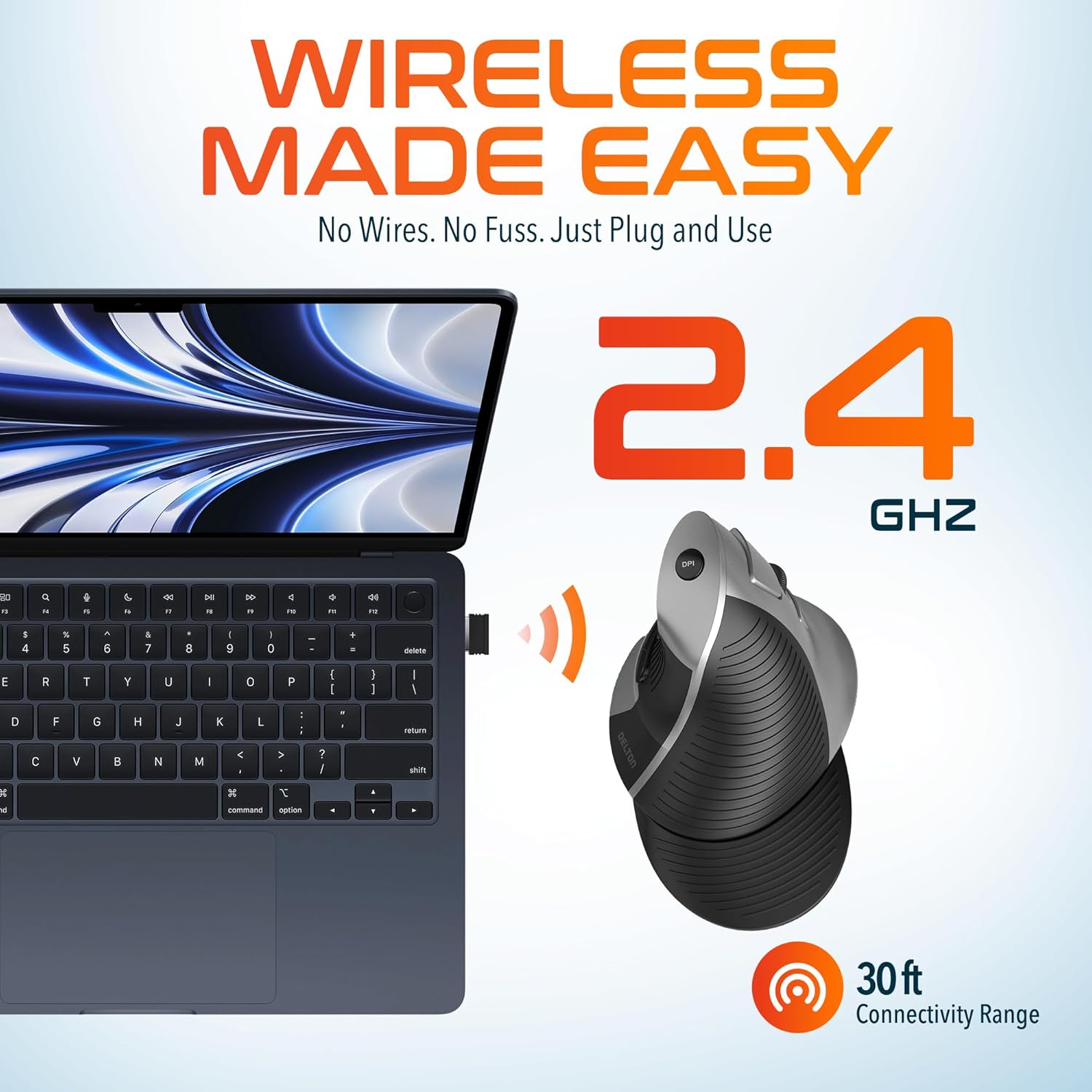
This image demonstrates the wireless connectivity of the Delton S22 mouse. It shows the mouse operating wirelessly with a laptop, emphasizing the 2.4 GHz connection and a 30 ft connectivity range, indicating a simple plug-and-use setup.
4. Operating Instructions
Button Functions
The Delton S22 mouse features 6 buttons for enhanced functionality:
- Left Click: Primary selection and activation.
- Right Click: Accesses context menus.
- Scroll Wheel: Scrolls vertically through documents and web pages. Pressing it acts as a middle-click.
- Forward Button: Navigates to the next page in supported applications.
- Back Button: Navigates to the previous page in supported applications.
- DPI Switch: Cycles through DPI settings.
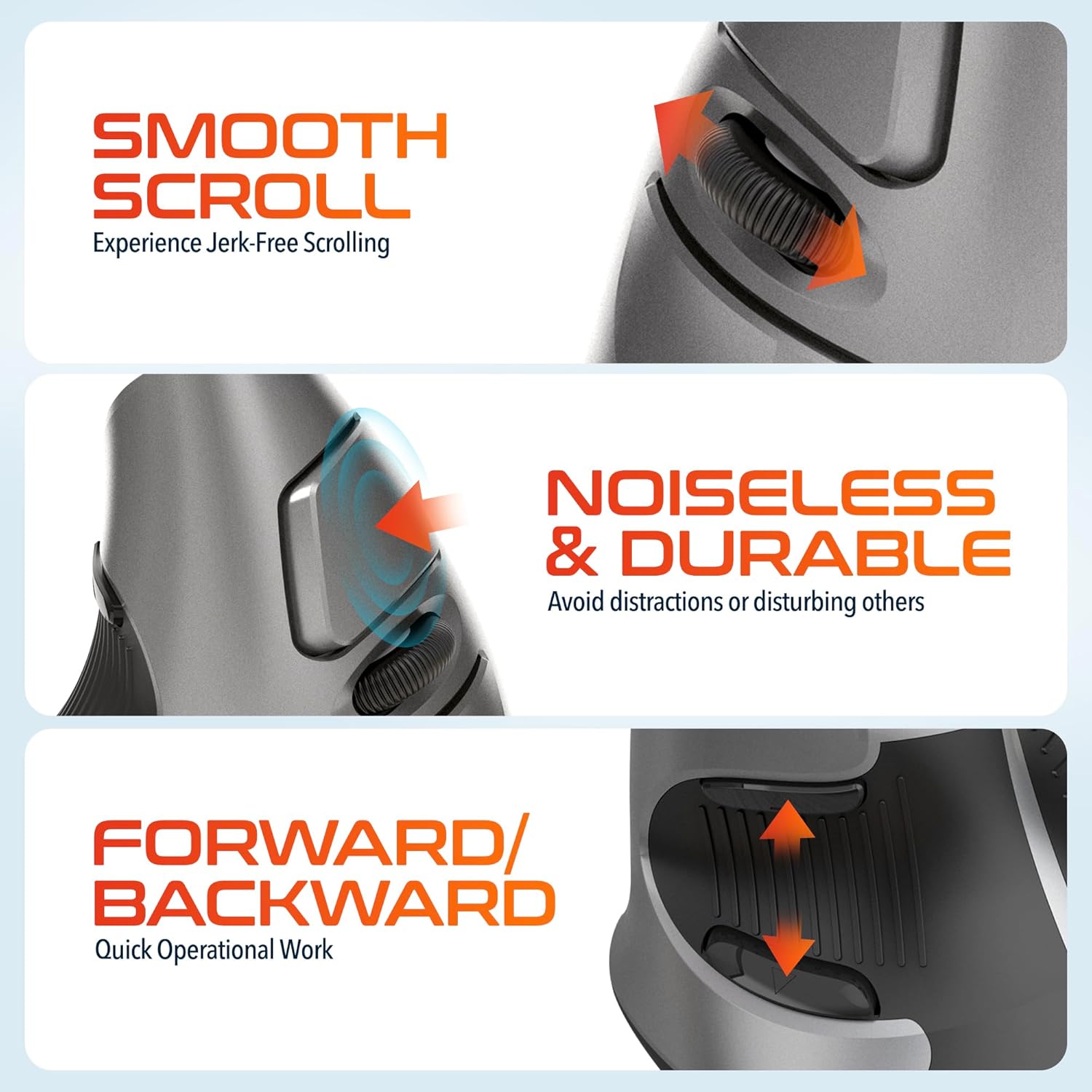
This composite image highlights three key operational features: the smooth, jerk-free scrolling experience, the noiseless and durable buttons designed to prevent distractions, and the convenient forward/backward buttons for quick navigation.
DPI Adjustment
The DPI (Dots Per Inch) switch allows you to adjust the cursor sensitivity to match your preference or task requirements. Press the DPI button located on the top of the mouse to cycle through the following settings:
- 800 DPI: Lower sensitivity for precise tasks.
- 1600 DPI: Medium sensitivity for general use.
- 2400 DPI: Higher sensitivity for faster cursor movement.

This image focuses on the high precision control offered by the Delton S22 mouse. It shows the DPI switch button and how it allows users to toggle between 800, 1600, and 2400 DPI settings for customized cursor sensitivity.
Power Management
To conserve battery life, switch the mouse to the "Off" position using the power switch on the underside when not in use for extended periods.
5. Compatibility
The Delton S22 Vertical Wireless Mouse is designed for broad compatibility with various operating systems and devices:
- Operating Systems: Windows, macOS, iOS, Android, Chrome OS, Linux.
- Compatible Devices: Laptop, Personal Computer, Tablet.
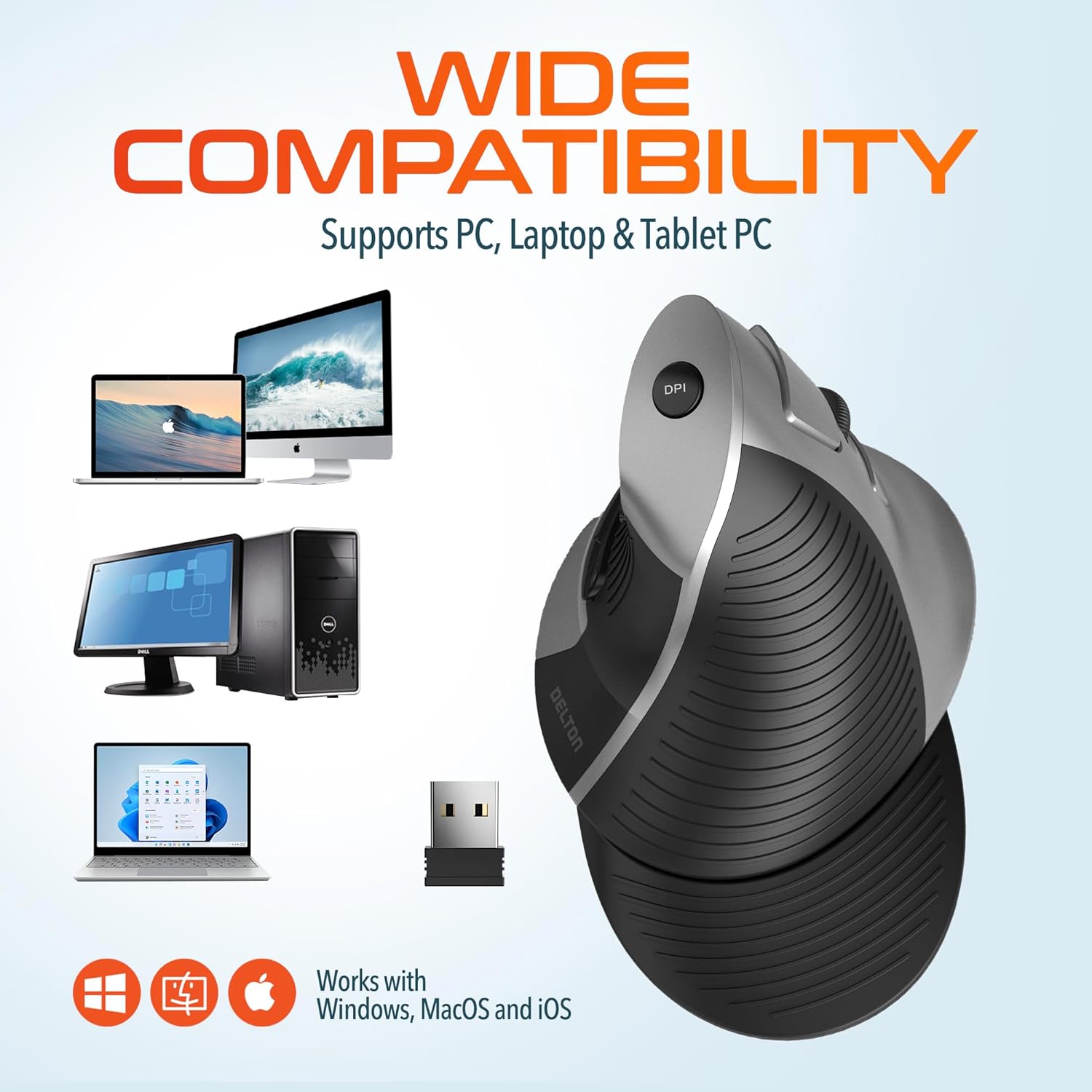
This image illustrates the wide compatibility of the Delton S22 mouse, showing it works seamlessly with PCs, laptops, and tablet PCs across Windows, macOS, and iOS operating systems. The USB dongle is also depicted as the connection method.
6. Maintenance
- Cleaning: Use a soft, dry cloth to clean the mouse. For stubborn dirt, slightly dampen the cloth with water or a mild cleaning solution. Avoid harsh chemicals or abrasive materials.
- Battery Replacement: When the mouse performance degrades or it stops responding, replace the two AA batteries. Ensure the power switch is off before replacing batteries.
- Storage: When transporting or storing the mouse, ensure the USB dongle is securely placed in its dedicated compartment to prevent loss.
7. Troubleshooting
| Problem | Possible Solution |
|---|---|
| Mouse not responding. |
|
| Cursor movement is erratic or jumpy. |
|
| DPI setting is not changing. |
|
| Forward/Back buttons not working. |
|
8. Specifications
| Feature | Detail |
|---|---|
| Brand | Delton |
| Model Number | S22 |
| Connectivity Technology | 2.4G Wireless (USB Dongle) |
| Special Feature | Vertical, Ergonomic Design, Wireless |
| Movement Detection Technology | Optical |
| Button Quantity | 6 |
| Hand Orientation | Right |
| Compatible Devices | Laptop, Personal Computer, Tablet |
| Operating System Compatibility | Windows, macOS, iOS, Android, Chrome OS, Linux |
| Power Source | Battery Powered (2 x AA batteries, not included) |
| DPI Levels | 800, 1600, 2400 |
| Wireless Range | Up to 30 feet |
| Color | Black |
| Item Dimensions (L x W) | 5.3"L x 3.7"W |
| UPC | 802029086375 |
9. Warranty and Support
The Delton S22 Vertical Wireless Mouse comes with a 1-Year Manufacturer Warranty. This warranty covers defects in materials and workmanship under normal use.
For warranty claims, technical support, or any questions regarding your product, please refer to the contact information provided with your purchase or visit the official Delton website for support resources.
Online Resources: For additional information, FAQs, or driver downloads (if applicable), please visit the Delton Store on Amazon.