
1. Introduction
This manual provides detailed instructions for the installation, operation, maintenance, and troubleshooting of your GreenTouch 32-inch Industrial Digital Signage Touch Screen Monitor, Model GT-TM3206A-C. Please read this manual thoroughly before using the product to ensure proper functionality and to prevent damage.

Image 1.1: The GreenTouch 32-inch Industrial Digital Signage Touch Screen Monitor banner.
2. Product Overview
The GreenTouch 32-inch Industrial Digital Signage Touch Screen Monitor is designed for commercial and industrial applications, offering high-quality display and interactive capabilities. Key features include:
- Display Quality: Features a 32-inch Full HD screen with 1920x1080P resolution and 500 nits brightness, ensuring clear visibility in various lighting conditions.
- Touch Functionality: Equipped with a responsive 10-point capacitive touch screen for smooth and sensitive interaction.
- Versatile Connectivity: Includes multiple input ports such as HDMI, VGA, and DVI, supporting a wide range of devices.
- Integrated Audio: Built-in speakers provide convenient audio output.
- Durable Design: Constructed for industrial environments, offering professional-grade durability for digital signage and commercial use.
- Interactive Gestures: Supports multi-touch gestures like pinch, zoom, and rotate for enhanced user control.

Image 2.1: The monitor displaying an interactive dashboard, demonstrating its touch capabilities.
3. Setup Instructions
3.1 Unpacking
Carefully remove the monitor and all accessories from the packaging. Verify that all components listed in the package contents section are present and undamaged.

Image 3.1: Included package accessories, such as power cable, USB cable, HDMI cable, VGA cable, wall mount bracket, and expansion screws.
3.2 Mounting Options
The monitor supports various installation methods to suit different environments:
- Wall Mount: Use the provided wall mount bracket and expansion screws to secure the monitor to a sturdy wall.
- Ceiling Mount: The monitor can be suspended from the ceiling using compatible mounting hardware (sold separately).
- Embedded Installation: Integrate the monitor into a custom enclosure or fixture.
- Floor Stand: Place the monitor on a floor stand for portable or freestanding applications (stand sold separately).
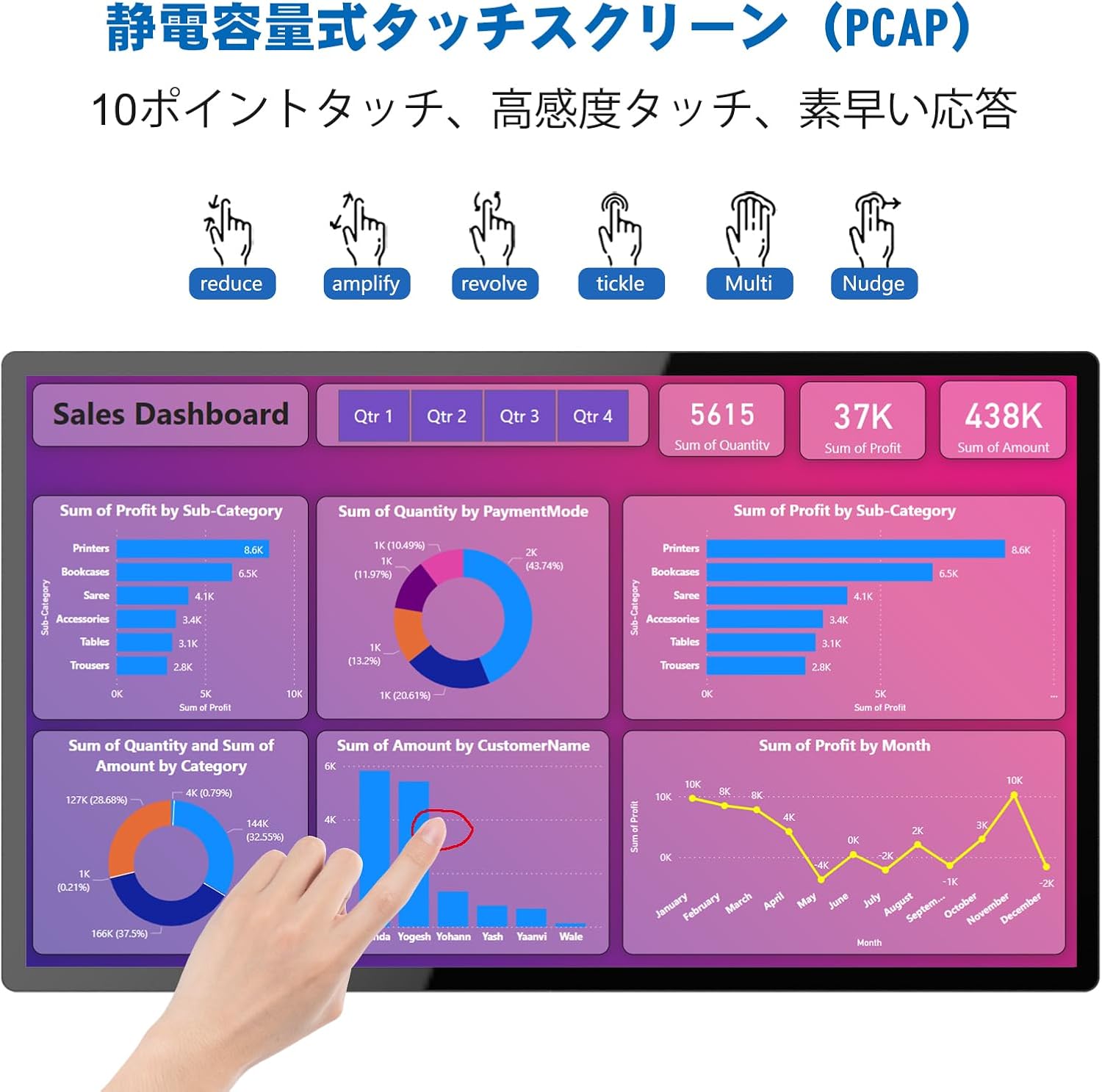
Image 3.2: Examples of various installation modes including wall mount, ceiling mount, embedded, and floor stand.
3.3 Connecting Cables
Connect the necessary cables to the monitor's input ports:
- Video Input: Connect your video source (e.g., PC, media player) to the monitor using an HDMI, VGA, or DVI cable.
- Touch Functionality: For touch input, connect a USB cable from the monitor's touch USB port to your computer.
- Power: Connect the power adapter to the monitor's power input and then to an electrical outlet.
- Network (Optional): If network connectivity is required, connect an RJ45 cable to the OSD/RJ45 port.

Image 3.3: Close-up view of the monitor's connectivity ports including HDMI, VGA, DVI, Touch USB, and OSD/RJ45.
3.4 Powering On
After all connections are secure, press the power button located on the monitor to turn it on. The power indicator light will illuminate.
4. Operating Instructions
4.1 Basic Operation
- Power On/Off: Press the power button to turn the monitor on or off.
- Input Source Selection: Use the On-Screen Display (OSD) menu to select the desired input source (HDMI, VGA, DVI).
4.2 Touch Screen Functionality
The monitor features a 10-point capacitive touch screen, allowing for intuitive interaction. Ensure the USB touch cable is connected to enable touch functionality.
- Single Touch: Tap the screen to select items or activate functions.
- Multi-Touch Gestures: The monitor supports common multi-touch gestures such as:
- Pinch/Zoom: Use two fingers to pinch in or spread out to zoom content.
- Rotate: Use two fingers to rotate objects on the screen.
- Scroll: Drag one or more fingers across the screen to scroll through content.

Image 4.1: Illustrations of various touch gestures supported by the capacitive touch screen, including reduce, amplify, revolve, tickle, multi-touch, and nudge.
4.3 Display Settings
Access the OSD menu using the buttons on the monitor to adjust display settings such as brightness, contrast, color temperature, and aspect ratio. The monitor supports 16.7 million display colors for vibrant visuals.
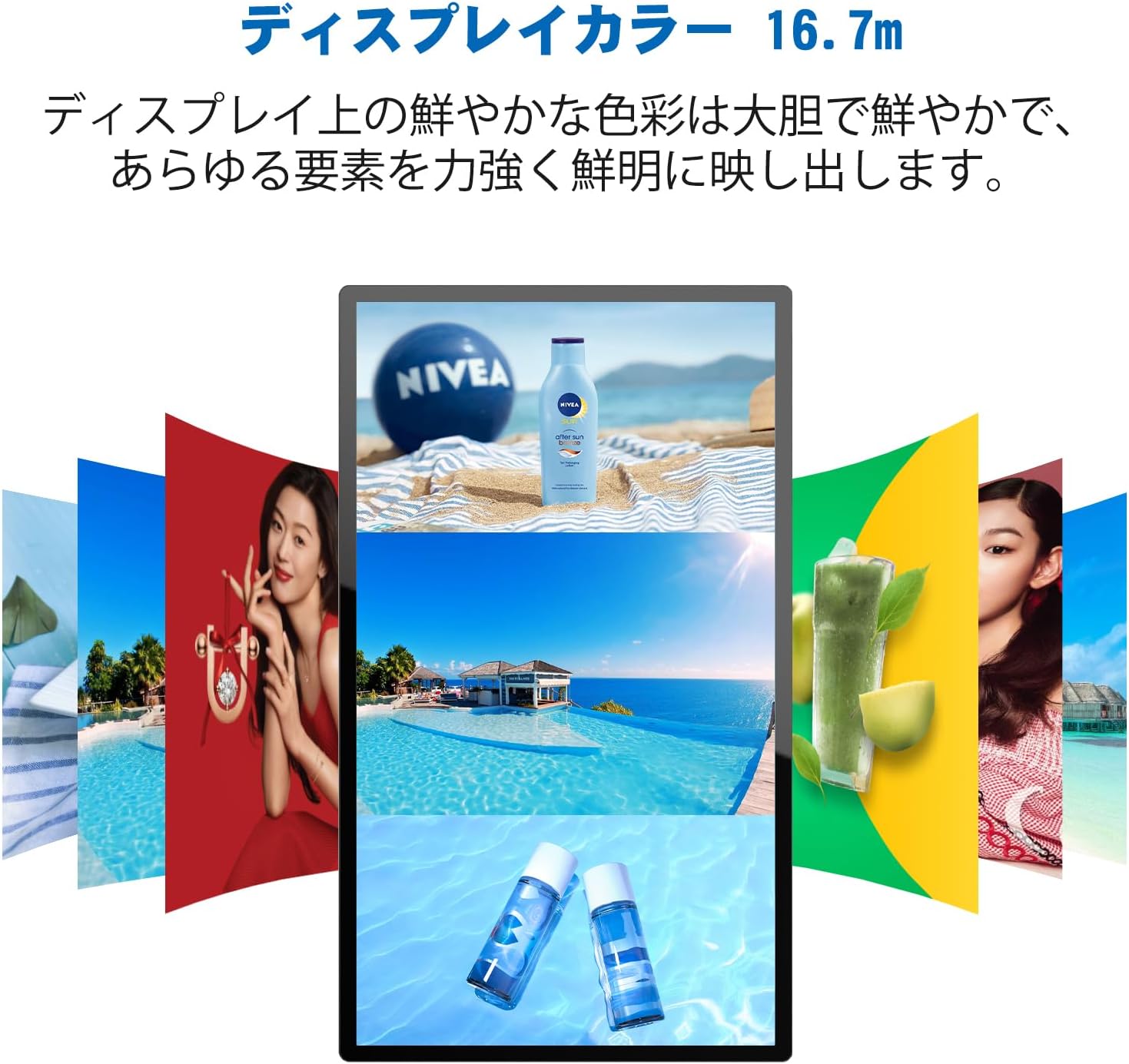
Image 4.2: The monitor showcasing vibrant and clear display colors with 16.7 million color depth.

Image 4.3: The monitor displaying a high-definition landscape, highlighting its 1080P clear image quality.
5. Maintenance
Proper maintenance ensures the longevity and optimal performance of your monitor.
- Cleaning the Screen:
- Always power off and unplug the monitor before cleaning.
- Use a soft, lint-free cloth lightly dampened with water or a non-abrasive screen cleaner.
- Do not spray cleaner directly onto the screen.
- Avoid using harsh chemicals, alcohol, or ammonia-based cleaners, as they can damage the screen surface.
- General Care:
- Keep the monitor in a well-ventilated area to prevent overheating.
- Avoid exposing the monitor to direct sunlight, extreme temperatures, or high humidity.
- Do not place heavy objects on the monitor or its cables.
6. Troubleshooting
If you encounter issues with your monitor, refer to the following common problems and solutions:
| Problem | Possible Cause | Solution |
|---|---|---|
| No display/Black screen |
|
|
| No touch response |
|
|
| No audio from speakers |
|
|
If the problem persists after trying these solutions, please contact customer support.
7. Specifications
The following table details the technical specifications of the GreenTouch 32-inch Industrial Digital Signage Touch Screen Monitor:
| Feature | Detail |
|---|---|
| Brand | GreenTouch |
| Model Number | GT-TM3206A-C |
| Screen Size | 32 inches |
| Resolution | 1920 x 1080 pixels (FHD 1080p) |
| Aspect Ratio | 16:9 |
| Screen Surface | Matte |
| Refresh Rate | 60 Hz |
| Display Type | LCD |
| Brightness | 500 nits (candela) |
| Response Time | 10 ms |
| Voltage | 12 Volts (AC) |
| Hardware Interface | HDMI, VGA, DVI, USB (for touch), RJ45 (OSD) |
| Item Dimensions (D x W x H) | 5.1 x 73.6 x 43.1 cm |
| Item Weight | 30 pounds |
| Origin | China |
8. Warranty and Support
8.1 Warranty Information
This GreenTouch monitor comes with a 1-year limited warranty from the date of purchase. The warranty covers manufacturing defects and workmanship under normal use. It does not cover damage caused by misuse, accidents, unauthorized modifications, or improper installation.
Please retain your proof of purchase for warranty claims.
8.2 Customer Support
For technical assistance, warranty claims, or any questions regarding your GreenTouch monitor, please contact GreenTouch customer support. Refer to the official GreenTouch website or your purchase documentation for the most current contact information.
Online Resources: Visit the GreenTouch Store on Amazon for product information and updates.
9. Application Scenarios
The GreenTouch 32-inch Industrial Digital Signage Touch Screen Monitor is suitable for a variety of commercial and public environments, including:
- Shopping Malls
- Supermarkets
- Hotels
- Waiting Rooms
- Industrial Control Systems
- Interactive Kiosks

Image 9.1: Visual examples of the monitor's use in various settings such as shopping malls, supermarkets, hotels, and waiting rooms.
