Introduction
Thank you for choosing the Redragon K736 PRO Rapid Trigger Wireless Gaming Keyboard. This manual provides essential information for setting up, operating, and maintaining your new keyboard. Please read it carefully to ensure optimal performance and longevity of your device.
What's in the Box
- Redragon K736 PRO Rapid Trigger Wireless Gaming Keyboard
- USB-A to USB-C Cable (for wired connection and charging)
- 2.4GHz USB Dongle (for wireless connection)
- Keycap/Switch Puller Tool
- Spare HE Magnetic Switches (4 pieces)
- User Manual

Image: Redragon K736 PRO keyboard with included accessories like USB cable, switch puller, and spare switches.
Setup
Connectivity Options
The K736 PRO supports three connection modes:
- 2.4GHz Wireless: Locate the 2.4GHz USB dongle stored securely in the back of the keyboard. Plug the dongle into an available USB-A port on your computer. Switch the toggle on the back of the keyboard to 2.4G mode. The keyboard should connect automatically.
- Bluetooth: Switch the toggle on the back of the keyboard to BT mode. On your device (PC, laptop, tablet), search for Bluetooth devices and select "Redragon K736 PRO" to pair.
- USB-C Wired: Connect the provided USB-A to USB-C cable from your computer's USB-A port to the USB-C port on the left side of the keyboard. The keyboard will function in wired mode and charge simultaneously.
Physical Setup
Adjust the keyboard's angle for ergonomic comfort using the two kickstands located on the back. These stands also feature rubber grips to prevent slipping during use.
Software Installation (Windows PC Only)
To fully unlock the potential of the HE magnetic switches and customize features like rapid trigger, actuation points, and macros, a dedicated PC (Windows) driver is required. Visit the official Redragon website to download the latest software for the K736 PRO. Follow the on-screen instructions for installation.
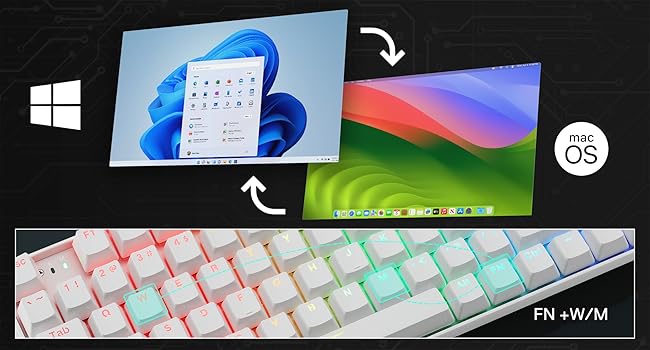
Image: Redragon K736 PRO keyboard showing compatibility with Windows and Mac OS, with a note about magnetic switch features requiring Windows driver.
Operating Instructions
Key Features
- Rapid Trigger Technology: This feature allows for ultra-precise actuation point adjustment between 0.1-4.0 mm via software. It enables dynamic activation/deactivation, defining a one-tap-kill capability in games.
- 2 Actions in 1 Tap: The professional software allows assigning two different actions to a single key based on different key actuation pressures. This simplifies complex skill combos.
- DKS/MT/TGL Modes: These modes offer unmatched detail control for defining every strike, allowing for continuous triggering, long press actions, and more.

Image: Diagram illustrating the Redragon HE magnetic switch and customizable actuation point settings from 0.1mm to 4.0mm.
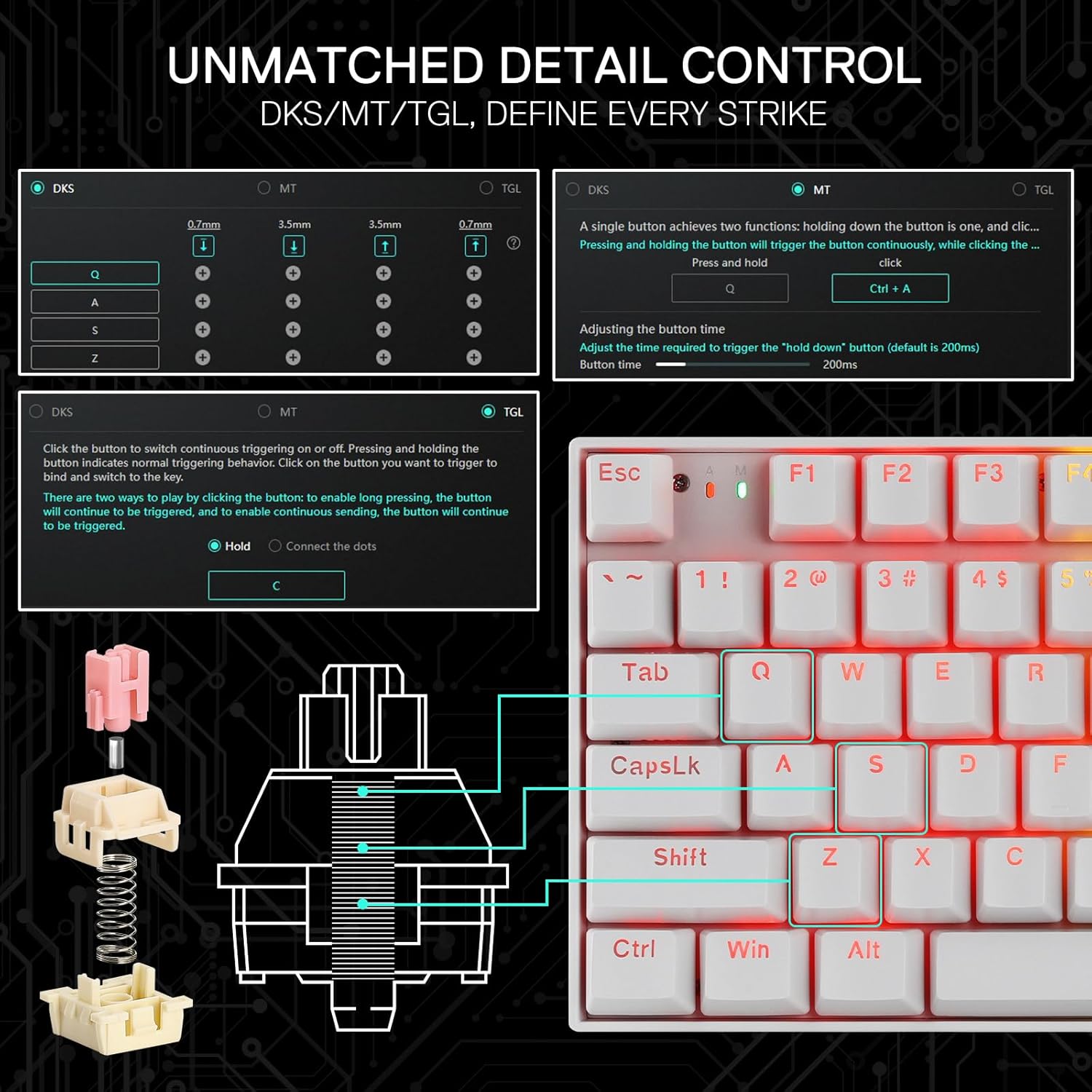
Image: Explanations and diagrams for DKS (Dynamic Key Stroke), MT (Mod-Tap), and TGL (Toggle) modes, allowing for advanced key customization.
RGB Lighting
The keyboard features per-key RGB backlighting. Various lighting effects and brightness levels can be adjusted directly on the keyboard using FN key combinations or through the Redragon software.
Battery Capacity Check
To check the visible battery capacity, press FN + Right Shift. The battery level will be displayed on the keyboard's indicators.

Image: Redragon K736 PRO keyboard illustrating how to check the 2500 mAh battery capacity using FN + Right Shift.
Windows/Mac Mode Switching
The keyboard supports both Windows and Mac operating systems. Use the appropriate key combination (refer to the user manual for specific keys, often FN + W/M) to switch between modes.
Maintenance
Keycap and Switch Replacement
The K736 PRO features hot-swappable HE magnetic switches. Use the provided keycap/switch puller tool to carefully remove keycaps and switches for cleaning or replacement. Ensure proper alignment when reinserting switches and keycaps.
Cleaning
Regularly clean your keyboard to maintain performance and hygiene. Use a soft brush or compressed air to remove dust and debris from between keycaps. For keycaps, they can be removed and cleaned with a mild soap solution, then thoroughly dried before reattaching.
Troubleshooting
- Keyboard not responding: Ensure the USB cable is securely connected or the 2.4GHz dongle is properly inserted and the keyboard is in the correct mode (wired, 2.4G, or BT). Check battery level if in wireless mode.
- Specific key not working: Try replacing the switch for the affected key using the provided spare switches and puller tool.
- RGB lighting issues: Adjust brightness and effects using FN key combinations. Ensure the Redragon software is installed and updated for full control.
- Magnetic switch features not working on PC: Ensure the dedicated Windows driver is installed and up-to-date from the Redragon website. Magnetic switch features are not compatible with Mac or non-PC platforms.
Specifications
| Feature | Detail |
|---|---|
| Model Name | Nephrite Pro (K736 PRO) |
| Layout | 90% (94 Keys) |
| Switches | HE Magnetic Mechanical Switches |
| Actuation Point | Adjustable (0.1-4.0 mm) |
| Connectivity | 2.4Ghz Wireless, Bluetooth, USB-C Wired |
| Battery | 2500 mAh Lithium Polymer |
| RGB Backlighting | Per-key Addressable RGB |
| Compatible Devices | Laptop, PC, Tablet |
| Operating System Compatibility | Windows (full features with driver), Mac |
| Material | Plastic or Lightweight Metal |
| Item Weight | 2.4 pounds |
| Package Dimensions | 14.84 x 7.48 x 2.28 inches |
Warranty and Support
Redragon products typically come with a manufacturer's warranty. Please refer to the warranty information included in your product packaging or visit the official Redragon website for details regarding warranty terms, registration, and support options.
For further assistance, product registration, or to download the latest drivers and software, please visit the Redragon Official Store or their support website.