
Krunia RC06, T95
Krunia Carplay Screen User Manual
Models: RC06 (9.26 Inch), T95 (7 Inch)
Your guide to seamless in-car connectivity and entertainment.
1. Introduction
Thank you for choosing Krunia Carplay Screens. This manual provides detailed instructions for the RC06 (9.26-inch screen with backup camera) and T95 (7-inch screen with landscape and portrait modes) models. These devices are designed to enhance your driving experience with smart features like Apple CarPlay, Android Auto, voice commands, and real-time navigation.
Please read this manual thoroughly before installation and operation to ensure proper use and to maximize the benefits of your new carplay screens.

Image: The Krunia RC06 9.26-inch Carplay Screen with its included backup camera, alongside the Krunia T95 7-inch Carplay Screen, showcasing its ability to switch between landscape and portrait orientations.
2. Product Features
- RC06: High-Performance 9.26-Inch IPS Touchscreen: Features 550 cd/m² brightness, a 1000:1 contrast ratio, and 16.7 million colors for vibrant visuals, outshining standard car screens.
- T95: 60FPS for Responsive Interactions: Provides smooth, responsive visuals at 60 frames per second (FPS) with faster touch interactions and reduced delay.
- T95: Flexible Screen Orientation (Landscape & Portrait Modes): Easily switch between landscape and portrait modes for comfortable viewing of navigation, videos, or apps.
- Voice Command for Hands-Free Driving: Use voice commands to make calls, send messages, and control navigation, enhancing driving safety.
- Live Traffic Updates for Real-Time Navigation: Stay informed with up-to-date route information and real-time alerts to avoid delays.

Image: The Krunia screen integrated into a car's dashboard, illustrating its smart capabilities such as voice control for navigation and music playback, enhancing the driving experience.
3. What's in the Box
Upon unboxing your Krunia Carplay Screen, please verify that all components are present:
- Krunia Carplay Screen (RC06 or T95 model)
- Car Charger
- User Manual (this document)
- Backup Camera (RC06 model only)
4. Setup and Installation
4.1 Mounting the Screen
The Krunia Carplay Screens are designed for easy installation on your car's dashboard or windshield. Use the provided mounting accessories to secure the device in a position that does not obstruct your view of the road or interfere with airbag deployment.
- Clean the mounting surface thoroughly to ensure a strong adhesion.
- Attach the suction cup or adhesive mount to the desired location.
- Securely attach the Carplay screen to the mount.
4.2 Power Connection
Connect the provided car charger to the screen's power input port and then into your vehicle's 12V power outlet (cigarette lighter socket). Ensure the connection is secure.
4.3 Backup Camera Installation (RC06 Model)
The RC06 model includes a backup camera for enhanced safety. The camera can be mounted on the license plate or bumper.
- Choose a suitable mounting location at the rear of your vehicle (e.g., above the license plate).
- Securely mount the camera using the provided hardware.
- Route the camera cable neatly to the front of the vehicle, connecting it to the designated input port on the RC06 screen.
- Connect the camera's power wire to your vehicle's reverse light circuit for automatic activation when shifting into reverse. Consult a professional if unsure about wiring.
5. Operating Instructions
5.1 Powering On/Off
The screen will automatically power on when your vehicle's ignition is turned on and power is supplied to the car charger. To power off, simply turn off your vehicle's ignition or unplug the car charger.
5.2 Wireless Apple CarPlay & Android Auto
These devices support wireless Apple CarPlay and Android Auto for seamless smartphone integration.
- Ensure Bluetooth and Wi-Fi are enabled on your smartphone.
- On the Krunia screen, navigate to the CarPlay or Android Auto icon.
- Follow the on-screen prompts to pair your phone via Bluetooth. Once paired, the system will automatically establish a Wi-Fi connection for CarPlay/Android Auto.

Image: The Krunia screen displaying both landscape and portrait modes, highlighting its support for wireless Apple CarPlay, Android Auto, and screen mirroring (Airplay) from a smartphone.
5.3 Screen Mirroring (Airplay)
You can mirror your smartphone's screen to the Krunia display via Airplay.
- Ensure your phone and the Krunia screen are connected to the same Wi-Fi network (or the screen's hotspot).
- On the Krunia screen, select the 'Airplay' or 'Screen Mirroring' option.
- On your iPhone, open Control Center, tap 'Screen Mirroring', and select the Krunia device.
5.4 Voice Commands
Utilize voice commands for hands-free operation through Siri or Google Assistant (when connected to CarPlay/Android Auto).
- Activate by saying "Hey Siri" or "Hey Google" (if enabled on your phone).
- Alternatively, press the voice command button on the screen (if available) or your steering wheel.
- Speak clearly to make calls, send messages, get directions, or control music.
5.5 Screen Orientation (T95 Model)
The T95 model allows switching between landscape and portrait modes.
- Physically rotate the screen to your desired orientation. The display will automatically adjust.
- Ensure the screen is securely mounted in both orientations.

Image: A close-up of the Krunia T95 7-inch IPS touchscreen, highlighting its 60FPS responsiveness, 550 cd/m² brightness, 1000:1 contrast ratio, 1082x632 resolution, and 16.7 million colors, emphasizing its seamless performance and stunning visuals.
5.6 Backup Camera Display (RC06 Model)
When the RC06 screen is properly connected to your vehicle's reverse light circuit, the display will automatically switch to the backup camera view when you shift into reverse gear.
6. Maintenance
To ensure the longevity and optimal performance of your Krunia Carplay Screen, follow these maintenance guidelines:
- Cleaning the Screen: Use a soft, lint-free cloth to gently wipe the screen. For stubborn smudges, slightly dampen the cloth with water or a screen-specific cleaning solution. Avoid harsh chemicals or abrasive materials.
- Cable Management: Ensure all cables are neatly routed and secured to prevent tangling or damage, which could interfere with operation or pose a safety hazard.
- Temperature Exposure: Avoid exposing the device to extreme temperatures (very hot or very cold) for extended periods, as this can affect battery life and screen performance.
- Storage: If storing the device for a long period, disconnect it from power and store it in a cool, dry place.
7. Troubleshooting
If you encounter issues with your Krunia Carplay Screen, refer to the following common problems and solutions:
| Problem | Possible Cause | Solution |
|---|---|---|
| Screen does not power on. | No power from car charger; loose connection; vehicle's 12V outlet is off. | Check car charger connection; ensure vehicle ignition is on; test 12V outlet with another device. |
| CarPlay/Android Auto not connecting. | Bluetooth/Wi-Fi off on phone; incorrect pairing; software glitch. | Ensure Bluetooth/Wi-Fi are on; forget device and re-pair; restart phone and screen. |
| Backup camera not displaying (RC06). | Loose cable connection; incorrect wiring to reverse light; faulty camera. | Check camera cable connection to screen; verify reverse light wiring; test camera if possible. |
| Touchscreen unresponsive. | Software freeze; dirty screen; physical damage. | Restart the device; clean the screen; if problem persists, contact support. |
If the issue persists after attempting these solutions, please contact Krunia customer support for further assistance.
8. Specifications
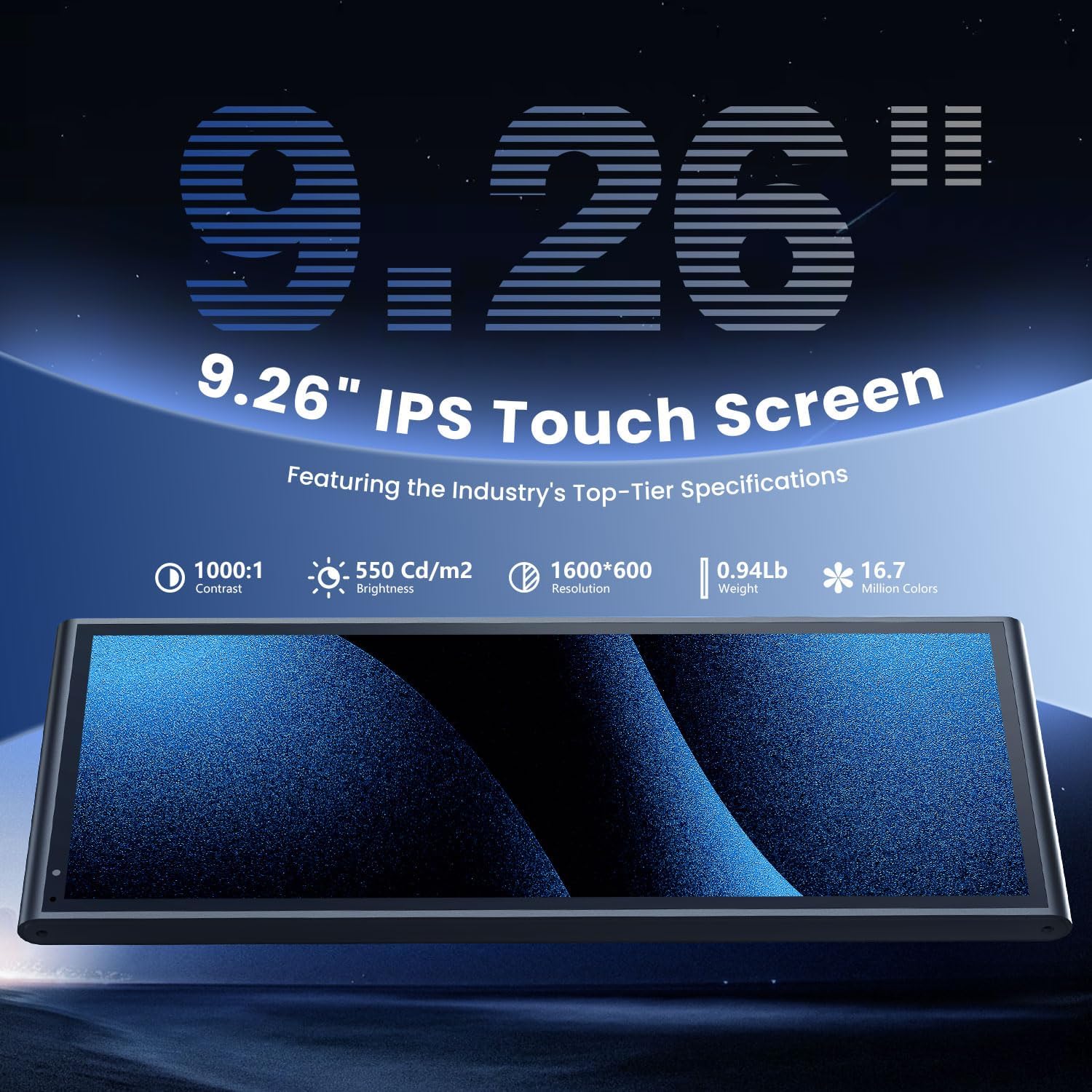
Image: Detailed specifications for the Krunia RC06 9.26-inch IPS Touch Screen, including 1000:1 contrast, 550 Cd/m² brightness, 1600*600 resolution, 0.94lb weight, and 16.7 million colors.
| Specification | Detail |
|---|---|
| Brand | Krunia |
| Model Names | RC06, T95 |
| RC06 Screen Size | 9.26 Inches |
| T95 Screen Size | 7 Inches |
| Display Type | IPS Touchscreen |
| Brightness | 550 cd/m² |
| Contrast Ratio | 1000:1 |
| Color Depth | 16.7 Million Colors |
| T95 Refresh Rate | 60 FPS |
| Video Capture Resolution (RC06) | 1080p (Backup Camera) |
| Connectivity | Wireless Apple CarPlay, Android Auto, Screen Mirroring |
| Included Components | Car Charger, User Manual (Backup Camera for RC06) |
| Mounting Type | Dashboard/Windshield Mount (License Plate/Bumper Mount for RC06 Camera) |
| Color | Black |
| Batteries Included | No |
9. Warranty and Support
Krunia products are manufactured with high-quality standards. For information regarding warranty coverage, please refer to the warranty card included with your product or visit the official Krunia website.
For technical support, troubleshooting assistance beyond this manual, or inquiries about replacement parts, please contact Krunia customer service. Contact details can typically be found on our official website or on the product packaging.
We recommend registering your product online to receive updates and support notifications.
Related documentsRC06, T95


Ask a question about this manual
Ask about setup, troubleshooting, compatibility, parts, safety, or missing instructions. Manuals+ will review the question and use this page’s manual context to help answer it.