
1. Introduction
The SUPVAN E11 is a versatile Bluetooth label maker designed for efficient organization in various environments, including home, kitchen, office, and school. It offers dual printing methods: direct input via its integrated keyboard or customized design through a dedicated smartphone application connected via Bluetooth. This device utilizes thermal printing technology, eliminating the need for ink or toner, and features a built-in rechargeable battery for portability.

Figure 1: The SUPVAN E11 Label Maker, showing its keyboard, display, and a label tape roll.
2. What's in the Box
Upon unboxing your SUPVAN E11 Label Maker, please verify that all the following components are included:
- SUPVAN E11 Label Maker
- White Continuous Tape x 1
- USB-C Cable
- User Manual

Figure 2: Packaging contents of the SUPVAN E11 Label Maker.
3. Setup
3.1 Charging the Device
The SUPVAN E11 Label Maker is equipped with a built-in 1200 mAh rechargeable battery. Before first use, or when the battery indicator shows low power, connect the device to a power source using the provided USB-C cable.
Video 1: Demonstrates connecting the USB-C cable for charging the SUPVAN E11 Label Maker.
3.2 Installing Label Tape
To install the label tape:
- Open the tape compartment cover on the side of the device.
- Insert the label tape roll into the compartment, ensuring the tape feeds out from the bottom and is aligned correctly with the print head. The tape should be positioned so that the printing surface faces upwards.
- Close the compartment cover securely.
- Ensure a small portion of the tape extends out of the printer's exit slot.

Figure 3: Illustration of loading thermal label tape into the SUPVAN E11 Label Maker.
4. Operating Instructions
4.1 Printing via Keyboard
The SUPVAN E11 features a full QWERTY keyboard for direct text input and printing. This method is ideal for quick and frequent labeling tasks.
- Turn on the label maker using the power button.
- Type your desired text using the keyboard. The text will appear on the device's display.
- Use the navigation keys to adjust text settings such as font size or style if available directly on the device.
- Press the 'Print' button to generate your label.
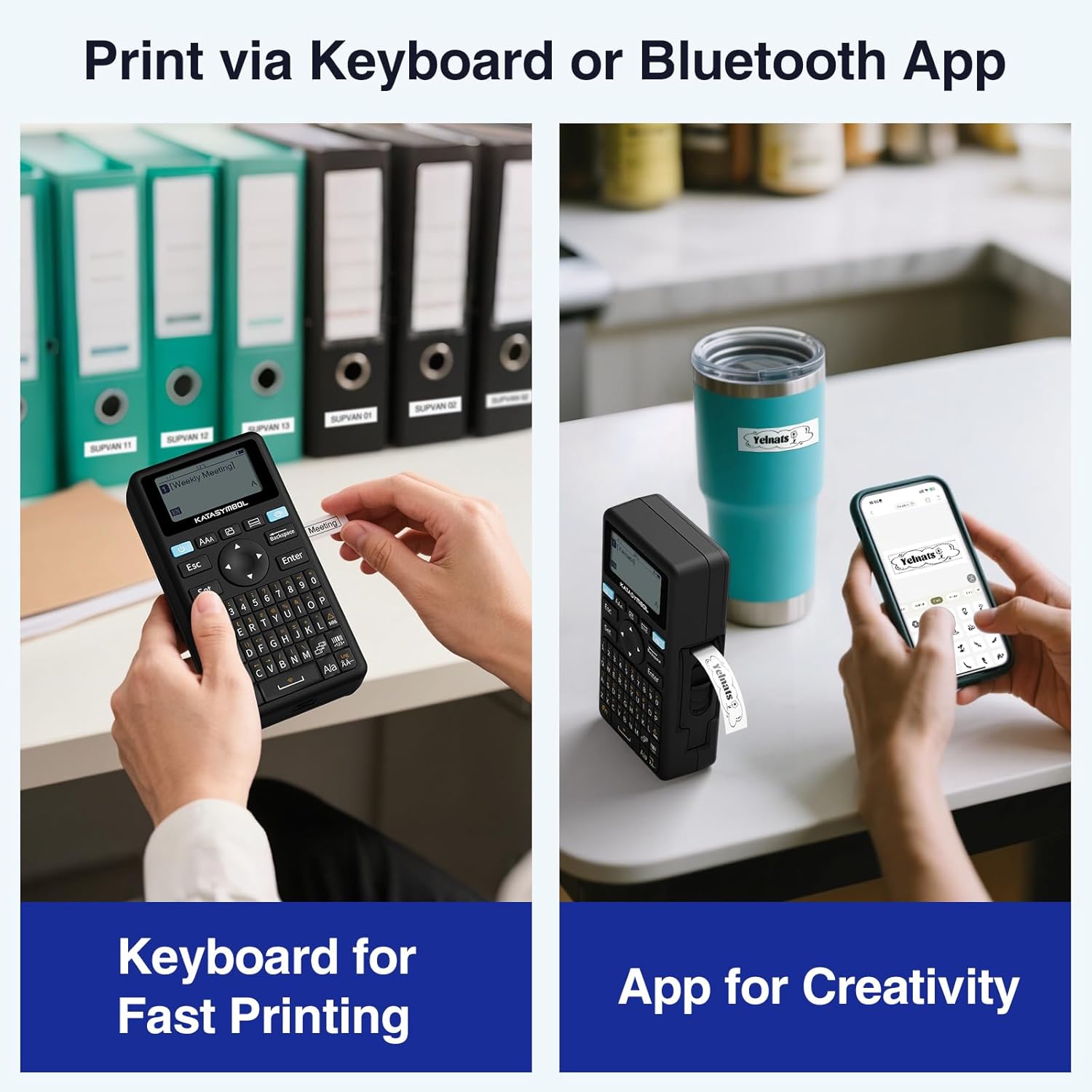
Figure 4: Direct label creation using the integrated keyboard.
4.2 Printing via Bluetooth App
For advanced customization and design flexibility, connect your SUPVAN E11 to a smartphone or tablet via Bluetooth using the dedicated application.
- Download and install the 'Katasymbol' app from your device's app store.
- Ensure Bluetooth is enabled on your smartphone/tablet and the label maker is powered on.
- Open the 'Katasymbol' app and follow the on-screen instructions to connect to your E11 device.
- Within the app, you can create and customize labels using various fonts, icons, frames, and templates.
- Once your design is complete, tap the 'Print' button in the app to send the label to the E11 for printing.
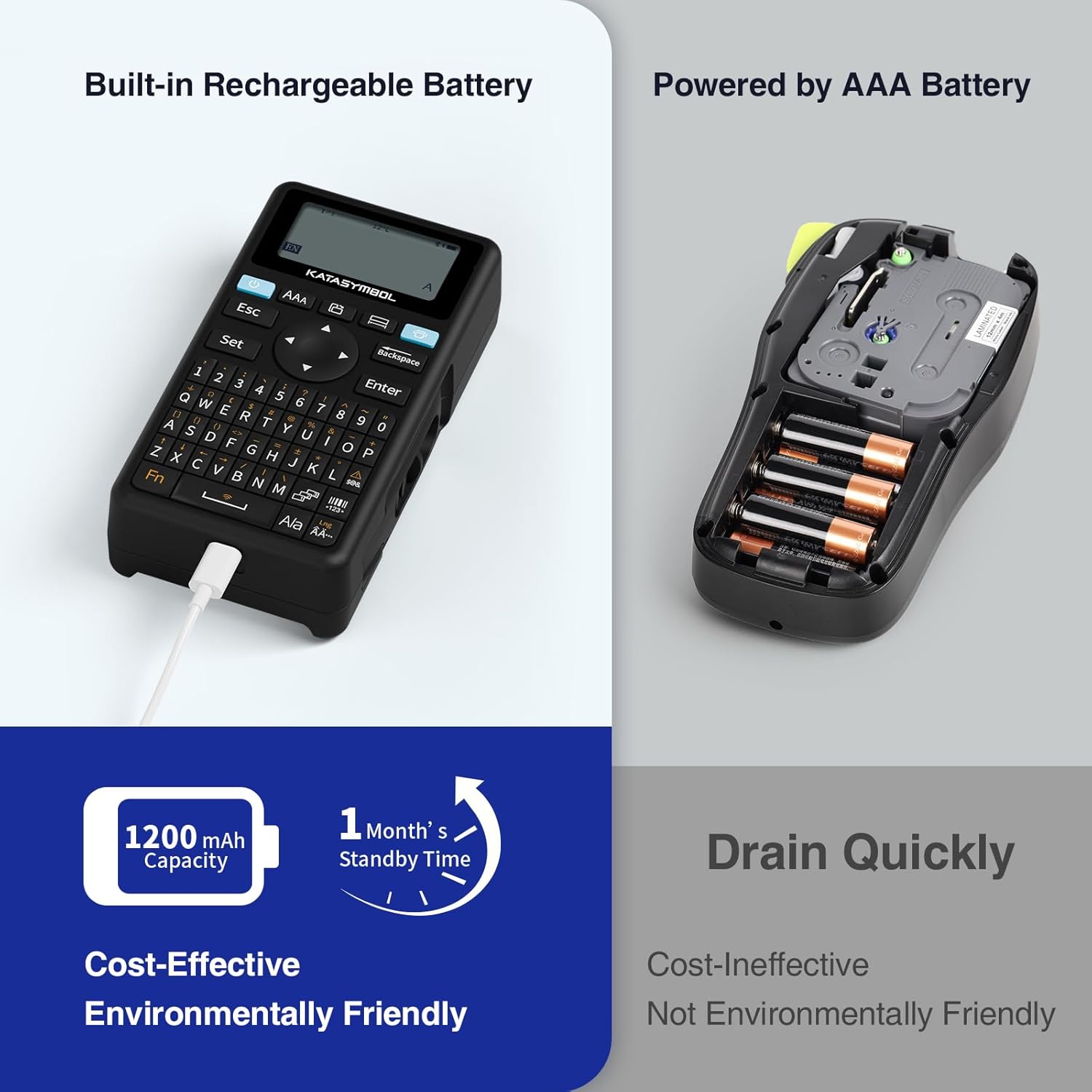
Figure 5: Designing labels using the mobile application.
4.3 App Features
The 'Katasymbol' app provides extensive features for label customization:
- Fonts: Choose from over 40 fonts to personalize your labels.
- Icons & Frames: Access a library of over 650 icons and 50 frames to enhance your designs.
- Multi-language Support: The app supports 17 languages, including Spanish and French.
- Templates: Create and save your own label templates for quick reuse.

Figure 6: Overview of the app's editing capabilities.
4.4 Label Types and Applications
The E11 supports both continuous and fixed-size labels, automatically recognizing the label size. This allows for diverse applications, from short item identifiers to longer content such as best-before dates.
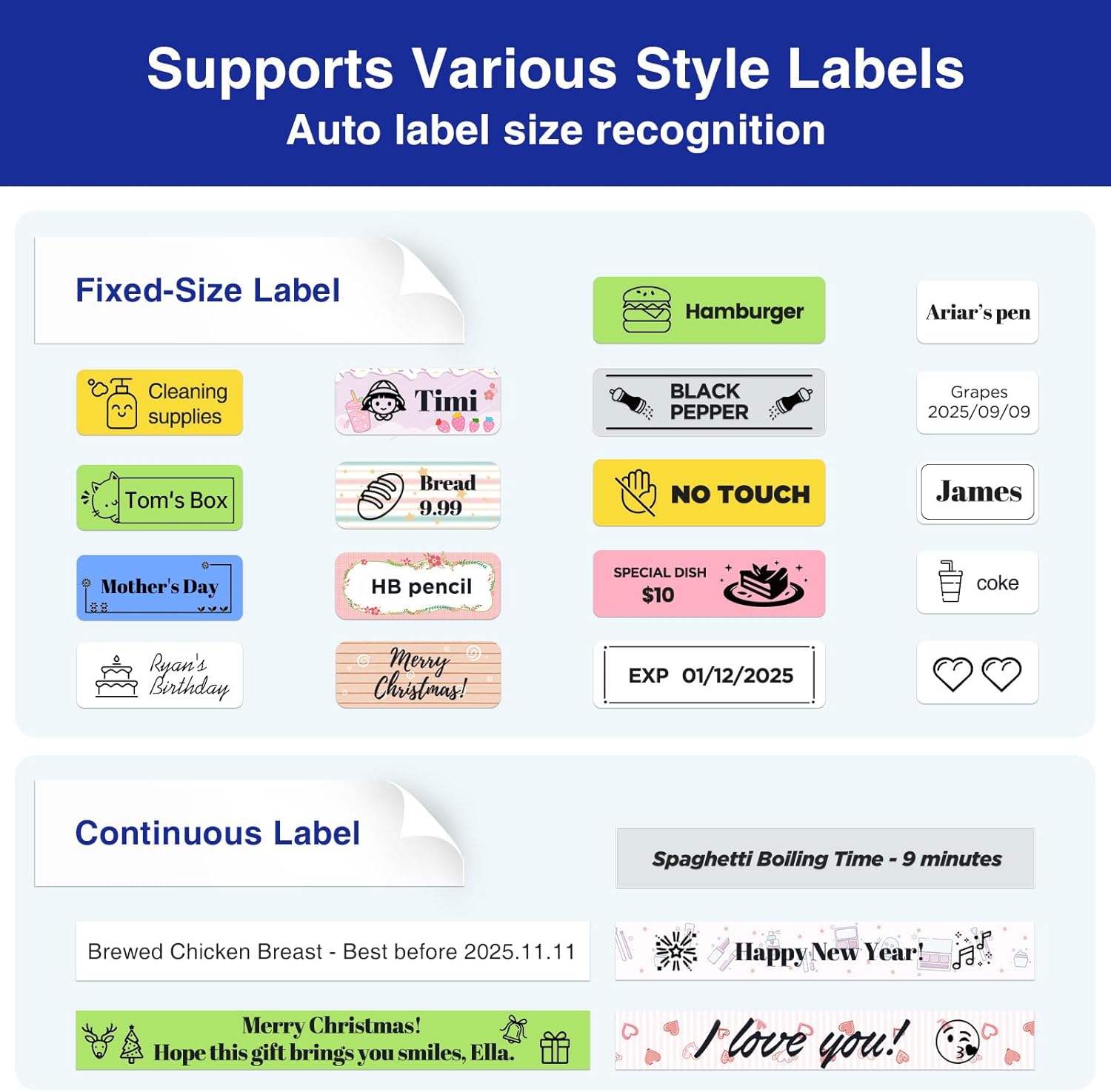
Figure 7: Examples of continuous and fixed-size labels in use.
The SUPVAN E11 is suitable for a wide range of labeling needs:
- Home organization (e.g., pantry, storage boxes)
- Office filing and asset management
- School supplies and personal items
- Cable management

Figure 8: Various applications of the SUPVAN E11 Label Maker.
5. Maintenance
To ensure optimal performance and longevity of your SUPVAN E11 Label Maker:
- Cleaning: Regularly clean the print head with a soft, lint-free cloth. Avoid using harsh chemicals or abrasive materials.
- Storage: Store the device in a cool, dry place away from direct sunlight and extreme temperatures.
- Labels: Use only genuine SUPVAN thermal label tapes to prevent damage to the print head and ensure print quality. The device does not require ink or toner.
- Battery Care: For long-term storage, charge the battery to approximately 50% and recharge every few months to maintain battery health.
6. Troubleshooting
If you encounter issues with your SUPVAN E11 Label Maker, refer to the following common problems and solutions:
| Problem | Possible Cause | Solution |
|---|---|---|
| Device does not turn on | Low battery; Power button not pressed correctly | Charge the device using the USB-C cable; Ensure the power button is held down until the screen illuminates. |
| Poor print quality (faint, blurry) | Print head dirty; Incorrect label tape loading; Low battery | Clean the print head; Re-install label tape correctly; Charge the device. |
| Label tape not feeding or jamming | Incorrect tape installation; Tape jammed | Ensure tape is loaded as per instructions (Figure 3); Gently pull out any jammed tape and re-insert. |
| Bluetooth connection issues | Bluetooth off; Device not discoverable; App issue | Ensure Bluetooth is on for both devices; Restart the label maker and app; Re-pair the device in the app. |
| Apostrophe or special characters have large spacing when printed from keyboard | Keyboard input formatting limitation | For optimal formatting of special characters, use the 'Katasymbol' mobile application. |
7. Specifications
| Feature | Detail |
|---|---|
| Model Number | E11 |
| Product Dimensions | 5.7"D x 2.9"W x 1.3"H |
| Item Weight | 0.705 ounces (approx. 20 grams) |
| Connectivity Technology | Bluetooth |
| Printing Technology | Thermal |
| Printer Output | Monochrome |
| Maximum Print Resolution | 203 Dots Per Inch |
| Maximum Media Size | 1/2 inch |
| Battery | 1200 mAh (1 AA batteries required, included) |
| Included Components | Label Maker, Manual, USB-C Cable, White Continuous Tape x 1 |
8. Warranty and Support
For warranty information or technical support, please refer to the documentation included with your product or visit the official SUPVAN Store or contact SUPVAN customer service directly.


