
1. Introduction
The BeLink MK9000 Portable 3D Video Projector is a compact, high-performance DLP LED projector designed for ultimate entertainment and convenience. This manual provides essential information for setting up, operating, and maintaining your projector, ensuring you get the most out of its advanced features.

Figure 1: The BeLink MK9000 Portable 3D Video Projector shown with its packaging, highlighting its compact design and 4K UHD capabilities.
2. Package Contents
Please check the box for the following items:
- BeLink MK9000 Portable 3D Video Projector
- Remote Control
- Power Adapter
- User Manual (This document)
3. Product Features
The BeLink MK9000 boasts a range of features designed for an exceptional viewing experience:
- Ultra-bright 7500 Lumens: Enjoy vibrant, clear images in almost any lighting condition.
- DLP Technology: Delivers superior image quality with enhanced brightness and contrast, making it perfect for movies, presentations, and gaming.
- HD & 3D Support: Full HD resolution and 3D capabilities for immersive viewing experiences.
- Portable Design: Lightweight and compact, perfect for on-the-go entertainment or business use.
- Smart Home Theater Experience: Ideal for streaming, gaming, or projecting large-screen content at home or in any environment.
- Multiple Connectivity Options: HDMI, USB, and wireless capabilities to easily connect to a range of devices.
- Built-in Speakers: Convenient audio output for a fully integrated experience.
- Quiet Operation: Minimal noise during use, making it perfect for both entertainment and presentations.
- Energy-Efficient LED Lamp: Long-lasting and eco-friendly, providing years of reliable performance.
4. Setup Guide
4.1 Unboxing and Placement
Carefully remove all components from the packaging. Place the projector on a stable, flat surface. Ensure adequate ventilation around the device to prevent overheating.
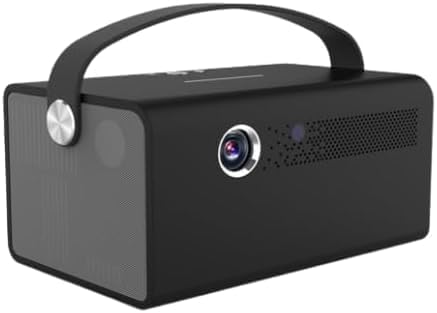
Figure 2: Front view of the BeLink MK9000 projector, showing the lens and ventilation grilles.
4.2 Power Connection
Connect the power adapter to the projector's DC IN port and then plug the adapter into a standard wall outlet.
4.3 Initial Power On
Press the power button on the projector or the remote control to turn on the device. The indicator light will illuminate.
4.4 Focus Adjustment
Adjust the focus ring located near the projector lens until the projected image appears clear and sharp on your screen or wall.
5. Operating Instructions
5.1 Source Selection
Use the "Source" button on the remote or the projector's control panel to cycle through available input sources (e.g., HDMI, USB, Wi-Fi).
5.2 Connecting Devices
5.2.1 HDMI Connection
Connect your HDMI-enabled device (laptop, gaming console, Blu-ray player) to the HDMI port on the projector using an HDMI cable. Select the corresponding HDMI input source.
5.2.2 USB Connection
Insert a USB flash drive into the USB port to access compatible media files (photos, videos, documents) directly from the projector's media player.
5.2.3 Wireless Connection (Wi-Fi)
Navigate to the projector's network settings menu. Select your Wi-Fi network from the list and enter the password to establish a wireless connection. This enables streaming and screen mirroring features.
5.3 3D Playback
For 3D content, ensure your source material is 3D compatible (e.g., 3D Blu-ray). The projector supports active 3D technology; active 3D glasses are required and sold separately. The projector will automatically detect 3D signals.
5.4 Audio Output
The projector features built-in speakers for convenient audio output. For enhanced sound, you can connect external speakers or headphones to the audio output port, or utilize Bluetooth connectivity if your external audio device supports it.

Figure 3: Side view of the BeLink MK9000 projector, highlighting the integrated speaker grille for audio output.
6. Maintenance
6.1 Cleaning the Lens
Gently wipe the projector lens with a soft, lint-free cloth specifically designed for optical surfaces. Do not use abrasive cleaners, solvents, or excessive pressure, as this can damage the lens coating.
6.2 Cleaning the Projector Body
Use a soft, dry cloth to clean the exterior of the projector. Avoid using liquid cleaners directly on the device. For stubborn marks, slightly dampen the cloth with water and wipe gently, then dry immediately.
6.3 Storage
When not in use for extended periods, store the projector in a cool, dry place, away from direct sunlight, dust, and extreme temperatures. It is recommended to use the original packaging or a protective case.
7. Troubleshooting
If you encounter issues with your projector, please refer to the following common problems and solutions:
7.1 No Image Displayed
- Ensure the projector is powered on and the power indicator light is active.
- Check all cable connections (HDMI, power) to ensure they are securely plugged in.
- Verify that the correct input source is selected on the projector.
- Test with a different source device or cable if possible.
7.2 Image is Blurry or Distorted
- Adjust the focus ring on the projector lens until the image is sharp.
- Ensure the projection distance is within the recommended range for the projector.
- Check for any obstructions in front of the lens.
7.3 No Sound
- Check the volume level on the projector and the connected source device.
- Ensure external audio devices are properly connected if used, and that the projector's audio output is correctly configured.
- If using HDMI, ensure the audio output is enabled on the source device.
7.4 Remote Control Not Working
- Check and replace the batteries in the remote control if necessary.
- Ensure there are no obstructions between the remote and the projector's IR receiver.
- Point the remote directly at the projector's IR sensor.
8. Technical Specifications
| Feature | Detail |
|---|---|
| Brand Name | BeLink |
| Special Features | 3D-Ready |
| ASIN | B0DX88277D |
| Date First Available | February 14, 2025 |
| Recommended Uses For Product | Home Cinema |
| Connectivity Technology | Wi-Fi |
| Display Resolution | 4096 x 2160 |
9. Warranty and Support
The BeLink MK9000 Portable 3D Video Projector comes with a standard manufacturer's warranty. For detailed warranty information, technical support, or service inquiries, please refer to the warranty card included in your package or visit the official BeLink website for the most up-to-date support resources.
Note: Warranty terms and conditions may vary by region. Please retain your proof of purchase for warranty claims.