
DOOGEE TabA9
DOOGEE Tab A9 Android 15 Tablet User Manual
Model: Tab A9 | Brand: DOOGEE
1. Introduction
Thank you for choosing the DOOGEE Tab A9 Android 15 Tablet. This manual provides essential information for setting up, operating, and maintaining your device. Please read it thoroughly to ensure optimal performance and longevity of your tablet.
The DOOGEE Tab A9 is a 10-inch tablet running on the latest Android 15 system, powered by a Unisoc T310 quad-core processor. It features 12GB RAM, 64GB ROM (expandable up to 2TB), a 6580mAh battery, dual speakers, 8MP AI camera, 5MP front camera, and supports Face ID.

Image: Front and back view of the DOOGEE Tab A9 tablet, highlighting its 6580mAh battery, 5G WiFi, 10.1-inch IPS display, Android 15, 12GB RAM, 64GB ROM, and Unisoc T310 processor.
2. What's in the Box
- DOOGEE Tab A9 Tablet
- Charger
- Type-C USB Cable
3. Device Layout
Familiarize yourself with the physical components of your DOOGEE Tab A9 tablet.

Image: Side view of the DOOGEE Tab A9 tablet, illustrating the placement of buttons and ports such as the power button, volume rocker, and USB-C port.
- Power Button: Located on the side, used to power on/off or wake/sleep the device.
- Volume Buttons: Adjust audio volume.
- USB Type-C Port: For charging and data transfer.
- 3.5mm Audio Jack: For connecting headphones.
- Front Camera (5MP): Located above the screen, for video calls and selfies.
- Rear Camera (8MP): Located on the back, for taking photos and videos.
- Dual Speakers: Located on the sides/bottom for enhanced audio experience.
4. Setup
4.1 Initial Power On
- Press and hold the Power Button until the DOOGEE logo appears.
- Follow the on-screen prompts to select your language, connect to Wi-Fi, and set up your Google account.
4.2 Charging the Tablet
Connect the provided Type-C USB cable to the tablet's charging port and the other end to the charger. Plug the charger into a power outlet. The battery icon on the screen will indicate charging status.

Image: Visual representation of the 6580mAh large battery and 10W fast charging capability of the DOOGEE Tab A9 tablet.
4.3 Inserting a Micro SD Card (Optional)
The tablet supports storage expansion up to 2TB via a Micro SD card (not included). Locate the SIM/SD card tray on the side of the tablet. Use the provided ejector tool to open the tray and insert the Micro SD card as shown in the diagram (refer to device layout section for tray location). Ensure the tablet is powered off before inserting or removing the card.
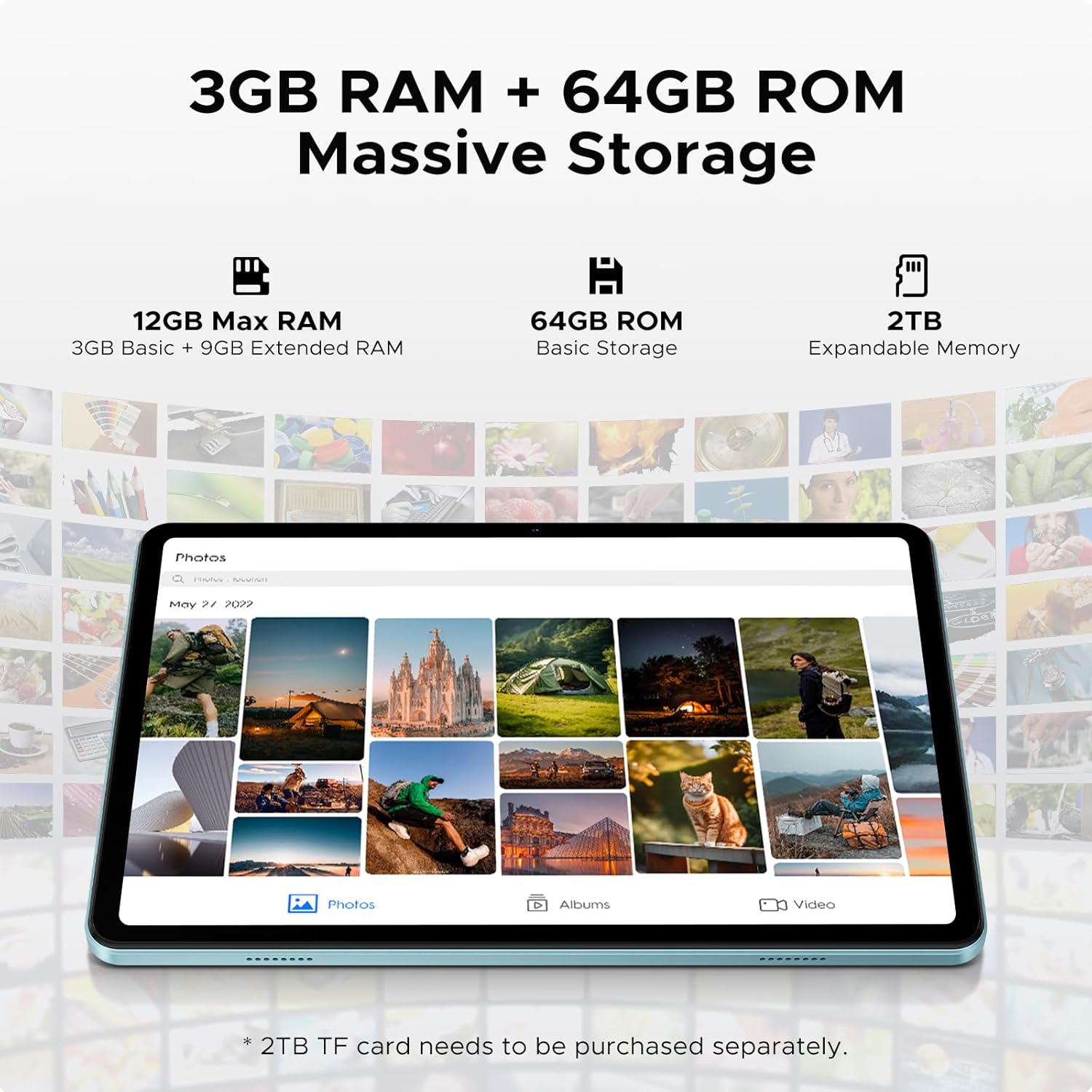
Image: Details on the tablet's 12GB Max RAM (3GB Basic + 9GB Extended RAM) and 64GB ROM Basic Storage, with a note about 2TB Expandable Memory via TF card (sold separately).
5. Operating Instructions
5.1 Basic Navigation
- Touch: Tap an icon or option to select it.
- Swipe: Drag your finger across the screen to scroll through pages or content.
- Pinch-to-Zoom: Use two fingers to zoom in or out on images or web pages.
5.2 Connecting to Wi-Fi
- Go to Settings > Network & internet > Wi-Fi.
- Turn on Wi-Fi. The tablet will scan for available networks.
- Select your desired network and enter the password if prompted.
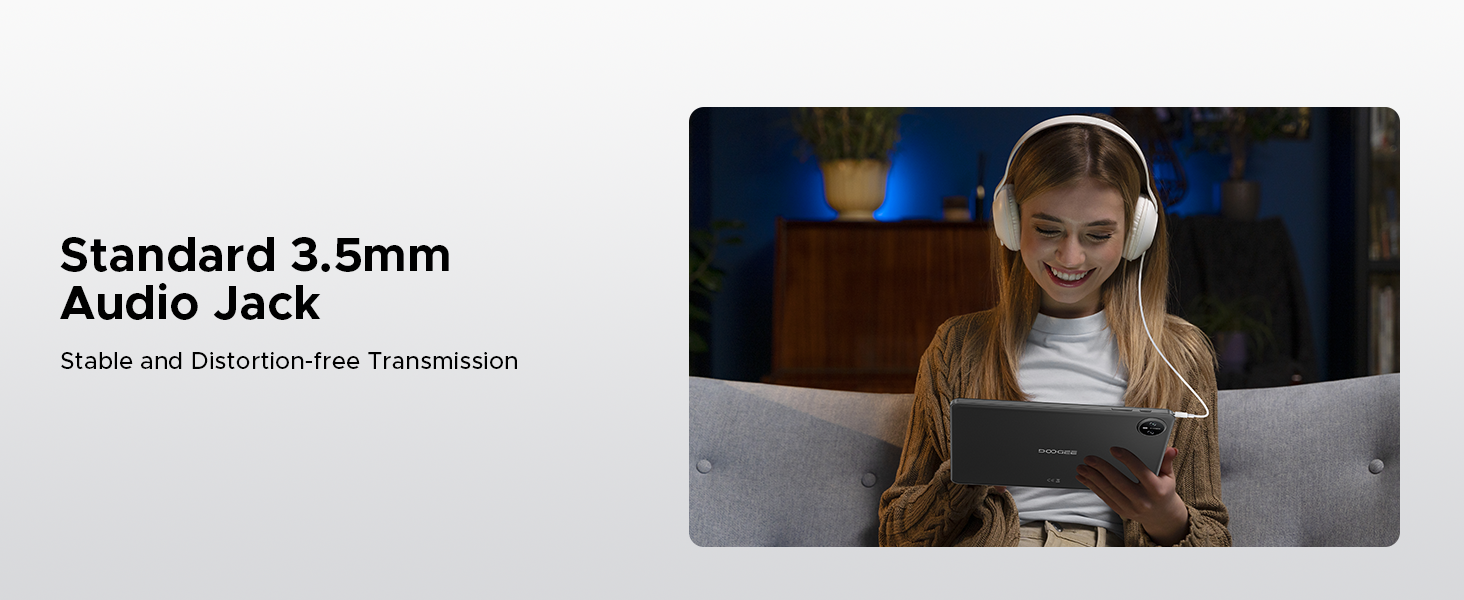
Image: Diagram illustrating the benefits of Faster WiFi 5 connectivity, including low latency, anti-congestion, wide coverage, low power consumption, and high speed.
5.3 Using Face ID
The DOOGEE Tab A9 supports facial recognition for quick and secure unlocking.
- Go to Settings > Security & privacy > Face unlock.
- Follow the on-screen instructions to register your face.
- Once registered, you can unlock your tablet by simply looking at the front camera.
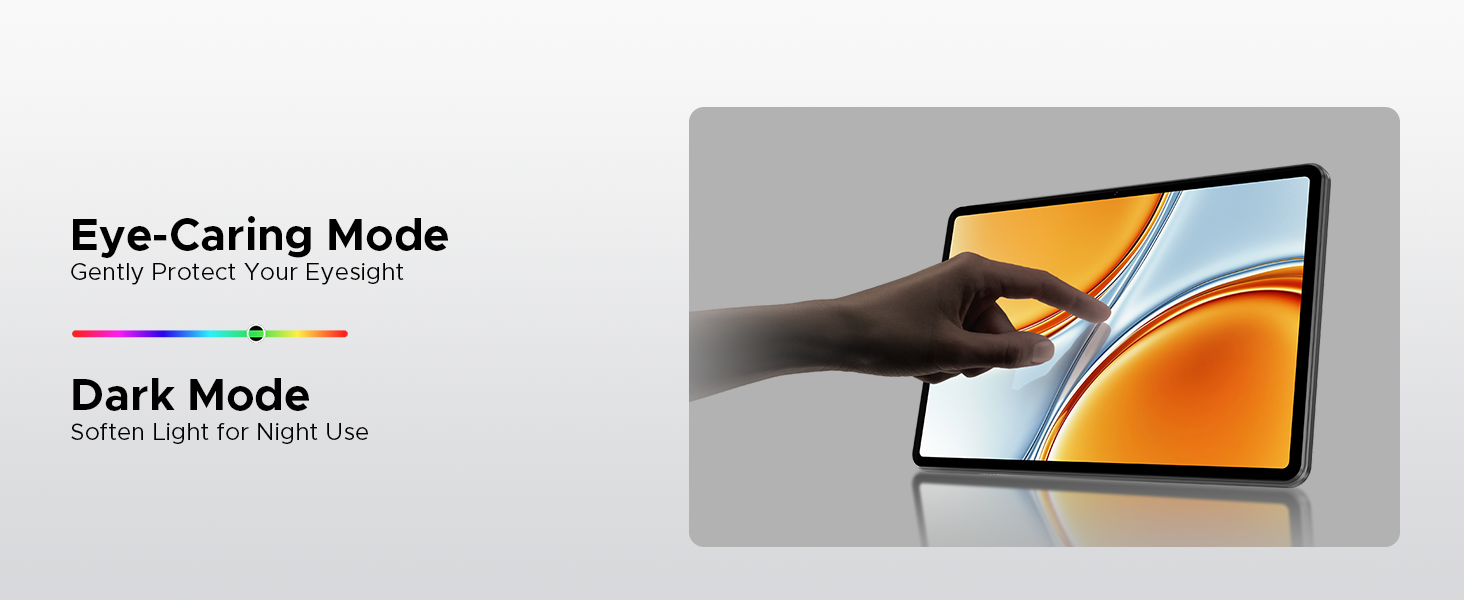
Image: A visual demonstrating the Facial Recognition Unlock feature for effortless access to the tablet.
5.4 Camera Operation
Capture moments with the 8MP rear camera and 5MP front camera.
- Open the Camera application.
- Tap the shutter button to take a photo.
- Switch between front and rear cameras using the camera switch icon.
- Explore various modes like Beauty Mode for enhanced photos.

Image: Depiction of the 8MP main camera and 5MP front camera, highlighting their use for capturing lively moments and video calls.
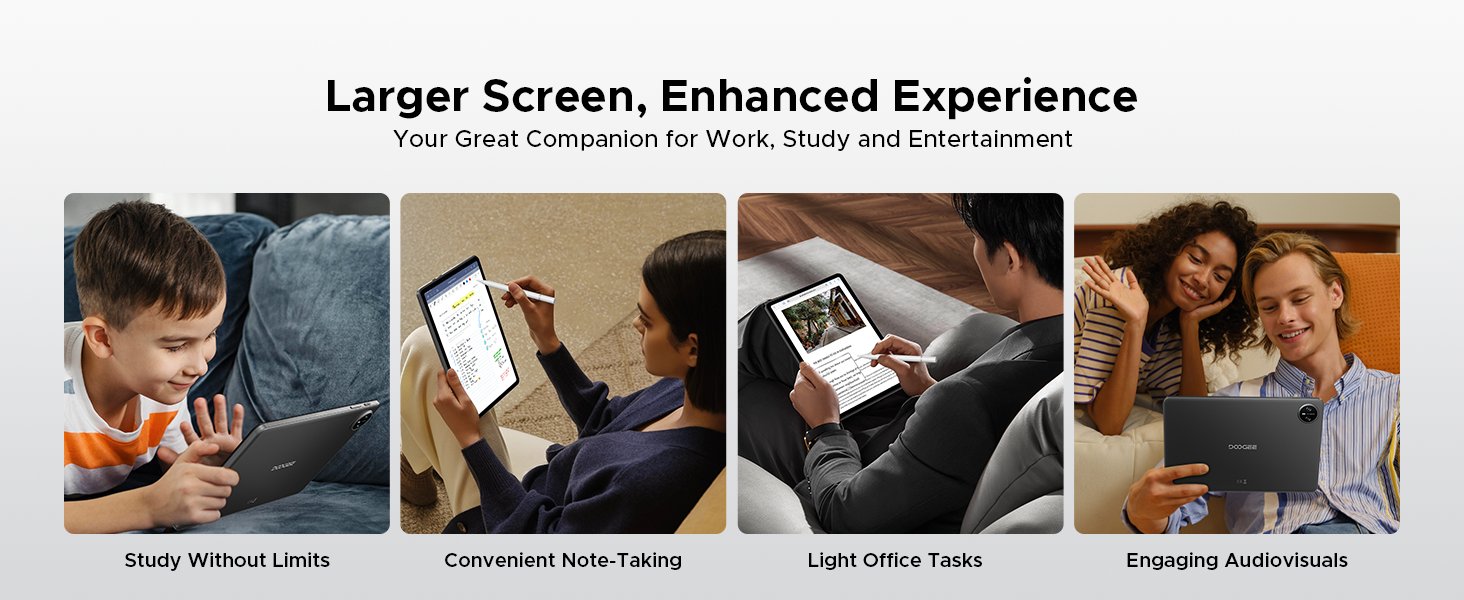
Image: A visual demonstrating the "Beauty Mode" feature for enhancing photos.
5.5 Split-Screen Multitasking
The tablet supports efficient split-screen multitasking, allowing you to use two apps simultaneously.
- Open the first app you want to use.
- Swipe up from the bottom of the screen and hold to access recent apps.
- Tap the app icon at the top of the app's card and select "Split screen".
- Choose the second app from your recent apps or app drawer.
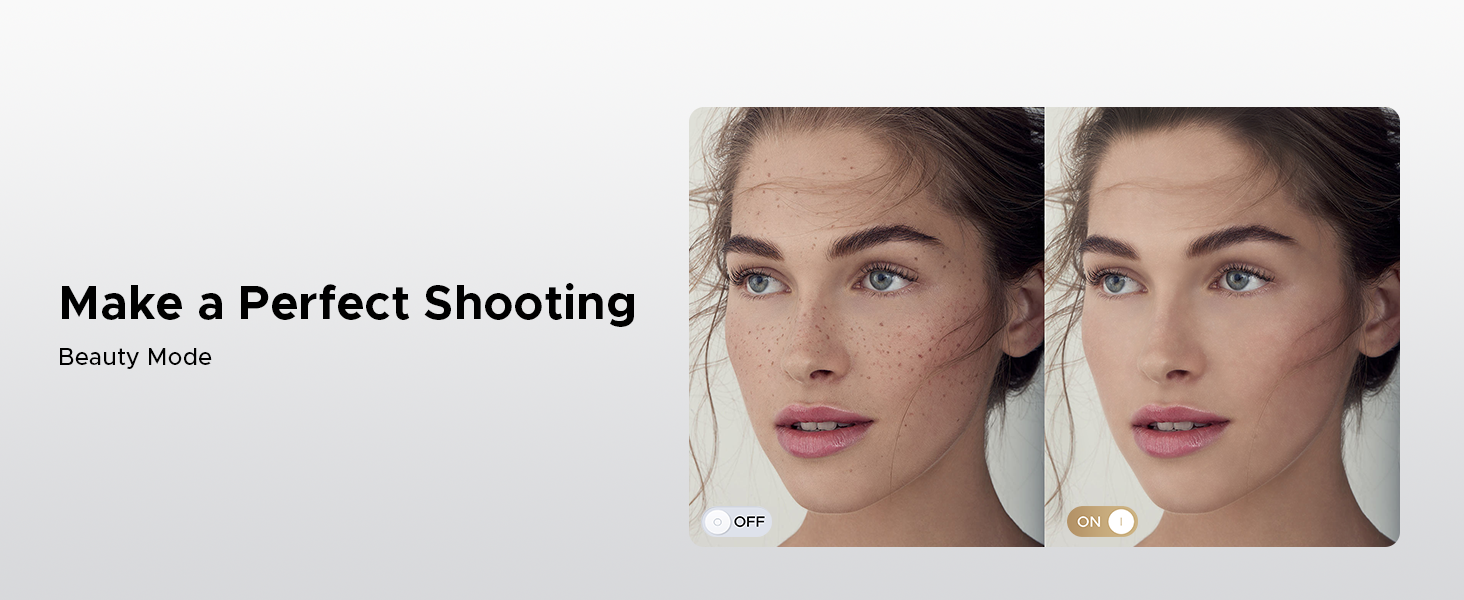
Image: A user demonstrating efficient split-screen multitasking on the DOOGEE Tab A9 tablet, with two applications open side-by-side.
6. Key Features
6.1 Android 15 System
The DOOGEE Tab A9 runs on the latest Android 15, offering enhanced performance, improved app launch speeds, and a more secure privacy management system.
Image: The Android 15 system logo, emphasizing intelligence, seamlessness, and security.

Image: Features of the Fortified Privacy Shield in Android 15, including precision permission control, robust data encryption, timely security patches, and proactive app screening.
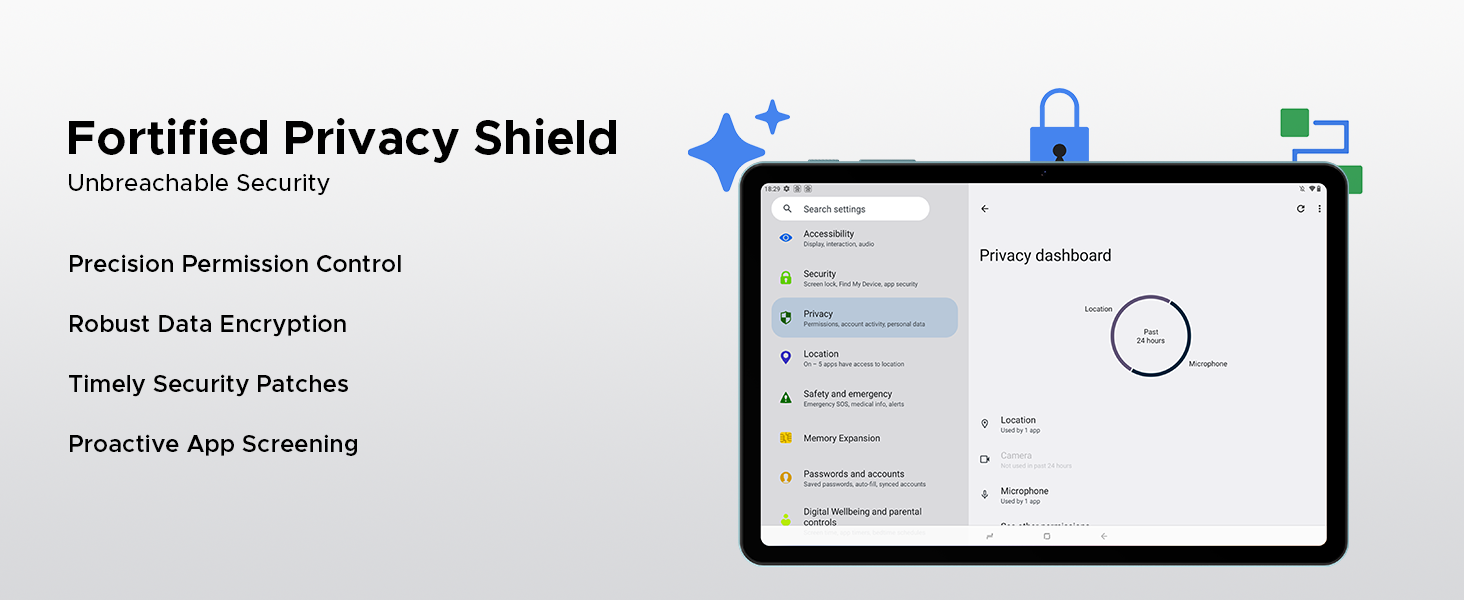
Image: Illustrations of additional Android 15 features such as Bedtime Mode, Multi-user System, and Parental Control.
6.2 Unisoc T310 Quad-Core Processor
Equipped with the Unisoc T310 processor, the tablet delivers smooth performance for daily tasks, web browsing, and office software, while maintaining low power consumption.

Image: Diagram showcasing the Unisoc T310 Quad-Core Processor, highlighting its powerful quad-core design, 2.0GHz ultimate frequency, and 12nm advanced process technology.
6.3 10.1" IPS HD Display
Enjoy a wide field of view and vibrant colors on the 10.1-inch IPS HD display with 1280x800 resolution.
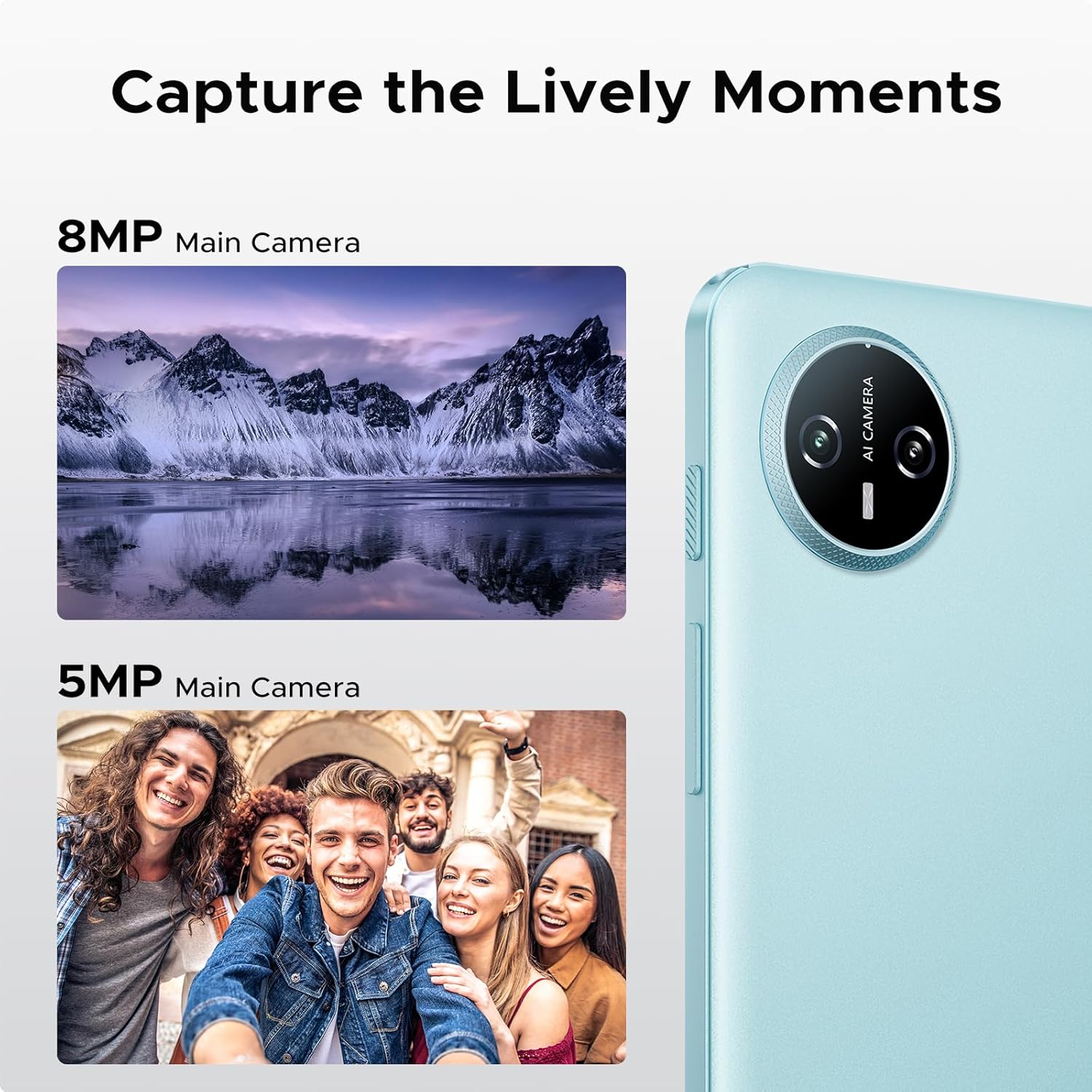
Image: Specifications of the 10.1-inch IPS HD display, including 1280*800 resolution, 16:10 aspect ratio, 80.2% screen-to-body ratio, 1200:1 contrast, 16.7 million screen colors, and 2.5D cover glass.
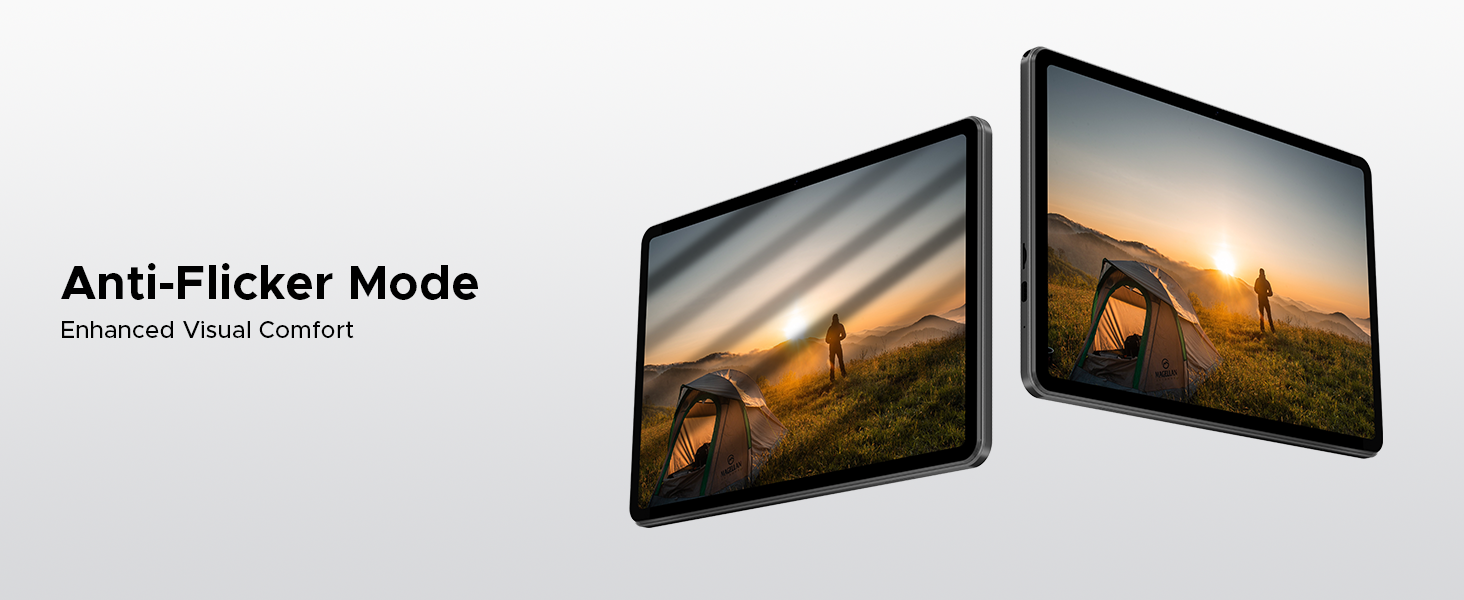
Image: Visuals explaining Eye-Caring Mode to gently protect eyesight and Dark Mode to soften light for night use.
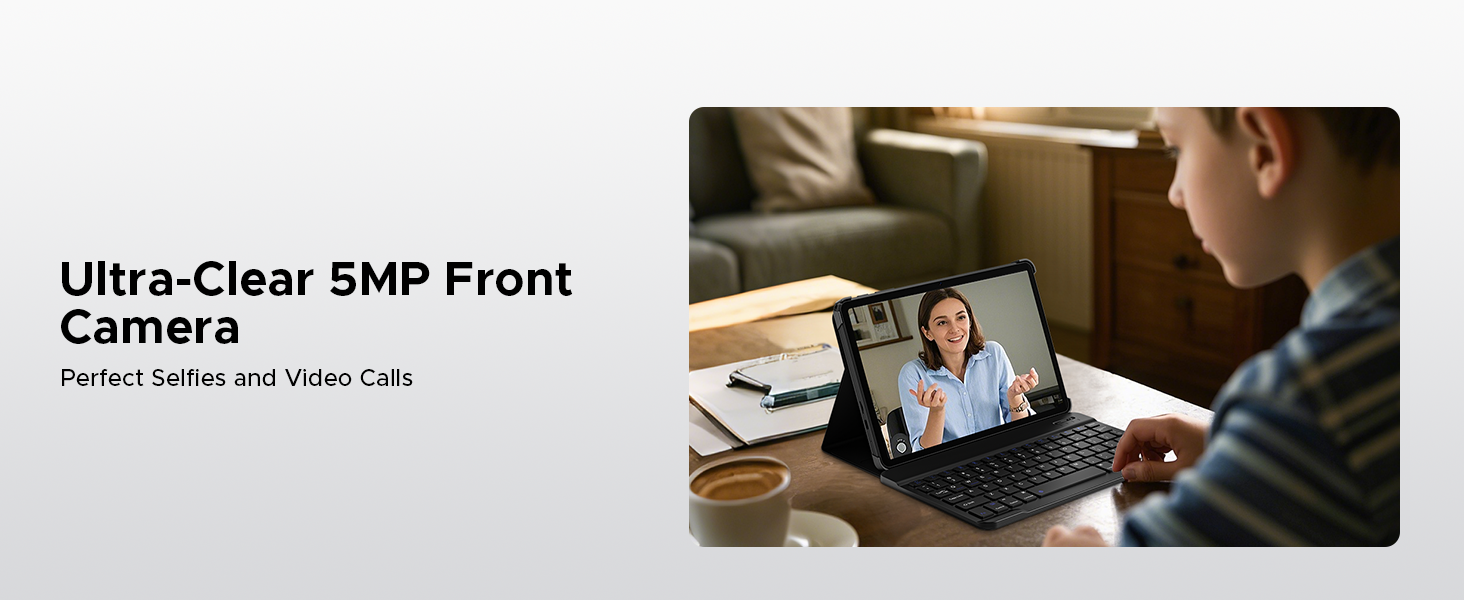
Image: Various usage scenarios for the tablet, including studying, note-taking, light office tasks, and engaging with audiovisuals.
6.4 Dual Speakers
Experience crystal-clear sound with the premium 1217 BOX dual speakers.

Image: Illustration of the 1217 BOX Dual Speakers, indicating sound follows the picture for an immersive experience.
6.5 Built-in WPS Office
The tablet comes with built-in PC-level WPS Office for seamless productivity on-the-go, supporting Word, Excel, and PowerPoint documents.

Image: Tablets displaying WPS Word, Excel, and PPT applications, demonstrating the built-in PC-level WPS Office suite.
7. Maintenance and Care
- Keep the tablet dry. Moisture can damage the internal circuits.
- Avoid extreme temperatures. High temperatures can shorten the life of electronic devices and deform certain plastics.
- Do not drop, knock, or shake the tablet. Rough handling can break internal circuit boards and fine mechanics.
- Use only approved chargers and accessories.
- Clean the screen with a soft, lint-free cloth. Avoid using harsh chemicals.
8. Troubleshooting
| Problem | Possible Solution |
|---|---|
| Tablet won't turn on. | Ensure the battery is charged. Connect the charger and wait a few minutes before attempting to power on again. |
| Screen is unresponsive. | Perform a forced restart by holding the power button for about 10-15 seconds. If the issue persists, contact support. |
| Wi-Fi connection issues. | Restart your Wi-Fi router. Go to Settings > Network & internet > Wi-Fi and try reconnecting. Forget the network and re-add it if necessary. |
| Apps are crashing or freezing. | Clear the cache of the problematic app (Settings > Apps > [App Name] > Storage & cache > Clear cache). If it continues, uninstall and reinstall the app. Ensure sufficient storage space. |
| Battery drains quickly. | Reduce screen brightness, close unused apps running in the background, disable unnecessary notifications, and turn off Wi-Fi/Bluetooth when not in use. |
9. Specifications
- Model: Tab A9
- Operating System: Android 15
- Processor: Unisoc T310 Quad-Core, 1.8 GHz
- RAM: 12GB (3GB Basic + 9GB Extended)
- Internal Storage: 64GB ROM
- Expandable Storage: Up to 2TB via Micro SD (TF card)
- Display: 10.1-inch IPS HD, 1280 x 800 pixels
- Rear Camera: 8MP AI Camera
- Front Camera: 5MP
- Battery: 6580mAh Lithium Polymer
- Connectivity: 5G Wi-Fi, Bluetooth
- Ports: USB Type-C, 3.5mm Audio Jack
- Dimensions: 24.25 x 16.09 x 0.97 cm
- Weight: 900 g
- Special Features: Face ID, OTG Support, Dual Speakers, GMS Certified
10. Official Product Videos
Watch these official videos for more information and visual guides on your DOOGEE Tab A9 tablet.
DOOGEE Tab A9 Android tablets
This video provides an overview of the DOOGEE Tab A9 Android tablet, showcasing its design and key functionalities.
DOOGEE Tablet Android 15-Tab A9
A detailed look at the DOOGEE Tab A9, highlighting its Android 15 operating system and user experience.
DOOGEE 10 Inch Tablet Tab A9 Android Tablets
This video focuses on the 10-inch display and overall design of the DOOGEE Tab A9, suitable for various uses.
DOOGEE Tab A9 Android 15 Tablet
A concise video highlighting the key selling points of the DOOGEE Tab A9 Android 15 Tablet.
11. Warranty and Support
DOOGEE provides comprehensive support for its products.
- Warranty: This product typically comes with a 2-year limited warranty. Please refer to your purchase documentation for specific terms and conditions.
- Returns: A 30-day money-back guarantee and free return policy may apply. Check with your retailer for details.
- Customer Service: For technical assistance or customer support, please visit the official DOOGEE website or contact their customer service channels.
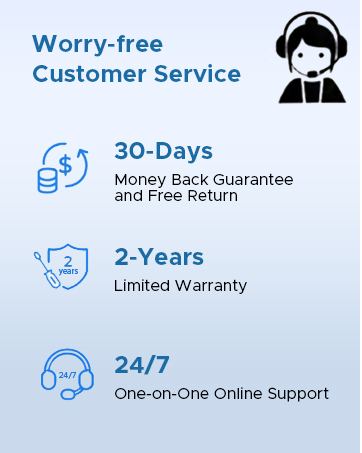
Image: Information on DOOGEE's customer service, including 30-day money back guarantee, 2-year limited warranty, and 24/7 online support.
Related documentsTabA9


Ask a question about this manual
Ask about setup, troubleshooting, compatibility, parts, safety, or missing instructions. Manuals+ will review the question and use this page’s manual context to help answer it.