
Introduction
This manual provides detailed instructions for the installation, operation, and maintenance of your ZERTRAN 10.26 Inch Wireless CarPlay/Android Auto Display. Please read this manual thoroughly before using the product to ensure proper function and safety.
Product Features
- Wireless CarPlay & Wired Android Auto: Seamless integration with iOS and Android devices for navigation, music, calls, and voice assistance.
- 10.26" IPS High-Resolution Touch Screen: Vibrant and responsive display for clear visibility and effortless interaction in various lighting conditions.
- Voice Assistant Support: Utilize Siri or Google Assistant for hands-free control, enhancing convenience and driving safety.
- Easy Installation: Simple power supply connection, no wire cutting required, with automatic connection after initial setup.
- Broad Vehicle Compatibility: Suitable for almost all types of cars, trucks, and other vehicles (7-32V).
- Multiple Audio Output Options: Connect via Bluetooth, FM Transmitter, TF Card, Built-in Speaker, or AUX.
Package Contents
Verify that all items are present in the package:

Image: Overview of the ZERTRAN 10.26 Inch Car Display and its included accessories, such as the display unit, power cable, AUX cable, vertical bracket, sticker, and user manual.
- 1 x ZERTRAN 10.26 Inch Touchscreen Display
- 1 x Power Cable (for cigarette lighter)
- 1 x AUX Cable
- 1 x Vertical Bracket
- 1 x Sticker (for bracket mounting)
- 1 x User Manual
Setup & Installation
Follow these steps to install your ZERTRAN Car Display:
- Unpack the Device: Carefully remove the display and all accessories from the packaging.
- Remove Screen Protector: Gently peel off the protective film from the display screen.
- Attach Bracket: Install the chosen bracket (vertical or suction cup) onto the back panel of the display until it clicks into place.
- Mount the Display:
- Clean the desired mounting surface on your dashboard or windshield.
- Remove the adhesive film from the bracket's base.
- Secure the base firmly onto the cleaned surface. Press for at least one minute, preferably allowing it to set overnight for maximum adhesion.
- Connect Power: Insert the power cord into the Type-C port on the side of the display. Plug the other end into your car's cigarette lighter socket.
- Initial Power On: The device should power on automatically.
Video: Step-by-step guide on how to install the ZERTRAN 10.26 Inch Portable Car Radio, including unpacking, attaching the bracket, and connecting power.
Video: Demonstrates the portable placement and easy installation process of the 9.26 inch portable car radio.
Operating Instructions
1. Wireless CarPlay Connection (for iOS devices)
To connect your iPhone wirelessly via CarPlay:
- On the ZERTRAN display, select the "CarPlay" icon.
- On your iPhone, go to Settings > Bluetooth.
- Find the device name (e.g., "T86B-3667") in the list of available devices and tap to connect.
- Confirm the pairing request on both devices.
- Ensure CarPlay is enabled in your iPhone's settings (Settings > General > CarPlay).
- Once connected, your iPhone's CarPlay interface will appear on the ZERTRAN display.

Image: Visual guide for connecting Wireless Apple CarPlay and Android Auto, including Bluetooth pairing steps and enabling CarPlay/Android Auto.
Video: Demonstrates the connection process for Apple CarPlay and Android Auto on the 10.26-inch car radio.
2. Wired Android Auto Connection (for Android devices)
To connect your Android phone via wired Android Auto:
- On the ZERTRAN display, select the "Android Auto" icon.
- On your Android phone, go to Settings > Bluetooth.
- Find the device name (e.g., "T86B-3667") in the list of available devices and tap to connect.
- Confirm the pairing request on both devices.
- Connect your Android phone to the ZERTRAN display using a USB cable.
- Ensure Android Auto is enabled on your phone.
- Once connected, your Android Auto interface will appear on the ZERTRAN display.
Video: Shows the setup and functionality of the A3995 Wireless Android Auto Screen, including Bluetooth connection and voice assistant use.
3. Mirror Link (AirPlay for iOS / Android Cast for Android)
Mirror Link allows you to display your phone's screen directly on the ZERTRAN display.
For iOS (AirPlay):
- On the ZERTRAN display, select the "AirPlay" icon.
- Connect your iPhone to the Wi-Fi network displayed on the ZERTRAN screen (e.g., "AIRPLAY-3867E1"). The password will also be displayed.
- On your iPhone, open Control Center and tap "Screen Mirroring".
- Select the ZERTRAN device from the list to begin mirroring.
For Android (Android Cast):
- On the ZERTRAN display, select the "Android Cast" icon.
- Scan the QR code displayed on the ZERTRAN screen to download the "TCLink" app on your Android phone.
- Open the TCLink app and follow the on-screen instructions to connect to the ZERTRAN device.
- Confirm any screen recording or casting prompts on your phone.
Image: Visual guide for connecting Wireless Apple CarPlay and Android Auto, including Bluetooth pairing steps and enabling CarPlay/Android Auto.
4. Voice Control (Siri/Google Assistant)
Once CarPlay or Android Auto is active, you can use voice commands:
- Activate your phone's voice assistant (Siri for iOS, Google Assistant for Android) by pressing the voice command button on the display or saying the wake word.
- Give commands for navigation, making calls, playing music, sending messages, and more.

Image: Illustrates the use of voice control for real-time navigation, phone calls, and Bluetooth music playback.
5. Audio Output Options
The ZERTRAN display offers several ways to output audio to your car's sound system:
- Built-in Speaker: Audio plays directly from the display's integrated speakers.
- Bluetooth: Connect the display to your car's Bluetooth system for audio output.
- FM Transmitter: Tune your car's FM radio to the frequency displayed on the ZERTRAN unit to transmit audio.
- AUX: Connect the provided AUX cable from the display to your car's AUX input.
- TF Card: Play media directly from a TF card inserted into the display's card slot.

Image: Displays the five different methods for audio output: Bluetooth, FM Transmitter, TF Card, Built-in Speaker, and AUX connection.
Specifications
| Feature | Detail |
|---|---|
| Display Size | 10.26 Inches (10.3 Inches in some specifications) |
| Connectivity | Wireless CarPlay, Wired Android Auto, Bluetooth, Wi-Fi, AirPlay, Android Cast |
| Power Input | 7-32V (Compatible with most cars and trucks) |
| Audio Output | Built-in Speaker, Bluetooth, FM Transmitter, AUX |
| Additional Ports | Type-C charging port, AV-IN, TF Card Slot, AUX interface |
| Item Weight | 1.87 pounds (0.85 Kilograms) |
| Package Dimensions | 11.02 x 5.51 x 4.33 inches |
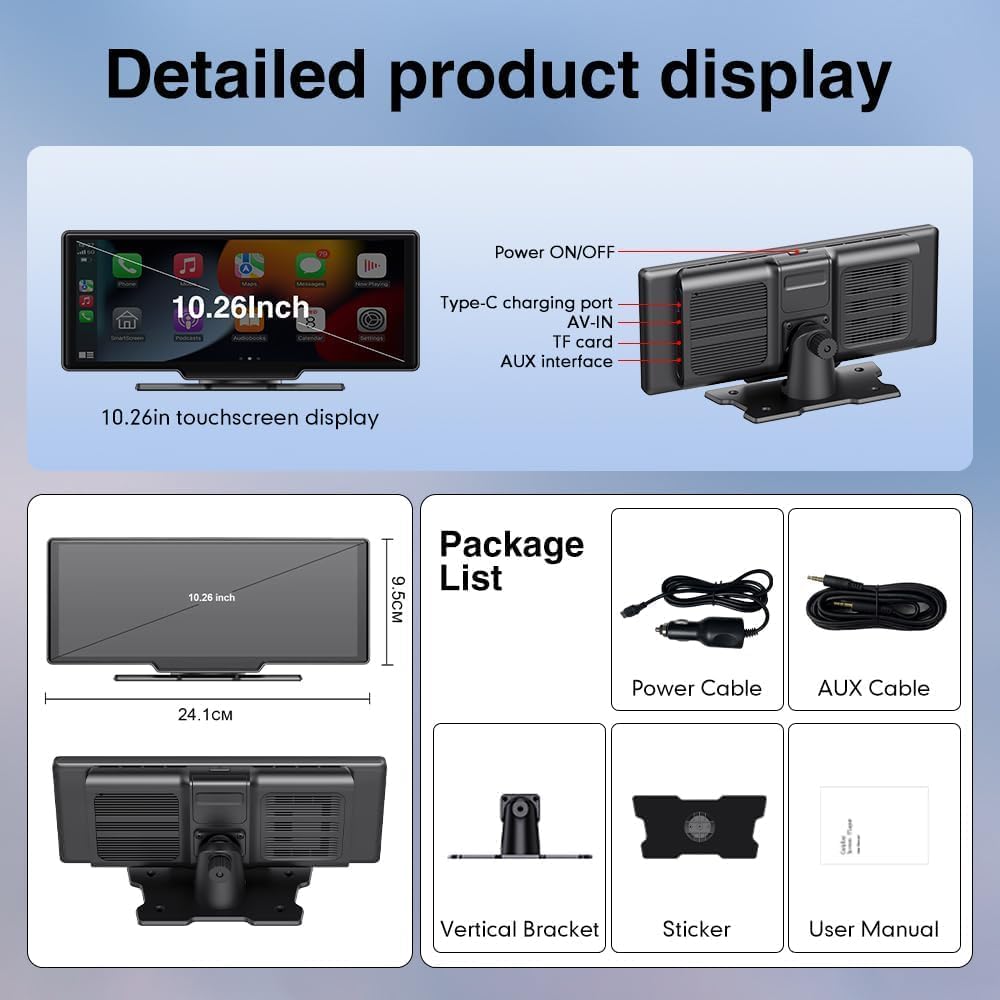
Image: Detailed view of the ZERTRAN 10.26 Inch Car Display, highlighting its dimensions and various ports including Power ON/OFF, Type-C, AV-IN, TF card slot, and AUX interface.
Maintenance
- Cleaning: Use a soft, dry cloth to clean the screen and exterior. Avoid abrasive cleaners or solvents.
- Temperature: Avoid exposing the device to extreme temperatures (hot or cold) for extended periods.
- Storage: If storing the device for a long time, disconnect it from power and store it in a cool, dry place.
- Software Updates: Periodically check for software updates to ensure optimal performance and compatibility.
Troubleshooting
If you encounter issues with your ZERTRAN Car Display, refer to the following common solutions:
- No Power: Ensure the power cable is securely connected to both the display and the car's cigarette lighter. Check the car's fuse for the cigarette lighter socket.
- Connection Issues (CarPlay/Android Auto):
- Verify Bluetooth is enabled on both your phone and the display.
- For wired Android Auto, ensure the USB cable is functional and securely connected.
- Restart both your phone and the ZERTRAN display.
- Forget the device in your phone's Bluetooth settings and re-pair.
- No Audio Output:
- Check the volume levels on both the display and your car's audio system.
- Ensure the correct audio output method (Bluetooth, FM, AUX) is selected on the display and your car stereo.
- If using FM transmission, try a different frequency to avoid interference.
- Screen Mirroring Problems:
- Ensure your phone is connected to the display's Wi-Fi network for AirPlay/Android Cast.
- Verify the "TCLink" app is installed and running correctly for Android Cast.
If these steps do not resolve the issue, please contact customer support.
Warranty & Support
ZERTRAN provides a 1-year warranty for this product. For technical support, warranty claims, or any questions regarding your device, please contact our customer service team through the retailer where you purchased the product or visit the official ZERTRAN website for contact information.