
1. Introduction
This manual provides comprehensive instructions for the InnoView 23.8 Inch 2K 100Hz Portable Monitor. Designed for versatility and high performance, this monitor features a 2K QHD resolution, a 100Hz refresh rate, and a highly adjustable stand, making it suitable for various applications from gaming to professional work. Please read this manual thoroughly to ensure proper setup and operation.

Image 1.1: The InnoView 23.8 inch 2K portable monitor, showcasing its key features and vibrant display capabilities.
2. Package Contents
Verify that all items are present in the package:
- Portable Monitor x1
- Dual Type-C cable x1 (for power & video output)
- Dual Type-C power cable x1 (for power only)
- Standard HDMI cable x1
- 45W adapter x1
3. Product Overview
3.1 Monitor Components and Ports
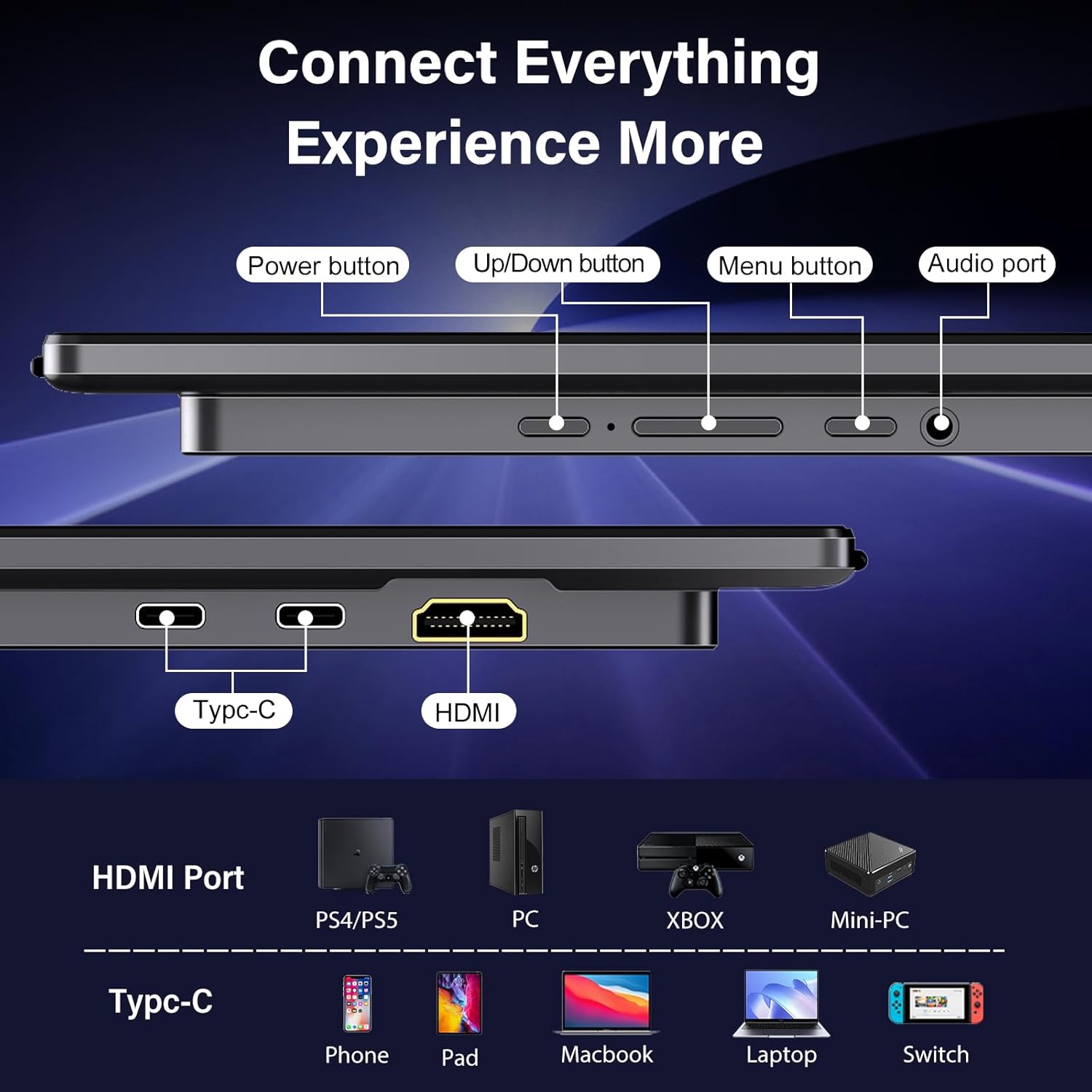
Image 3.1: Overview of the monitor's ports and control buttons.
The monitor features several ports and buttons for connectivity and control:
- Power Button: Turns the monitor on or off.
- Up/Down Button: Navigates menu options or adjusts settings.
- Menu Button: Accesses the On-Screen Display (OSD) menu.
- Audio Port: 3.5mm jack for connecting external headphones or speakers.
- Type-C Ports (x2): Full-featured USB Type-C ports for power, video, and data transmission. Compatible with laptops, phones, tablets, and gaming consoles like Nintendo Switch.
- HDMI Port: Standard HDMI input for video and audio. Compatible with PCs, PS4/PS5, Xbox, and Mini-PCs.
4. Setup Guide
4.1 Connecting Your Monitor
Ensure the monitor is placed on a stable surface or mounted securely before connecting. Always connect the power supply first for stable operation.

Image 4.1: Connection methods for the InnoView portable monitor.
Method 1: USB Type-C Connection (Laptop/Phone/Tablet)
- Connect the provided 45W power adapter to one of the monitor's Type-C ports (labeled for power).
- Connect the dual Type-C cable from your device (laptop, phone, tablet with full-featured USB-C) to the other Type-C port on the monitor.
- The monitor should automatically detect the signal and display your device's screen. If not, check your device's display settings.
Note: For full brightness and stable performance, ensure the monitor is connected to the 45W power adapter. Some devices may provide sufficient power via a single Type-C cable, but external power is recommended.
Method 2: HDMI Connection (PC/Gaming Console)
- Connect the provided 45W power adapter to one of the monitor's Type-C ports (labeled for power). This step is required for HDMI connections.
- Connect the standard HDMI cable from your device (PC, PS4/PS5, Xbox) to the HDMI port on the monitor.
- The monitor should automatically detect the signal. If not, manually select the HDMI input via the OSD menu.
Note: Nintendo Switch supports HDMI only; Type-C connection is not compatible for video output with Switch.
5. Operating Instructions
5.1 Display Settings and Features
Resolution and Refresh Rate
The monitor features a 2K QHD (2560x1440) resolution and a 100Hz refresh rate, providing clear and smooth visuals. Ensure your connected device is configured to output at these settings for optimal performance.
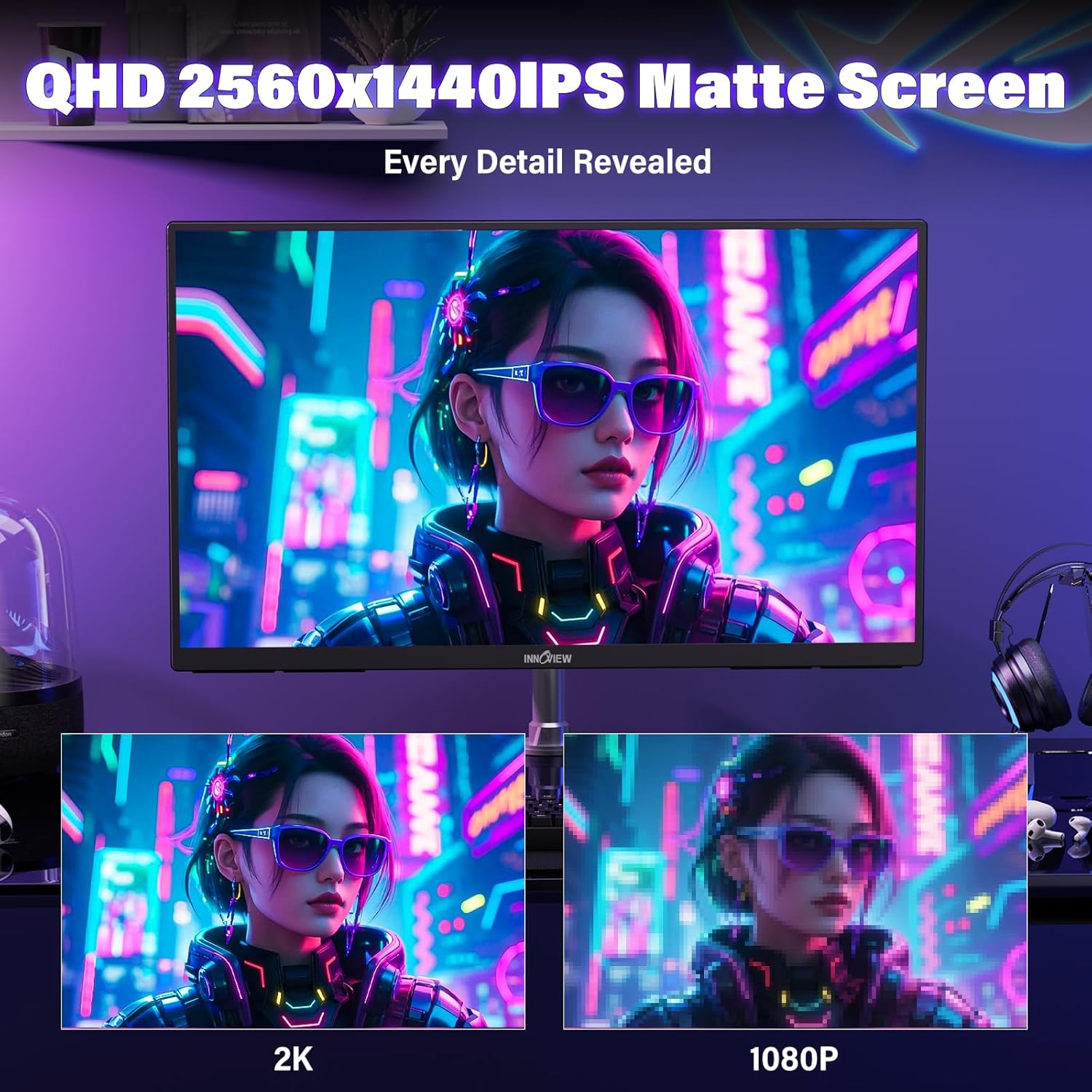
Image 5.1: Visual comparison of 2K versus 1080p resolution on the monitor.
Color and Visual Enhancement
- 100% sRGB & 1.7 Billion Colors: The IPS panel offers accurate color reproduction and a wide color gamut for vibrant images.
- HDR Function: Enhances contrast and color for a more dynamic visual experience.
- FreeSync Technology: Synchronizes the monitor's refresh rate with your GPU's frame rate to eliminate screen tearing and stuttering during gaming.
- Low Blue Light Technology: Reduces harmful blue light emissions to decrease eye strain during prolonged use. This feature can be toggled on/off via the OSD menu.
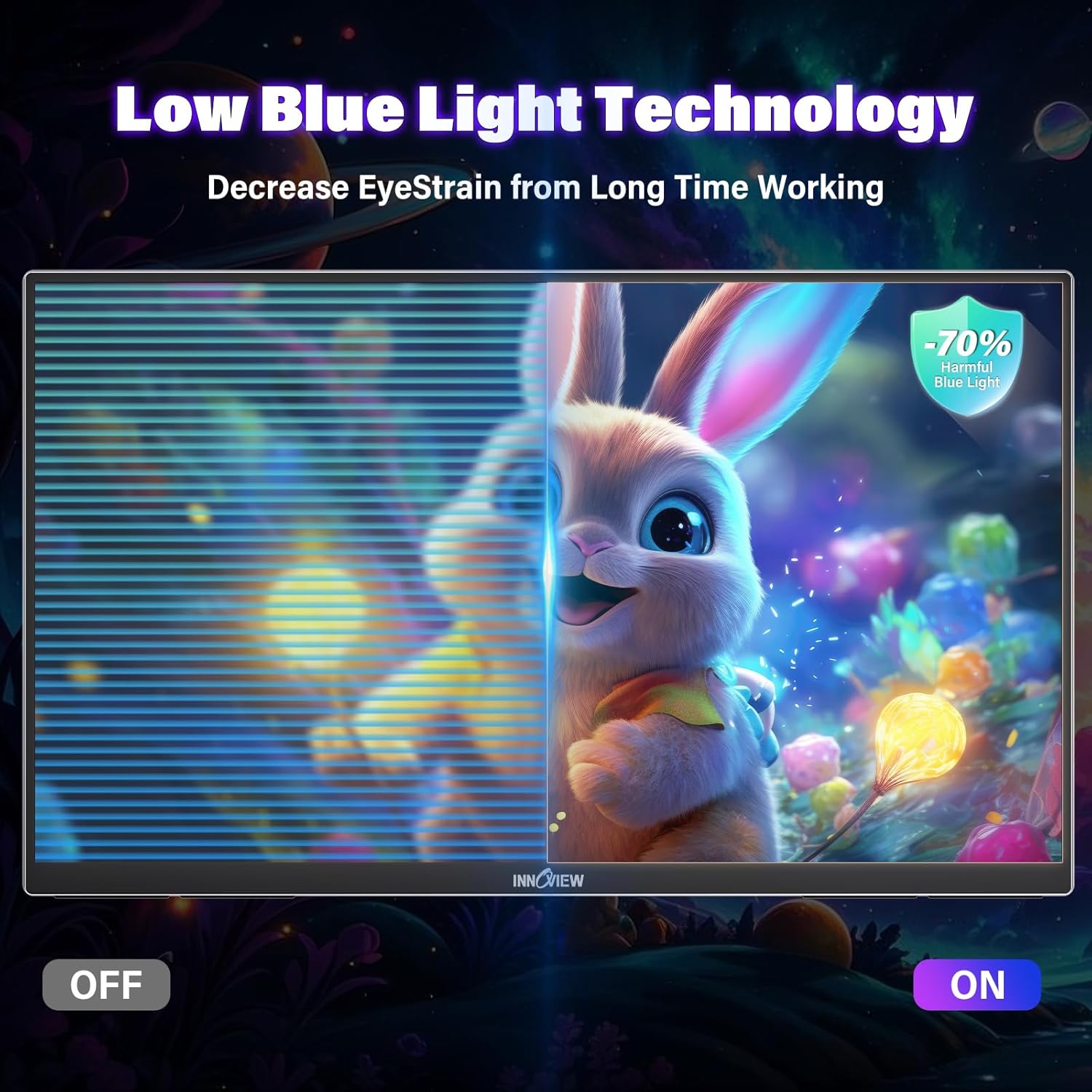
Image 5.2: Demonstration of the monitor's Low Blue Light feature.

Image 5.3: Key display specifications including 10-bit color and 100% sRGB.
Adjustable Stand
The integrated stand allows for 0 to 180 degrees of adjustment, providing flexible viewing angles. The monitor can also be wall-mounted for various setup configurations.

Image 5.4: The monitor's 180-degree adjustable stand for ergonomic viewing.
Audio
The monitor includes built-in speakers for audio output. An audio jack is also available for connecting external headphones or speakers for a personalized audio experience.
6. Troubleshooting
This section addresses common issues you might encounter with your InnoView portable monitor.
6.1 No Signal / Power Saving Mode
- Check Power Supply: Ensure the 45W power adapter is securely connected to the monitor and a power outlet. The monitor requires external power for operation, especially when using HDMI or for full brightness via USB-C.
- Verify Cable Connections: Ensure all video cables (USB-C or HDMI) are firmly connected to both the monitor and your source device. Try re-seating the cables.
- Source Device Compatibility: Confirm your device's USB-C port supports video output (DisplayPort Alternate Mode). Some USB-C ports are for charging only.
- Input Source Selection: Use the OSD menu to manually select the correct input source (Type-C or HDMI).
- Restart Devices: Disconnect and reconnect the monitor, then restart your source device.
6.2 Brightness Issues
- External Power Required: For maximum brightness (up to 300cd), the monitor must be connected to the 45W power adapter. When powered solely by a single USB-C cable from a device, brightness may be limited to conserve power.
- Adjust OSD Settings: Use the OSD menu to adjust the brightness level.
6.3 Audio Output Problems
- Check Volume: Ensure the monitor's volume is not muted or set too low in the OSD menu. Also, check the volume settings on your connected source device.
- External Speakers/Headphones: If using the 3.5mm audio jack, ensure your external audio device is properly connected and functional.
- Audio Source: Verify that your source device is sending audio through the selected output (USB-C or HDMI).
7. Specifications
| Feature | Specification |
|---|---|
| Model Number | INVPM608-04B |
| Screen Size | 23.8 inches |
| Resolution | 2560 x 1440 (QHD) |
| Refresh Rate | 100Hz |
| Panel Type | IPS |
| Aspect Ratio | 16:9 |
| Color Gamut | 100% sRGB |
| Brightness | 300 cd/m² (typical) |
| Contrast Ratio | 1000:1 (IPS) |
| Connectivity | 2x USB Type-C (Full-featured), 1x HDMI |
| Audio | Built-in Speakers, 3.5mm Audio Jack |
| Product Dimensions | 21 x 0.64 x 12.69 inches |
| Item Weight | 7.83 pounds |
| Manufacturer | InnoView |
8. Warranty Information and Customer Support
InnoView products are designed for reliability and performance. For specific warranty details, please refer to the warranty card included with your product or visit the official InnoView website. If you encounter any issues or require technical assistance, please contact InnoView customer support through the contact information provided on our website or your purchase platform.


