
1. Introduction and Overview
This manual provides comprehensive instructions for the Redragon K728 PRO 80% Wireless Gasket Gaming Keyboard. Designed for optimal performance and user comfort, this keyboard features advanced connectivity options, a compact TKL layout, and enhanced typing acoustics. Please read this manual thoroughly to ensure proper setup and operation.

Figure 1: Redragon K728 PRO 80% Wireless Gasket Gaming Keyboard (Tide Pink variant).
2. Setup
2.1. Connectivity Options
The Redragon K728 PRO keyboard supports three modes of connection:
- USB-C Wired: For a stable, low-latency connection and charging.
- 2.4Ghz Wireless: Utilizes a dedicated USB dongle for fast and reliable wireless performance.
- Bluetooth (BT 3.0/5.0): For versatile wireless connection to multiple devices.

Figure 2: Illustration of the keyboard's 3-mode silky connection capabilities, including 2.4G wireless, Bluetooth, and USB-C wired modes.
2.2. Physical Setup
Locate the USB-A dongle stored on the side of the keyboard. For wireless use, plug the dongle into an available USB port on your computer. For wired use, connect the provided USB-C cable to the keyboard and your computer.
Adjust the keyboard's angle using the two-stage adjustable feet located on the underside for ergonomic comfort. Ensure the rubber feet are properly positioned to prevent slipping.

Figure 3: The 80% TKL layout of the K728 PRO, designed for a neat desktop and providing cushioned soft feedback for typing.
3. Operating Instructions
3.1. Key Features
- Gasket Mounted Design: The keyboard features a gasket-mounted structure that reduces noise and enhances typing flexibility, providing a crisp and softer feel.
- 5-Layer Noise Dampening: Multiple layers of foam (PO foam, IXPE switch foam, PET sound pad, bottom socket foam, silicone bottom pad) and a silicone gasket significantly reduce hollow noise for ultra-clean acoustics.
- Custom Linear Switches: Equipped with thick-lubed custom Leopard L switches, offering a smooth and comfortable typing experience with satisfying feedback.
- PBT Gradient Keycaps: Durable PBT keycaps with a gradient black & pink design, providing a shiny aesthetic even without backlighting.
- South-Facing LEDs: LEDs are positioned to face south, ensuring optimal illumination of the keycaps for intense gameplay.

Figure 4: Detailed internal structure of the K728 PRO, showcasing the gasket design, various foam layers, and switch components for superior acoustics and feel.
3.2. RGB Customization
The keyboard features programmable RGB backlighting. Utilize the official Redragon software to design custom lighting modes and effects. The south-facing LEDs ensure vibrant illumination. The keyboard also includes an adjustable RGB lighting bar.
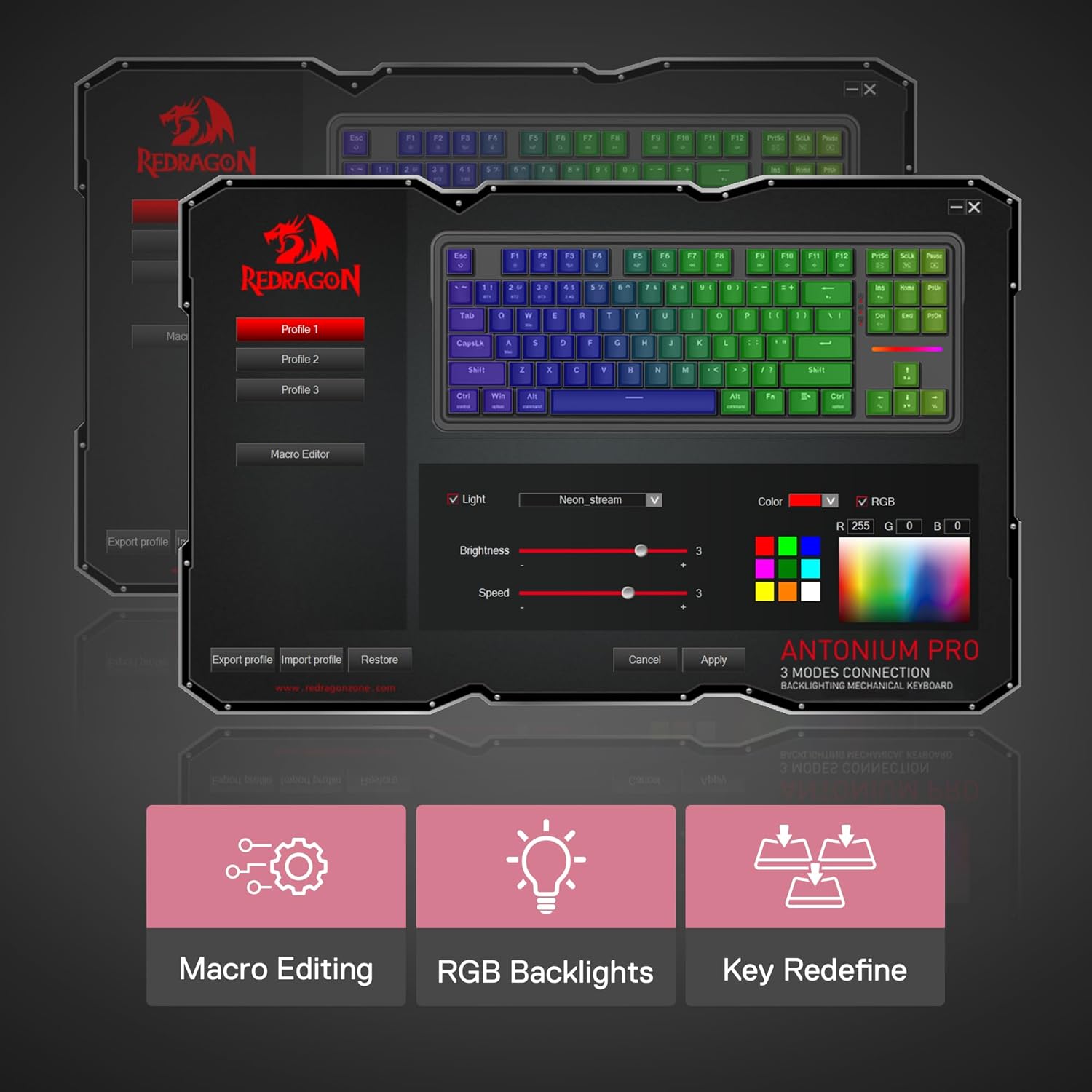
Figure 5: Redragon's professional software allows for macro editing, RGB backlight customization, and key redefinition, offering extensive personalization options.
3.3. Battery Status Check
To check the battery level of your 4000mAh battery, press the Fn key simultaneously with the Menu button (usually located next to the Fn key). The top row of keys will illuminate green to indicate the battery level (e.g., all green for 100%, half green for 50%).

Figure 6: Visual representation of checking the keyboard's 4000mAh battery level using the Fn + Menu key combination, showing keys lighting up to indicate charge percentage.
3.4. Keycap and Switch Replacement
The Redragon K728 PRO features hot-swap sockets compatible with 3-pin and 5-pin switches, allowing for easy customization and maintenance. Use the provided dual-sided keycap and switch puller tool.
- To Remove a Keycap: Gently hook the keycap puller around the keycap and pull straight up.
- To Remove a Switch: Use the switch puller to grip the north and south sides of the switch and pull straight up.
- To Install a Switch: Align the pins of the new switch with the socket on the PCB and push down firmly until it clicks into place.
- To Install a Keycap: Align the keycap with the switch stem and push down gently until it is secure.

Figure 7: A detailed view of the custom Leopard L switch and its compatibility with both 3-pin and 5-pin sockets, enabling easy hot-swapping.
4. Maintenance
Regular cleaning and proper handling will extend the lifespan of your keyboard. Use a soft brush or compressed air to remove dust and debris from between the keycaps. For deeper cleaning, remove keycaps and switches as described in Section 3.4 and wipe surfaces with a slightly damp cloth. Avoid using harsh chemicals or abrasive materials.
5. Troubleshooting
- Keyboard not responding: Ensure the keyboard is charged and the correct connection mode (wired, 2.4G, or BT) is selected. Try reconnecting the USB cable or re-pairing the wireless connection.
- RGB lights not working: Check the software settings for lighting effects. Ensure the keyboard is powered on and not in a low-power state.
- Keys not registering: If a specific key is not working, try hot-swapping the switch with one of the spare switches provided.
- Connectivity issues: For 2.4G wireless, ensure the dongle is securely plugged in and close to the keyboard. For Bluetooth, ensure the keyboard is discoverable and your device's Bluetooth is enabled.
6. Specifications
| Feature | Detail |
|---|---|
| Brand | Redragon |
| Model | K728 PRO (Antonium) |
| Keyboard Description | 80% TKL Wireless Gasket Gaming Keyboard |
| Number of Keys | 87 |
| Connectivity Technology | USB-C, BT 3.0/5.0, 2.4Ghz Wireless |
| Switch Type | Custom Linear (Leopard L Switch) |
| Special Features | 3-Mode Gasket, 5-Layer Noise Dampening, South-Facing LED |
| Color | Tide Pink |
| Batteries | 1 Lithium Polymer batteries required (4000mAh) |
| Item Weight | 2.75 pounds |
| Package Dimensions | 16.3 x 7.36 x 2.48 inches |
| Compatible Devices | Laptop, PC, Gaming Console |
| Recommended Uses | Gaming |
7. Warranty and Support
For warranty information, technical support, or further assistance, please visit the official Redragon website or contact their customer service. Keep your purchase receipt for warranty claims.
Visit the Redragon Store for more products and information.

