
1. Product Overview
The XINDADA F7 Ultra Smartwatch is a versatile wearable device designed to enhance your daily life with advanced health monitoring, fitness tracking, and smart connectivity features. This manual provides essential information for setting up, operating, and maintaining your device.
Package Contents:
- 1 x XINDADA F7 Ultra Smartwatch
- 1 x USB Wireless Charging Cable
- 1 x User Manual

Image: XINDADA F7 Ultra Smartwatch. This image displays the smartwatch with its orange strap, showcasing its design and display.
2. Setup
2.1 Initial Charging
Before first use, fully charge your smartwatch. Connect the USB wireless charging cable to a power source and place the watch onto the magnetic charging base. The watch will indicate charging status on its screen.
2.2 App Installation
Download and install the RDFit application on your smartphone. The app is compatible with Android 4.4 and above, and iOS 9.0 and above. You can find the app by searching 'RDFit' in your device's app store or by scanning the QR code provided in the watch's interface or the included quick start guide.
2.3 Device Pairing
- Ensure Bluetooth is enabled on your smartphone.
- Open the RDFit app and follow the on-screen instructions to add a new device.
- Select 'F7 Ultra' from the list of available devices.
- Confirm the pairing request on both your smartphone and the smartwatch.
- Once paired, the watch will synchronize data with the app.
3. Operating Instructions
3.1 Basic Navigation
- Wake Screen: Raise your wrist or press the side button to wake the screen.
- Turn Off Screen: Cover the screen with your palm.
- Brightness Adjustment: Swipe down from the top of the screen to access quick settings and adjust brightness.
- Menu Styles: The watch supports 5 different menu styles. Navigate to settings to select your preferred style.
- Split-Screen Display: Access quick widgets and frequently used functions via the split-screen display.
- Recent Taskbar: Swipe from the side to view recently used applications.
3.2 Communication Features
- Bluetooth Calls: Once paired with your phone, you can make and receive calls directly from the watch.
- Notifications: Receive notifications from various applications on your wrist.
- Remote Music Control: Control music playback on your smartphone.
- Remote Camera Control: Use your watch as a remote shutter for your phone's camera.
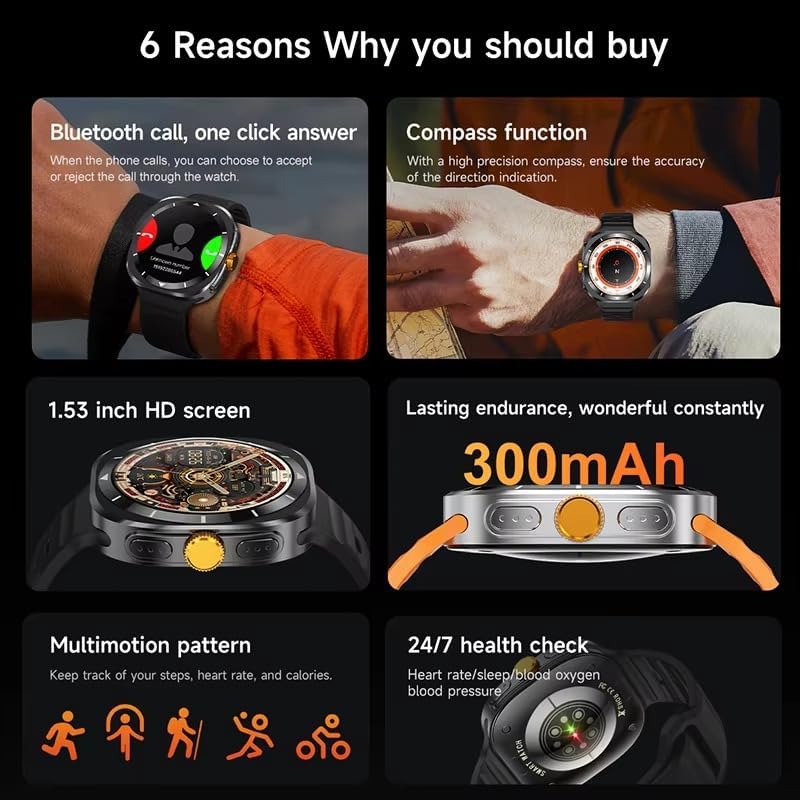
Image: Key features of the F7 Ultra Smartwatch. This image illustrates the Bluetooth call function, compass, 1.53-inch HD screen, 300mAh battery, various sports modes, and 24/7 health monitoring capabilities.
3.3 Smart Features
- Smart Island Function: Experience dynamic pop-up displays for music and information, allowing for easy interaction with the watch.
- NFC Door Access: Utilize the NFC function for convenient door access where supported.
- AI Voice Assistant: Access your phone's voice assistant directly from the watch.
- Compass: A high-precision compass provides accurate direction indication.
- Weather: View current weather conditions.
- Find My Phone: Locate your paired smartphone (requires active connection).
- Password Protection: Secure your device with a password.
- Calculator: A built-in calculator for quick computations.
- Qibla Finder: A dedicated feature for finding the Qibla direction.
- Alipay & My QR Code: Access payment features and display your personal QR code.
- Side Lamp: A utility feature for illumination.
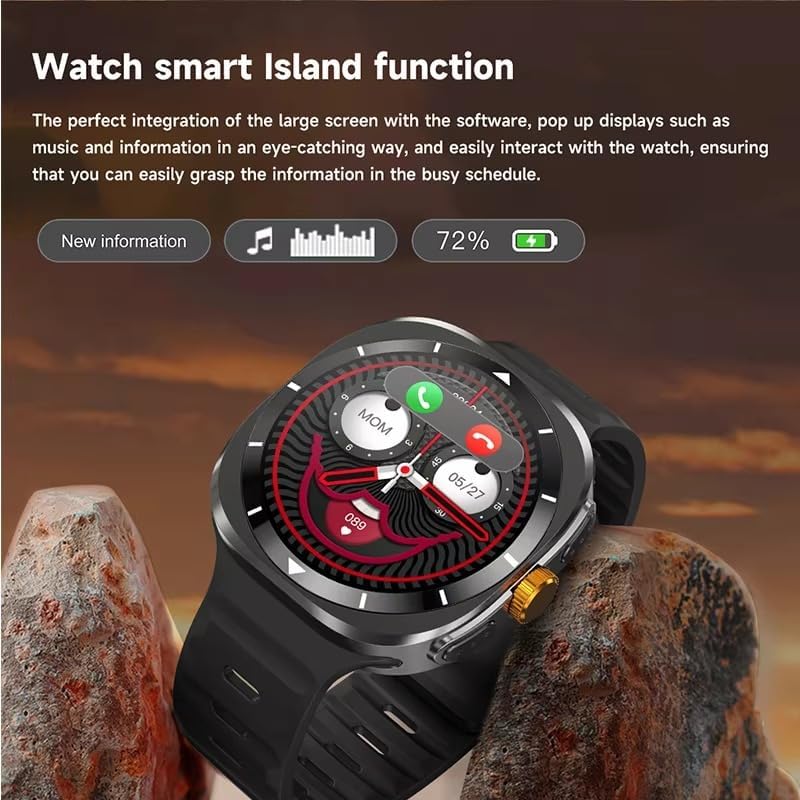
Image: Watch Smart Island function. This image demonstrates the dynamic 'Smart Island' feature, showing notifications for new information, music playback, and battery status.
4. Health Monitoring
The F7 Ultra Smartwatch offers comprehensive health monitoring features to help you stay informed about your well-being.
- Heart Rate Monitoring: Continuous 24/7 heart rate tracking.
- Blood Oxygen (SpO2) Monitoring: Measure your blood oxygen saturation levels.
- Blood Pressure Monitoring: Track your blood pressure readings.
- Sleep Monitoring: Analyze your sleep patterns, including deep sleep, light sleep, and wake times.
- Breathing Training: Guided breathing exercises to help reduce stress.
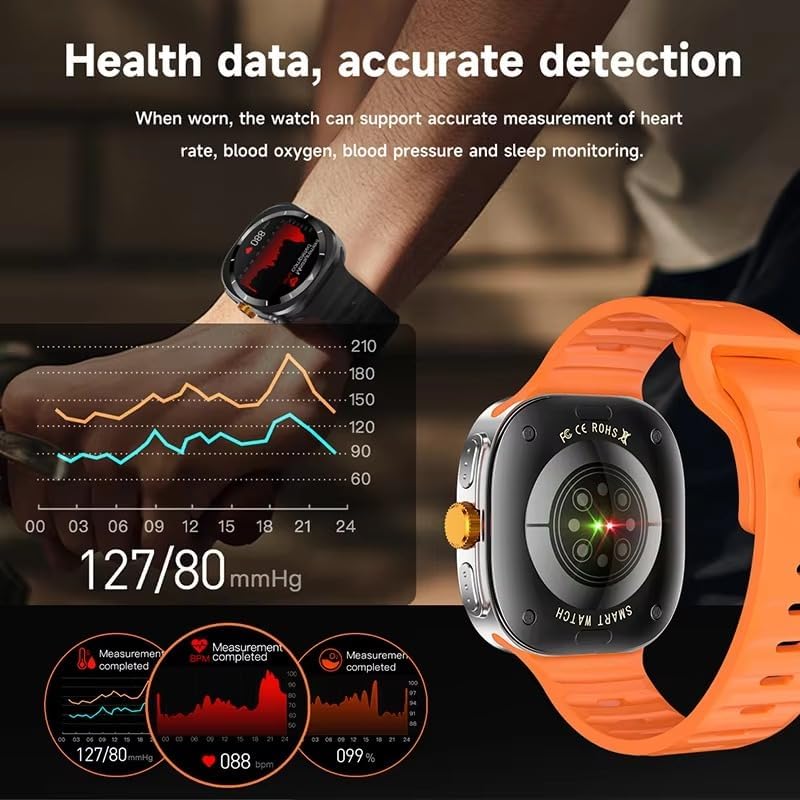
Image: Health data, accurate detection. This image shows the smartwatch displaying a blood pressure graph and heart rate, with an inset of the watch's health sensors, indicating accurate measurement capabilities.
5. Sports Modes and GPS Tracking
The smartwatch supports multiple sports modes and includes GPS tracking for outdoor activities.
- Multi-Sport Modes: Choose from 156 sports algorithms, including mountaineering, basketball, running, and more.
- Activity Tracking: Monitor steps, distance, calories burned, and heart rate during workouts.
- GPS Motion Track: Accurately record your position and trajectory during outdoor exercises, enhancing the safety and meaningfulness of your adventures.

Image: More exercise mode, expand yourself. This image highlights the smartwatch's support for multiple exercise modes, showing the watch interface with 'Walking' and 'Running' options, alongside visuals of people participating in various sports.

Image: Motion trajectory, accurate recording. This image illustrates the GPS motion track feature, showing the smartwatch displaying a map with a recorded walking route, including start and end points.
6. Maintenance
6.1 Cleaning
Regularly clean your smartwatch and strap with a soft, dry cloth. Avoid using harsh chemicals or abrasive materials. For stubborn dirt, lightly dampen the cloth with water.
6.2 Water Resistance
The F7 Ultra Smartwatch is rated IP67 for water resistance, meaning it is protected against dust and can withstand immersion in water up to 1 meter for 30 minutes. It is suitable for daily use and splashes, but not recommended for swimming, diving, or showering with hot water, as steam and high pressure can compromise the seals.
6.3 Charging Best Practices
- Use only the provided wireless charging cable.
- Ensure the charging contacts on the watch and cable are clean and dry before charging.
- Avoid exposing the watch to extreme temperatures during charging.
7. Troubleshooting
7.1 Device Not Turning On
Ensure the watch is fully charged. If it still doesn't turn on, try connecting it to the charger for at least 30 minutes.
7.2 Pairing Issues
- Make sure Bluetooth is enabled on your phone and the watch is discoverable.
- Ensure the RDFit app is updated to the latest version.
- Try restarting both your phone and the smartwatch.
- If issues persist, unpair the device from your phone's Bluetooth settings and attempt to pair again through the RDFit app.
7.3 Inaccurate Health Readings
- Ensure the watch is worn snugly on your wrist, but not too tight.
- Clean the sensor on the back of the watch.
- Avoid excessive movement during measurements.
- Note that the watch is not a medical device; readings are for reference only.
7.4 Short Battery Life
- Reduce screen brightness.
- Disable unnecessary notifications or features like 'Always-On Display' if available.
- Limit frequent use of power-intensive features like GPS or continuous heart rate monitoring.
8. Specifications
| Model | F7 Ultra |
| Screen Size | 1.54 inches HD |
| Screen Resolution | 360 x 360 pixels |
| Dimensions | 47 x 45 x 12.5 mm |
| Bluetooth Version | 5.0 |
| Chipset | Jerry 7012F6 |
| Water Resistance | IP67 (Life Waterproof) |
| Battery Capacity | 300 mAh |
| Charging Type | Wireless Magnetic Charging |
| Compatibility | Android 4.4+ / iOS 9.0+ |
| Companion App | RDFit |
| Supported Languages | Chinese, English (default), Russian, Spanish, German, Italian, French, Portuguese, Polish, Dutch, Greek, Turkish, Romanian, Japanese, Traditional Chinese, Hebrew, Czech, Slovak, Hungarian, Arabic, Indonesian, Korean, Vietnamese, Thai, Persian, Ukrainian, Malay, Burmese |
9. Warranty and Support
Warranty information for your XINDADA F7 Ultra Smartwatch is typically provided at the point of purchase or within the product packaging. Please refer to these documents for details regarding warranty coverage and terms.
For technical support, troubleshooting assistance, or any inquiries not covered in this manual, please contact the retailer or manufacturer's customer service. Contact information can usually be found on the product packaging or the official XINDADA website.