
SIXTOP B0DX1KQS8M
SIXTOP Single Din Car Stereo User Manual
Model: B0DX1KQS8M
Introduction
Thank you for choosing the SIXTOP Single Din Car Stereo. This manual provides detailed instructions for the installation, operation, and maintenance of your new car stereo system. Please read this manual thoroughly before using the product to ensure proper functionality and safety.

Image: The SIXTOP Single Din Car Stereo, showcasing its large 10.4-inch rotatable display, along with the included backup camera and external microphone.
What's in the Box
Verify that all components are present in the package:
- Car Stereo Unit
- Backup Camera
- Microphone
- Connecting Cables (Power cable, Horn cable, D-BUS, USB cables)
- User Manual (this document)
- Installation Accessories

Image: A visual representation of the car stereo's dimensions and a detailed list of all items included in the product package, such as various cables, the camera, and the microphone.
Specifications
| Feature | Detail |
|---|---|
| Screen Material | IPS |
| Voltage | DC12V |
| Screen Size | 10.4 inches |
| Screen Resolution | 1280*480 |
| Mirror Link | Supported (iPhone/Android) |
| Radio Band | FM/RDS |
| Power Output | 45W*4 |
| Work Temperature | -10~60℃ |
| Bluetooth Version | 5.2 |
| Colorful Backlight | Supported |
| Reversing Input | CVBS |
| Radio Frequency | 87.5-108MHz |
| Audio Format Support | MP3/WMA/WAV/APE/FLAC |
| Video Format Support | RM/RMVB/AVI/MP4/MKV/3GP |
| Picture Format Support | JPG/BMP/PNG |
| Supported Languages | English, Chinese, Spanish, Portuguese, Russian, Italian, German, French, Turkish, Czech, Arabic, Polish, Hebrew |
| Connectivity Technology | Bluetooth, USB 2.0, FM |
| Special Features | Android Auto, Apple CarPlay, 180° Rotate Screen, Steering Wheel Control, Backup Camera |
Setup and Installation
1. Wiring Connections
Carefully connect the provided cables to the corresponding ports on the car stereo and your vehicle's wiring harness. Refer to your vehicle's specific wiring diagram if necessary. Ensure all connections are secure to prevent malfunctions.
- Power Cable: Connect to the vehicle's power supply (ACC, B+, GND).
- Horn Cable: For speaker connections.
- D-BUS: Data bus connection.
- USB Cables: For USB import and charging.
- Camera Input: Connect the AHD camera cable to the CVBS input.
- Microphone Input: Connect the external microphone for hands-free calling.
- Steering Wheel Control (KEY1, KEY2): Connect these wires to your vehicle's steering wheel control wires.

Image: An illustration detailing the multiple input interfaces available on the car stereo, such as the TF card slot, AUX input, and dual USB ports for file transfer or charging.
2. Mounting the Unit
Install the single din unit into your car's dashboard. The 10.4-inch screen is designed to rotate 180 degrees, allowing for both vertical and horizontal display modes. Ensure the unit is securely mounted.

Image: Visual guide to the unique design aspects of the car stereo, showing how the screen can be moved up and down, adjusted for shake, switched between regulation and fixed modes, and how the knob functions for adjustments.
Operating Instructions
1. Power On/Off and Screen Rotation
Press the power button to turn the unit on or off. To rotate the screen 180 degrees between vertical and horizontal modes, select the home page rectangular icon on the display.

Image: The car stereo display demonstrating the customizable colorful backlight feature, which enhances the aesthetic appeal of the unit.
2. Bluetooth Connectivity
The unit supports Bluetooth 5.2 for hands-free calling and audio streaming. Pair your mobile phone to synchronize your phonebook, make/receive calls, and play music.
Video: A demonstration of the Bluetooth functionality, showing how to make and receive calls, synchronize contacts, and play music wirelessly from a connected smartphone.
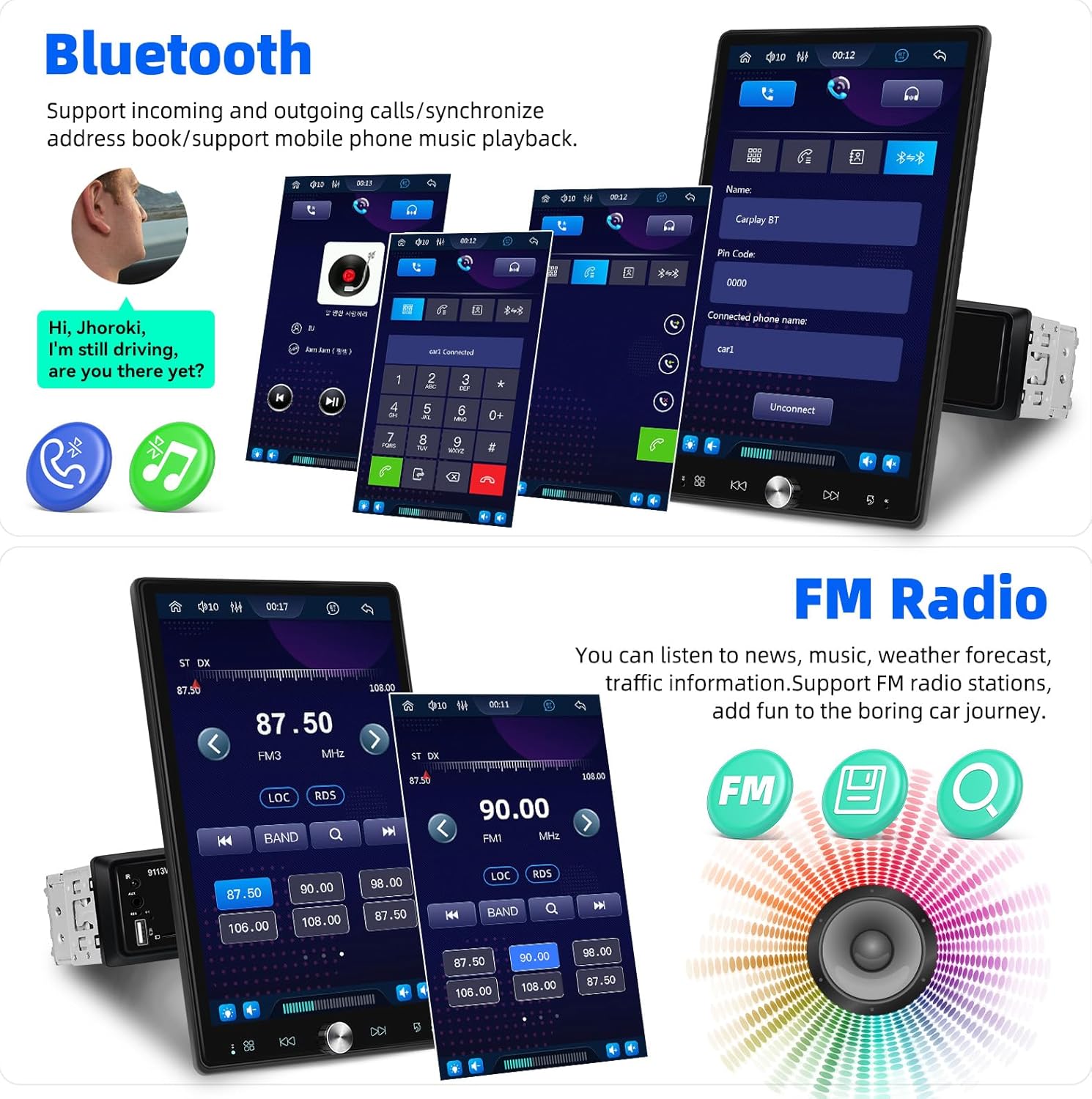
Image: Screenshots illustrating the user interface for Bluetooth calls and the FM radio tuning screen, highlighting the ease of use for both features.
3. CarPlay & Android Auto
Connect your iPhone or Android phone wirelessly to use CarPlay or Android Auto. This allows you to access navigation, music, messages, and voice assistants directly from the car stereo's screen.
Video: A visual demonstration of the CarPlay and Android Auto interfaces, showing how smartphone apps like navigation, music, and communication tools are seamlessly integrated and displayed on the car stereo screen.

Image: The car stereo screen showcasing the Apple CarPlay and Android Auto environments, complete with familiar app icons for navigation, music, and communication, demonstrating wireless connectivity.
4. Mirror Link Function
Use a USB data cable to connect your iPhone or Android phone to the radio's front jack for Mirror Link. This projects your phone's screen onto the car stereo, allowing you to view content like videos or apps on the larger display.

Image: The car stereo screen mirroring a smartphone's display, showing a video playing, with the smartphone physically connected via a USB cable to illustrate the Mirror Link function.
5. FM Radio
Tune into your favorite FM radio stations. The RDS function provides additional information where available. Enjoy news, music, and traffic updates during your drive.
6. Steering Wheel Control
After connecting the KEY1 and KEY2 wires, you can configure the car stereo to respond to your vehicle's original steering wheel buttons. This provides convenient and safe control over audio functions.
Video: An animation demonstrating how the steering wheel controls can be configured and used to manage the car stereo's functions, enhancing driving safety and convenience.

Image: A composite image illustrating the steering wheel control buttons and the corresponding setup screen on the car stereo, alongside a depiction of the HD backup camera and its features.
7. HD Backup Camera
The included waterproof night vision camera provides a clear reversing image. When the vehicle is put into reverse gear, the display automatically switches to the camera view.
Video: An animated sequence demonstrating the functionality of the rear view camera, showing how the display automatically switches to the camera feed when reversing, aiding in safe parking and maneuvering.
8. Audio Equalizer (EQ)
Adjust the audio output to your preference using the built-in EQ function. You can select from various preset sound qualities or customize the equalizer settings for optimal sound.
Video: A visual guide to the audio equalizer (EQ) settings, demonstrating how to adjust sound frequencies and select different audio presets to customize the listening experience.
9. Split Screen Function
Utilize the split screen feature to run two applications simultaneously on the display, such as navigation on one side and music playback on the other.
Video: An animated demonstration of the split screen function, showing how two different applications, such as navigation and music, can be displayed and operated simultaneously on the car stereo's large screen.
10. WiFi Connection & GPS Navigation
Connect the unit to a WiFi network to access online features and download applications. The integrated GPS navigation allows for precise route guidance.
Video: A demonstration of the WiFi connection process and the GPS navigation system, showing how to connect to a network and use mapping applications for route planning and guidance.
Maintenance
To ensure the longevity and optimal performance of your SIXTOP car stereo, follow these maintenance guidelines:
- Cleaning: Use a soft, dry cloth to clean the screen and exterior. Avoid abrasive cleaners or solvents.
- Temperature: Operate the unit within the specified working temperature range (-10~60℃). Extreme temperatures can affect performance.
- Connections: Periodically check all cable connections to ensure they are secure and free from corrosion.
- Software Updates: Check the manufacturer's website for any available software or firmware updates to improve functionality and fix bugs.
Troubleshooting
If you encounter issues with your car stereo, refer to the following common problems and solutions:
| Problem | Possible Cause | Solution |
|---|---|---|
| No Power | Loose power connection, blown fuse. | Check power cables (ACC, B+, GND) and vehicle fuses. Ensure proper voltage supply. |
| No Sound | Speaker wires disconnected, volume too low, incorrect audio source. | Verify speaker connections, increase volume, select correct audio input (FM, USB, Bluetooth). |
| Bluetooth Not Connecting | Bluetooth not enabled on phone/stereo, pairing mode not active, interference. | Ensure Bluetooth is on for both devices. Put stereo in pairing mode. Delete previous pairings and try again. |
| Mirror Link Not Working | Incorrect USB cable, phone settings, "Phonelink" app not selected. | Use original USB data cable. Check phone's USB debugging/connection settings. Select the [Phonelink] app on the stereo. |
| Backup Camera No Display | Camera cable loose, camera faulty, reverse trigger wire not connected. | Check CVBS input connection. Ensure reverse trigger wire is correctly connected to vehicle's reverse light. |
Warranty and Support
SIXTOP products come with a standard manufacturer's warranty. For specific warranty terms and conditions, please refer to the documentation included with your purchase or contact customer support.
For technical assistance, troubleshooting, or any other inquiries, please contact SIXTOP customer support:
- Email: SIXTOP123@163.com

Image: The official SIXTOP brand logo, representing the manufacturer of this car stereo.
Ask a question about this manual
Ask about setup, troubleshooting, compatibility, parts, safety, or missing instructions. Manuals+ will review the question and use this page’s manual context to help answer it.