1. Introduction
This manual provides comprehensive instructions for the setup, operation, and maintenance of your Nikai 60-inch QLED WebOS 4K Smart UHD TV (Model NIK60MEU4QLED). Please read this manual thoroughly before using your television to ensure proper functionality and safety. Keep this manual for future reference.

Image 1.1: The Nikai 60-inch QLED WebOS 4K Smart UHD TV, showcasing its frameless design and dual remote controls.
2. Safety Information
Important Safety Instructions:
- Do not expose the TV to rain or moisture to prevent fire or electric shock.
- Do not block ventilation openings. Ensure adequate space around the TV for proper airflow.
- Place the TV on a stable, level surface to prevent it from falling.
- Use only the power cord supplied with the TV.
- Unplug the TV during lightning storms or when unused for long periods.
- Refer all servicing to qualified service personnel.
- Keep batteries out of reach of children.
3. Package Contents
Verify that all items listed below are included in your package:
- Nikai 60-inch QLED WebOS 4K Smart UHD TV
- Power Cable
- Remote Control (Standard)
- Magic Remote Control (Voice-enabled)
- TV Stand (2 pieces)
- Screws for TV Stand
- User Manual (this document)
- Batteries for Remote Controls
4. Physical Setup
4.1. Installing the TV Stand
- Carefully place the TV screen-down on a soft, flat surface (e.g., a blanket or foam) to prevent damage.
- Align each stand piece with the corresponding slots on the bottom of the TV.
- Secure the stands using the provided screws. Ensure they are tightened firmly.
- Carefully lift the TV to its upright position on a stable surface.
4.2. Connecting External Devices
Connect your external devices (e.g., cable box, Blu-ray player, gaming console) to the appropriate ports on the back of the TV.
- HDMI Ports: For high-definition audio and video.
- USB Ports: For connecting USB storage devices (e.g., flash drives) for media playback.
- Antenna/Cable Input: For connecting an antenna or cable TV signal.
- Optical Digital Audio Out: For connecting to a soundbar or home theater system.
4.3. Power Connection
Connect the power cable to the TV's power input and then plug it into a wall outlet. The TV will enter standby mode.
5. Initial Configuration
5.1. First Power On
Press the power button on the remote control or on the TV itself. The TV will display the initial setup wizard.
5.2. Language and Region Selection
Follow the on-screen prompts to select your preferred language and region.
5.3. Network Connection (Wi-Fi)
- Select "Wi-Fi" as your connection type.
- Choose your home Wi-Fi network from the list.
- Enter your Wi-Fi password using the on-screen keyboard.
- Confirm the connection.
5.4. WebOS Account Setup
Create or log in to your WebOS account to access smart features, app store, and personalized settings. This step is optional but recommended for full functionality.
5.5. Channel Scan
If you have connected an antenna or cable, the TV will guide you through scanning for available channels.
6. Operating Your TV
6.1. Remote Control Functions
Your TV comes with two remote controls: a standard remote and a Magic Remote with voice control. The Magic Remote allows for point-and-click navigation and voice commands.
- Power Button: Turns the TV on/off.
- Number Buttons: Direct channel selection.
- Volume Up/Down: Adjusts volume.
- Channel Up/Down: Changes channels.
- Home Button: Accesses the WebOS Home screen.
- Input Button: Selects input sources (HDMI, USB, etc.).
- Voice Button (Magic Remote): Activates voice control for commands and searches.
- Navigation Wheel/Arrows: For menu navigation.
6.2. WebOS Interface Navigation
Press the Home button on your remote to access the WebOS launcher bar at the bottom of the screen. This bar provides quick access to apps, inputs, and settings.
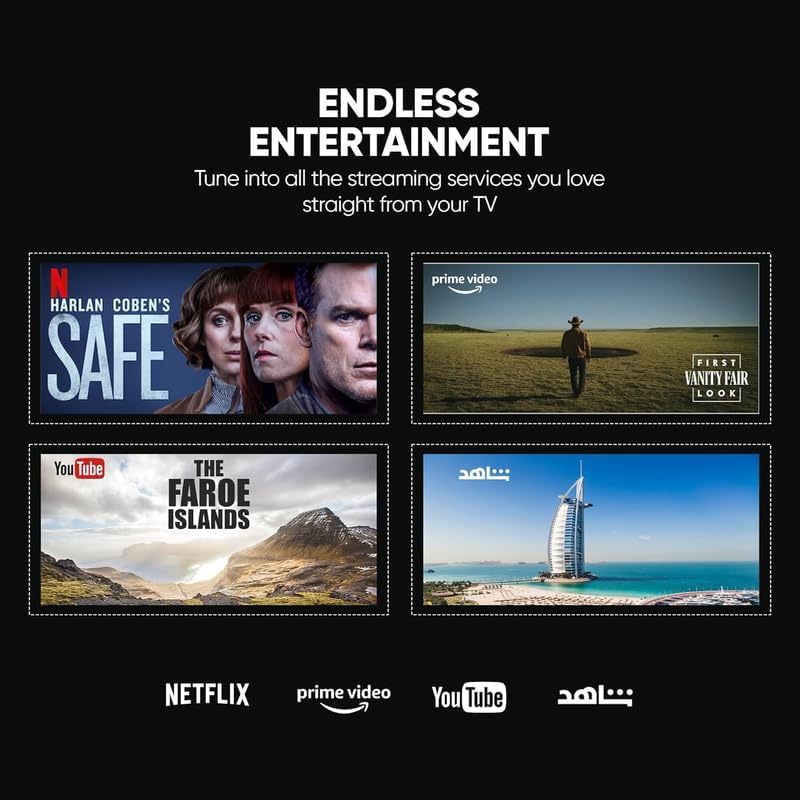
Image 6.1: The WebOS interface displaying various streaming applications like Netflix, YouTube, Prime Video, and Shahid.
6.3. Smart Features
- Streaming Apps: Access pre-installed apps like Netflix, YouTube, Amazon Prime Video, and Shahid. More apps can be downloaded from the WebOS Content Store.
- AirPlay & Miracast: Wirelessly share content (photos, videos, music) from your Android or Apple devices to the TV.
- Web Browser: Browse the internet directly on your TV.
- Voice Control: Use the Magic Remote's voice button to search for content, change settings, or control smart home devices.
6.4. Picture and Sound Settings
Access the settings menu to customize your viewing and listening experience.
- Picture Modes: Choose from various presets (e.g., Standard, Vivid, Cinema, Game) or customize brightness, contrast, color, and sharpness. The QLED display technology provides enhanced color gamut and brightness.
- Sound Modes: Select audio presets (e.g., Standard, Cinema, Music) or adjust bass and treble. The TV supports Dolby Digital for immersive audio.

Image 6.2: A family enjoying cinematic audio, highlighting the Dolby Digital sound capabilities of the TV.

Image 6.3: A vibrant image on the QLED screen, demonstrating the rich colors and real-world details provided by the display technology.
7. Connectivity
Your Nikai Smart TV offers various connectivity options:
- Wi-Fi: Built-in Wi-Fi for internet access and smart features.
- Bluetooth: Connect wireless headphones, soundbars, or other Bluetooth-enabled devices.
- HDMI: Multiple HDMI ports for connecting gaming consoles, Blu-ray players, and other media devices.
- USB: Play media files (photos, videos, music) from USB storage devices.
- DLNA: Digital Living Network Alliance support for streaming content from compatible devices on your home network.
8. Maintenance
8.1. Cleaning the TV
- Always unplug the TV before cleaning.
- Use a soft, dry cloth to wipe the screen and cabinet.
- For stubborn marks, lightly dampen the cloth with water or a specialized screen cleaner. Do not spray cleaner directly onto the screen.
- Avoid using abrasive cleaners, waxes, or solvents.
8.2. Software Updates
Your TV may receive software updates to improve performance and add new features. Ensure your TV is connected to the internet. You can check for updates manually in the settings menu or enable automatic updates.
9. Troubleshooting
If you encounter issues with your TV, refer to the following common problems and solutions:
| Problem | Possible Solution |
|---|---|
| No power | Ensure the power cable is securely connected to both the TV and the wall outlet. Check if the outlet is working. |
| No picture, but sound is present | Check the input source. Ensure external devices are powered on and connected correctly. Try a different HDMI cable. |
| No sound, but picture is present | Check the volume level and mute status. Verify audio output settings in the TV menu. Ensure external audio devices are connected and powered. |
| Remote control not working | Replace batteries. Ensure there are no obstructions between the remote and the TV. Re-pair the Magic Remote if necessary (refer to remote control instructions). |
| Cannot connect to Wi-Fi | Ensure your Wi-Fi router is on and working. Re-enter the Wi-Fi password. Try restarting both the TV and the router. |
| Smart apps not loading | Check your internet connection. Try restarting the TV. Ensure apps are updated to the latest version. |
10. Specifications
| Feature | Detail |
|---|---|
| Model Number | NIK60MEU4QLED |
| Screen Size | 60 Inches (153 cm) |
| Display Technology | QLED |
| Resolution | 4K UHD (3840x2160) |
| Operating System | WebOS Hub |
| Refresh Rate | 60 Hz |
| Processor | Quad-core |
| RAM | 1.5 GB |
| Storage | 8 GB Flash Drive |
| Connectivity | Wi-Fi, Bluetooth, USB, HDMI |
| Audio Technology | Dolby Digital |
| Special Features | AirPlay, Miracast, Hands-Free Voice Control, HDR, Built-in Speaker, Browser, Sleep Timer |
| Product Dimensions (WxHxD) | 145 x 85 x 10 cm |
| Weight | 16 kg |
| Included Components | Power Cable, Remote Control, User Manual |
11. Warranty and Support
Your Nikai TV is covered by a manufacturer's warranty. Please refer to the warranty card included in your package for specific terms and conditions, including warranty period and coverage details. For technical support, service inquiries, or to report a defect, please contact Nikai customer service through their official website or the contact information provided in your warranty documentation.
Keep your purchase receipt as proof of purchase for warranty claims.


