
1. Product Overview
The Dasaita Android 13 Double Din Car Stereo (Model HA2228) is a 7-inch head unit designed to upgrade the infotainment system in compatible Toyota and Pontiac vehicles. It features an Android 13 operating system, a powerful Qualcomm 665 CPU, 6GB RAM, and 64GB ROM for smooth performance. Key functionalities include wireless Apple CarPlay, wired/wireless Android Auto, 5G WiFi, 4G LTE connectivity, an off-road inclinometer, and advanced audio processing.

Figure 1: Front view of the Dasaita Android 13 Double Din Car Stereo.
2. Vehicle Compatibility
This head unit is specifically designed for OEM radios with a center console size of 200x100MM. It is compatible with the following vehicle models:
- Toyota 4Runner: 2003-2009
- Toyota Tundra: 2003-2006
- Toyota RAV4: 2001-2005
- Toyota FJ Cruiser: 2007-2024
- Toyota Highlander: 2001-2007
- Toyota Matrix: 2003-2010
- Pontiac Vibe: 2003-2008
This kit is designed to retain most of your vehicle's original functions, including steering wheel controls (SWC), reverse camera, and JBL amplifier, where applicable.

Figure 2: Vehicle compatibility chart and examples of original radio units.

Figure 3: Illustration of the required 200x100mm OEM radio size for proper fitment.
3. What's in the Box
Upon opening the product packaging, verify that all the following components are included:
- Dasaita Android 13 Head Unit
- User Manual
- Tool kit
- Audio Output & Camera Input Cable
- AUX Input & Front Camera Input Cable
- USB Cables (x2)
- WiFi Antenna
- SIM Card Cable
- GPS Antenna
- 4G Antenna
- Microphone
- Power Cable 1
- Power Cable 2
- Canbus Decoder
- USB Adapter

Figure 4: All components included in the product package.
Video 1: An unboxing video demonstrating the contents of the Dasaita 7-inch Double Din Stereo package.
4. Installation Guide
Installation of the Dasaita HA2228 head unit is designed to be plug-and-play for compatible vehicles. However, professional installation is recommended if you are unfamiliar with car audio systems or vehicle wiring.
4.1 General Steps
- Preparation: Ensure the vehicle's ignition is off and the battery is disconnected before starting.
- Remove OEM Radio: Carefully remove the existing factory radio and trim panels. Refer to your vehicle's service manual for specific instructions.
- Connect Wiring Harness: Connect the provided wiring harnesses to the vehicle's factory connectors. Ensure all connections are secure.
- Connect Antennas: Attach the GPS, 4G, and WiFi antennas to the corresponding ports on the head unit. Position antennas in locations with clear signal reception.
- Install Head Unit: Mount the Dasaita head unit into the dashboard opening. Secure it using the provided brackets and screws.
- Reconnect Battery: Reconnect the vehicle's battery and test the head unit's functionality before reassembling the dashboard trim.
4.2 Wiring Considerations
The unit includes specific power cables and a Canbus decoder (CB005-1 or DYX004) to retain factory features. Ensure the correct wiring harness is used for your vehicle model.

Figure 5: Wiring diagrams for different harness types (CB005-1 and DYX004) to ensure proper connection and retention of factory features.
Note: If your vehicle does not originally possess certain functions (e.g., factory reverse camera, JBL amplifier), these features will not be added by installing this head unit.
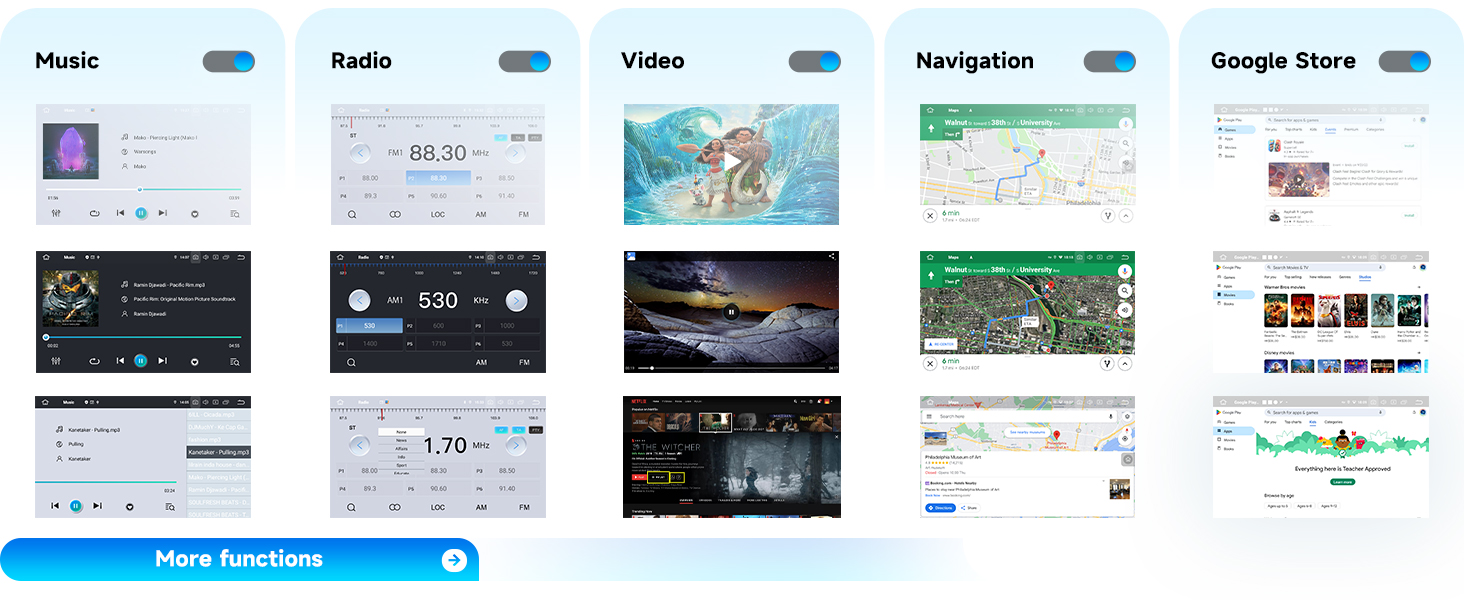
Figure 6: Overview of retained OEM radio features and expanded useful content.

Figure 7: The head unit supports existing steering wheel controls for convenience.
5. Operating Instructions
5.1 User Interface and Customization
The Dasaita Android 13 head unit features a personalized and intelligent user interface. You can customize the position of software icons by long-pressing them. The system also supports day and night modes, which can be set according to your preference or switch intelligently with the vehicle's headlights for optimal visibility.

Figure 8: User interface customization options, including app arrangement and split-screen functionality.

Figure 9: Intelligent day and night mode switching for improved screen visibility.
5.2 Apple CarPlay and Android Auto
The head unit supports wireless Apple CarPlay and wired/wireless Android Auto. Connect your iPhone or Android device via Bluetooth for quick access to navigation, calls, messages, and music through voice commands (Siri/Hey Google) or the touchscreen display.

Figure 10: Wireless CarPlay and wired/wireless Android Auto functionality.
Video 2: Demonstration of the touch screen, CarPlay, and Android Auto features in a 4th Gen 4Runner.
5.3 Off-Road Inclinometer
The built-in gyro sensor provides real-time monitoring of the vehicle's roll and pitch angles. An alarm will sound if preset values are exceeded, enhancing driving safety, especially on challenging terrain. This feature provides intelligent vehicle stability control and driving assistance.
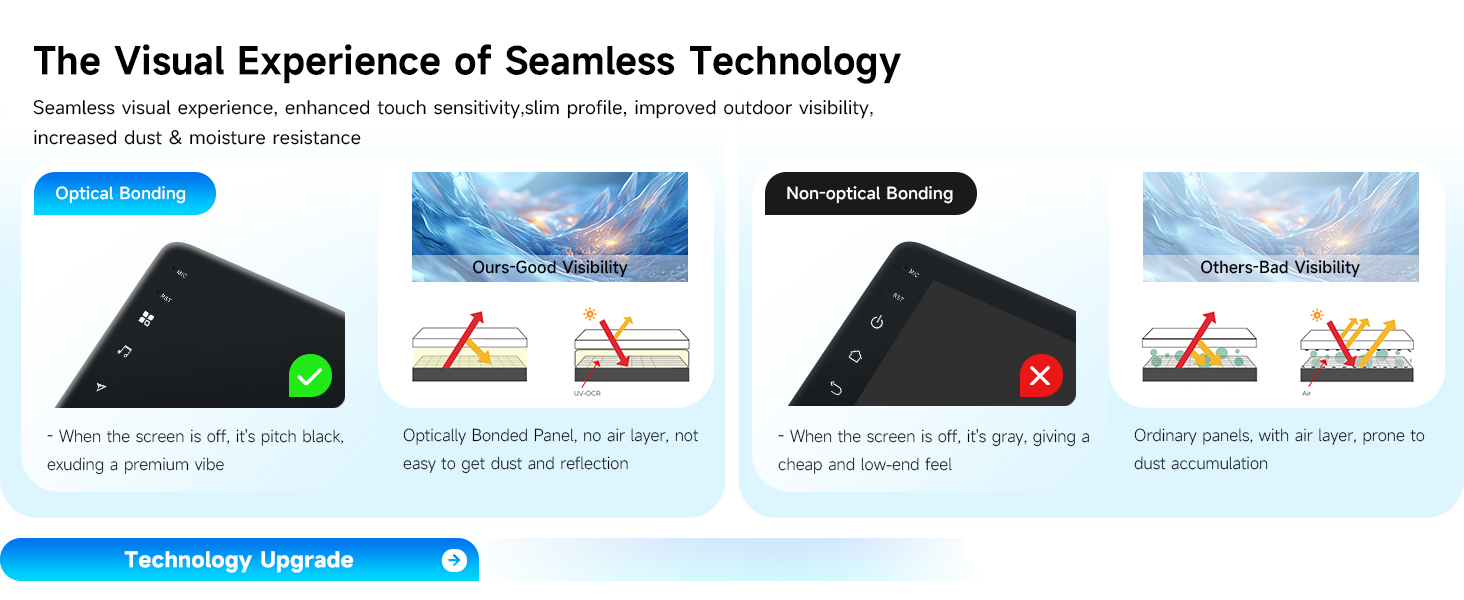
Figure 11: Off-road inclinometer displaying real-time vehicle angles.
5.4 Superior Sound Quality (DTS)
The head unit features a professional-grade TDA7808 amplifier chip (23W RMS/50 peak x 4 channels) and 4V audio output. It offers DTS tuning options, allowing for precise adjustment of sound delay, equalization, and other parameters to achieve a balanced and immersive audio experience.

Figure 12: Detailed DTS sound processor settings for audio customization.
5.5 4G LTE and WiFi Connectivity
Insert a 4G SIM card into the dedicated slot to access the internet directly from the head unit. Alternatively, connect via 5G WiFi. This enables online navigation, app updates, and streaming services.

Figure 13: Options for 4G LTE and WiFi internet access.
To make hands-free 4G phone calls, ensure the SIM card is inserted correctly and then use the Qti phone app. The quality of the call depends on the signal strength in your location.

Figure 14: Guide for 4G SIM card insertion and phone call functionality.
6. Specifications
| Feature | Specification |
|---|---|
| Model Number | HA2228 |
| Operating System | Android 13 |
| CPU | Qualcomm 665 (Eight-core, 64-bit) |
| RAM | 6GB |
| ROM | 64GB |
| Display Size | 7 Inches |
| Screen Resolution | 1280*720P (Fully laminated QLED) |
| Connectivity | Bluetooth 5.0, USB, Wi-Fi (5G), 4G LTE |
| Audio Output Mode | Stereo (with Optical Fiber Output) |
| Amplifier Chip | TDA7808 (23W RMS/50 peak x 4 channels) |
| Special Features | Wireless CarPlay, Android Auto, Off-Road Inclinometer, DTS Sound Processor, Split-Screen Function, Day/Night Mode |
| Item Weight | 4.9 pounds |
| Package Dimensions | 10.43 x 10.43 x 6.3 inches |
7. Troubleshooting
This section provides general guidance for common issues. For specific technical support, refer to the support section.
7.1 No Power
- Check all power connections to ensure they are securely plugged in.
- Verify the vehicle's fuse related to the radio or accessory power.
- Ensure the vehicle battery is properly connected and charged.
7.2 No Sound
- Check speaker connections and ensure they are correctly wired.
- Verify the volume level on the head unit and any connected devices.
- If using a factory amplifier, ensure the Canbus decoder is correctly installed and functioning.
- Check audio settings within the head unit to ensure no outputs are muted or set incorrectly.
7.3 CarPlay/Android Auto Not Connecting
- Ensure Bluetooth is enabled on both the head unit and your smartphone.
- For wired Android Auto, try a different USB cable to rule out cable issues.
- Restart both the head unit and your smartphone.
- Check for any software updates for the head unit or your smartphone's CarPlay/Android Auto application.
7.4 GPS Signal Issues
- Ensure the GPS antenna is installed in a location with a clear view of the sky, free from obstructions.
- Check the GPS antenna connection to the head unit.
- Verify that GPS services are enabled in the head unit's settings.
8. Warranty and Support
The Dasaita Android 13 Double Din Car Stereo (Model HA2228) comes with a 1-Year Manufacturer Warranty. For warranty claims or technical assistance, please contact Dasaita Official Store directly.
You can typically find contact information for the seller through your purchase platform or by visiting the official Dasaita website.


