
1. Introduction
The Carpuride YT101S is a 10.1-inch Double DIN car stereo system designed to enhance your in-car entertainment and navigation experience. It features wireless and wired connectivity for Apple CarPlay and Android Auto, a high-definition IPS touchscreen, integrated GPS navigation, Mirror Link functionality, Bluetooth for calls and music, USB and TF card support, and compatibility with steering wheel controls.
1.1 What's in the Box
- 10.1" Double DIN Car Stereo
- Backup Camera
- Camera Cable
- User Manual
- Wire Harness A & B
- 6PIN Line
- Disassembly Tool
- Brackets

Figure 1.1: Package Contents of the Carpuride YT101S.
2. Key Features
2.1 Wireless/Wired CarPlay & Android Auto
The 10.1-inch IPS display supports both wireless and wired Apple CarPlay and Android Auto. This allows seamless integration with your smartphone for navigation, messaging, calls, and music playback. Compatible with iOS 6 and later, and Android 11 and later.

Figure 2.1: CarPlay, Android Auto, and Mirror Link Connectivity.
2.2 GPS Navigation & Voice Control
Access GPS navigation easily via CarPlay or Android Auto. The built-in clear microphone and 3.5mm external microphone interface enable voice commands for Siri or Google Assistant, allowing hands-free operation for navigation, calls, and music.
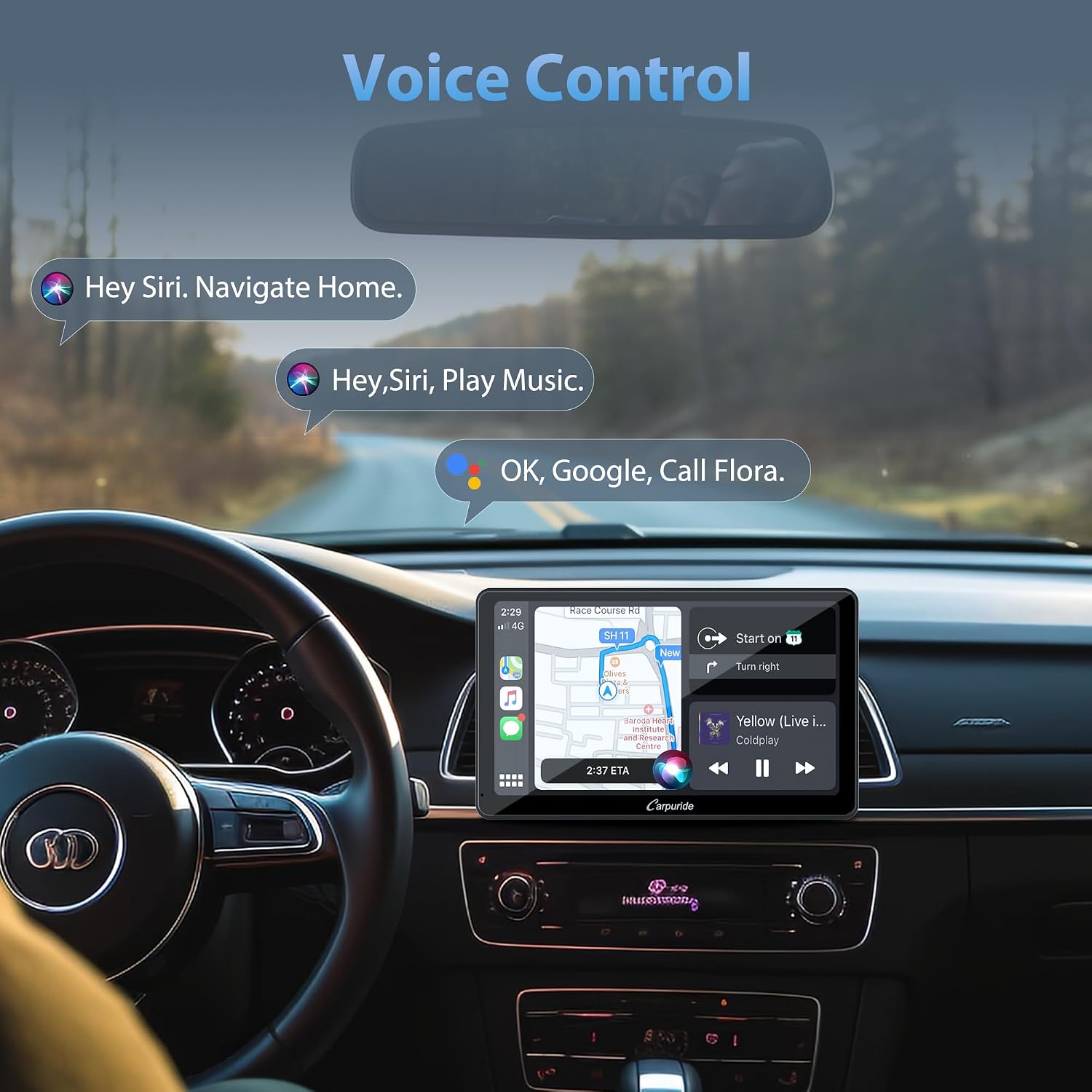
Figure 2.2: Voice Control Interface.

Figure 2.3: GPS Map Applications.
2.3 Mirror Link
Supports iOS and Android Mirror Link via wired (iOS/Android) or wireless (iOS) connection. This feature projects your phone's audio, video, and applications onto the 10.1-inch display.
2.4 Steering Wheel Control (SWC)
The unit integrates with your vehicle's original steering wheel controls, allowing you to manage volume, change tracks, and access other functions without taking your hands off the wheel.
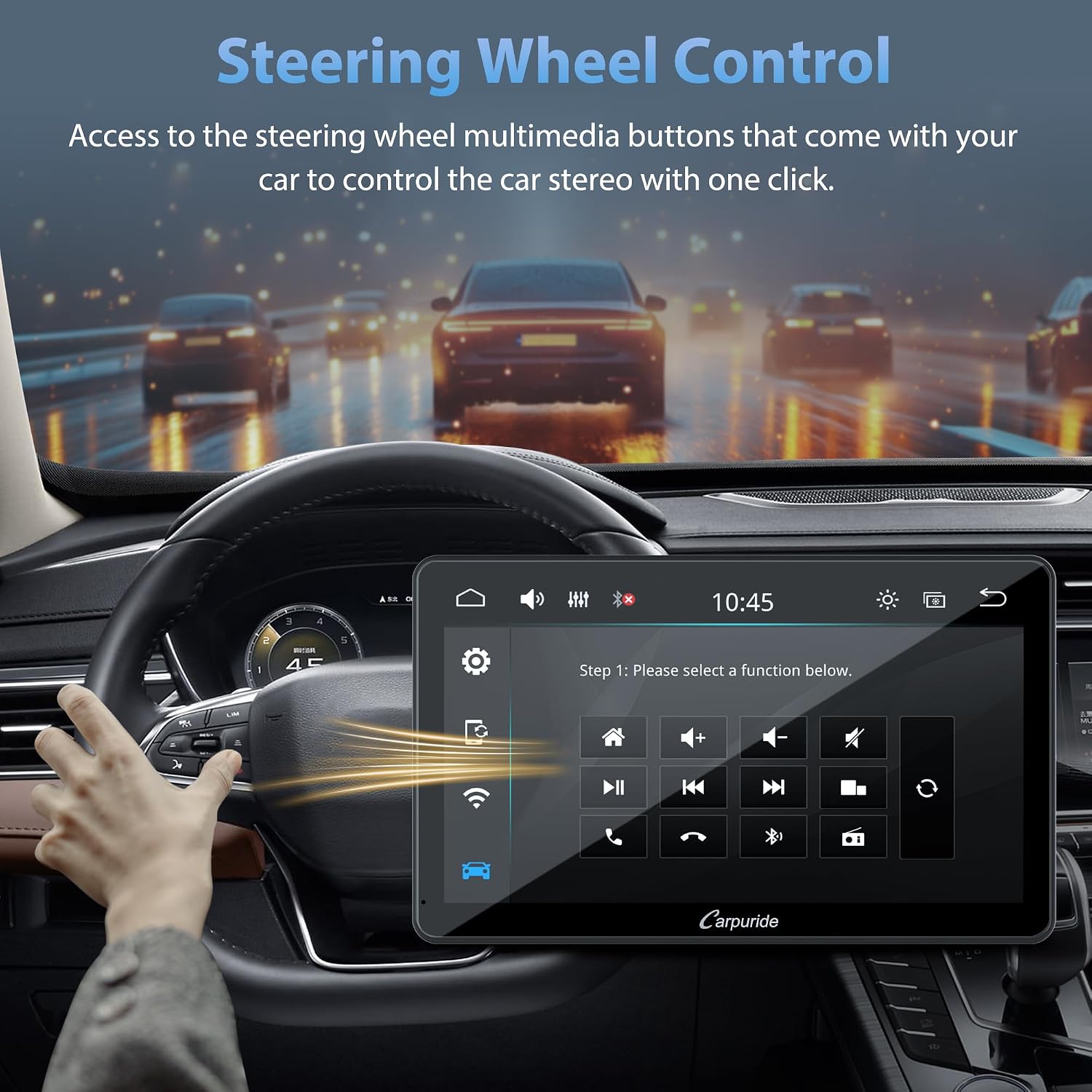
Figure 2.4: Steering Wheel Control Functionality.
2.5 4-Channel Audio Output & DSP
Supports 4-channel audio output, including front left/right, rear left/right speakers, and 1 subwoofer output. The integrated DSP (Digital Signal Processor) provides rich and dynamic sound for an immersive audio experience.

Figure 2.5: Audio Output and EQ Settings.
2.6 FM/AM Radio & EQ Function
The unit supports local FM radio search (87.5 MHz-107.9 MHz) and AM radio. It includes built-in EQ presets for various music styles.
2.7 Front/Rear Camera Support
The included rear camera features a 170° wide-angle view, waterproof design, and night vision. When reverse gear is engaged, the rear camera image automatically displays on the screen. Note: The front camera is not included and must be purchased separately.

Figure 2.6: Front and Rear Camera Support.
2.8 USB & TF Card Support
Equipped with a USB port and TF card slot for playing downloaded videos or music without an internet connection.
2.9 Customizable Logo & Boot Screen
Allows customization of the boot logo to match your car model or setting a personal image as the boot screen.
3. Installation and Setup
3.1 Physical Installation
The Carpuride YT101S is a Double DIN unit. Ensure your vehicle's dashboard opening is compatible with Double DIN dimensions (approximately 17.7 cm / 6.97 inches wide). Use the provided brackets and disassembly tool for secure mounting.
3.2 Wiring Diagram
Refer to the following diagrams for proper wiring connections. Incorrect wiring can damage the unit or your vehicle's electrical system.

Figure 3.1: Main Wiring Diagram.
3.3 Reversing Camera Installation Wiring
Connect the included reversing camera according to the diagram below. Ensure the camera's power cable is connected to the reverse light power source for automatic activation.

Figure 3.2: Reversing Camera Wiring Diagram.
3.4 Wireless Apple CarPlay Connection
- Open Apple CarPlay on the unit.
- Turn on Wi-Fi and Bluetooth on your iPhone.
- Find 'Carpuride(xxxxxx)' in your phone's Bluetooth settings, click, and pair.
- Confirm connection.
- Enter CarPlay interface.

Figure 3.3: Wireless Apple CarPlay Connection Steps.
3.5 Wireless Android Auto Connection
- Open Android Auto on the unit.
- Turn on Wi-Fi and Bluetooth on your Android phone.
- Find 'Carpuride(xxxxxx)' in your phone's Bluetooth settings, click, and pair.
- Confirm connection.
- Enter Android Auto interface.

Figure 3.4: Wireless Android Auto Connection Steps.
3.6 Wireless iOS Mirror Link (AirPlay)
- Open AirPlay on the unit.
- Turn on Wi-Fi on your iPhone.
- Find the Wi-Fi name and enter the password to connect.
- Click the 'screen mirroring' icon in your iPhone's control center.
- Click on 'Smart Screen' to complete screen mirroring.
- Enter Mirror Link interface.
Note: iPhone supports wireless or wired Mirror Link. Android phones only support wired Mirror Link. Bluetooth must be on for wireless mirroring. If using iOS 17.2 or later, wireless mirroring may require a software update from CARPURIDE support.

Figure 3.5: Wireless iOS Mirror Link Connection Steps.
4. Operation
4.1 Basic Navigation
The 10.1-inch HD IPS touchscreen allows for intuitive navigation through menus and applications. Tap icons to open, swipe to scroll, and use the back button to return to previous screens.
4.2 Using CarPlay and Android Auto
Once connected (as per Section 3), the CarPlay or Android Auto interface will appear. Use the touchscreen to access your phone's compatible apps for navigation, music, calls, and messages. Voice commands are highly recommended for safe operation while driving.
4.3 Voice Control
Activate Siri or Google Assistant by saying the wake phrase (e.g., "Hey Siri" or "OK Google") or by pressing the voice command button on your steering wheel (if configured). You can then issue commands for navigation, making calls, sending messages, or playing music.
4.4 Bluetooth Functions
After pairing your phone via Bluetooth, you can make and receive calls hands-free and stream audio directly to the car stereo. Use the on-screen dial pad or your phone's contact list displayed on the unit.

Figure 4.1: Bluetooth, Radio, USB/TF, and EQ Operations.
4.5 Radio Operation
Select the FM or AM radio mode. Use the on-screen controls to scan for stations, manually tune, or select from saved presets. The unit supports 87.5 MHz-107.9 MHz for FM.
4.6 Media Playback (USB/TF Card)
Insert a USB drive or TF card into the designated slot. The unit will automatically detect and allow you to browse and play audio and video files stored on the device.
4.7 Sound Adjustment (EQ)
Access the EQ settings to customize the audio output. You can choose from various preset equalization modes or manually adjust frequency bands to suit your preferences. The built-in DSP enhances sound quality.
5. Maintenance
To ensure the longevity and optimal performance of your Carpuride YT101S, follow these maintenance guidelines:
- Screen Cleaning: Use a soft, lint-free cloth, slightly dampened with water or a screen-safe cleaner, to wipe the touchscreen. Avoid abrasive materials or harsh chemicals.
- General Cleaning: Keep the unit free from dust and debris. Use a soft brush or compressed air to clean vents and ports.
- Temperature: Avoid exposing the unit to extreme temperatures, both hot and cold, for extended periods.
- Liquid Contact: Prevent any liquids from entering the unit. In case of accidental spills, power off the unit immediately and allow it to dry completely before use.
6. Troubleshooting
If you encounter issues with your Carpuride YT101S, refer to the following common problems and their solutions:
| Problem | Possible Cause | Solution |
|---|---|---|
| Unit does not power on. | Incorrect wiring; Blown fuse; Power supply issue. | Check power connections (ACC, B+); Inspect vehicle's fuse box and unit's fuse; Ensure stable power supply. |
| No sound. | Speaker wires disconnected; Volume too low; Mute activated; Incorrect audio source. | Verify speaker wiring; Increase volume; Check if mute is on; Select correct audio input. |
| CarPlay/Android Auto not connecting wirelessly. | Wi-Fi/Bluetooth off on phone; Incompatible phone model/OS; Incorrect pairing steps. | Ensure phone's Wi-Fi and Bluetooth are on; Check phone compatibility (iOS 6+, Android 11+); Re-attempt pairing process (Section 3.4/3.5). |
| Rear camera image not displaying. | Camera not connected; Reverse trigger wire not connected; Faulty camera. | Check camera cable connection; Ensure reverse trigger wire is correctly wired to reverse light (Section 3.3); Test camera if possible. |
| Steering Wheel Controls not working. | SWC wires not connected; SWC learning not performed. | Verify SWC wiring; Perform steering wheel control learning/mapping in the unit's settings. |
6.1 Compatibility Notes
For wireless CarPlay, an iPhone running iOS 6 or above is required, with the CarPlay system and Siri voice system enabled.
For wireless Android Auto, a phone supporting 5GHz Wi-Fi and running Android 11 or above is required, with the Android Auto app updated to the latest version.
Incompatible Android Phone Models (for wireless Android Auto):
- OnePlus Nord 2T, OnePlus Nord CE2 5G, OPPO CPH2161, OPPO A16s, OPPO Reno 2, OPPO RenoZ
- Samsung S23, Samsung Note 20, Samsung S20, Samsung m22, Samsung S23 Ultra, Galaxy A20 (model SM-A205g)
- Huawei p30, Huawei p30 pro, Huawei P40 Pro, Huawei P20 Pro, Huawei P20, Huawei P30 lite MAR-LX1A, Huawei Mate 20, Huawei Mate 20 pro, Huawei P smart 2019 - POT-LX1
- Huawei nova 5t, Huawei MATE LITE 10, Honor 90, Xiaomi 11 lite, Xiaomi 12 pro, redmi 9, Xiaomi 9

Figure 6.1: Wireless Connectivity Requirements and Incompatible Phones.
7. Specifications
| Feature | Specification |
|---|---|
| Brand | CARPURIDE |
| Model | YT101S |
| Product Dimensions | 13 x 24.7 x 14.8 cm |
| Item Weight | 1.82 Kilograms |
| Compatible Devices | Smartphone |
| Special Features | Voice Control, GPS Navigation, Apple CarPlay, Android Auto |
| Audio Output Mode | Stereo |
| Number of Channels | 4 |
| Connectivity Technology | Bluetooth, Wi-Fi |
| Control Method | App, Touch, Voice |
| Supported Internet Services | YouTube |
| Batteries Required | No |
8. Support
This user manual is included with your Carpuride YT101S unit to provide comprehensive instructions for installation, operation, and troubleshooting.
For further assistance or inquiries regarding warranty information, please refer to the contact details provided on the product packaging or the official CARPURIDE website, as specific warranty terms and direct support contacts are not detailed in this manual.
