
AULA WIN68 HE Pro
AULA WIN68 HE PRO Gaming Keyboard User Manual
Model: WIN68 HE Pro
Brand: AULA
Introduction
The AULA WIN68 HE PRO is a high-performance Hall Effect gaming keyboard designed for speed and precision. It features magnetic switches with adjustable actuation, an 8KHz polling rate for ultra-fast response, and customizable RGB backlighting. This manual provides detailed instructions for setting up, operating, and maintaining your keyboard to ensure optimal performance.

Image: Front view of the AULA WIN68 HE PRO Gaming Keyboard, showcasing its compact 60% layout and RGB backlighting.
What's in the Box
Please check the contents of your package to ensure all items are present:
- Keyboard x 1
- USB Cable x 1
- Keycap Puller x 1
- Extra Magnetic Switch x 2
- Portable Ribbon x 1
Setup Guide
Connecting the Keyboard
- Locate the USB-C port on the AULA WIN68 HE PRO keyboard.
- Connect one end of the provided USB cable to the keyboard's USB-C port.
- Connect the other end of the USB cable to an available USB port on your computer (PC or Laptop).
- The keyboard will be automatically recognized by your operating system.
For optimal performance, ensure a direct connection to a USB port on your computer rather than a USB hub.

Image: Diagram highlighting key features of the AULA WIN68 HE PRO keyboard, including magnetic switch, 8000Hz polling rate, DKS support, 60% compact layout, custom web driver, fast trigger, USB-C wired connection, and 16.8 million RGB.
Operating Instructions
Hall Effect Magnetic Switches and Adjustable Actuation
The WIN68 HE PRO features advanced Hall Effect magnetic switches, allowing for precise control over actuation points. Each key's actuation point can be customized from 0.02mm to 3.3mm, with adjustments possible in 0.1mm increments. This enables users to fine-tune the keyboard's responsiveness to their specific preferences for different games or tasks.
Press/reset sensitivity can also be individually configured via the software to match various keystroke habits.

Image: A comparison table detailing specifications of different magnetic switch versions (Standard, Pro, Max), including actuation, stroke range, polling rate, and connection method.
Fast Trigger Mode and 8KHz Polling Rate
Experience unparalleled speed with the 8,000Hz polling rate, providing an 8x faster response time compared to conventional mechanical keyboards. Combined with an ultra-low latency of 0.2ms, your commands are registered almost instantaneously, giving you a competitive edge in fast-paced gaming scenarios.

Image: Visual representation of the 8000Hz hyper-polling technology, illustrating its speed advantage over regular 1000Hz keyboards.
Customizable Web Driver (Windows Only)
The AULA WIN68 HE PRO features a professional web-based driver for comprehensive customization. This driver allows you to:
- Customize RT/SOCD/DKS/MT/TGL functions.
- Perform key mapping.
- Edit macros.
- Adjust RGB lighting settings.
- Manage other keyboard settings.
Access the web driver at: bit.ly/m/AULA. Please note that this driver is compatible only with Windows operating systems and does not require any downloads.

Image: Screenshot of the easy-to-use web driver interface, showing options for custom shortcut keys, trigger travel set, DKS/MT/TGL custom, macro recording & editing, 16 million RGB backlight, and magnetic switch performance custom. A note indicates Windows-only compatibility.
Magnetic Switch Adjustment Methods:
- Dynamic Keystroke (DKS): Allows a single button to bind 1 to 4 functions depending on the degree of pressing and releasing.
- Press and hold/click (MT): Enables a single button to achieve two functions; pressing and holding triggers one type, while clicking triggers another.
- Switching trigger (TGL): Modifies the current button to trigger continuously when clicked, and to trigger normally when pressed and held.
- PRCS (SOCD function): Binds two buttons, where the button pressed later forces the release of the previous button, ensuring only one button triggers at a time.
- Quick Trigger Function (RT): Dynamically adjusts your trigger stroke and reset stroke based on your intention to press or release the button.

Image: Detailed explanation of magnetic switch adjustment methods including DKS, MT, TGL, PRCS (SOCD), and RT, with an illustration of the keyboard and individual switches.
RGB Backlighting
The keyboard features 16.8 million colors of RGB lighting with south-facing LEDs for enhanced visual appeal. There are 21 preset lighting effects to choose from, adding ambiance to your gaming setup.
Lighting effects and brightness can be adjusted using the web driver or via FN key combinations:
- FN + INS: Turn on/off the light.
- FN + DEL: Switch light color.
- FN + PGUP: Switch light effect.
- FN + [: Decrease light brightness.
- FN + ]: Increase light brightness.
- FN + ;: Decrease light speed.
- FN + ': Increase light speed.
- FN + Backspace: Restore keyboard default settings.

Image: Visual guide to adjusting the 16.8 million RGB backlight using FN key combinations for turning on/off, switching color, changing effects, and adjusting brightness and speed.
60% Compact Design
The 60% compact design of the WIN68 HE PRO saves up to 40% of desktop space while retaining essential arrow keys and basic function keys. All other keyboard commands are accessible via FN key combinations, providing a full range of functionality in a smaller footprint.
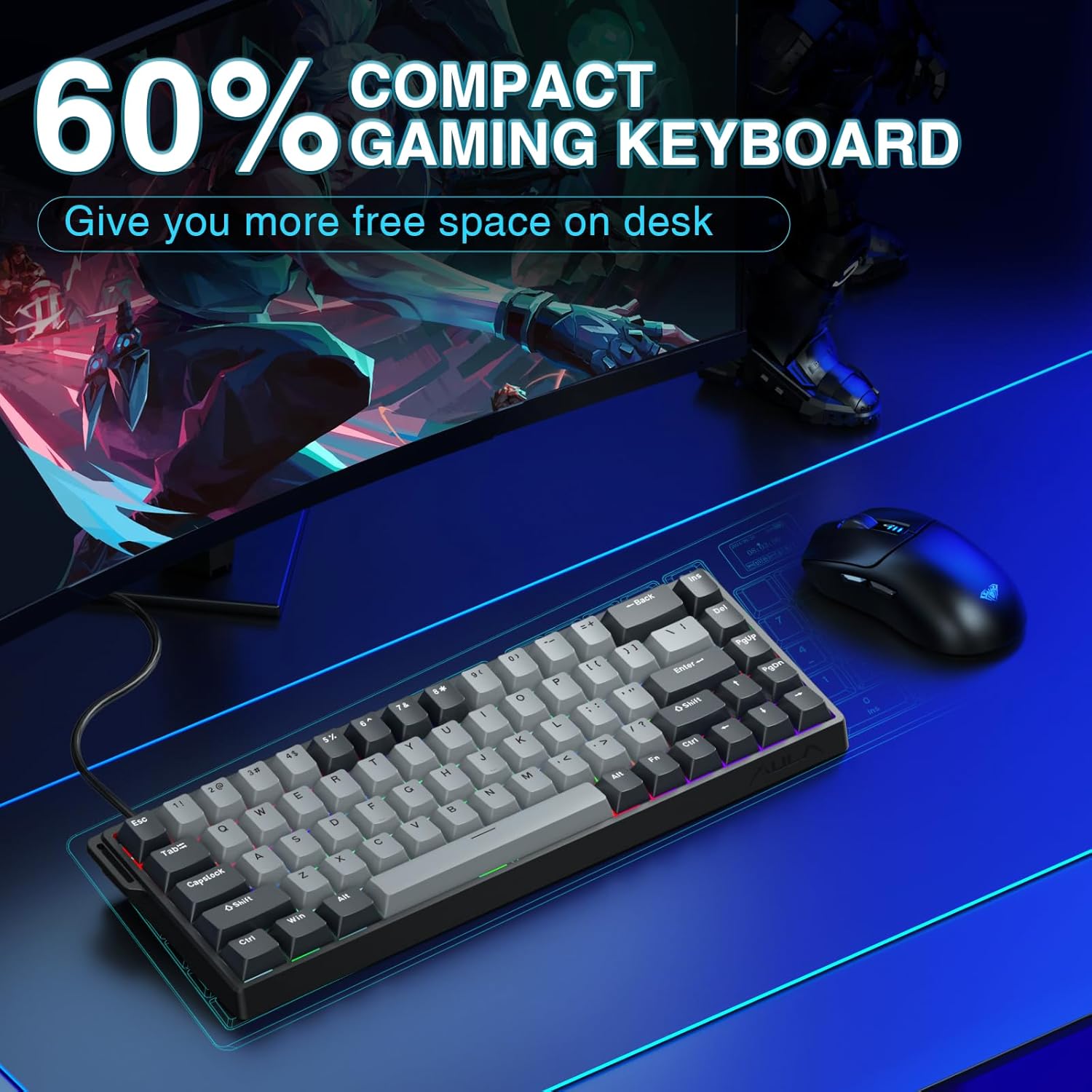
Image: The AULA WIN68 HE PRO keyboard on a desk, illustrating its compact size and how it frees up desktop space.
Maintenance
Cleaning the Keyboard
- Disconnect the keyboard from your computer before cleaning.
- Use a soft, lint-free cloth slightly dampened with water or a mild cleaning solution to wipe the keycaps and chassis.
- For dust and debris between keys, use compressed air.
- Avoid using harsh chemicals, abrasive cleaners, or excessive moisture, as these can damage the keyboard.
- Use the provided keycap puller to carefully remove keycaps for deeper cleaning if necessary.
Storage
When not in use for extended periods, store the keyboard in a cool, dry place away from direct sunlight and extreme temperatures.
Troubleshooting
| Problem | Possible Cause | Solution |
|---|---|---|
| Keyboard not responding | Loose USB connection; Driver issue; Computer port issue. | Ensure USB cable is securely connected. Try a different USB port. Restart your computer. Check the web driver for any error messages. |
| RGB lighting not working | Lighting turned off; Software conflict; Incorrect settings. | Press FN + INS to toggle lighting. Check RGB settings in the web driver. Ensure no other lighting software is interfering. |
| Keys not registering or double-typing | Incorrect actuation point setting; Debris under keycap; Faulty switch. | Adjust actuation point in the web driver. Clean under the keycap using compressed air. If issue persists, contact support. |
| Web driver not accessible | Not using Windows OS; Incorrect URL; Network issue. | Ensure you are on a Windows operating system. Verify the URL: bit.ly/m/AULA. Check your internet connection. |
Specifications
| Feature | Detail |
|---|---|
| Model Number | WIN68 HE Pro |
| Switch Type | Hall Effect Magnetic Switch |
| Actuation Point | Adjustable (0.02mm-3.3mm, 0.1mm increments) |
| Polling Rate | 8000Hz |
| Latency | 0.2ms |
| Layout | 60% Compact (68 keys) |
| Connectivity | Wired (USB-C detachable cable) |
| Backlighting | 16.8 Million RGB, South-facing LEDs, 21 preset effects |
| Web Driver Compatibility | Windows OS only |
| Product Dimensions | 14.1 x 6.1 x 1.71 inches (approx. 35.8 x 15.5 x 4.3 cm) |
| Item Weight | 1.52 pounds (approx. 689 grams) |
| Color | Grey-pro version |

Image: Diagram showing the dimensions of the 60% compact keyboard layout, including length, width, and height, along with its weight and key count.
Warranty and Support
Warranty Information
AULA products are covered by a limited warranty against defects in materials and workmanship. Please refer to the warranty card included with your product or visit the official AULA website for detailed warranty terms and conditions.
Customer Support
For technical assistance, troubleshooting, or warranty claims, please contact AULA customer support through the following channels:
- Official Website: Visit the AULA official website for FAQs, drivers, and support contact information.
- Email Support: Refer to your product packaging or the official website for the support email address.
- Online Store Support: If purchased from Amazon, you may also contact the seller "AULA MALL" directly through your Amazon order history for assistance.
When contacting support, please have your product model number (WIN68 HE Pro) and purchase details ready.
Related documentsWIN68 HE Pro


Ask a question about this manual
Ask about setup, troubleshooting, compatibility, parts, safety, or missing instructions. Manuals+ will review the question and use this page’s manual context to help answer it.