1. Introduction
Thank you for choosing the Vretti PB821 Portable Thermal Printer. This device offers a convenient and efficient solution for printing documents on the go, eliminating the need for ink cartridges. Its compact design and versatile connectivity options make it suitable for various environments, including travel, home, school, and office.
This manual provides essential information on setting up, operating, maintaining, and troubleshooting your Vretti PB821 printer. Please read it thoroughly before using the product to ensure optimal performance and longevity.
2. What's in the Box
Carefully unpack your Vretti PB821 Portable Thermal Printer and ensure all items are present:
- PB821 Portable Printer
- User Manual (this document)
- 8.5 X 11 US Letter Thermal Paper (sample pack)
- Pouch (carrying case)
- U-disk (USB flash drive, likely containing drivers)
- USB Cable
- Type-C Adapter
3. Safety Information
To ensure safe operation and prevent damage to the printer or injury to yourself, please observe the following safety precautions:
- Do not disassemble, repair, or modify the printer yourself. Refer to qualified service personnel for any repairs.
- Keep the printer away from water, moisture, and direct sunlight.
- Use only the specified power adapter and cables provided with the printer.
- Avoid exposing the printer to extreme temperatures or dusty environments.
- Do not insert foreign objects into the printer's paper slot or ports.
- Keep out of reach of children.
- Use only thermal paper designed for this printer. Other paper types may damage the print head.
4. Setup
4.1 Charging the Printer
Before first use, fully charge the printer. Connect the provided USB cable to the printer's charging port and the other end to a compatible USB power source (e.g., wall adapter, computer USB port). The charging indicator light will show the charging status. A full charge provides approximately 3 hours of continuous printing or up to 360 sheets of paper.
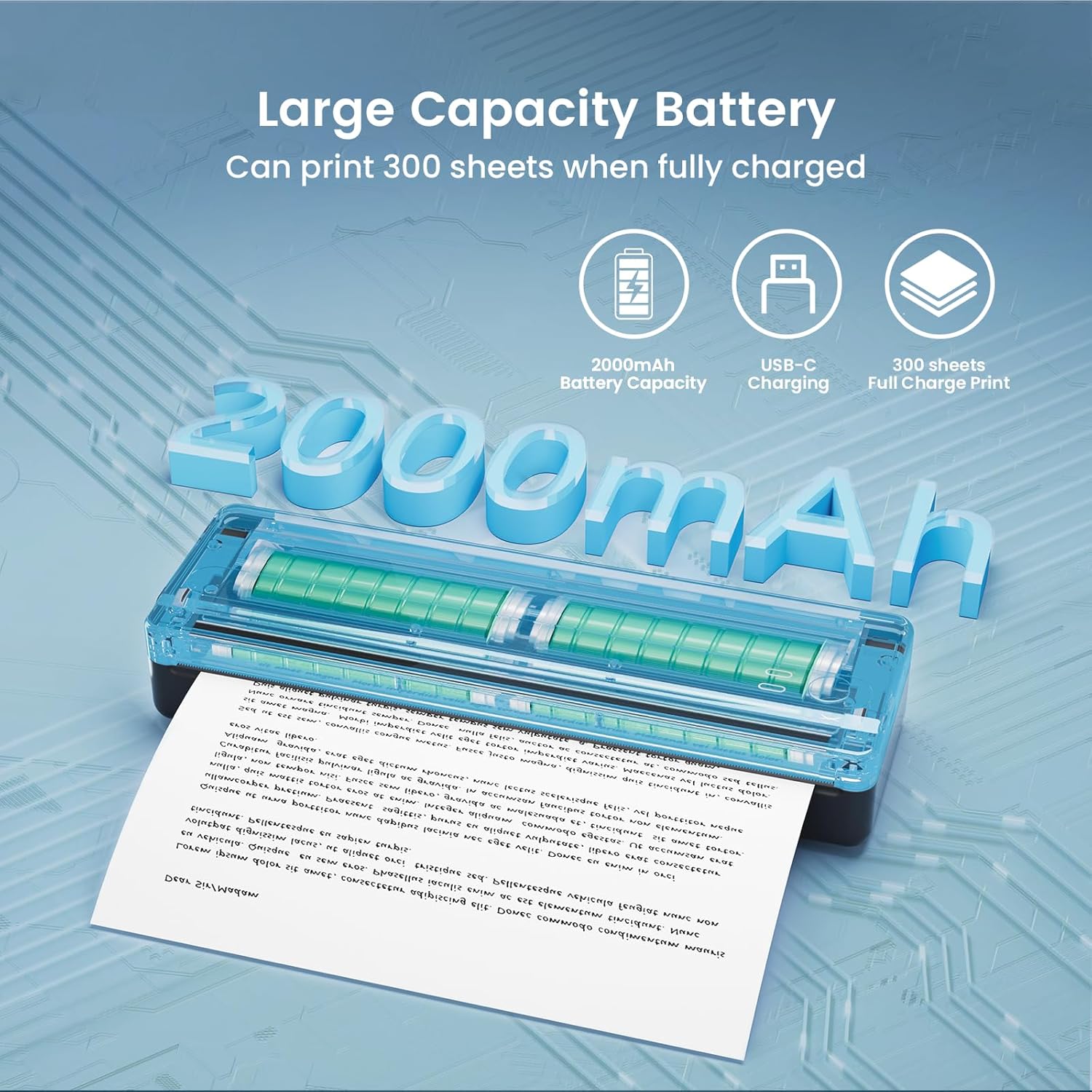
The Vretti PB821 features a large capacity battery, allowing for extended use on a single charge. While the image indicates 2000mAh, the printer is equipped with a 2600mAh battery, capable of printing up to 360 sheets.
4.2 Loading Paper
The PB821 printer supports various thermal paper types, including roll paper and folded paper, and can print on sizes from 2 to 8 inches, such as A4, A5, and 8.5 x 11 US Letter paper.
- Open the paper cover of the printer.
- Insert the thermal paper into the paper slot, ensuring the printable side (usually the smoother, slightly glossy side) is facing the print head.
- Adjust the paper guides to fit the width of the paper snugly.
- Close the paper cover. Ensure the paper is fed straight and without wrinkles.
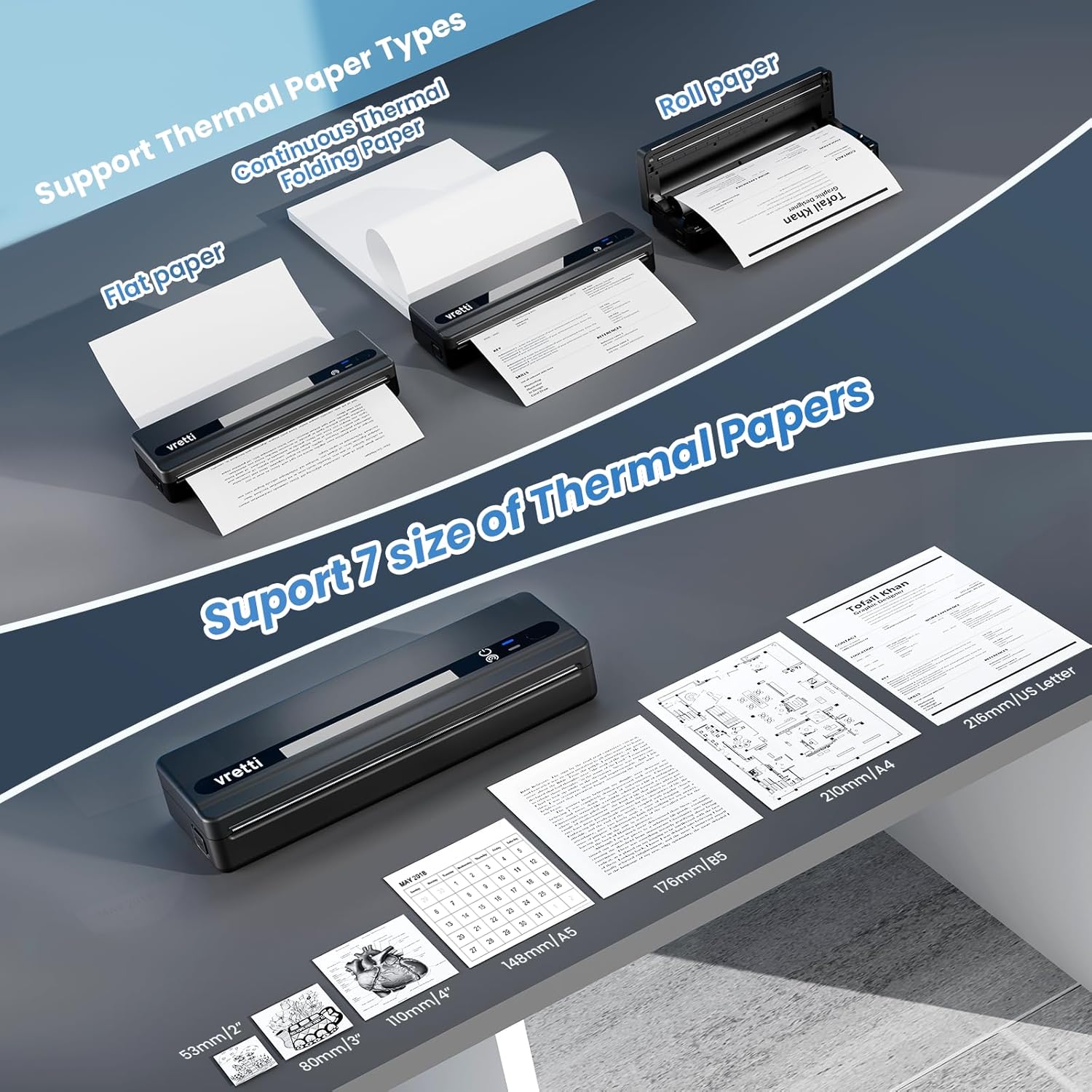
The Vretti PB821 is designed to accommodate multiple thermal paper types and sizes, offering flexibility for various printing needs.
4.3 Software and Driver Installation
To use the printer with your devices, you will need to install the appropriate application or drivers.
For Mobile Devices (Phone/Tablet):
Download the XLife Pro app from the Google Play Store (for Android) or the Apple App Store (for iOS/iPad). This app facilitates Bluetooth printing and offers various templates.

Step-by-step guide for downloading the XLife Pro app and connecting to the printer via Bluetooth for mobile printing.
For Computers (Laptop/PC):
Drivers are required for Windows, Mac OS, Chrome OS, and Linux systems. These can typically be found on the manufacturer's website or on the included U-disk. Visit vrettitech.com/pages/p83-support for the latest drivers.

Guide for downloading and installing drivers for computer connectivity via USB.
4.4 Connectivity
The Vretti PB821 offers flexible connectivity options:
- Bluetooth: For wireless connection to iOS, Android, and iPad devices.
- USB: For wired connection to Windows, Mac OS, Linux, and Chromebook laptops/computers.

The printer supports both Bluetooth for mobile devices and USB for computers, ensuring broad compatibility.
5. Operating Instructions
5.1 Printing from Mobile Devices (Bluetooth)
- Ensure the printer is charged and powered on.
- Enable Bluetooth on your phone or tablet.
- Open the XLife Pro app.
- Within the app, search for and connect to the PB821 printer (usually listed by its model name or a unique ID).
- Select the document, image, or template you wish to print from within the app.
- Adjust print settings as needed (e.g., paper size, density).
- Initiate the print command.

The XLife Pro app provides multiple templates and options for mobile printing.
5.2 Printing from Computers (USB)
- Ensure the printer is charged and powered on.
- Connect the printer to your computer using the provided USB cable.
- Ensure the printer drivers are correctly installed on your computer.
- Open the document (PDF, Word, Excel, image, web page) you wish to print using your preferred application.
- Go to the 'Print' option (usually File > Print or Ctrl+P/Cmd+P).
- Select the Vretti PB821 printer from the list of available printers.
- Adjust print settings as needed (e.g., paper size, orientation).
- Initiate the print command.

The Vretti PB821 can print a wide range of documents, from professional papers to detailed diagrams.
5.3 Print Quality and Supported Media
The Vretti PB821 provides excellent printing clarity for text and monochrome graphics. It is designed for informational printing and is not suitable for high-resolution color images.

The Vretti PB821 offers superior print clarity compared to other portable thermal printers.
The printer supports various thermal paper types, including standard thermal rolls, thermal folding paper, and sticker thermal paper. It can handle multiple sizes, making it versatile for different applications such as shipping labels, contracts, and general documents.

The printer supports a wide range of paper sizes, making it suitable for various documents and labels.

The Vretti PB821 is compatible with various thermal paper types, including folding, roll, and sticker formats.
6. Maintenance
6.1 Cleaning the Printer
Regular cleaning helps maintain print quality and extends the life of your printer.
- Exterior: Wipe the exterior of the printer with a soft, dry, lint-free cloth. Do not use abrasive cleaners or solvents.
- Print Head: If print quality degrades (e.g., faded lines, streaks), the print head may need cleaning. Use a cotton swab lightly dampened with isopropyl alcohol to gently wipe the print head. Allow it to dry completely before use.
- Paper Path: Remove any paper dust or debris from the paper path using a soft brush or compressed air.
6.2 Battery Care
To maximize battery life:
- Avoid fully discharging the battery frequently.
- Store the printer in a cool, dry place when not in use for extended periods.
- If storing for a long time, charge the battery to about 50% capacity.
7. Troubleshooting
If you encounter issues with your Vretti PB821 printer, refer to the following common problems and solutions:
| Problem | Possible Cause | Solution |
|---|---|---|
| Printer does not power on | Low battery; Power button not pressed correctly | Charge the printer; Press and hold the power button for a few seconds. |
| Cannot connect via Bluetooth | Bluetooth off; Printer not in pairing mode; App issue | Ensure Bluetooth is enabled on both devices; Restart printer and app; Re-pair the devices. |
| Poor print quality (faded, streaks) | Low battery; Dirty print head; Incorrect paper type/orientation | Charge printer; Clean print head (see Maintenance); Ensure thermal paper is loaded correctly. |
| Paper jam | Improper paper loading; Damaged paper | Open paper cover, carefully remove jammed paper; Reload paper correctly, ensuring it's straight. |
| Printer not recognized by computer | Missing/incorrect drivers; Faulty USB cable/port | Install/reinstall correct drivers; Try a different USB cable or port. |
8. Specifications
Detailed technical specifications for the Vretti PB821 Portable Thermal Printer:
| Feature | Specification |
|---|---|
| Model Name | PB821 Portable Printer |
| Printing Technology | Thermal |
| Ink Color | NO INK |
| Maximum Black and White Print Resolution | 203 X 203 DPI Dots Per Inch |
| Max Print Speed Monochrome | 72 ppm |
| Connectivity Technology | Bluetooth, USB |
| Compatible Devices | Laptops, PC, Phone, Tablets |
| Maximum Media Size | Letter (8.5 x 11 inches) |
| Supported Sheet Sizes | A4, A5, B5, 2-8 inch thermal paper |
| Battery | 1 Lithium Ion battery (included), 2600mAh capacity |
| Product Dimensions | 10.12 x 3.15 x 1.83 inches |
| Item Weight | 1.43 pounds |
| UPC | 692878864251 |
9. Warranty and Support
The Vretti PB821 Portable Thermal Printer comes with a limited warranty. For specific warranty terms and conditions, please refer to the warranty card included in your product packaging or visit the official vretti website.
For technical support, troubleshooting assistance, or inquiries regarding your product, please contact vretti customer service through their official channels. Contact information can typically be found on the vretti website or in the product documentation.


