
AJAZZ AJ159P
AJAZZ AJ159P Wireless Gaming Mouse User Manual
1. Introduction
This manual provides detailed instructions for the setup, operation, maintenance, and troubleshooting of your AJAZZ AJ159P Wireless Gaming Mouse. Please read this manual thoroughly to ensure optimal performance and longevity of your device.

Figure 1: AJAZZ AJ159P Wireless Gaming Mouse with its RGB Charging Dock.
2. Package Contents
Ensure all the following items are present in your product package:
- AJAZZ AJ159P Wireless Gaming Mouse
- RGB Charging Dock
- USB-C to USB-A Cable
- Extra Grip Tape
- Extra Mouse Skates
- User Manual
3. Product Features
3.1. Dual Mode Connectivity
The AJ159P mouse supports two connectivity modes: 2.4G wireless and wired USB-C. This allows for flexible usage depending on your preference and environment.

Figure 2: Illustration of the mouse's dual-mode connectivity.
3.2. High-Performance PAW3395 Sensor
Equipped with the PAW3395 sensor, the AJ159P offers precise tracking and high sensitivity, crucial for gaming. It supports a DPI range from 100 to 26000.

Figure 3: Visual representation of the PAW3395 sensor.
3.3. DPI Customization
The mouse features 6 adjustable DPI levels (400-800-1200-1600-2400-3200) that can be customized further using the intuitive driver software. The polling rate can be set to 125/250/500/1000 Hz for smooth cursor movement.
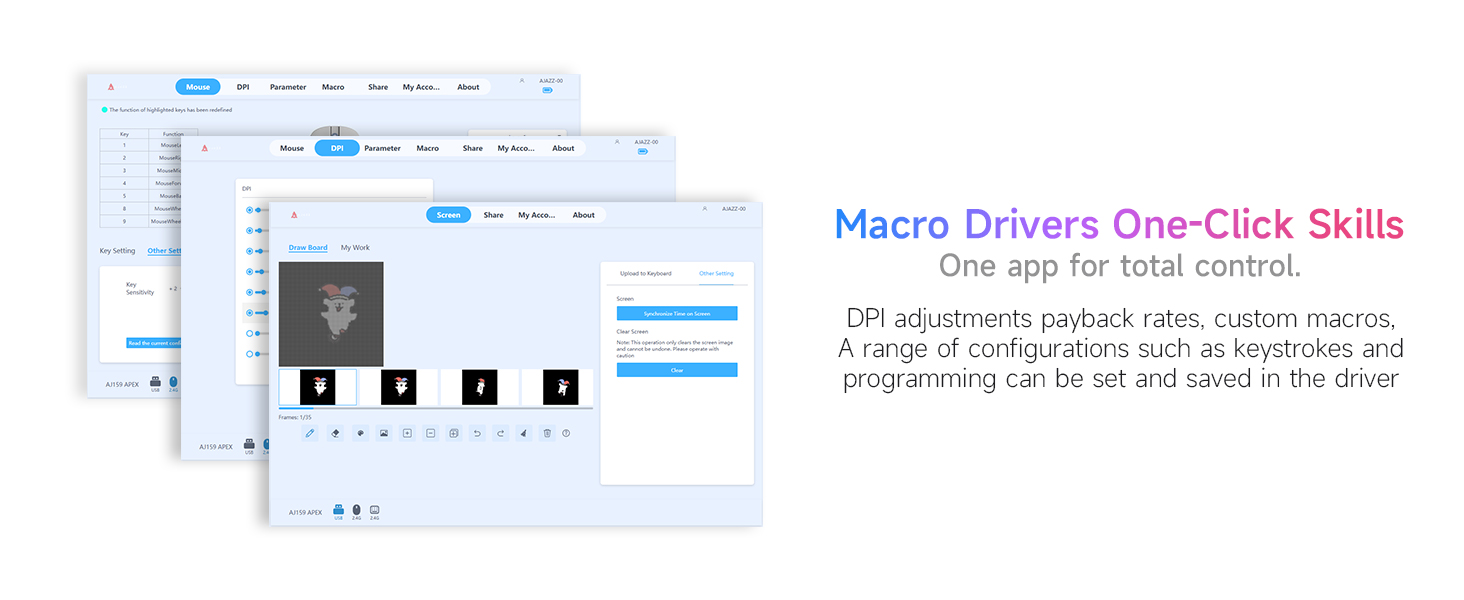
Figure 4: Driver software interface for customizing mouse settings.
3.4. Durable HUANO Microswitches
The mouse is equipped with HUANO microswitches, designed for up to 80 million clicks, ensuring long-lasting performance and reliability.

Figure 5: Detail of the HUANO microswitches.
3.5. Lightweight Ergonomic Design
Weighing 56 grams, the mouse features an ergonomic design suitable for small to medium-sized hands, providing comfort during extended use.

Figure 6: The lightweight design of the AJ159P mouse.

Figure 7: The ergonomic shape designed for comfortable use.
3.6. RGB Charging Dock with Customizable Display
The magnetic charging dock provides convenient charging and features an RGB lighting base and a customizable display screen.

Figure 8: The magnetic RGB charging dock.
Video 1: Demonstrates the RGB lighting and customizable display features of the charging dock.
3.7. Energy Saving Mode
To conserve battery, the mouse enters sleep mode after 10 seconds of inactivity and deep sleep after 5 minutes. Movement or a button press will wake it up. Deep sleep time can be configured via software.
3.8. Programmable Buttons
The mouse features 5 programmable buttons, allowing users to assign custom functions and macros through the driver software for enhanced control.
4. Setup Guide
4.1. Unboxing
Carefully remove all components from the packaging. Inspect for any damage. The package includes the mouse, charging dock, USB-C cable, extra grip tape, extra skates, and this user manual.
Video 2: Shows the unboxing process and initial handling of the mouse and dock.
4.2. Connecting the Charging Dock
- Connect the provided USB-C cable to the charging port on the back of the RGB Charging Dock.
- Plug the USB-A end of the cable into an available USB port on your computer or a USB power adapter.
- The dock's RGB lighting will illuminate, indicating it is powered on.
4.3. Initial Mouse Connection
4.3.1. 2.4G Wireless Mode
- Locate the 2.4G wireless receiver (dongle) stored within the charging dock or the mouse itself.
- Plug the 2.4G receiver into an available USB port on your computer.
- Turn on the mouse using the switch on its underside. The mouse should automatically connect to the receiver.
4.3.2. USB-C Wired Mode
- Connect the provided USB-C cable directly from your computer to the USB-C port on the front of the mouse.
- The mouse will function immediately in wired mode and will also charge simultaneously.
Video 3: Illustrates the dual-mode connectivity options of the mouse.
5. Operating Instructions
5.1. Adjusting DPI
The mouse has a dedicated DPI button, usually located on the underside or top, to cycle through preset DPI levels. For fine-tuning and custom DPI settings, install the official AJAZZ driver software.
Video 4: Demonstrates the sensor and screen dock features, including DPI display.
5.2. Using Programmable Buttons
The 5 programmable buttons can be configured using the AJAZZ driver software. This allows you to assign macros, keyboard shortcuts, or specific in-game actions to enhance your workflow or gaming experience.
5.3. Charging the Mouse
The mouse is equipped with a 400 mAh rechargeable battery. You can charge it in two ways:
- Via Charging Dock: Place the mouse onto the magnetic charging dock. Ensure the contact points align. The dock's display will show charging status.
- Via USB-C Cable: Connect the USB-C cable directly to the mouse's front port.
5.4. Understanding Energy Saving Modes
- Sleep Mode: After 10 seconds of inactivity, the mouse enters sleep mode. Move the mouse or press any button to wake it up.
- Deep Sleep Mode: After an additional 5 minutes of inactivity in sleep mode, the mouse enters deep sleep. A button press is required to wake it. The deep sleep duration can be adjusted via the driver software.
6. Maintenance
- Cleaning: Use a soft, dry cloth to clean the mouse and charging dock. Avoid using harsh chemicals or abrasive materials.
- Storage: Store the mouse and dock in a cool, dry place when not in use.
- Battery Care: Avoid fully discharging the battery frequently to prolong its lifespan.
7. Troubleshooting
| Issue | Possible Solution |
|---|---|
| Mouse not responding (Wireless) | Ensure the 2.4G receiver is properly plugged into a USB port. Check if the mouse is turned on and has sufficient battery. Re-pair the mouse if necessary. |
| Mouse not responding (Wired) | Verify the USB-C cable is securely connected to both the mouse and the computer. Try a different USB port. |
| Charging dock not lighting up | Check the USB-C cable connection to the dock and the power source. Ensure the power source is active. |
| Mouse cursor movement is erratic | Clean the mouse sensor. Ensure the mouse is used on a suitable surface. Check for interference in 2.4G wireless mode. Adjust DPI settings. |
| Buttons not functioning as expected | Verify button assignments in the AJAZZ driver software. Ensure the software is up-to-date. |
8. Specifications
| Feature | Detail |
|---|---|
| Product Dimensions | 6.4 x 3.2 x 0.04 inches |
| Item Weight | 8 ounces (approx. 227g) |
| Item Model Number | AJ159P |
| Batteries | 1 A battery required (included) - 400 mAh rechargeable |
| Manufacturer | AJAZZ |
| Brand | DAIDAI |
| Connectivity Technology | USB, 2.4G Wireless |
| Movement Detection Technology | Optical (PAW3395 Sensor) |
| DPI Range | 100 - 26000 DPI |
| Polling Rate | Up to 1000 Hz (adjustable) |
| Microswitches | HUANO (80 Million Clicks) |
9. Warranty and Support
The AJAZZ AJ159P Wireless Gaming Mouse comes with a 12-month warranty from the date of purchase. This warranty covers manufacturing defects and malfunctions under normal use. It does not cover damage caused by misuse, accidents, unauthorized modifications, or normal wear and tear.
For technical support, warranty claims, or further assistance, please contact the DAIDAI Store US customer service through their official channels or visit their Amazon store page: DAIDAI Store US.
Ask a question about this manual
Ask about setup, troubleshooting, compatibility, parts, safety, or missing instructions. Manuals+ will review the question and use this page’s manual context to help answer it.