
1. Introduction
Thank you for choosing the MageGee V500 Wireless Gaming Keyboard. This manual provides detailed instructions for setting up, operating, maintaining, and troubleshooting your new keyboard. Please read this manual thoroughly to ensure proper use and to maximize your experience with the product.
2. Setup Instructions
2.1 Package Contents
- MageGee V500 Wireless Gaming Keyboard
- 2.4G USB Receiver
- USB Charging Cable
- User Manual
2.2 Connecting the Keyboard
- Locate the 2.4G USB receiver, typically stored in a compartment on the keyboard or included separately in the packaging.
- Plug the 2.4G USB receiver into an available USB port on your computer (PC, laptop, Mac, or desktop).
- Ensure the keyboard's power switch (usually located on the back or side) is in the 'ON' position.
- The keyboard should automatically connect to your computer. If not, press any key to wake it up or re-insert the USB receiver.

3. Operating Instructions
3.1 Power Management and Charging
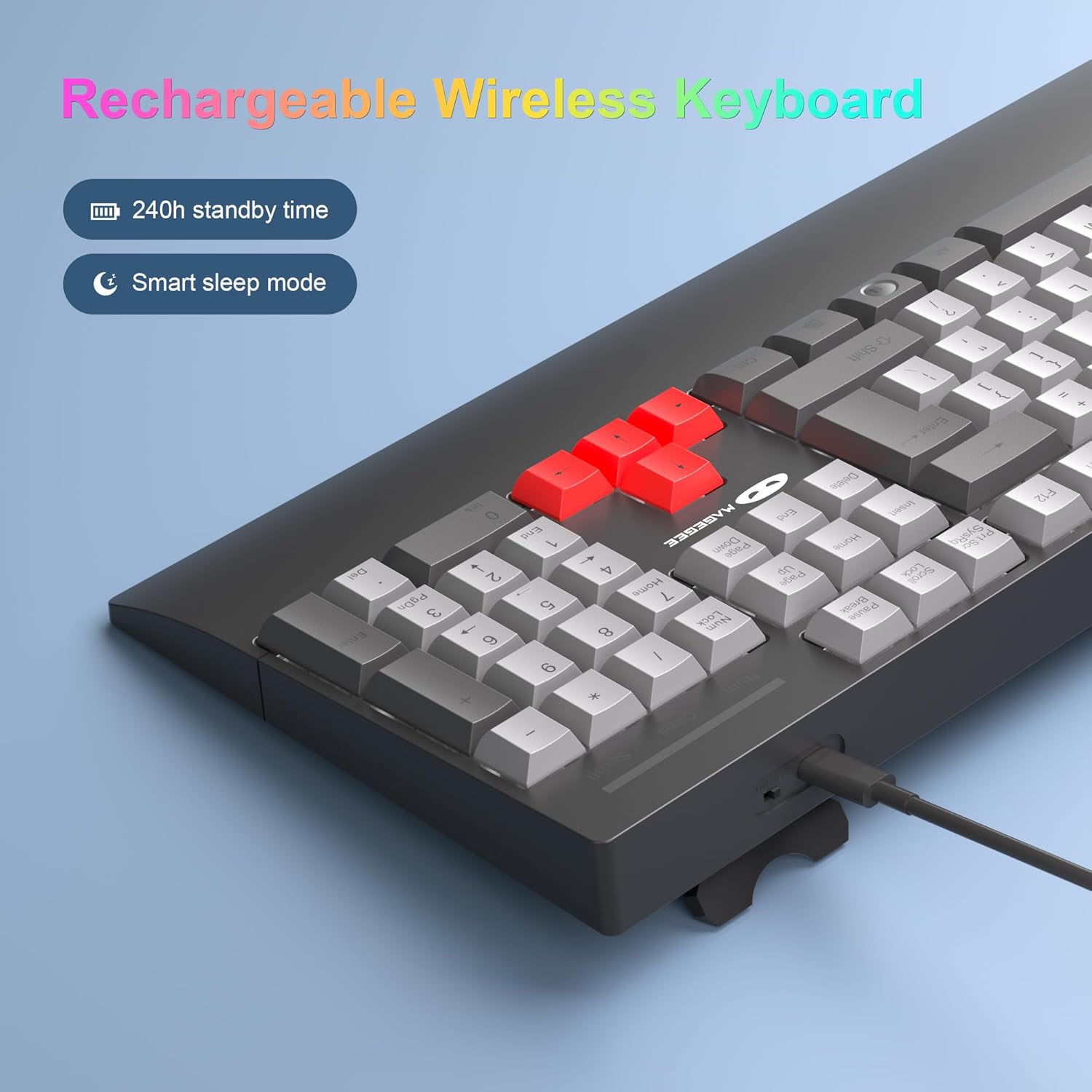
- The keyboard features a rechargeable battery with up to 240 hours of standby time.
- It includes a smart sleep mode: If there is no operation within 5 minutes, the keyboard will automatically enter sleep mode to conserve power. Press any key to wake it up.
- To charge the keyboard, connect the provided USB charging cable to the keyboard's charging port and a USB power source.
3.2 RGB Backlight Control
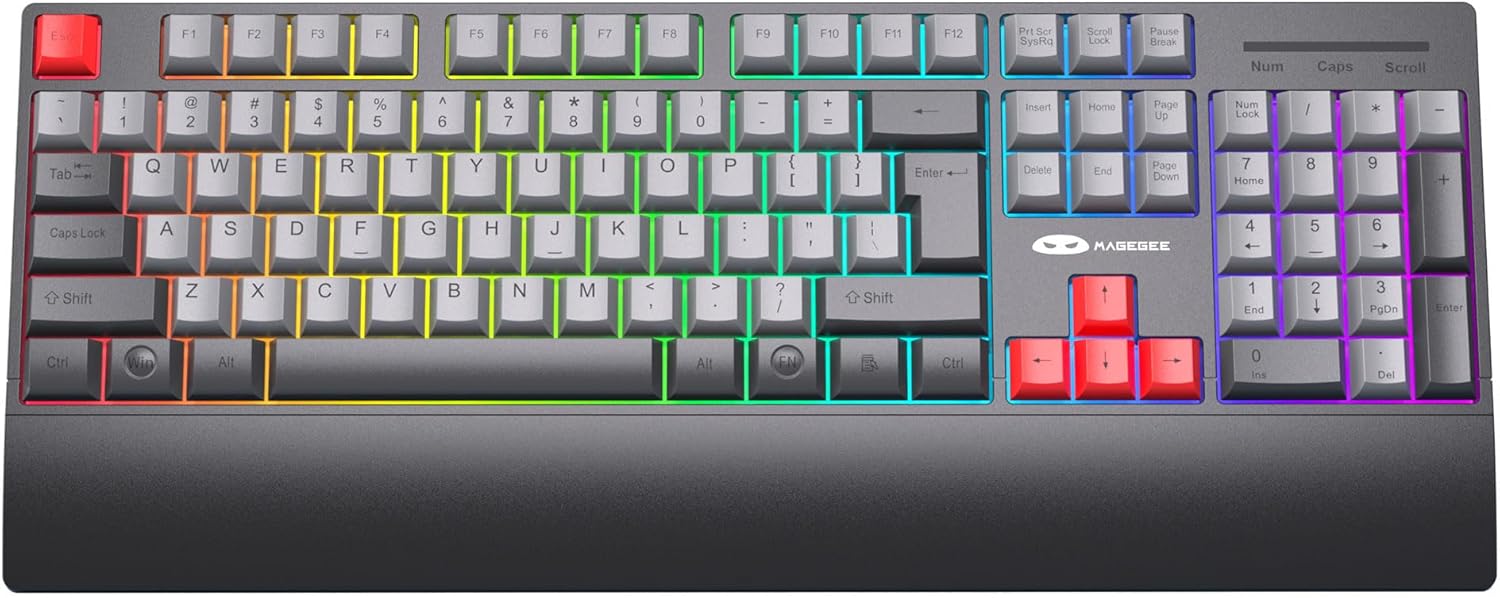
The keyboard features customizable RGB LED backlighting with multiple modes.
- Adjust Brightness: Press Fn + ↑ (Up Arrow) to increase brightness, or Fn + ↓ (Down Arrow) to decrease brightness.
- Adjust Flowing Speed: Press Fn + ← (Left Arrow) or Fn + → (Right Arrow) to adjust the speed of dynamic backlight modes.
- Turn Off Backlight: Press Fn + PGDN to turn off the backlight.
3.3 Multimedia Hotkeys
The keyboard includes 12 multimedia key combinations for quick access to various functions:
| Key Combination | Function |
|---|---|
| Fn + F1 | Media Player |
| Fn + F2 | Volume Down |
| Fn + F3 | Volume Up |
| Fn + F4 | Mute |
| Fn + F5 | Stop |
| Fn + F6 | Previous Track |
| Fn + F7 | Play/Pause |
| Fn + F8 | Next Track |
| Fn + F9 | |
| Fn + F10 | Web Browser/Homepage |
| Fn + F12 | Calculator |

3.4 N-Key Rollover (Anti-Ghosting)
The MageGee V500 keyboard features N-Key Rollover, also known as anti-ghosting. This technology ensures that every key press is registered accurately, even when multiple keys are pressed simultaneously. This is particularly beneficial for fast-paced gaming and efficient typing, preventing missed inputs.
3.5 Ergonomic Design
The keyboard is designed with user comfort in mind, featuring an extended wrist rest and adjustable stands. These elements help maintain a natural hand and wrist posture, reducing fatigue during prolonged use for both gaming and office tasks.

3.6 Multi-Device Compatibility
The MageGee V500 keyboard is compatible with a wide range of operating systems, including Windows, Mac, and Linux. This versatility makes it suitable for various computing environments and devices such as PCs, laptops, and desktops.

4. Maintenance
4.1 Cleaning the Keyboard
- Disconnect the keyboard from your computer before cleaning.
- Use a soft, lint-free cloth slightly dampened with water or a mild cleaning solution to wipe the keycaps and surface.
- Avoid using harsh chemicals, abrasive cleaners, or spraying liquids directly onto the keyboard.
- Use compressed air to remove dust and debris from between the keys.
4.2 Battery Care
- Charge the keyboard regularly to maintain battery health.
- Avoid fully discharging the battery frequently.
- If storing the keyboard for an extended period, charge it to approximately 50% before storage.
5. Troubleshooting
If you encounter issues with your MageGee V500 keyboard, please refer to the following troubleshooting steps:
5.1 Keyboard Not Connecting/Responding
- Ensure the 2.4G USB receiver is securely plugged into a working USB port on your computer.
- Verify that the keyboard's power switch is in the 'ON' position.
- Check the keyboard's battery level and charge it if necessary.
- Try plugging the USB receiver into a different USB port.
- Restart your computer.
5.2 Backlight Not Working or Incorrect
- Ensure the backlight has not been turned off (press Fn + PGDN to toggle).
- Adjust brightness using Fn + ↑/↓.
- If the backlight is dim, charge the keyboard.
5.3 Keys Not Responding or Sticky
- Clean the keyboard to remove any debris or dust that might be obstructing the keys.
- Ensure the keyboard is fully charged.
- If specific keys are consistently problematic, contact customer support.
5.4 Wireless Lag or Disconnection
- Ensure the keyboard is within the effective wireless range (up to 33 feet or 10 meters) of the USB receiver.
- Minimize interference from other wireless devices by moving them further away.
- Try moving the USB receiver to a front USB port or using a USB extension cable to bring it closer to the keyboard.
6. Specifications
| Feature | Detail |
|---|---|
| Model | V500 |
| Brand | MageGee |
| Connectivity Technology | 2.4G Wireless (via USB dongle) |
| Key Count | 104 Keys |
| Backlight | RGB LED Backlit |
| Special Feature | Ergonomic design with wrist rest, N-Key Rollover |
| Compatible Devices | PC, Laptop, Mac, Desktop (Windows, macOS, Linux) |
| Color | Black Grey |
| Item Weight | 1.9 pounds |
| Package Dimensions | 17.92 x 8.19 x 1.53 inches |
| Manufacturer | MAGEGEE |
7. Warranty and Support
MageGee products are designed for reliability and performance. For warranty information or technical support, please refer to the contact details provided with your product packaging or visit the official MageGee website. Please retain your proof of purchase for any warranty claims.
