
Introduction
This manual provides comprehensive instructions for the setup, operation, and maintenance of your Aura Aspen 12-inch HD Digital Picture Frame. Please read this guide thoroughly to ensure optimal performance and longevity of your device. The Aura Aspen frame is designed to display your cherished photos and videos with exceptional clarity and ease of use.
Product Overview and Features
The Aura Aspen 12-inch HD Digital Picture Frame offers a versatile and high-quality display for your digital memories. Key features include:
- 12" Dual-Orientation Display: A 12-inch screen that supports both landscape and portrait orientations, adaptable to your space.
- 1600 x 1200 HD Anti-Glare Display: Enjoy crisp, clear images with reduced glare for optimal viewing from various angles.
- Quick One-Minute Setup: Streamlined setup process for immediate use.
- Decor-Complementing Trim and Mat: A stylish design that integrates seamlessly into any home decor.
- Smartphone Aspect Ratio: Displays photos with the same aspect ratio as your smartphone, ensuring no cropping or distortion.
- Adjustable Slideshow Speed & Touchbar: Customize your photo display speed or manually swipe the interactive touchbar to change photos.
- Free Aura App: Add unlimited photos and videos anytime using the free Aura app, perfect for sharing with family and friends.

Image: Front view of the Aura Aspen 12-inch Digital Picture Frame, showcasing its sleek design and display.
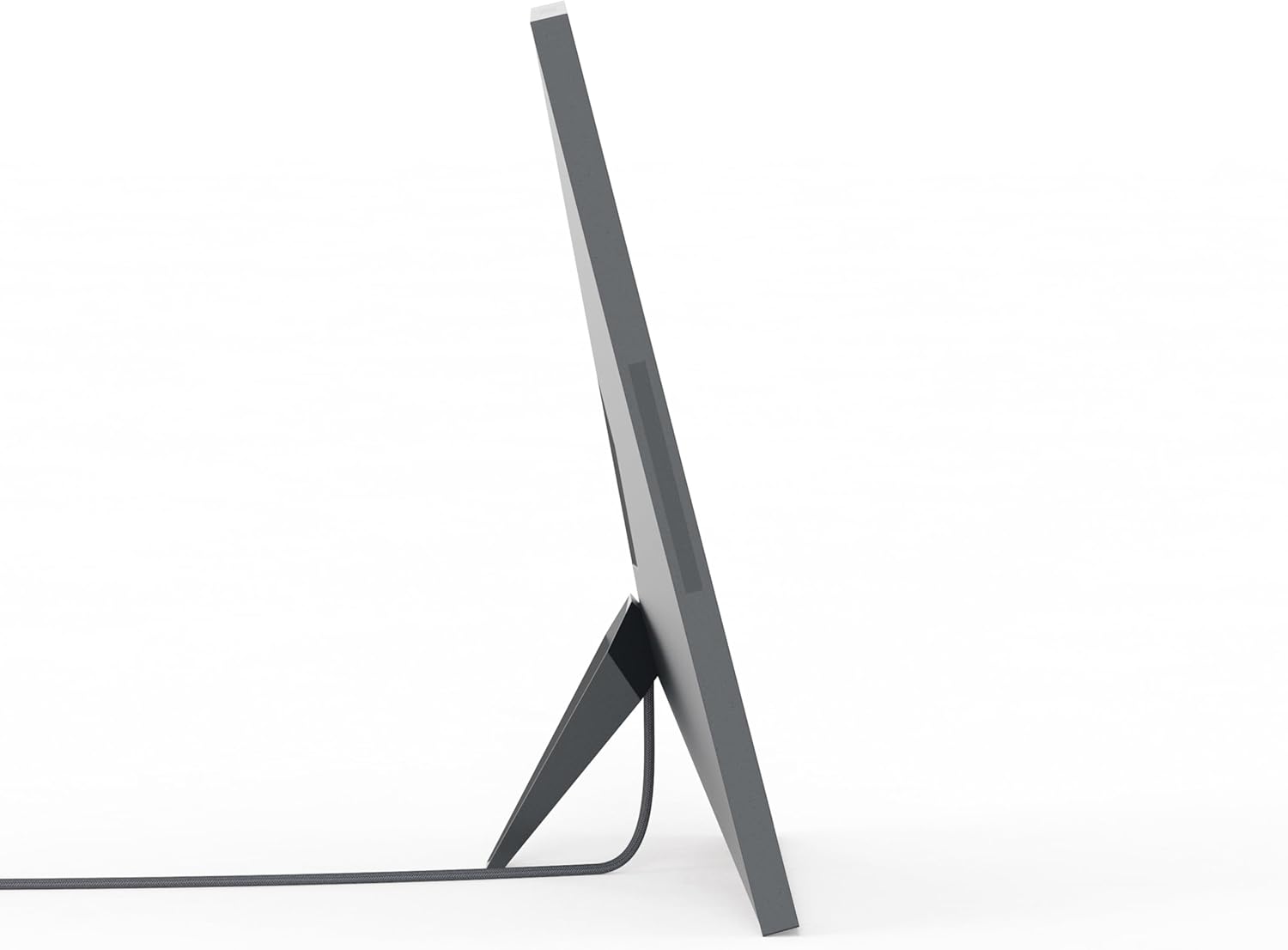
Image: Side view of the Aura Aspen 12-inch Digital Picture Frame, highlighting its slim profile.

Image: Back view of the Aura Aspen 12-inch Digital Picture Frame, showing the stand and power input.
Setup
- Unpack the Frame: Carefully remove the digital picture frame and all accessories from its packaging.
- Connect Power: Plug the power adapter into the frame and then into a wall outlet. The frame will automatically power on.
- Download the Aura App: On your smartphone or tablet, download the free Aura app from your device's app store.
- Create an Account: Open the Aura app and follow the on-screen instructions to create a new account or log in if you already have one.
- Connect to Wi-Fi: The app will guide you through connecting your frame to your home Wi-Fi network. Ensure your frame is within range of your Wi-Fi router.
- Add Photos and Videos: Once connected, you can start uploading photos and videos from your device's gallery directly to the frame using the Aura app.
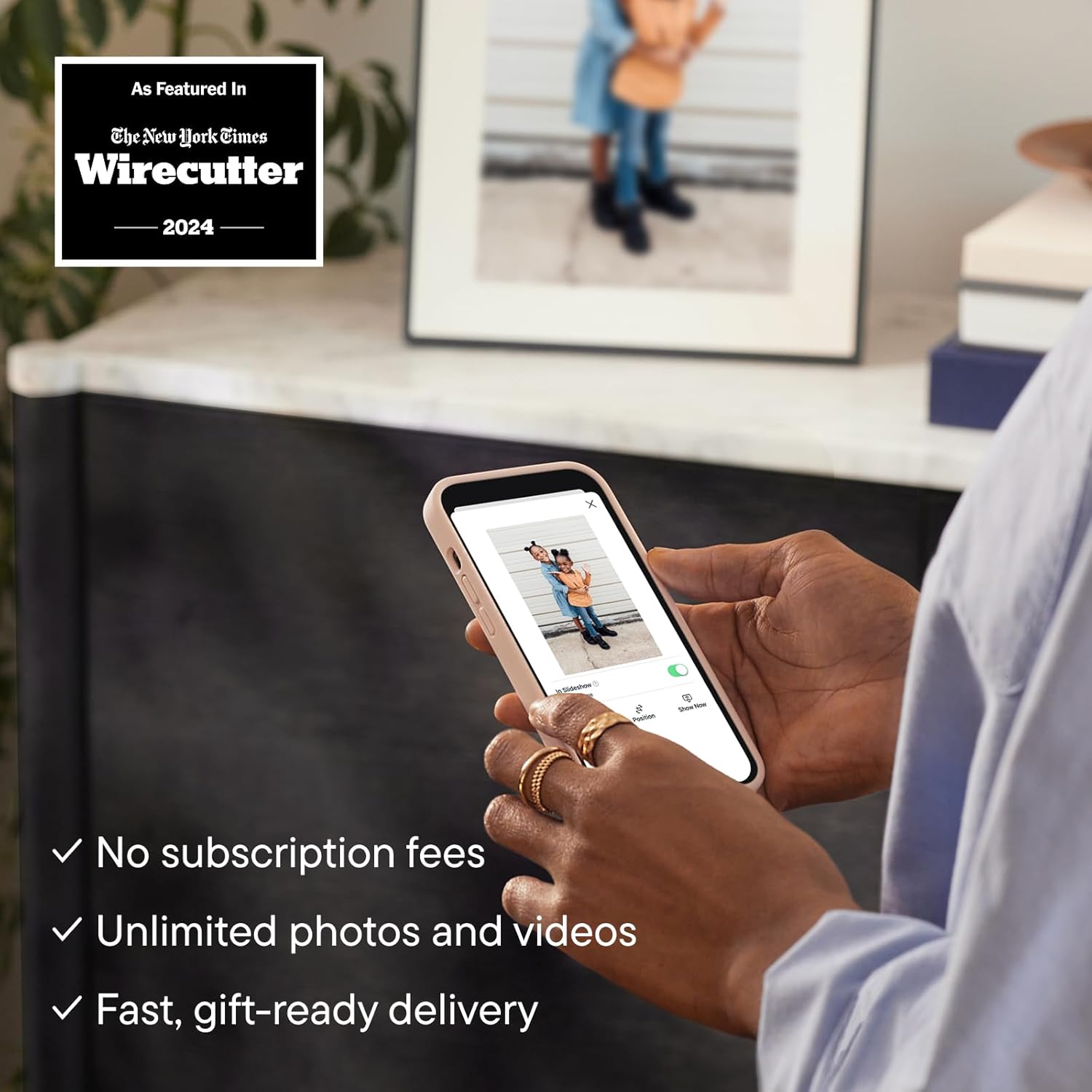
Image: The Aura app interface on a smartphone, demonstrating how to add photos to the digital frame.
Operating Instructions
Your Aura Aspen frame is designed for intuitive operation:
- Automatic On/Off: The frame features light sensors that automatically turn the display on when light is detected and off when the room is dark, conserving energy.
- Changing Photos: Swipe your hand across the interactive touchbar located on the top edge of the frame to manually advance to the next photo or video.
- Slideshow Settings: Use the Aura app to adjust the speed of your slideshow, choose specific albums to display, or set photos to shuffle randomly.
- Orientation: The frame automatically adjusts its display orientation (landscape or portrait) based on how it is positioned.

Image: A diagram illustrating key features of the Aura Aspen frame, such as the 12-inch HD display, paper-like matting, anti-glare finish, auto on/off sensors, portrait/landscape orientation, slim profile, built-in speaker, and interactive touch bar.
Media Integration
Product Images
The Aura Aspen frame is designed to beautifully display your images. Here are some visual examples of the product and its features:

Image: The Aura Aspen frame displaying a family photo, positioned on a wooden surface in a living room, demonstrating its aesthetic integration.

Image: The Aura Aspen frame displaying a photo of children, with a smartphone in the foreground showing the Aura app, illustrating the ease of photo sharing.
Official Product Videos
Watch the official product video to learn more about the Aura Aspen frame and its capabilities:
Video: An official video from Aura Home, Inc. demonstrating how Aura frames are designed to display your photos. This video highlights the quality and features of the frame.
Maintenance
- Cleaning the Screen: Use a soft, lint-free cloth to gently wipe the screen. Avoid abrasive materials or harsh chemicals.
- Cleaning the Frame: Wipe the frame's exterior with a dry, soft cloth.
- Power Care: Always disconnect the power adapter from the wall outlet before cleaning or if the frame will not be used for an extended period.
Troubleshooting
- Frame Not Turning On: Ensure the power adapter is securely connected to both the frame and a working wall outlet.
- No Photos Displaying: Verify that the frame is connected to Wi-Fi and that photos/videos have been successfully uploaded via the Aura app. Check the app for any error messages.
- Wi-Fi Connection Issues: Restart your Wi-Fi router and the Aura frame. Ensure the frame is within optimal range of your router. If issues persist, try reconnecting through the Aura app settings.
- Photos Appearing Sideways: The frame automatically adjusts orientation. If a photo is consistently incorrect, check the original photo's orientation on your device or use the app's editing features.
Specifications
| Screen Size | 10.1 Inches (Display area is 12 inches diagonally) |
| Resolution | 1600 x 1200 |
| Product Dimensions | 14.8 x 12.05 x 0.99 inches |
| Item Weight | 5.66 pounds |
| Compatible Devices | Works with iOS and Android |
| Color | Black with Mat |
Warranty and Support
For warranty information and customer support, please refer to the documentation included in your product packaging or visit the official AURA website. You can also contact AURA Home, Inc. directly for assistance.
- Manufacturer: Aura Home, Inc.
- Return Policy: 30-day refund/replacement (as per Amazon policy at time of data retrieval).
- Protection Plans: Optional 2-Year or 3-Year Protection Plans may be available for purchase.


