
1. Introduction
This manual provides essential information for the safe and efficient use of your AT&T Cingular Flex 2 Smart Flip Phone (Model 6723D). Please read these instructions carefully before operating your device to ensure optimal performance and longevity.
The Cingular Flex 2 is a compact flip phone designed for reliable communication. It features a vibrant display, a built-in camera for capturing moments, and 4GB of internal storage for essential files and applications. The device operates on KaiOS, offering a streamlined user experience.
2. What's in the Box
Verify that all items are present in your product package:
- AT&T Cingular Flex 2 Smart Flip Phone
- Power Adapter
- Lithium Ion Battery (pre-installed or separate)
3. Device Overview
Familiarize yourself with the physical components of your AT&T Cingular Flex 2 phone.
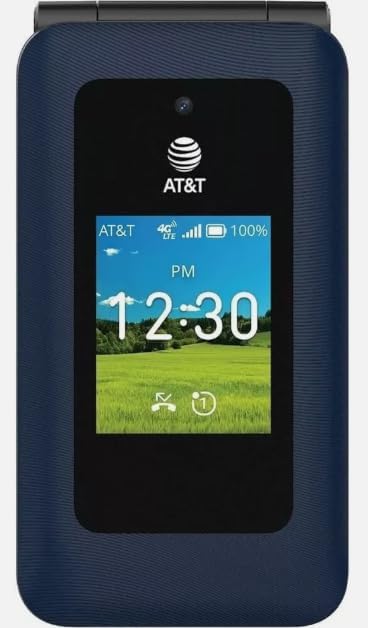
Figure 3.1: Front view of the AT&T Cingular Flex 2 Smart Flip Phone, showing the main display with time, network signal, and battery indicator.

Figure 3.2: Rear view of the AT&T Cingular Flex 2 Smart Flip Phone, highlighting the textured back cover and the speaker grille at the top.
Key Components:
- External Display: Shows notifications, time, and caller ID when closed.
- Main Display: Internal screen for navigation and content.
- Keypad: Numeric and navigation buttons for input.
- Camera: Located on the device for capturing photos and videos.
- Volume Buttons: Adjust audio levels.
- Power/End Call Button: Turns the device on/off and ends calls.
- Charging Port: For connecting the power adapter.
4. Setup
4.1. Inserting the SIM Card and Battery
- Ensure the phone is powered off.
- Carefully remove the back cover of the phone.
- If the battery is installed, remove it by gently lifting it from the notch.
- Locate the SIM card slot, typically beneath the battery compartment. Insert your SIM card with the gold contacts facing down and the notched corner aligned correctly.
- Insert the battery, ensuring the contacts align with those in the phone.
- Replace the back cover until it clicks securely into place.
4.2. Charging the Device
- Connect the power adapter to the charging port on your phone.
- Plug the power adapter into a standard electrical outlet.
- Allow the phone to charge completely before initial use. The battery indicator on the screen will show charging status.
4.3. Powering On/Off
- To Power On: Press and hold the Power/End Call button until the screen illuminates.
- To Power Off: Press and hold the Power/End Call button, then select 'Power Off' from the options on the screen.
5. Operating Your Phone
5.1. Basic Navigation
The Cingular Flex 2 uses a physical keypad for navigation. Use the directional pad (D-pad) to move between menu items and the center button to select. The left and right soft keys perform actions indicated on the screen above them.
5.2. Making and Receiving Calls
- To Make a Call: Enter the phone number using the keypad and press the Call button (usually the green button).
- To Answer a Call: When the phone rings, press the Call button.
- To End a Call: Press the Power/End Call button (usually the red button).
5.3. Sending and Receiving Messages
Navigate to the 'Messages' application from the main menu.
- To Send a New Message: Select 'New Message', enter the recipient's number or select from contacts, then type your message using the keypad.
- Note on Multimedia Messaging: Sending photos via text message may not be consistently supported. Receiving multimedia messages can also be intermittent.
- Voice to Text: This device does not support voice-to-text input for messaging.
5.4. Camera Usage
The phone includes a built-in camera. You can access it via the main menu or by pressing the dedicated camera shortcut button on the side of the device.
- Taking Photos: Open the camera app, frame your shot, and press the center button or camera button to capture.
- Recording Videos: Switch to video mode within the camera app and press the record button.
5.5. Internet and Applications
The Cingular Flex 2 runs on KaiOS. Access the KaiOS store for additional applications. Pre-installed apps include YouTube and a feature-reduced version of Google Maps. Be aware that some utility apps downloaded from the store may display advertisements.
6. Maintenance
6.1. Battery Care
- Avoid exposing the battery to extreme temperatures.
- Charge the battery using only the provided power adapter.
- Unplug the charger once the battery is fully charged to conserve energy.
6.2. Cleaning Your Device
Use a soft, dry, lint-free cloth to clean the phone's screen and body. Avoid using harsh chemicals or abrasive materials.
6.3. Software Updates
Periodically check for software updates in the phone's settings menu to ensure your device has the latest features and security enhancements.
7. Troubleshooting
If you encounter issues with your Cingular Flex 2, refer to the following common problems and solutions:
| Problem | Possible Solution |
|---|---|
| Slow interface or app loading | Close unused applications. Restart the phone. Consider uninstalling less frequently used apps to free up resources. |
| Operating System crashes | Restart the device. Ensure the software is up to date. If persistent, a factory reset may be necessary (back up data first). |
| Wi-Fi or network connectivity issues | Toggle Wi-Fi/Mobile Data off and on. Restart the phone. Check router or network settings. Ensure notifications for network disconnections are managed in settings to avoid excessive alerts. |
| Keyboard input errors (e.g., double key strokes) | Ensure you are pressing keys firmly and deliberately. If the issue persists, contact customer support. |
| Cannot send photos via text message | This is a known limitation for some devices. Try alternative methods for sharing images if available, or reduce image size if an option. |
| Poor battery life | Reduce screen brightness. Close background apps. Limit use of power-intensive features like GPS. Ensure the battery is fully charged. |
7.1. Factory Reset
A factory reset will erase all data from your phone and restore it to its original factory settings. This can resolve persistent software issues. Back up all important data before performing a factory reset. Consult your phone's settings menu for the 'Reset' or 'Erase all data' option.
8. Specifications
Detailed technical specifications for the AT&T Cingular Flex 2 Smart Flip Phone (Model 6723D):
| Feature | Specification |
|---|---|
| Model Name | Cingular Flex 2 |
| Item Model Number | 6723D |
| Brand | AT&T |
| Operating System | KaiOS |
| Memory Storage Capacity | 4 GB |
| RAM Memory Installed Size | 512 MB |
| CPU Model | Mediatek Dimensity 1100 |
| Resolution | 720 x 1520 |
| Connectivity Technology | 4G LTE |
| Cellular Technology | 4G |
| Wireless Carrier | Unlocked |
| GPS | True |
| Form Factor | Flip |
| Color | Classic Navy |
| Battery Capacity | 1400 Milliamp Hours |
| Battery Power Rating | 2800 Amp Hours |
| Item Weight | 7.4 ounces (0.21 Kilograms) |
| Package Dimensions | 4.69 x 2.91 x 2.13 inches |
| Manufacturer | AT&T |
| Date First Available | February 11, 2025 |
9. Warranty and Support
For warranty information, please refer to the documentation provided with your purchase or visit the official AT&T support website. If you require technical assistance or have questions not covered in this manual, please contact AT&T customer support.
You can find additional support resources and contact information on the AT&T Store on Amazon.


