
ACMER Laser Engraver S1
ACMER S1 Portable Laser Engraver User Manual
Model: Laser Engraver S1 (S1-2500mW)
1. Product Overview
The ACMER S1 Portable Laser Engraver is a compact and lightweight machine designed for both beginners and experienced users. It offers precise engraving and cutting capabilities across a wide range of materials, making it suitable for various creative and professional projects. This manual provides essential information for safe operation, setup, maintenance, and troubleshooting.
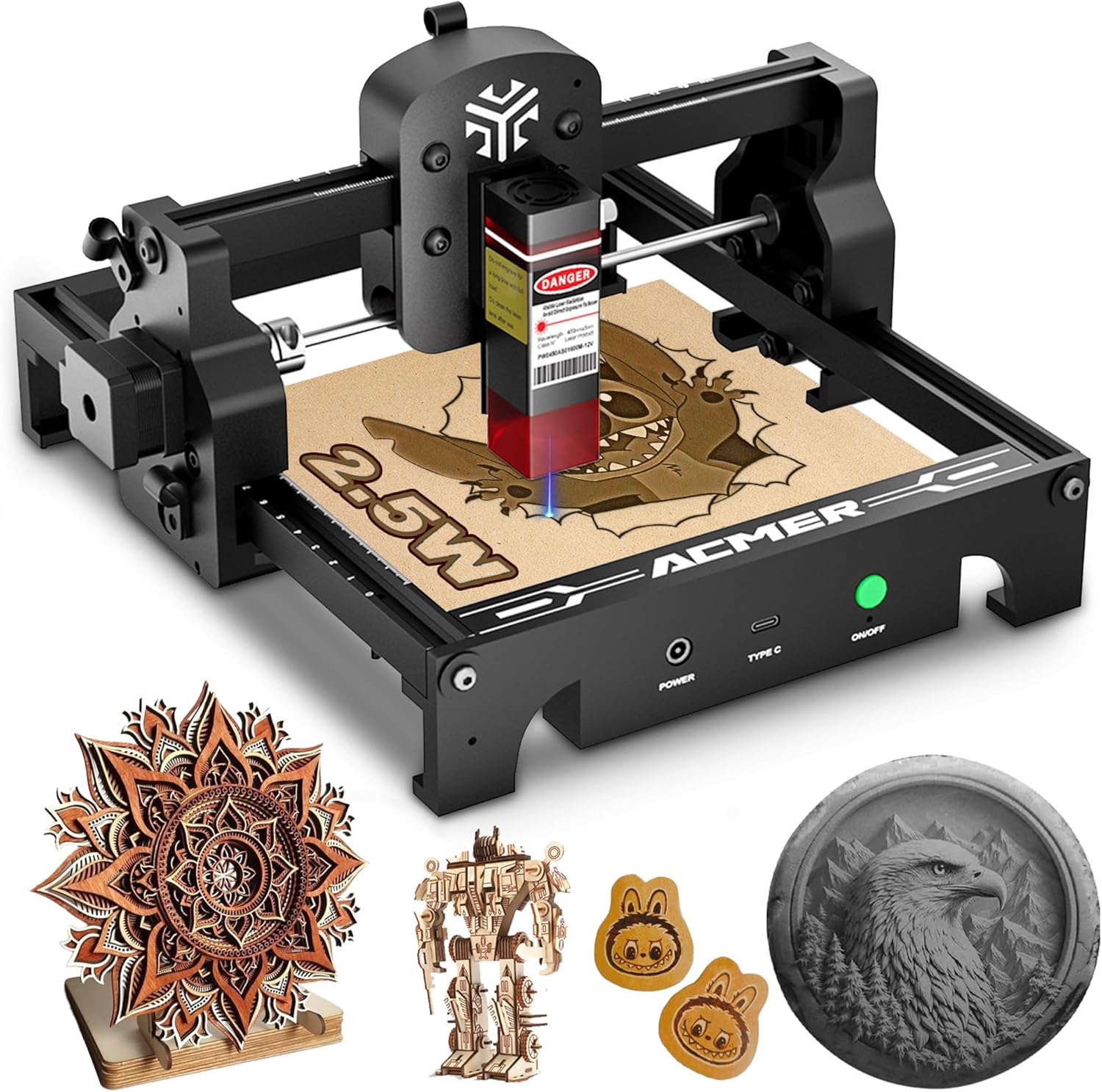
Figure 1: ACMER S1 Portable Laser Engraver (2.5W model shown)
2. Safety Instructions
Operating a laser engraver involves potential hazards. Adhere strictly to the following safety guidelines to prevent injury and damage.
- Eye Protection: Always wear the provided laser safety goggles (Class 4 laser protection) when the machine is in operation. Never look directly at the laser beam.
- Ventilation: Operate the engraver in a well-ventilated area to dissipate fumes and smoke produced during engraving and cutting. Consider using an exhaust fan or air purifier.
- Fire Safety: Keep a fire extinguisher nearby. Do not leave the machine unattended during operation, especially when engraving flammable materials.
- Material Compatibility: Only engrave or cut materials specified as safe for laser processing. Avoid materials that produce toxic fumes or are highly flammable.
- Children and Pets: Keep children and pets away from the operating area.
- Power Supply: Use only the power adapter supplied with the device. Ensure proper grounding.
- Emergency Stop: Familiarize yourself with the location of the power switch for immediate shutdown in case of an emergency.
3. Package Contents
Verify that all items are present in the package before proceeding with setup.
- ACMER S1 Laser Engraver Unit
- Laser Safety Goggles
- Power Adapter (AC/DC)
- USB Cable (Type-C)
- Sample Materials for Testing
- User Manual (this document)
4. Setup Guide
4.1 Initial Setup
The ACMER S1 is designed for ease of use and typically requires no complex assembly.
- Place the engraver on a stable, level surface in a well-ventilated area.
- Connect the power adapter to the "POWER" port on the engraver and plug it into a suitable electrical outlet.
- Connect the USB Type-C cable to the "TYPE C" port on the engraver and to your computer.
- Press the "ON/OFF" button to power on the device. The indicator light will illuminate.
4.2 Software Installation
The ACMER S1 is compatible with professional carving software such as LightBurn and LaserGRBL.
- Download the latest version of LightBurn or LaserGRBL from their official websites.
- Follow the on-screen instructions to install the software on your computer (compatible with macOS, Windows, Linux).
- Launch the software and configure it to recognize the ACMER S1 engraver. Refer to the software's specific documentation for detailed setup steps.

Figure 2: Software compatibility including LightBurn, LaserGRBL, macOS, Windows, and Linux.
5. Operating Instructions
5.1 Preparing for Engraving/Cutting
- Place the material to be engraved or cut on the working platform. Ensure it is flat and securely positioned.
- Adjust the laser module height to achieve optimal focus on the material surface. Refer to the software's focusing guide.
- Use the convenient frame scale design on the machine to accurately locate your design workpieces. The limit switches facilitate precise return to the original position.
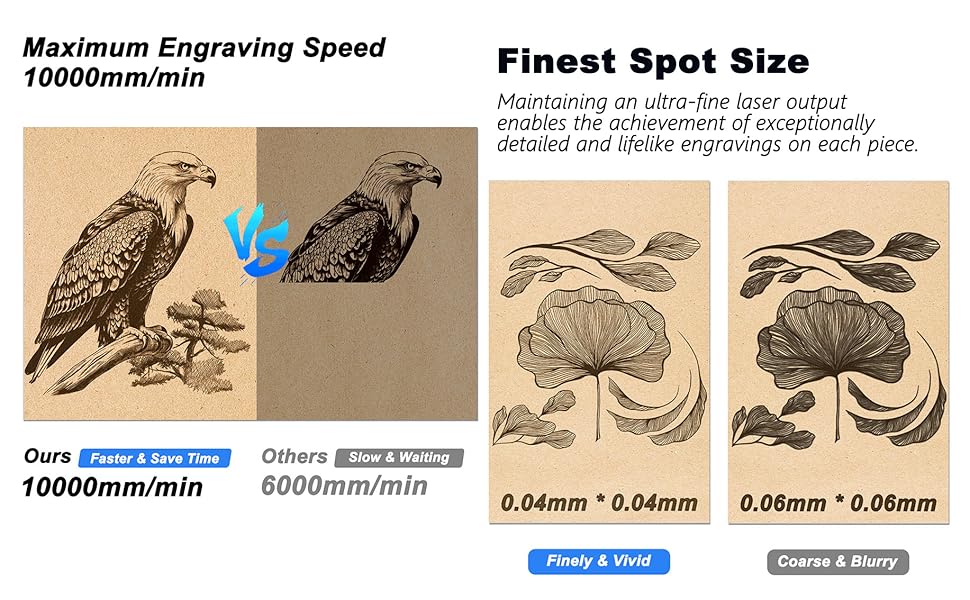
Figure 3: Features for precise origin return and convenient frame scale design.
5.2 Creating and Starting a Project
- In your chosen software (LightBurn/LaserGRBL), import or create your desired design.
- Select the appropriate material settings (power, speed, passes) for your material. The S1 can engrave 100+ materials with an ultra-fine 0.04 x 0.04mm spot and speeds up to 10000mm/min.
- Preview the engraving path to ensure it aligns with your material placement.
- Initiate the engraving or cutting process from the software.

Figure 4: The ACMER S1 offers a maximum engraving speed of 10000mm/min for faster project completion.

Figure 5: The S1 achieves a finest spot size of 0.04mm x 0.04mm for finely detailed and vivid engravings.

Figure 6: The ACMER S1 is suitable for carving over 100 types of materials, offering versatility for various projects.
5.3 Official Product Video
Video 1: Official product video demonstrating the ACMER S1 Laser Engraver's capabilities and various engraving results on different materials.
6. Maintenance
Regular maintenance ensures optimal performance and extends the lifespan of your ACMER S1 laser engraver.
- Cleaning the Lens: Periodically clean the laser lens with a soft, lint-free cloth and lens cleaning solution to maintain engraving precision.
- Cleaning the Machine: Wipe down the machine's frame and working platform regularly to remove dust and debris.
- Lubrication: Check and lubricate the guide rails and moving parts as recommended by the manufacturer (refer to specific software or online resources for detailed guidance if not in this manual).
- Firmware Updates: Check for and install any available firmware updates for the engraver to ensure compatibility and improved performance.
7. Troubleshooting
If you encounter issues with your ACMER S1, refer to the common problems and solutions below.
| Problem | Possible Cause | Solution |
|---|---|---|
| Laser not firing or weak output | Incorrect focus, dirty lens, low power setting, laser module issue. | Adjust focus, clean lens, increase power setting in software, contact support if problem persists. |
| Machine not connecting to computer | Loose USB cable, incorrect driver, software not recognizing device. | Ensure USB cable is securely connected (try a different cable), reinstall drivers, restart software and machine. |
| Engraving results are blurry or inconsistent | Material not flat, incorrect focus, machine vibration, worn components. | Ensure material is flat and secured, re-focus laser, place machine on stable surface, check for loose parts. |
| Machine stops mid-operation | Software error, USB connection interruption, overheating. | Restart software, check USB connection, allow machine to cool down if hot. |
For issues not listed here or if troubleshooting steps do not resolve the problem, please contact ACMER customer support.
8. Specifications
| Feature | Detail |
|---|---|
| Brand | ACMER |
| Model Number | Laser Engraver S1 (S1-2.5W-001) |
| Laser Output Power | 2.5W (also available in 3.5W/6W variants) |
| Laser Class | Class 4 |
| Engraving Area | 5.1"L x 5.1"W (approx. 130mm x 130mm) |
| Finest Spot Size | 0.04mm x 0.04mm |
| Max Engraving Speed | 10000mm/min |
| Item Weight | 3.96 pounds |
| Product Dimensions | 22.64 x 22.05 x 7.87 inches |
| Power Source | AC/DC |
| Operation Mode | Automatic |
| Color | Black |
| Compatible Software | LightBurn, LaserGRBL |
| Operating Systems | macOS, Windows, Linux |
9. Warranty and Support
ACMER is committed to providing high-quality products and excellent customer service.
- After-Sale Service: If you encounter any problems during the usage process, please feel free to contact us anytime. We are dedicated to providing you with a satisfactory solution.
- Contact Information: For support, technical assistance, or warranty inquiries, please visit the official ACMER website or refer to the contact details provided with your purchase documentation.
Related documentsLaser Engraver S1


Ask a question about this manual
Ask about setup, troubleshooting, compatibility, parts, safety, or missing instructions. Manuals+ will review the question and use this page’s manual context to help answer it.