
1. Introduction
Welcome to the user manual for your Diofox M10 MP3 Player. This device is designed to provide a versatile portable media experience, combining the functionality of an MP3/MP4 player with the capabilities of an Android-based system. It features a 5.0-inch touchscreen, Bluetooth, Wi-Fi connectivity, and support for various streaming applications. Please read this manual carefully to ensure proper use and maintenance of your device.
2. Product Overview
The Diofox M10 is more than just a traditional MP3 player. Running on an Android operating system with an 8-core chip, it offers a smooth user experience. It comes with pre-installed applications such as Spotify, Pandora, and Amazon Music, and supports other popular apps like Libby and Audible. The device includes 80GB of total storage (with an included 64GB SD card) and is expandable up to 1TB.

Figure 2.1: Front view of the Diofox M10 MP3 Player.
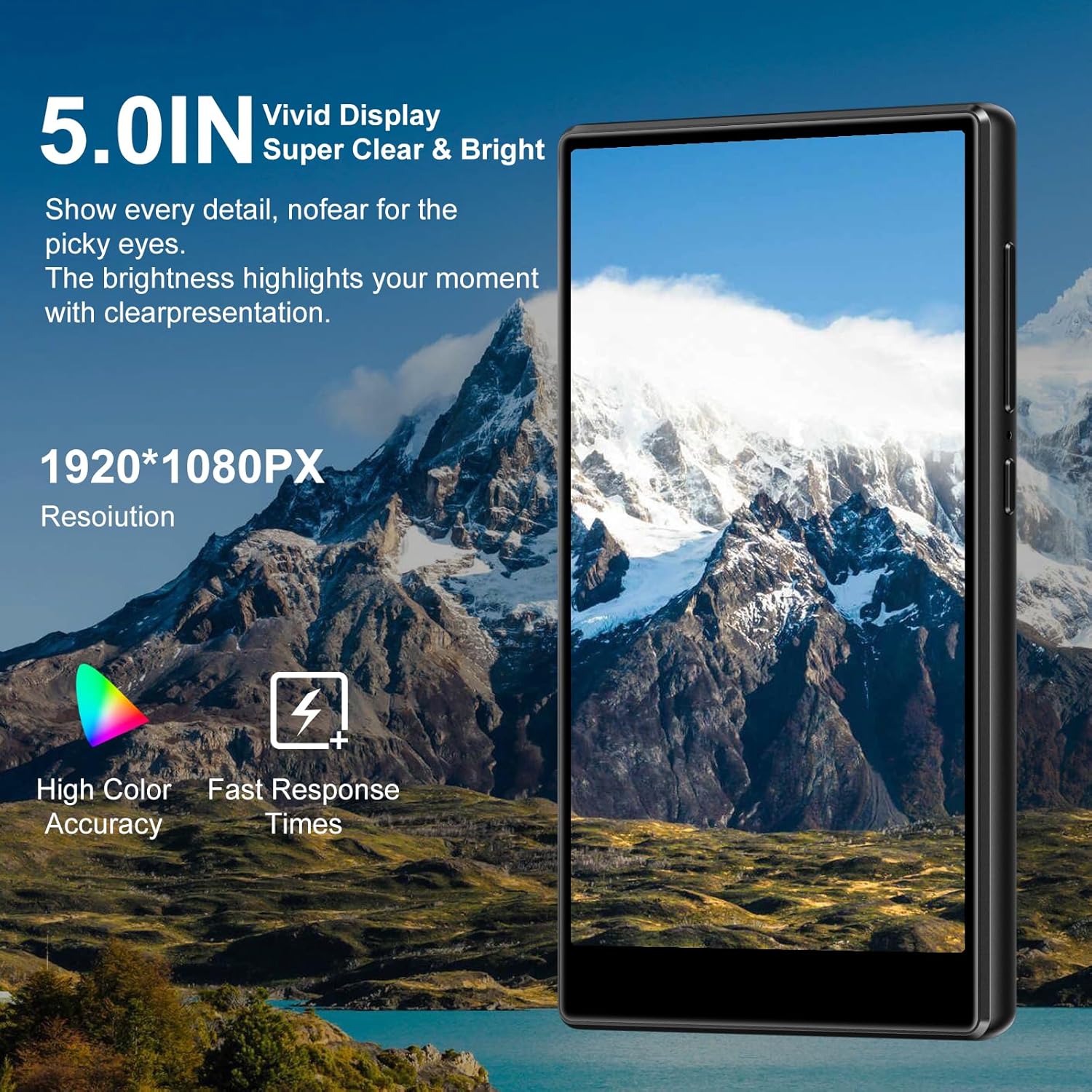
Figure 2.2: Back view of the Diofox M10 MP3 Player.
Key Features:
- Operating System: Android 9
- Processor: 8-core chip for smooth performance
- Display: 5.0-inch touchscreen with 1920*1080PX resolution, high color accuracy, and fast response times.
- Storage: 80GB total (64GB SD card included), expandable up to 1TB
- Connectivity: Bluetooth and Wi-Fi
- Pre-installed Apps: Spotify, Pandora, Amazon Music
- App Compatibility: Supports Libby, Audible, and other Android applications

Figure 2.3: The Diofox M10 MP3 Player showcasing its ability to run multiple applications, extending beyond basic music playback.

Figure 2.4: The 5.0-inch vivid display of the Diofox M10, offering clear and bright visuals.

Figure 2.5: Internal storage and RAM capabilities of the Diofox M10, supporting various applications and media.
3. Getting Started
3.1 Package Contents
Before proceeding, please ensure all items are present in the package:
- Diofox M10 MP3 Player
- USB Charging Cable
- User Manual (this document)
- 64GB Micro SD Card (pre-installed or separate)
- Earphones (may vary by package)
3.2 Charging the Device
The Diofox M10 MP3 Player comes with a built-in rechargeable battery.
- Connect the small end of the USB charging cable to the charging port on your device.
- Connect the larger end of the USB cable to a USB power adapter (not included) or a computer's USB port.
- The battery indicator on the screen will show charging status. Allow approximately 2-3 hours for a full charge.
Note: For optimal battery life, fully charge the device before first use.
3.3 Powering On/Off
- To Power On: Press and hold the Power button (usually located on the side) for a few seconds until the screen lights up.
- To Power Off: Press and hold the Power button until a power-off menu appears. Select "Power off" from the options.
- To Restart: From the power-off menu, select "Restart".
- To Sleep/Wake: Briefly press the Power button to put the device into sleep mode or wake it up.
3.4 Initial Setup
Upon first power-on, you will be guided through an initial setup process:
- Language Selection: Choose your preferred language.
- Wi-Fi Connection: Connect to a Wi-Fi network to access online features and app downloads.
- Go to Settings > Network & Internet > Wi-Fi.
- Select your desired network and enter the password if prompted.
- Date and Time: Set the correct date and time, or enable automatic network-provided time.
- Google Account (Optional): Sign in with your Google account to access the Google Play Store for additional apps and services.
4. Operating the Device
4.1 Basic Navigation
The Diofox M10 uses a touchscreen interface for navigation.
- Tap: To select an item or open an app.
- Swipe: To scroll through lists or switch between screens.
- Pinch-to-Zoom: To zoom in or out on images or web pages.
- Long Press: To access contextual menus or move app icons.
4.2 Music Playback
You can play music stored locally on the device or stream from installed apps.
- Local Music: Open the "Music" app. Browse by artist, album, song, or playlist. Tap a song to play.
- Streaming Apps: Open apps like Spotify, Pandora, or Amazon Music. Log in to your account and stream music as you would on any other Android device.

Figure 4.1: Music playback interface on the Diofox M10.
4.3 Video Playback
The device supports MP4 video playback.
- Open the "Video" or "Gallery" app to view locally stored videos.
- Use streaming apps like YouTube (if installed) for online video content.
4.4 Bluetooth Connectivity
Connect wireless headphones, speakers, or other Bluetooth devices.
- Go to Settings > Connected devices > Bluetooth.
- Toggle Bluetooth ON.
- Ensure your Bluetooth accessory is in pairing mode.
- Select your device from the list of available devices and follow any on-screen prompts to pair.
4.5 Transferring Files
You can transfer music, videos, and other files to your Diofox M10.
- Connect the device to your computer using the USB cable.
- On your device, a notification will appear. Tap it and select "File transfer" or "MTP" mode.
- Your device will appear as a removable drive on your computer. You can now drag and drop files to and from the device's internal storage or the SD card.
5. Maintenance
5.1 Cleaning the Device
- Use a soft, lint-free cloth to wipe the screen and body.
- Avoid using harsh chemicals, abrasive cleaners, or aerosol sprays.
- Do not expose the device to excessive moisture.
5.2 Battery Care
- Avoid extreme temperatures, which can degrade battery performance.
- Do not leave the device fully discharged for extended periods.
- Use only the provided or certified charging cables.
5.3 Software Updates
Periodically check for software updates to ensure optimal performance and security.
- Go to Settings > System > System update.
- Follow the on-screen instructions to download and install any available updates.
6. Troubleshooting
6.1 Device Not Turning On
- Ensure the battery is charged. Connect the device to a charger for at least 30 minutes.
- Try a forced restart by holding the Power button for 10-15 seconds.
6.2 Wi-Fi Connection Issues
- Check if Wi-Fi is enabled in Settings.
- Ensure you have entered the correct Wi-Fi password.
- Restart your Wi-Fi router and the Diofox M10.
- Try connecting to a different Wi-Fi network to isolate the issue.
6.3 Apps Crashing or Freezing
- Close and reopen the app.
- Clear the app's cache: Go to Settings > Apps & notifications > [App Name] > Storage & cache > Clear cache.
- If the issue persists, try uninstalling and reinstalling the app.
- Ensure the device has sufficient free storage space.
6.4 No Audio Output
- Check the volume level on the device.
- Ensure headphones or Bluetooth devices are properly connected and not muted.
- Try playing audio through the built-in speaker to determine if the issue is with the output device.
- Restart the device.
7. Specifications
| Feature | Specification |
|---|---|
| Product Dimensions | 0.5 x 2.5 x 3.5 inches |
| Item Weight | 7.1 ounces (200 Grams) |
| Manufacturer | Diofox |
| Model Number | M10 |
| Batteries | 1 A battery required (included) |
| Connectivity Technology | Bluetooth, Wi-Fi |
| Memory Storage Capacity | 80 GB (expandable up to 1 TB) |
| Color | Black |
| Screen Size | 5.0 Inches |
| Compatible Devices | Laptop, Personal Computer, Headphones, Earphones |
| Media Type | Internal Storage |
| Display Technology | IPS or TFT LCD |
| Supported Standards | MP3, MP4 |
8. Warranty and Support
Your Diofox M10 MP3 Player is covered by a manufacturer's warranty. Please refer to the warranty card included in your package for specific terms and conditions.
Customer Support:
For technical assistance, troubleshooting, or warranty claims, please contact Diofox customer support through the official website or the contact information provided on your warranty card.
Online Resources: For additional support and FAQs, visit the Diofox official website: Diofox Store on Amazon.
