
Introduction
This manual provides detailed instructions for the installation, operation, and maintenance of your dehateo Android 14 Car Stereo Radio. Please read this manual thoroughly before using the product to ensure proper function and safety. This unit is specifically designed for 2008-2014 Dodge Challenger vehicles.
Product Overview
The dehateo Android 14 Car Stereo Radio is an advanced infotainment system featuring a 10-inch HD touchscreen. It integrates seamlessly with your vehicle, offering modern connectivity and entertainment options.
Key Features:
- Vivid 10-inch HD Touchscreen (1280x720 resolution)
- Android 14 Operating System (System version specified as Android 13.0 in detailed specifications)
- Quad-core Processor with 2GB RAM and 32GB Internal Storage
- Wireless CarPlay and Android Auto for seamless smartphone integration
- Built-in GPS for navigation (supports offline maps and online navigation via WiFi)
- Integrated WiFi for internet connectivity
- Bluetooth for hands-free calling and audio streaming
- High-Quality Audio with DSP (Digital Signal Processor)
- Support for Steering Wheel Controls
- Backup Camera Input (CVBS)
- Split Screen Functionality
Package Contents
Please verify that all items listed below are included in your package:
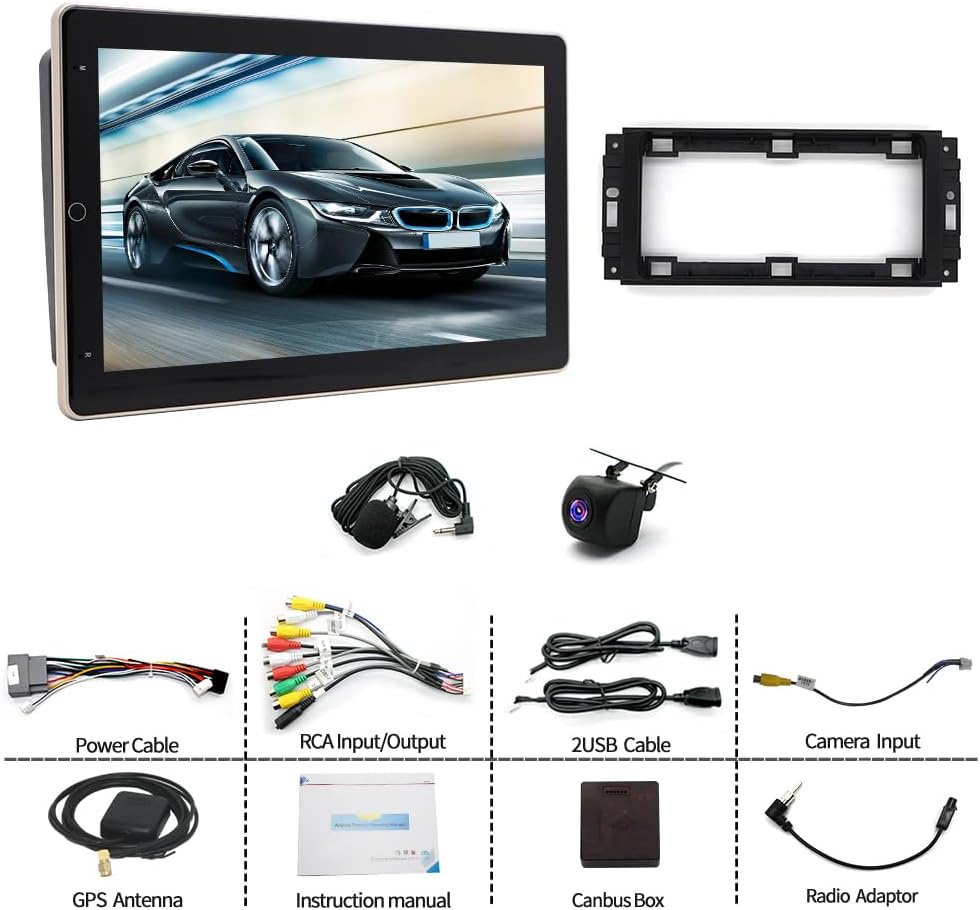
Image: All components included in the package.
- 1 x Car Stereo Radio Unit
- 1 x Power Cable
- 1 x RCA Input/Output Cable Set
- 2 x USB Cables
- 1 x Camera Input Cable
- 1 x GPS Antenna
- 1 x Instruction Manual (this document)
- 1 x Canbus Box
- 1 x Radio Adapter
- 1 x Backup Camera
- 1 x External Microphone
Setup and Installation
Installation of this car stereo requires technical knowledge and experience with car audio systems. It is highly recommended to have the unit installed by a qualified professional to avoid damage to the product or your vehicle.
General Installation Steps:
- Preparation: Disconnect the vehicle's battery before starting any electrical work. Remove the factory radio and trim panels carefully.
- Wiring Connections: Connect the main power harness to the vehicle's wiring. Ensure proper connections for constant power (B+), accessory power (ACC), and ground (GND). Refer to your vehicle's wiring diagram for specific wire colors.
- Canbus Box: Connect the provided Canbus box to the main harness. This allows the stereo to communicate with your vehicle's systems, such as steering wheel controls.
- Antenna Connections: Connect the GPS antenna and the radio adapter to their respective ports on the stereo unit. Position the GPS antenna in a location with a clear view of the sky, typically on the dashboard.
- USB and RCA Cables: Connect the USB extension cables and RCA input/output cables. Route these to desired locations, such as the glove compartment or center console, for easy access.
- Backup Camera: Install the backup camera at the rear of your vehicle and route its video cable to the 'Reversing Input' port on the stereo. Connect the camera's power wire to your vehicle's reverse light circuit.
- External Microphone: Connect the external microphone for improved call quality and position it near the driver's head, such as on the sun visor or A-pillar.
- Testing: Before fully reassembling the dashboard, reconnect the vehicle's battery and power on the stereo to test all functions (radio, GPS, Bluetooth, camera, steering wheel controls).
- Final Assembly: Once all functions are verified, carefully mount the stereo unit and reassemble the dashboard trim panels.

Image: Rear view of the car stereo with wiring connections.
Operating Instructions
Power On/Off
- The unit typically powers on automatically when the vehicle's ignition is turned to the ACC or ON position.
- To manually power off or restart, press and hold the power button (if available) or use the software power options in the system settings.
Touchscreen Interface
- Navigate the system by tapping, swiping, and pinching on the 10-inch HD touchscreen, similar to a smartphone or tablet.
- The home screen provides access to frequently used applications and widgets.
Wireless CarPlay & Android Auto
- Ensure your smartphone's Bluetooth and Wi-Fi are enabled.
- On the car stereo, open the 'CarPlay' or 'Android Auto' application.
- Follow the on-screen prompts to pair your phone. Once connected, your phone's compatible apps will appear on the stereo display, allowing for navigation, music, calls, and messages.
GPS Navigation
- Open the 'Maps' application. The unit comes with built-in offline maps (requires internet to download data initially).
- For real-time traffic and updated maps, connect the unit to a Wi-Fi hotspot and use online navigation apps like Google Maps.
- Enter your destination, and the system will provide turn-by-turn directions.
Bluetooth Connectivity
- Go to the 'Bluetooth' settings on the stereo.
- Enable Bluetooth on your smartphone and search for available devices.
- Select the car stereo (usually named 'CarBT' or similar) from your phone's list and pair.
- Once paired, you can make/receive calls hands-free and stream audio from your phone.
FM Radio
- Open the 'Radio' application.
- Use the on-screen controls to scan for stations, manually tune, or select preset stations.
- The unit supports RDS (Radio Data System) for displaying station information.
Steering Wheel Control
- After proper Canbus connection, your vehicle's steering wheel controls should function automatically.
- If controls do not work, navigate to 'Settings' > 'Steering Wheel Control' to manually configure the buttons.
Split Screen
- To use split screen, open an application, then long-press the recent apps button or drag an app to one side of the screen (depending on the Android version interface).
- Select a second application to run simultaneously on the other half of the screen.
Maintenance
Proper maintenance ensures the longevity and optimal performance of your car stereo.
- Screen Cleaning: Use a soft, lint-free cloth slightly dampened with water or a screen cleaner specifically designed for electronics. Avoid harsh chemicals or abrasive materials.
- Software Updates: Periodically check for software updates through the system settings (if available) to ensure you have the latest features and bug fixes.
- Temperature: Avoid exposing the unit to extreme temperatures for extended periods.
- Physical Damage: Protect the screen from scratches and impacts.
Troubleshooting
If you encounter issues, refer to the following common problems and solutions:
| Problem | Possible Cause | Solution |
|---|---|---|
| Unit does not power on | Incorrect wiring (power/ground/ACC), blown fuse, vehicle battery issue. | Check all power connections and fuses. Ensure vehicle battery is charged. Consult a professional installer. |
| No sound | Speaker wires disconnected, volume too low, mute function active, incorrect audio source. | Check speaker wiring. Increase volume. Disable mute. Select correct audio source. |
| GPS not working or inaccurate | GPS antenna not connected, antenna obstructed, offline maps not downloaded. | Ensure GPS antenna is securely connected and placed with a clear view of the sky. Download necessary map data. |
| Bluetooth connection issues | Bluetooth not enabled, device not paired, interference. | Ensure Bluetooth is enabled on both devices. Delete previous pairings and re-pair. Move closer to the unit. |
| Touchscreen unresponsive | Software glitch, screen damage, extreme temperature. | Restart the unit. If issue persists, perform a factory reset (note: this will erase data). If screen is damaged, contact support. |
| Steering wheel controls not working | Canbus box not connected or configured, incorrect wiring. | Verify Canbus box connection. Check steering wheel control settings in the unit's menu for manual configuration. |
Specifications
| System | Android 13.0 |
| Chipset | 8227L-DEMO |
| Screen Size | 10 inch |
| Memory | 2GB (RAM) + 32GB (ROM) |
| Screen Resolution | 1280x720 |
| Radio Chip | MT6625 |
| Power Output | 4x45W |
| Work Temperature | -20℃ to 75℃ |
| Power Amplifier Chip | TDA7388 |
| Radio Band | Frequency Modulation (FM) / RDS |
| Video Output | Supported |
| Reversing Input | CVBS |
| External Microphone | Supported |
| Split Screen | Supported |
| Maps | Built-in offline maps (requires internet to download data) |
| WiFi | Supported |
| USB | Double USB interface |
| Audio Formats | APE/FLAC/WAV/MP3/WMA and more |
| Video Formats | MKV/RMVB/AVI/MP4/MDV and more |
| Picture Formats | PNG/JPEG/JPG/GIF/WBMP/BNP and more |
| Factory Setting Keyword | 8888 or 3368 |
| Languages | Chinese/English/French/Italian/Korean/Japanese/Arabic/Spanish/Portuguese/Russian/Turkish/Vietnamese/Hebrew/Polish/German |
| Product Dimensions | 12.99 x 8.66 x 6.69 inches |
| Item Weight | 5.29 pounds |
Warranty and Support
This product comes with a standard manufacturer's warranty. For specific warranty details, including duration and coverage, please refer to the warranty card included in your package or contact the retailer where the product was purchased.
For technical support, troubleshooting assistance beyond this manual, or service inquiries, please contact dehateo customer service through the contact information provided with your purchase or on the official dehateo website.