
1. Product Overview
The DOOGEE Tab E3+ is a high-performance Android 15 tablet designed for versatile use, from entertainment to productivity. It features a 12-inch FHD+ display, an octa-core processor, ample storage, and a long-lasting battery.
Key Features:
- 12-inch FHD+ IPS Display: 2000x1200 resolution with 90Hz refresh rate for vibrant visuals and smooth scrolling.
- Helio G100 Octa-Core Processor: 2.2GHz, 6nm process for efficient multitasking and gaming.
- 32GB RAM (8GB + 24GB expandable) + 256GB ROM: Expandable up to 2TB via TF card.
- 8800mAh Battery: Up to 14 hours of video playback with 18W fast charging.
- 13MP Rear Camera + 5MP Front Camera: For capturing photos and video calls.
- Dual SIM Connectivity: Supports LTE, Dual-band WiFi (2.4GHz/5GHz), and Bluetooth 5.2.
- Android 15 with Gemini AI: Latest operating system with intelligent features.
- Face Unlock & GPS: Secure access and accurate navigation.

Figure 1.1: Front view of the DOOGEE Tab E3+ Tablet highlighting its key features like Android 15, 32GB RAM, 256GB ROM, and MediaTek G100 processor.
2. Getting Started: Setup
2.1. Package Contents
Before you begin, ensure all items are present in the package:
- DOOGEE Tab E3+ Tablet
- USB Type-C Cable
- Power Adapter
- SIM Ejector Tool (if applicable for Dual SIM models)
- Quick Start Guide
2.2. Charging the Tablet
For optimal performance, fully charge the tablet before first use.
- Connect the USB Type-C cable to the tablet's charging port.
- Connect the other end of the cable to the power adapter.
- Plug the power adapter into a wall outlet.
- The charging indicator will appear on the screen.
The tablet supports 18W fast charging.
2.3. Powering On/Off
- To Power On: Press and hold the Power button until the DOOGEE logo appears.
- To Power Off: Press and hold the Power button, then select "Power off" from the options on the screen.
- To Restart: Press and hold the Power button, then select "Restart" from the options.
2.4. Initial Setup Wizard
Upon first power-on, the tablet will guide you through the initial setup process:
- Select your preferred language.
- Connect to a Wi-Fi network.
- Sign in with your Google account or create a new one.
- Set up screen lock (PIN, Pattern, Password, or Face Unlock).
- Review and accept terms and conditions.
3. Operating the Tablet
3.1. Display and Navigation
The 12-inch FHD+ IPS display offers a 2000x1200 resolution and a 90Hz refresh rate for smooth visuals.

Figure 3.1: The tablet's 12-inch FHD+ IPS display, highlighting its 2000x1200 resolution, 5:3 aspect ratio, 87.1% screen-to-body ratio, and 16.7 million screen colors, along with the 90Hz refresh rate.
- Touch Gestures: Tap, swipe, pinch-to-zoom for navigation and interaction.
- Home Screen: Customize with widgets and app shortcuts.
- Notification Panel: Swipe down from the top to access notifications and quick settings.
3.2. Storage and Performance
The tablet comes with 256GB of internal storage and 8GB of RAM, expandable by an additional 24GB (total 32GB) through virtual RAM. Storage can be expanded up to 2TB using a TF (microSD) card.
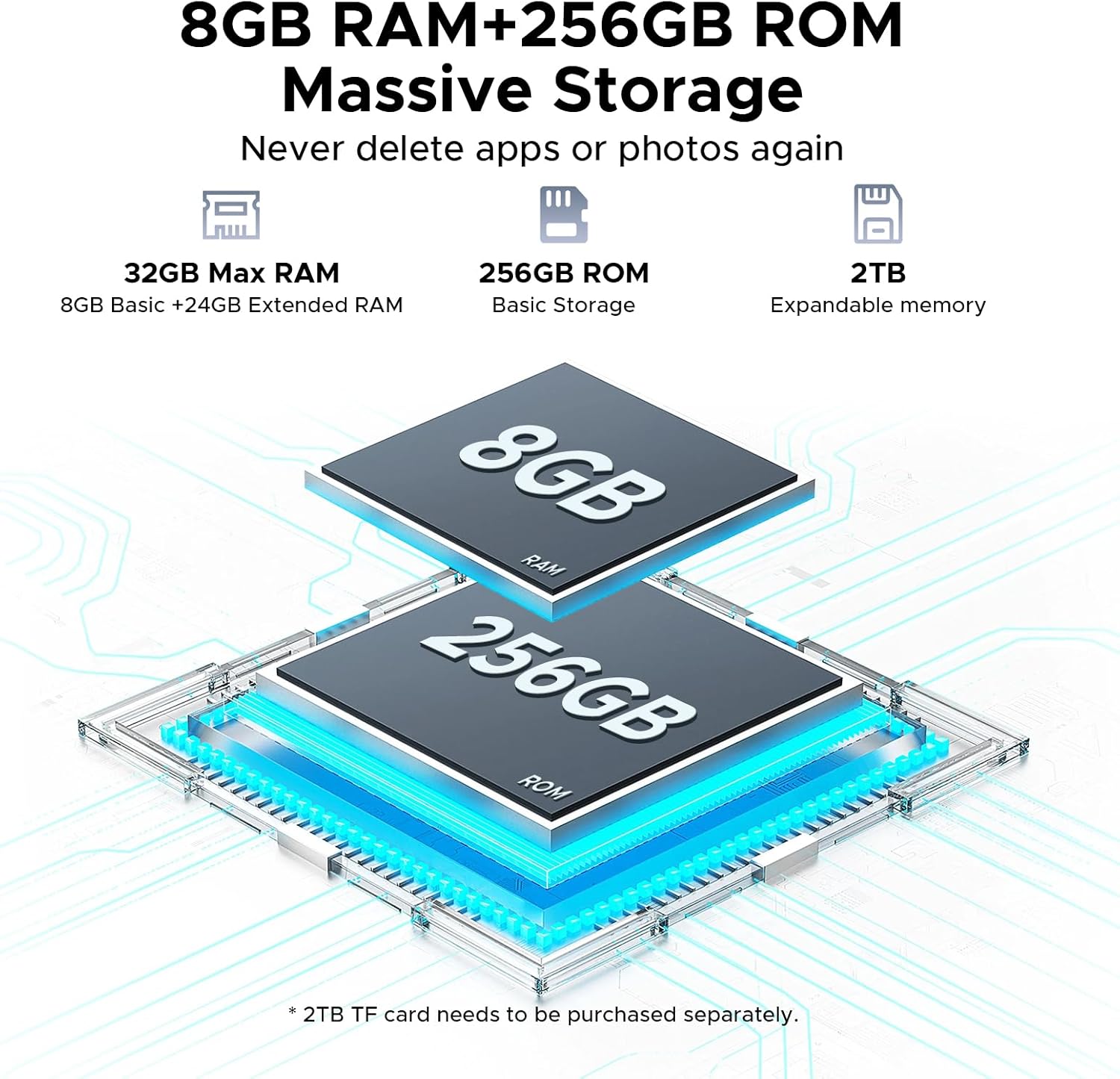
Figure 3.2: Visual representation of the tablet's 32GB Max RAM (8GB Basic + 24GB Extended RAM) and 256GB ROM, with an indication of 2TB expandable memory.
The Helio G100 octa-core processor ensures smooth operation for various tasks.

Figure 3.3: Diagram illustrating the Helio G100 Octa-Core Processor, highlighting its 2.2GHz ultimate frequency and 6nm advanced process technology.
3.3. Connectivity
- Wi-Fi: Connect to 2.4GHz or 5GHz networks for internet access.
- Bluetooth 5.2: Pair with wireless headphones, speakers, or other Bluetooth devices.
- Dual SIM (LTE): Insert two Nano-SIM cards for mobile data and calls (if supported by your region/model).
- OTG (On-The-Go): Connect USB peripherals like flash drives, keyboards, or mice. Also supports reverse charging.
- GPS: Utilize for navigation and location-based services.
3.4. Camera Functionality
The tablet is equipped with a 13MP main rear camera and a 5MP front camera.

Figure 3.4: Close-up view of the tablet's rear camera module, indicating the 13MP main camera and 5MP front camera, along with example photos taken with the cameras.
- Open the Camera app from the home screen or app drawer.
- Switch between front and rear cameras using the camera icon.
- Tap the shutter button to take photos or record videos.
3.5. Audio and Multimedia
Experience immersive audio with high-quality quad speakers. A 3.5mm audio jack is also available for wired headphones.
3.6. Android 15 and Gemini AI
The tablet runs on the latest Android 15 operating system, offering enhanced privacy controls, AI optimization, and smart motion sensing.
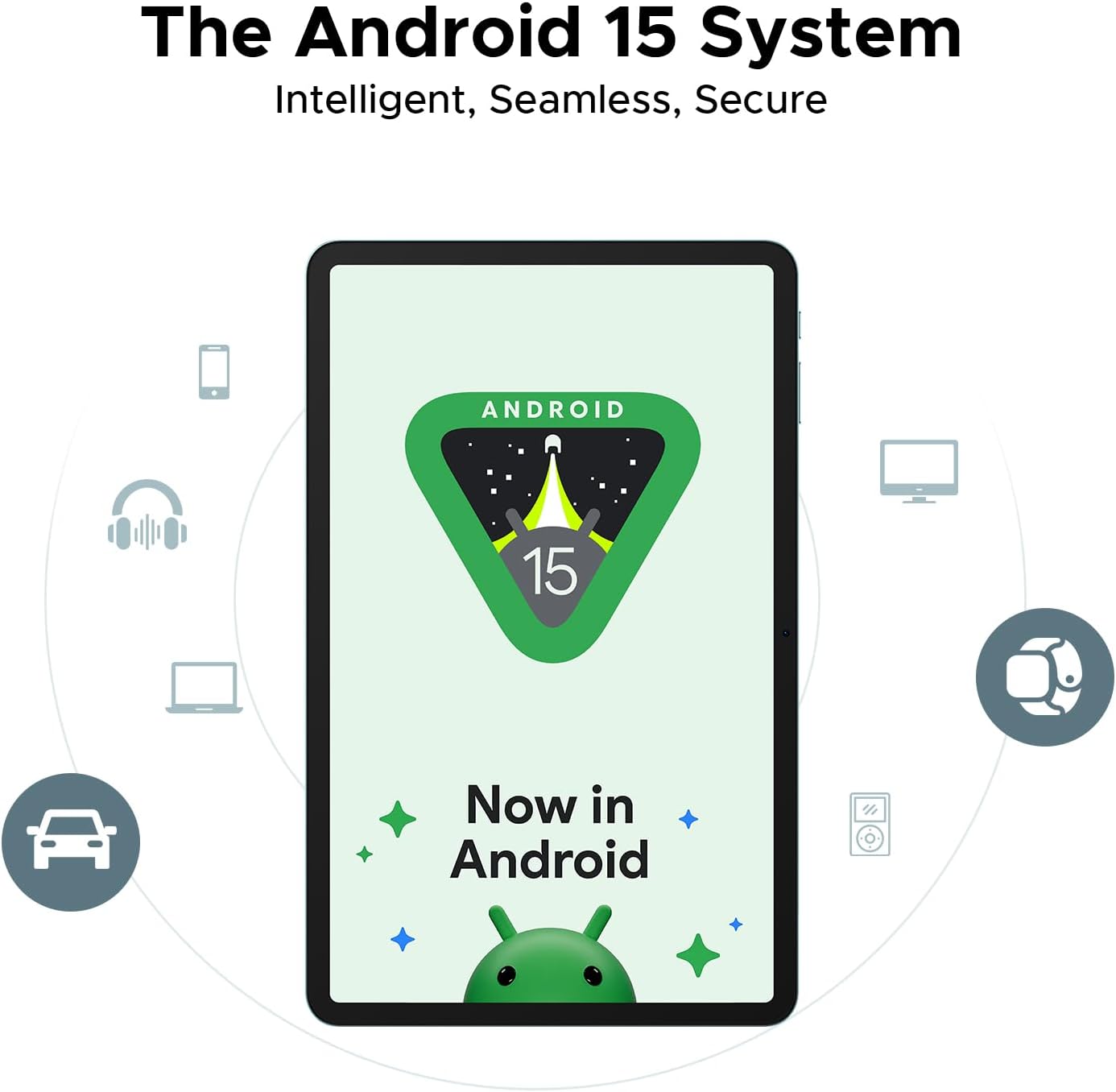
Figure 3.5: Representation of the Android 15 system interface on the tablet, emphasizing its intelligent, seamless, and secure nature.
The integrated Gemini AI assistant helps streamline daily tasks and offers features like content creation, information retrieval, image analysis, and more.

Figure 3.6: Illustration of the built-in Gemini AI, showcasing its capabilities such as content creation, information retrieval & summarization, image analysis, code development, language learning, smart assistant, Gemini Live, and Gemini Deep Research.
4. Maintenance and Care
- Cleaning: Use a soft, lint-free cloth to clean the screen and body. Avoid abrasive cleaners or solvents.
- Battery Care: Avoid extreme temperatures. For long-term storage, charge the battery to about 50%.
- Software Updates: Regularly check for and install system updates to ensure optimal performance and security. Go to Settings > System > System update.
- Storage Management: Periodically clear unnecessary files and apps to free up storage space.
- Protection: Consider using a screen protector and a protective case to prevent physical damage.
5. Troubleshooting
| Problem | Possible Solution |
|---|---|
| Tablet does not power on | Ensure the battery is charged. Connect to charger for at least 30 minutes. Try holding the Power button for 10-15 seconds. |
| Slow performance / Lagging | Close background apps. Clear cache. Restart the tablet. Check for system updates. Ensure sufficient storage space. |
| Wi-Fi connection issues | Restart the tablet and router. Forget and reconnect to the Wi-Fi network. Check router settings. |
| Apps crashing or freezing | Clear app cache/data (Settings > Apps > [App Name] > Storage). Reinstall the app. Ensure the app is updated. |
| Battery drains quickly | Reduce screen brightness. Disable unused features (Bluetooth, GPS, Wi-Fi). Close background apps. Check battery usage in settings. |
6. Specifications
| Feature | Detail |
|---|---|
| Model Name | DOOGEE Tab E3+ |
| Operating System | Android 15 |
| Processor | MediaTek Helio G100 Octa-Core (2.2GHz, 6nm) |
| Display | 12-inch FHD+ IPS (2000x1200), 90Hz Refresh Rate |
| RAM | 32GB (8GB physical + 24GB extended) |
| Internal Storage | 256GB UFS |
| Expandable Storage | Up to 2TB via TF card (microSD) |
| Rear Camera | 13MP |
| Front Camera | 5MP |
| Battery | 8800mAh |
| Charging | 18W Fast Charging |
| Connectivity | Dual-band Wi-Fi (2.4GHz/5GHz), Bluetooth 5.2, Dual SIM (LTE), GPS, OTG |
| Ports | USB Type-C, 3.5mm Audio Jack |
| Dimensions | 7.4mm Ultra-Thin Body |
7. Warranty and Support
For warranty information and technical support, please refer to the official DOOGEE website or contact their customer service. Keep your purchase receipt as proof of purchase.
DOOGEE Official Website: www.doogee.cc
Amazon Seller: Aweihao
For product-related inquiries or issues, it is recommended to first contact the seller through Amazon's messaging system.


