
XinFuture #HCT-636-1
XinFuture WiFi Water Timer 2 Outlet User Manual
Model: #HCT-636-1
1. Introduction
This user manual provides comprehensive instructions for the installation, operation, and maintenance of your XinFuture WiFi Water Timer 2 Outlet. This smart device allows you to control your garden watering schedules remotely via a mobile application, ensuring efficient and convenient irrigation.
The XinFuture WiFi Water Timer is designed to simplify your watering routine, offering features such as remote control, scheduling, and smart rain delay. Please read this manual carefully before using the product to ensure proper functionality and longevity.
2. Product Components
Before you begin, ensure all components are present in the package:

Figure 2.1: Included Product Components. This image displays the WiFi Sprinkler Timer, Gateway, two Leak-Proof Seal Rings, one roll of Tape, and the Instruction Manual.
- WiFi Sprinkler Timer (x1): The main watering unit with two outlets.
- Gateway (x1): Connects the water timer to your home WiFi network.
- Leak-Proof Seal Ring (x2): For ensuring a watertight connection.
- Tape (x1): For sealing connections.
- Instruction Manual (x1): This document.
3. Setup Guide
3.1. Battery Installation
The WiFi Water Timer requires 2*AA 1.5V Alkaline batteries (not included) for operation. Ensure correct polarity when inserting the batteries.

Figure 3.1: Battery Installation. The image shows the battery compartment of the water timer, indicating where to insert two AA 1.5V alkaline batteries.
After installing batteries, the timer will be ready for connection.
3.2. Gateway Connection and Placement
The Gateway connects the water timer to your 2.4GHz WiFi network. Plug the gateway into a power outlet indoors, within 300 meters of the water timer for optimal signal strength.

Figure 3.2: Gateway and Water Timer Placement. This image illustrates the gateway plugged into an indoor power outlet and the water timer attached to an outdoor faucet, demonstrating the wireless connection.
The gateway provides a long-range RF connection (up to 300m) to the water timer, ensuring reliable communication even over distances.

Figure 3.3: RF Range Comparison. This image compares the 300-meter RF range of the XinFuture water timer and gateway system with a typical 20-meter range of other similar devices.
3.3. App Installation and Pairing
Download the "Smart Life" app from your mobile device's app store (iOS or Android). Follow the in-app instructions to add the Gateway and then the Water Timer. Ensure your phone is connected to a 2.4GHz WiFi network during the pairing process.

Figure 3.4: App Interface Overview. This image shows the water timer and gateway alongside a smartphone displaying the Smart Life app, which provides real-time weather, watering schedules, and battery status.
3.4. Connecting to Faucet
Screw the WiFi Water Timer onto your outdoor faucet. Ensure the connection is secure and use the provided leak-proof seal rings and tape to prevent leaks. Connect your garden hoses to the A and B outlets.

Figure 3.5: Faucet Connection. The image shows the water timer securely attached to an outdoor faucet, with hoses connected to its Zone A and Zone B outlets.
4. Operating Instructions
4.1. Setting Watering Schedules
Use the Smart Life app to create and manage watering schedules for Zone A, Zone B, or both. You can set specific start times, durations, and days of the week for each zone.
Figure 4.1: Scheduling Interface. This image displays the app's interface for setting up watering schedules, including options for spray irrigation (on/off times for specific days) and scheduled irrigation (start time and duration for specific days).
4.2. Manual Watering
You can manually activate watering directly from the device using the Zone A and Zone B buttons, or through the Smart Life app for immediate irrigation.
4.3. Smart Rain Delay System
The timer features a smart rain delay system that can automatically pause watering based on local weather forecasts or allow you to manually set a delay from 1 to 7 days.

Figure 4.2: Rain Delay Settings. This image shows the app's rain delay feature, allowing users to manually set a delay from 1 to 7 days or enable smart weather detection to automatically skip watering during rain.
4.4. Voice Control (Alexa & Google Assistant)
The XinFuture WiFi Water Timer is compatible with Amazon Alexa and Google Assistant, allowing for hands-free control of your watering zones.
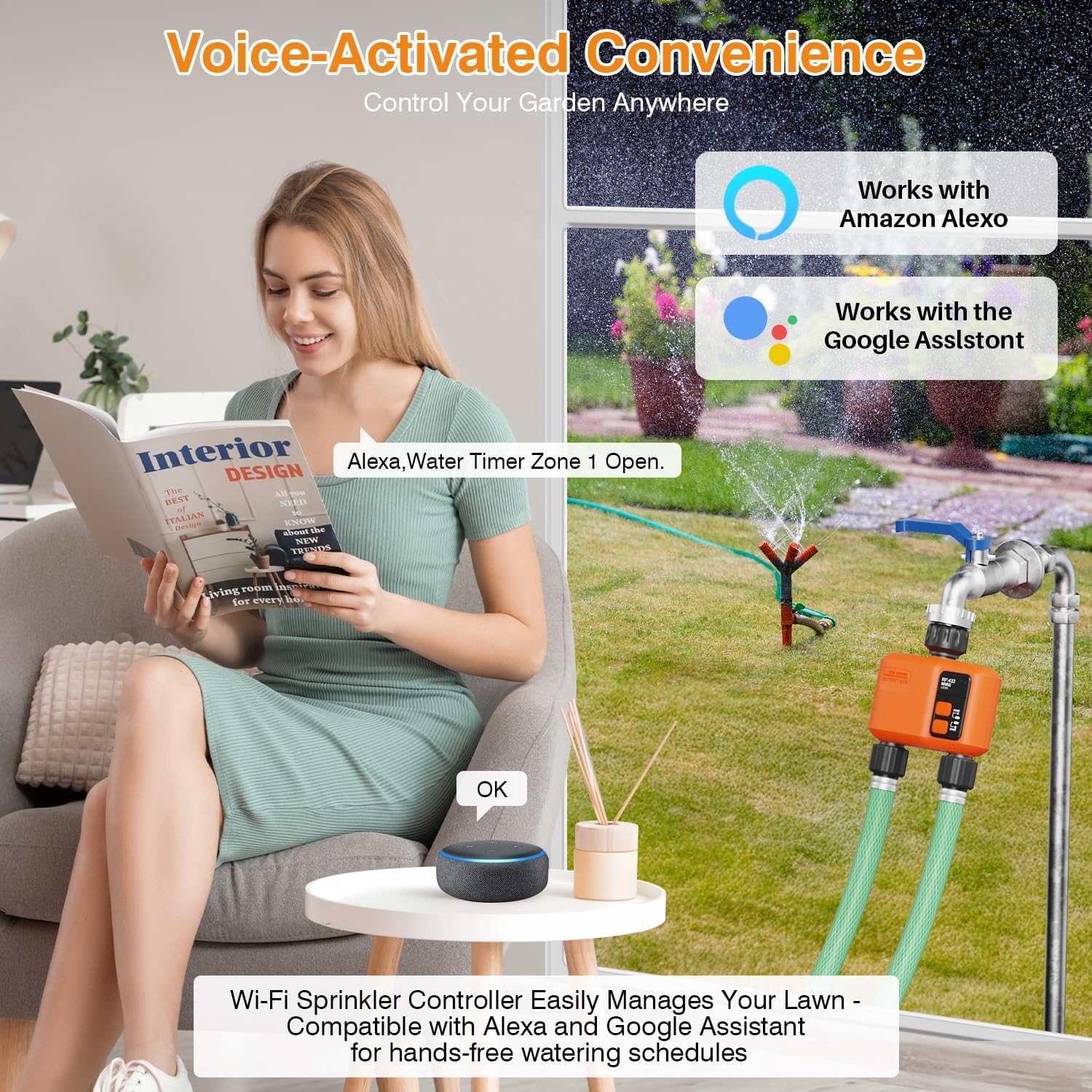
Figure 4.3: Voice Control Integration. This image depicts a user interacting with an Amazon Echo device to control the water timer, highlighting its compatibility with Amazon Alexa and Google Assistant for convenient voice-activated watering.
Example commands:
- "Alexa, turn on Water Timer Zone A."
- "Hey Google, turn off Water Timer Zone B."
5. Maintenance
To ensure the longevity and optimal performance of your WiFi Water Timer, follow these maintenance guidelines:
- Battery Check: Regularly check the battery status via the Smart Life app (Figure 3.4). Replace batteries when the indicator shows low power to avoid interruption of watering schedules.
- Cleaning: Periodically clean the exterior of the timer with a damp cloth. Do not use harsh chemicals or abrasive cleaners.
- Winterization: In colder climates, disconnect the water timer from the faucet and store it indoors in a dry, frost-free location during winter months to prevent damage from freezing water.
- Seal Rings: Inspect the leak-proof seal rings periodically for wear and tear. Replace them if they appear damaged to maintain a watertight connection.
6. Troubleshooting
If you encounter issues with your XinFuture WiFi Water Timer, refer to the following common problems and solutions:
| Problem | Possible Cause | Solution |
|---|---|---|
| Timer not connecting to app/WiFi. | Incorrect WiFi band (not 2.4GHz), gateway too far from router, incorrect pairing steps. | Ensure your router is broadcasting a 2.4GHz network. Move gateway closer to router. Re-attempt pairing following app instructions carefully. |
| No water flow from outlets. | Faucet is off, low battery, clogged filter, timer malfunction. | Check if the faucet is fully open. Replace batteries. Check for debris in the timer's inlet filter. Contact support if problem persists. |
| Water leaking from connections. | Loose connection, damaged seal ring, missing tape. | Tighten connections. Ensure seal rings are properly seated and undamaged. Apply tape as needed. |
| Schedules not running. | Low battery, rain delay active, timer not connected to gateway/app. | Check battery level. Verify rain delay is not active. Ensure timer and gateway are connected and online in the app. |
7. Specifications
| Feature | Detail |
|---|---|
| Brand | XinFuture |
| Model | #HCT-636-1 |
| Product Dimensions | 11.48 x 5.28 x 12.6 cm |
| Item Weight | 435.45 g |
| Material Type | Plastic |
| Power Source | 2*AA 1.5V Alkaline Batteries (Excluded) |
| Wireless Connectivity | 2.4GHz WiFi (Gateway), RF 433MHz (Timer to Gateway) |
| RF Range | Up to 300m (Timer to Gateway) |
| Outlets | 2 |
| Compatibility | Smart Life App, Amazon Alexa, Google Assistant |
| IP Rating | IP55 (Water Timer) |
8. Warranty and Support
For warranty information, please refer to the product packaging or contact your point of purchase. XinFuture is committed to providing high-quality products and customer satisfaction.
If you require technical assistance or have questions not covered in this manual, please contact XinFuture customer support through the Smart Life app's help section or visit the official XinFuture website for contact details.
Ask a question about this manual
Ask about setup, troubleshooting, compatibility, parts, safety, or missing instructions. Manuals+ will review the question and use this page’s manual context to help answer it.