
1. Introduction
Thank you for choosing the ELISWEEN Wireless PC Gaming Controller. This controller is designed to provide a superior gaming experience across multiple platforms, including PC, Nintendo Switch, Android, and iOS devices. Featuring advanced Hall Effect joysticks, programmable back buttons, and customizable vibration, this manual will guide you through its setup, operation, and maintenance to ensure optimal performance.
2. Package Contents
- ELISWEEN Wireless PC Gaming Controller
- USB-C Charging Cable (1.5m)
- 2.4GHz USB Dongle
- User Manual
3. Product Overview
Familiarize yourself with the controller's components:
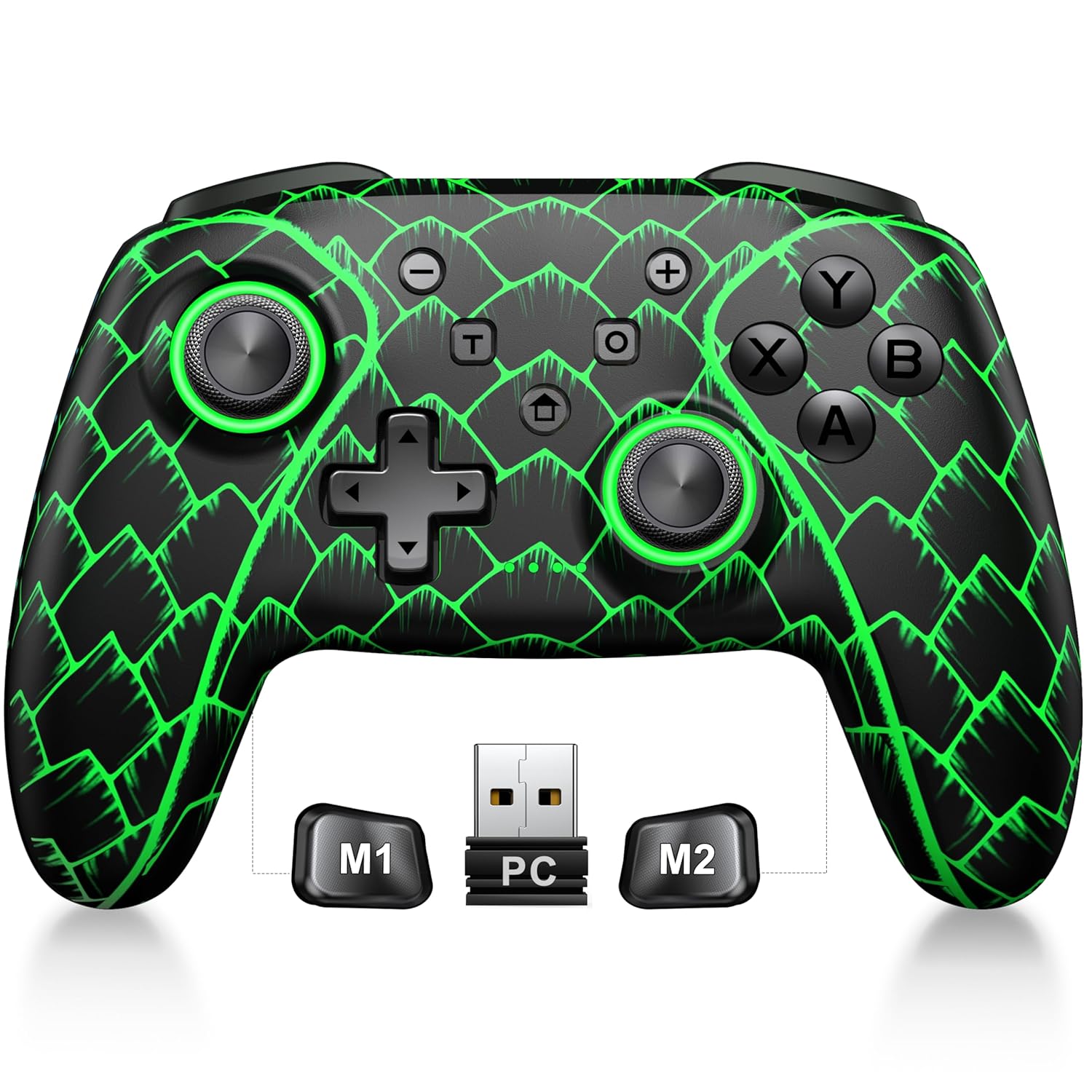
Figure 3.1: ELISWEEN Wireless PC Gaming Controller with its 2.4GHz USB dongle and highlighted M1/M2 programmable buttons.
- Left/Right Analog Sticks: Hall Effect joysticks for precise movement.
- D-Pad: Directional input.
- Action Buttons (A/B/X/Y): Standard gaming input buttons.
- Shoulder Buttons (L/R): Top-mounted buttons.
- Trigger Buttons (ZL/ZR): Hall Effect analog triggers.
- M1/M2 Buttons: Programmable back buttons.
- Home Button: Powers on/off and returns to system home screen.
- +/- Buttons: System navigation/menu buttons.
- Screenshot Button: Captures screenshots.
- Turbo Button: Activates/deactivates turbo function.
- USB-C Port: For charging and wired connection.
4. Setup and Connection
4.1 Charging the Controller
Before first use, fully charge the controller. Connect the USB-C cable to the controller's USB-C port and the other end to a USB power source (e.g., PC, USB wall adapter). The charging indicator will show status and turn off when fully charged. A full charge takes approximately 3 hours.
4.2 Connecting to PC (Wireless 2.4GHz)

Figure 4.1: Multi-platform compatibility of the ELISWEEN controller, including PC, Switch, Android, and iOS.
- Insert the 2.4GHz USB dongle into an available USB port on your PC.
- Press the Home button on the controller to power it on.
- The controller will automatically connect to the dongle. The indicator lights will stabilize once connected.
4.3 Connecting to PC (Wired USB-C)
- Connect the USB-C cable to the controller and the other end to your PC.
- The controller will be recognized as a plug-and-play device.
4.4 Connecting to Nintendo Switch
- On your Nintendo Switch, go to System Settings > Controllers and Sensors > Disconnect Controllers.
- Then, go to Controllers and Sensors > Change Grip/Order.
- Press and hold the Home button on the ELISWEEN controller until the indicator lights begin to flash rapidly.
- Once paired, the indicator light(s) corresponding to the player number will remain solid.
4.5 Connecting to Android/iOS (Bluetooth)
- Ensure Bluetooth is enabled on your Android or iOS device.
- On the controller, press and hold the X + Home buttons simultaneously until the indicator lights flash rapidly, indicating pairing mode.
- On your device, search for Bluetooth devices and select "STK-7040RG" (or similar) to pair.
- Once connected, the indicator light will stabilize. Supports iOS 13+ MFi titles.
5. Operating Instructions
5.1 Hall Effect Joysticks
The controller features precision Hall Effect joysticks and triggers, designed to prevent stick drift and provide accurate, responsive control. These magnetic, contactless sensors ensure long-term durability and precision.

Figure 5.1: Internal view of Hall Effect joystick technology, highlighting its magnetic, contactless design for enhanced accuracy and durability.
Zero Deadzone Mode: For competitive gaming, activate a temporary 0 deadzone mode by holding the T button + R3 (right stick click) or L3 (left stick click). A green light confirms activation. To revert to default calibration, press the same combo (blue light indicator). The controller automatically resets to factory default settings upon restart for consistent anti-drift performance.
5.2 Programmable Back Buttons (M1/M2)
The M1 and M2 back buttons can be programmed to map up to 21 different key combinations, allowing for quick execution of complex actions.

Figure 5.2: The M1 and M2 programmable back buttons, capable of mapping up to 21 different actions for enhanced control.
Refer to the Keylinker App (search "NC300") for detailed instructions on programming and customizing these buttons.
5.3 Turbo Function
The controller supports Turbo fire functionality for 10 action buttons with adjustable speeds (5, 12, or 20 presses per second).
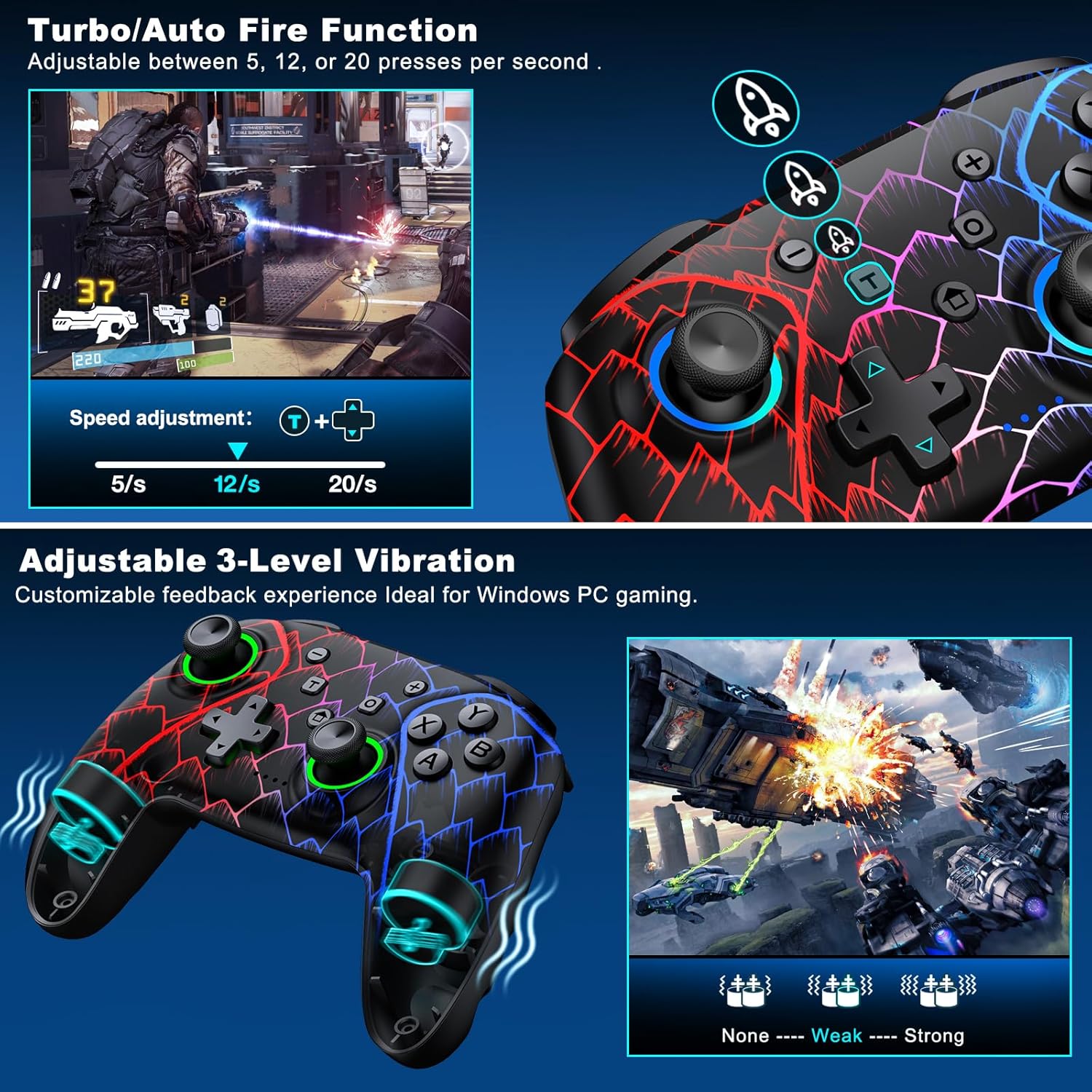
Figure 5.3: Visual representation of the Turbo/Auto Fire function and the adjustable 3-level vibration feature.
- Activate Turbo: Press the Turbo button + the desired action button.
- Adjust Speed: Press Turbo + Up arrow (increase) or Down arrow (decrease) on the D-pad.
- Clear Turbo: Hold the Minus button + Down arrow on the D-pad to instantly clear all Turbo binds.
5.4 Vibration Adjustment
Experience immersive feedback with dual vibration motors offering 3 intensity levels.
- Adjust intensity by pressing L + R + ZL + ZR simultaneously. Cycle through levels: None, Weak, Strong.
- Note: Vibration is disabled on mobile platforms. Gyro functionality works only with Nintendo systems.
5.5 Hair Trigger Locks
Shorten trigger pulls for faster response times in games requiring quick inputs, such as first-person shooters.
5.6 Battery Life Management
The controller is equipped with a 1000mAh battery, providing over 20 hours of continuous gameplay on a single charge. Charging takes approximately 3 hours via USB-C.

Figure 5.4: The ELISWEEN controller's 1000mAh battery provides extended playtime with quick charging capabilities.
5.7 Dynamic Lighting Effects
Customize the controller's lighting effects via the Keylinker App (search "NC300").
5.8 Automatic Power-off
To conserve battery, the controller will automatically power off after 20 minutes of inactivity.
6. Maintenance
- Cleaning: Use a soft, dry cloth to clean the controller. Do not use abrasive cleaners or solvents.
- Storage: Store the controller in a cool, dry place away from direct sunlight and extreme temperatures.
- Battery Care: Avoid fully discharging the battery frequently. Charge it regularly to prolong its lifespan.
7. Troubleshooting
- Controller not connecting:
- Ensure the controller is charged.
- Verify the correct connection method for your device (2.4GHz dongle for PC, Bluetooth for mobile, pairing for Switch).
- Try restarting the controller and the device you are connecting to.
- For PC, try a different USB port for the dongle or wired connection.
- Stick drift or inaccurate input:
- Activate the 0 deadzone mode (T + R3/L3) to recalibrate.
- Ensure the controller firmware is up to date via the Keylinker App.
- Buttons not responding:
- Check if the controller is properly connected.
- Ensure no debris is lodged under the buttons.
- Perform a factory reset if issues persist (refer to Keylinker App or contact support).
- Charging issues:
- Try a different USB-C cable and power source.
- Ensure the USB-C port on the controller is clean and free of obstructions.
8. Specifications
| Connectivity | Bluetooth 5.2, 2.4GHz Wireless, USB-C Wired |
| Compatibility | PC, Nintendo Switch, Android, iOS (iOS 13+ MFi) |
| Battery Capacity | 1000mAh |
| Playtime | 20+ hours (approx.) |
| Charging Time | 3 hours (approx.) |
| Joysticks | Hall Effect (Drift-Proof) |
| Programmable Buttons | 4 Back Buttons (M1/M2) |
| Vibration | Dual Motors, 3 Adjustable Levels |
| Dimensions | 6.38 x 4.72 x 2.64 inches |
| Weight | 11.99 ounces (approx. 340g) |
| Manufacturer | Qixun Tech |
| Country of Origin | China |
9. Warranty and Support
The ELISWEEN Wireless PC Gaming Controller comes with a standard manufacturer's warranty. For specific warranty terms and conditions, please refer to the product packaging or contact our customer support.
For any technical assistance, troubleshooting, or inquiries, our 24/7 Expert Support team is available to help. Please refer to the contact information provided on the product packaging or our official website.