
1. Overview
This manual provides detailed instructions for the installation, operation, and maintenance of your SIXWIN Android Car Stereo. This unit is specifically designed for Ford Fiesta models manufactured between 2009 and 2014. It features an Android 13 system with 2GB RAM and 64GB ROM, a 9-inch touchscreen, wireless CarPlay, Android Auto, Mirror Link, Bluetooth, GPS navigation, WiFi, FM radio, and support for a backup camera and steering wheel controls.
Please read this manual thoroughly before installation and use to ensure proper functionality and to maximize your experience with the product.
2. Setup and Installation
2.1 Pre-Installation Check
Before beginning installation, verify that your vehicle is a Ford Fiesta manufactured between 2009 and 2014. This car radio is compatible with both basic and navigation versions of these models. Ensure all components listed in the packing list are present.
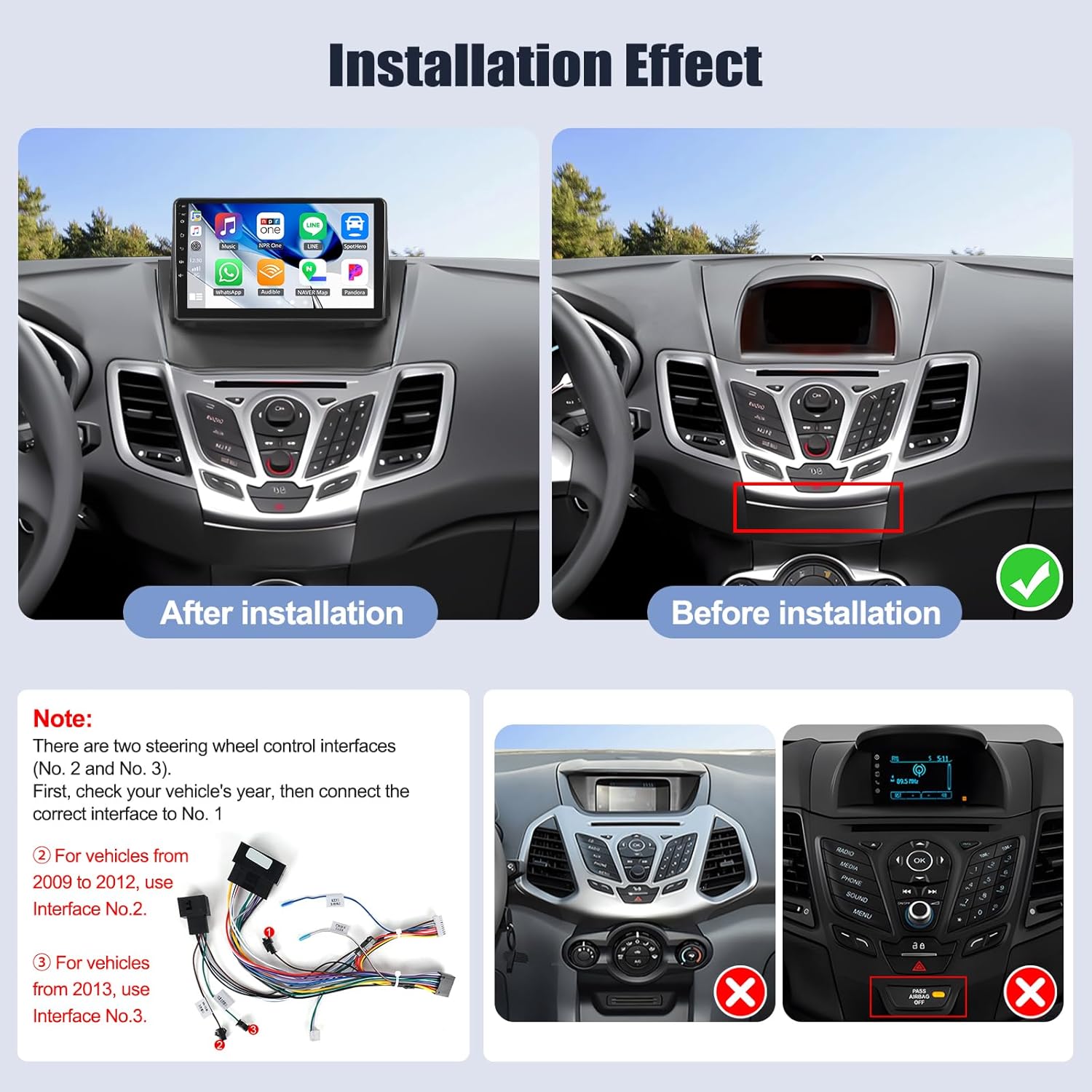
Image: Comparison of the Ford Fiesta dashboard before and after installing the SIXWIN Android Car Stereo. The 'Before' image shows the original car radio, and the 'After' image displays the new 9-inch touchscreen unit seamlessly integrated into the dashboard.
2.2 Wiring Instructions
Carefully follow the wiring diagram provided with your unit. Pay close attention to the steering wheel control interfaces:
- For Ford Fiesta vehicles from 2009 to 2012, use Steering Wheel Control Interface No. 2.
- For Ford Fiesta vehicles from 2013 onwards, use Steering Wheel Control Interface No. 3.

Image: A detailed view of the product's packing list, including the AHD rear camera, installation tool, adapter cable, RCA cables, power cable, radio antenna, USB cables, camera input, microphone, user manual, and GPS antenna. The image also shows the dimensions of the 9-inch head unit.
3. Operation
3.1 Wireless CarPlay & Android Auto
The unit supports both wireless and wired Apple CarPlay and Android Auto. This allows you to access navigation, phone contacts, messages, and music directly from your smartphone on the car stereo display.
- For Wireless CarPlay: Establish a Bluetooth connection between your car stereo and iPhone. Then, open the 'Zlink5' app on the car stereo to initiate CarPlay.
- For Wireless Android Auto: Download the Android Auto app on your phone. Establish a Bluetooth connection between your car stereo and Android phone. Open the 'Zlink5' app on the car stereo to initiate Android Auto. (Note: Samsung phones may not be supported for Mirror Link functionality).

Image: Displays the user interfaces for Wireless Apple CarPlay and Wireless Android Auto on the car stereo screen. Both interfaces show common smartphone applications like maps, music, and messaging, indicating seamless integration.
3.2 Mirror Link
Mirror Link allows you to display your smartphone's screen directly onto the car stereo. This feature supports both iOS and Android devices. For iOS, connection is typically via WiFi. For Android, connection can be via USB or WiFi.
3.3 GPS Navigation & WiFi
The unit includes built-in GPS navigation, supporting both online and offline maps. It comes pre-installed with the 'Here We Go' app. Download necessary offline maps for navigation without an internet connection. Connect to WiFi to download additional apps from the Play Store, such as YouTube, TikTok, and Spotify.
3.4 Bluetooth Hands-free & FM Radio
Utilize Bluetooth for hands-free calling and streaming music. You can answer or make calls with a single button press and download phone contacts. The FM radio offers 18 preset stations, providing access to news, music, and traffic updates.

Image: A four-panel display illustrating key features: Bluetooth interface for calls, FM/RDS radio with station presets, GPS navigation showing a route on a map, and WiFi connectivity with various app icons.
3.5 Steering Wheel Control
The car stereo supports your vehicle's existing steering wheel controls. This allows you to adjust volume, switch songs, and answer calls without taking your hands off the wheel, enhancing driving safety.
3.6 Backup Camera
The unit supports a backup camera, providing a clear view of the area behind your vehicle. This assists in safer reversing and parking maneuvers. The camera offers 170° wide-angle, clear night vision, and is waterproof.

Image: Illustrates the backup camera functionality, showing a car in a parking scenario with a 170° wide-angle view. It includes examples of both daytime and clear night vision displays on the car stereo screen, highlighting parking guidelines.
3.7 Touchscreen and Split Screen Functionality
The 9-inch touchscreen provides a responsive and intuitive user experience. The split-screen feature allows you to run two applications simultaneously, for example, navigation on one side and music playback on the other.

Image: A multi-panel image showcasing various features: steering wheel control buttons, Mirror Link displaying a phone screen on the stereo, a close-up of the 1080P touchscreen, and a split-screen view showing navigation and music simultaneously.
4. Maintenance
To ensure the longevity and optimal performance of your car stereo, follow these general maintenance guidelines:
- Cleaning: Use a soft, dry cloth to clean the touchscreen and exterior surfaces. Avoid abrasive cleaners or solvents that could damage the display or finish.
- Temperature: Avoid exposing the unit to extreme temperatures, both hot and cold, for extended periods.
- Software Updates: Periodically check for software updates to ensure you have the latest features and performance enhancements.
5. Troubleshooting
If you encounter any issues with your SIXWIN Android Car Stereo, please refer to the following general troubleshooting steps:
- No Power: Check all power connections and fuses. Ensure the vehicle's ignition is on.
- No Sound: Verify speaker connections, volume settings, and audio source selection.
- Touchscreen Unresponsive: Try restarting the unit. If the issue persists, a factory reset might be necessary (consult support before performing).
- GPS Signal Issues: Ensure the GPS antenna is properly installed and has a clear view of the sky.
- CarPlay/Android Auto Connection Issues: Re-establish Bluetooth connection. Ensure the 'Zlink5' app is running. Check for compatibility issues with specific phone models (e.g., some Samsung phones may not be fully supported for Mirror Link).
For persistent problems or issues not covered here, please contact customer support.
6. Specifications
| Feature | Specification |
|---|---|
| Model Number | A7553A3195A4MI2 |
| Operating System | Android 13 |
| Memory (RAM + ROM) | 2GB RAM + 64GB ROM |
| Display Size | 9 Inches |
| Connectivity | Wireless CarPlay, Android Auto, Mirror Link, Bluetooth, WiFi |
| Navigation | Built-in GPS (supports online/offline maps) |
| Radio | FM/RDS (18 preset stations) |
| Backup Camera Support | Yes (AHD backup camera included) |
| Steering Wheel Control | Supported |
| Item Weight | 4.2 pounds |
| Product Dimensions | 1 x 1 x 1 inches (packaging dimensions may vary) |
| Included Components | Car radio, AHD Rear Camera, Installation Tool, Adapter Cable, Canbus, RCA Cable, Power Cable, Radio Antenna, USB Cables, Camera Input MIC, User Manual, GPS Antenna |
7. Warranty Information
The SIXWIN Android Car Stereo comes with a 1-year warranty from the date of purchase. This warranty covers manufacturing defects and malfunctions under normal use. Please retain your proof of purchase for warranty claims. For detailed warranty terms and conditions, please contact customer support.
8. Customer Support
For any questions, technical assistance, or support regarding your SIXWIN Android Car Stereo, please do not hesitate to contact us. We offer online help and user manual support.
Email: sixwin_vip@163.com

Image: A customer support representative speaking on a phone, with the email address 'sixwin_vip@163.com' displayed, indicating a point of contact for assistance.
