
Introduction
This manual provides detailed instructions for the installation, operation, and maintenance of your FANTIA AX900 USB WiFi 6 Bluetooth 5.3 Adapter. Please read this manual thoroughly before using the device to ensure proper functionality and to maximize its performance.
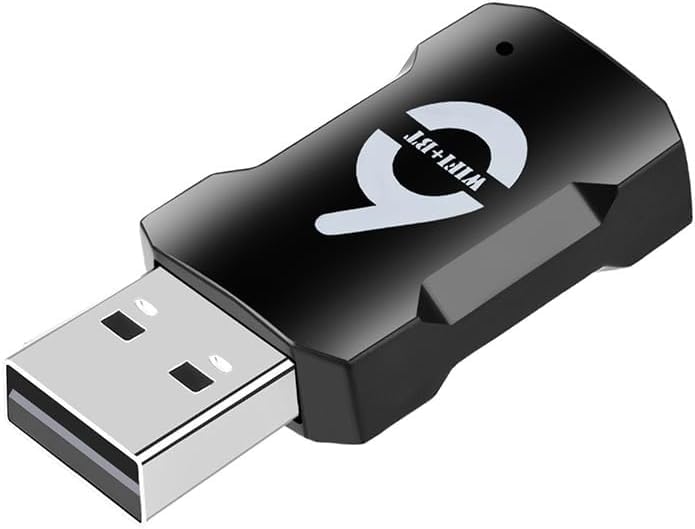
Image: The FANTIA AX900 USB WiFi 6 Bluetooth 5.3 Adapter, a compact black USB dongle with "WIFI+BT" and a '6' logo, featuring a blue indicator light.
Package Contents
Please verify that all items are present in the package:
- 1x FANTIA AX900 USB WiFi 6 Bluetooth 5.3 Adapter (USB WLAN Stick)
Key Features
- High-Speed Connectivity: Up to 900Mbps transmission rate with WiFi 6 (IEEE 802.11ax) standard.
- Dual-Band Support: Operates on both 2.4GHz and 5.8GHz frequencies for flexible and optimized network performance.
- Bluetooth 5.3: Advanced Bluetooth technology supporting simultaneous connection of up to 7 devices.
- Driver-Free Installation: Plug and Play functionality for Windows 10 and Windows 11.
- Enhanced Security: Supports WEP, WPA, WPA2, and WPA3-SAE encryption protocols.
- MU-MIMO Support: Improves network efficiency for multiple connected devices.
- Wi-Fi 6 TWT (Target Wake Time): Optimizes power consumption and network efficiency.
- Versatile Functionality: Supports both WiFi reception and AP hotspot transmission.
Setup Guide
The FANTIA AX900 adapter is designed for easy plug-and-play installation on compatible operating systems.
- Insert the Adapter: Locate an available USB port on your computer (desktop or laptop). Carefully insert the FANTIA AX900 USB adapter into the USB port.
- Automatic Driver Installation: For Windows 10 and Windows 11, the system should automatically detect the device and install the necessary drivers. A pop-up notification may appear indicating driver installation progress.
- Verify Installation: Once the installation is complete, the adapter's indicator light should illuminate (if present), and you should see new WiFi and Bluetooth options available in your system settings.
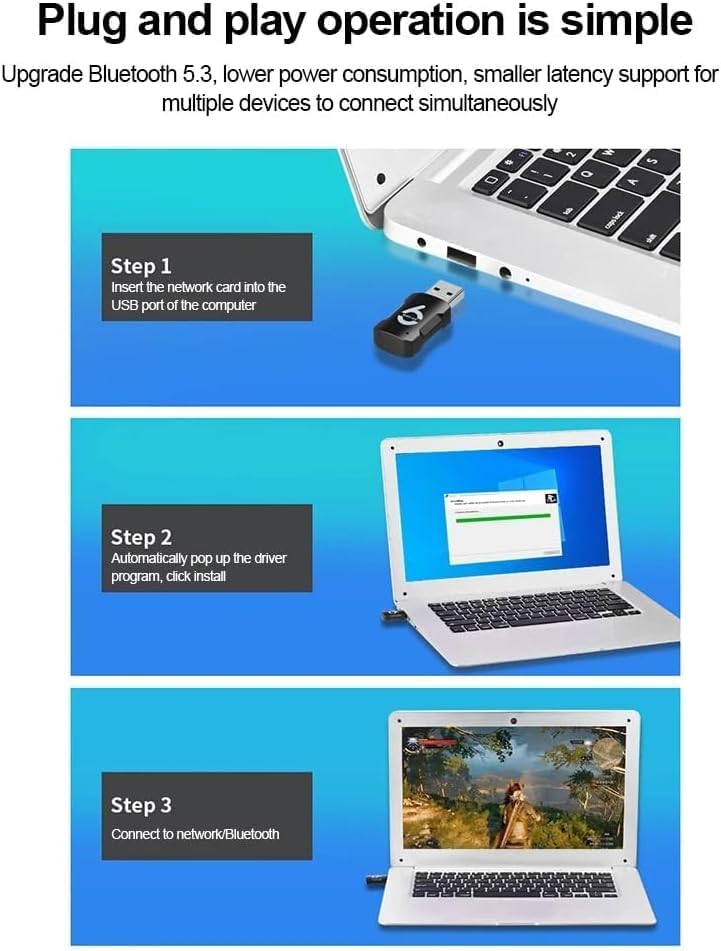
Image: A visual guide showing three steps for plug-and-play installation: 1. Inserting the adapter into a laptop's USB port. 2. A driver installation pop-up on the laptop screen. 3. The laptop displaying network and Bluetooth connection options.
Note: If the driver does not install automatically, please ensure your operating system is up to date. For other operating systems, manual driver installation may be required.
Operating Instructions
WiFi Connection
- Access Network Settings: On your computer, navigate to the network settings (e.g., click the WiFi icon in the taskbar for Windows).
- Select Network: Choose your desired WiFi network from the list of available networks. The adapter supports both 2.4GHz and 5.8GHz bands.
- Enter Password: If prompted, enter the network security key (password) and click "Connect".
- Confirm Connection: Your computer should now be connected to the internet via the FANTIA AX900 adapter.
Bluetooth Device Pairing
- Enable Bluetooth: Go to your computer's Bluetooth settings. Ensure Bluetooth is turned "On".
- Add Device: Select "Add Bluetooth or other device" and choose "Bluetooth".
- Pair Device: Put your Bluetooth device (e.g., headphones, keyboard, mouse, printer) into pairing mode. Select it from the list of discovered devices on your computer and follow any on-screen prompts to complete pairing.
- Multi-Device Support: The adapter supports connecting up to 7 Bluetooth devices simultaneously.

Image: A diagram illustrating the FANTIA AX900 adapter connected to a desktop computer, enabling wireless connections to various Bluetooth devices like printers, keyboards, mice, phones, iPads, audio devices, and earphones. It also shows the adapter providing WiFi connectivity to desktop, PC, and laptop computers.
AP Hotspot Transmission (WiFi Sharing)
The FANTIA AX900 adapter can also function as a WiFi hotspot, allowing your computer to share its internet connection with other devices.
- Enable Mobile Hotspot: On Windows, go to Settings > Network & Internet > Mobile hotspot.
- Configure Hotspot: Turn on "Mobile hotspot". You can customize the network name (SSID) and password.
- Connect Devices: Other devices can now search for your computer's hotspot name and connect using the provided password.

Image: A composite image showing three usage scenarios: 1. A desktop PC connected via Bluetooth to headphones, displaying media. 2. A laptop using the adapter for WiFi transmission (hotspot). 3. A desktop PC using the adapter for WiFi reception, displaying a game.
Maintenance
- Keep Clean: Gently wipe the adapter with a dry, soft cloth to remove dust. Avoid using liquid cleaners.
- Proper Storage: When not in use, store the adapter in a cool, dry place away from direct sunlight and extreme temperatures.
- Avoid Physical Damage: Do not drop, bend, or expose the adapter to excessive force.
- Unplug Safely: Always remove the adapter from the USB port by pulling the body, not the USB connector itself.
Troubleshooting
| Problem | Possible Solution |
|---|---|
| Adapter not detected / Drivers not installing. |
|
| Cannot connect to WiFi network. |
|
| Bluetooth device not pairing. |
|
| Slow WiFi speed. |
|
Specifications

Image: A diagram showing the dimensions of the FANTIA AX900 adapter: approximately 42mm length, 18mm width, and 9mm thickness.
| Feature | Detail |
|---|---|
| Model | AX900 |
| Brand | FANTIA |
| Hardware Interface | USB, Bluetooth |
| Color | Black |
| Compatible Devices | Laptop, Desktop PC |
| Data Link Protocol | USB |
| Data Transfer Rate | Up to 900 Megabits Per Second |
| Item Weight | 10 Grams |
| Compatible Operating System Family | Windows |
| Minimum Required Operating System Version | Windows 10 |
| WiFi Standard | IEEE 802.11ax (WiFi 6) |
| Bluetooth Version | 5.3 |
| Encryption Support | WEP/WPA/WPA2/WPA3-SAE |

Image: A bar chart comparing WiFi speeds across different standards: 802.11n (150 Mbps, 300 Mbps), 802.11ac (600 Mbps), and 802.11ax (900 Mbps), highlighting the AX900's WiFi 6 capability.
Security Information
The FANTIA AX900 adapter supports multiple data encryption modes to ensure secure internet browsing and protect your network from unauthorized access.
- Supported Protocols: WEP, WPA, WPA2, WPA3-SAE.
- These protocols help protect your privacy data, prevent malicious website attacks, guard against Trojan viruses, and prevent unauthorized users from accessing your internet connection.

Image: An illustration emphasizing multi-data encryption modes for surfing security, showing the adapter within a protective dome and icons representing privacy protection, prevention of malicious attacks, anti-Trojan virus, and preventing unauthorized use.
Warranty and Support
Warranty Information
FANTIA offers a 100% money-back guarantee. If for any reason you are not satisfied with your FANTIA AX900 adapter within 30 days of purchase, please contact us for a full refund or replacement.
Customer Support
For technical assistance, troubleshooting, or warranty claims, please contact FANTIA customer support. Refer to the product packaging or the seller's information for contact details.