
1. Introduction
The SingularXYZ E1 Lite GNSS RTK GPS Surveying Equipment is a high-precision solution designed for various applications including land survey, topographic mapping, and CORS correction. Featuring 1408 channels, robust signal tracking, and quick fixed solutions, this equipment ensures centimeter-level accuracy even in challenging environments. This manual provides essential information for the proper setup, operation, and maintenance of your E1 Lite GNSS RTK system.
2. What's in the Box
Your SingularXYZ E1 Lite GNSS RTK package includes the following components:
- 1 x E1 Lite GNSS Receiver
- 1 x Transport Case
- 1 x USB-Type C Cable
- 1 x Super Charger
- 1 x Quick Start Guide
- 1 x Quick Start Card
- 1 x SC200 Data Collector
- 1 x USB cable (for SC200)
- 1 x Super Charger (for SC200)
- 1 x Bracket
- 1 x SingularPad Software
- 1 x Terminal antenna

Image: E1 Lite GNSS RTK components neatly organized within their transport case, including the receiver, data collector, cables, and accessories.
Video: This video demonstrates the unboxing process of the SingularXYZ E1 Lite GNSS RTK system, showcasing all included components and their packaging.
3. Product Overview
3.1 Key Features
- Full-Constellation Signal: Provides robust signal tracking and quick fixed solutions (within seconds) in challenging environments.
- Ultra-Long Range: Built-in UHF radio offers up to 5km range; Bluetooth connection to local CORS stations extends to 50km range.
- Entry-Level IMU: Delivers solid performance for high-precision surveying with tilt measurement capabilities.
- Versatile Connectivity: Features NFC, Bluetooth, WiFi, USB Type-C, and 8GB onboard storage for seamless data transfer.
- IP67 Rugged Protection: Waterproof, dustproof, and drop-resistant casing ensures reliable performance in harsh conditions.
- Web UI Access: Easily download static data, upgrade firmware, and configure settings via a WiFi-enabled web interface.
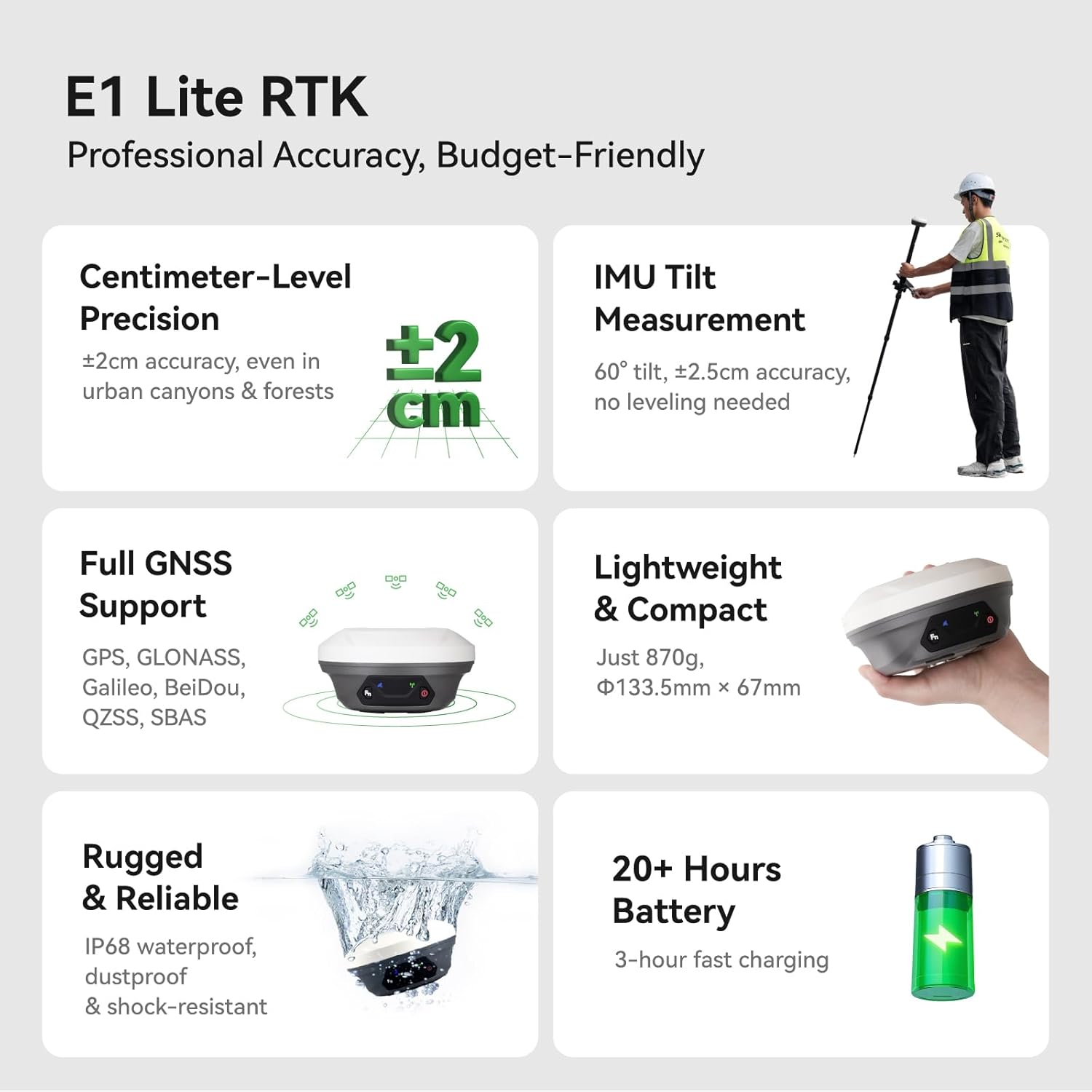
Image: A visual summary of the E1 Lite RTK's professional accuracy, centimeter-level precision, IMU tilt measurement, full GNSS support, lightweight design, ruggedness, and 20+ hours battery life.
3.2 Front Panel and Interfaces
The E1 Lite GNSS Receiver features an intuitive front panel and multiple interfaces for connectivity and operation:
- Satellite Tracking Indicator: Flashes to indicate the number of tracking satellites.
- Static & Network Indicator: Yellow light flashes when recording static data.
- Function Button: Press twice in succession to start/stop static data recording.
- Correction Data Indicator: Flashes when TX/RX correction data is active.
- Power Indicator: Red light indicates the receiver is turned on, red light flashes when battery is low (<10%), green light flashes when charging, and stays on when fully charged.
- Power Button: Long press to turn on/off the receiver.
- NFC Connection: For quick pairing with compatible devices.
- TNC Connector: For UHF Antenna.
- Type-C Interface: For charging and data download.
- 7-pin Lemo RS232 Serial Port: For additional connectivity.

Image: Detailed diagram illustrating the front panel indicators (Satellite Tracking, Static & Network, Correction Data, Power) and connectivity interfaces (NFC, TNC, USB Type-C, RS232) of the E1 Lite GNSS Receiver.
4. Setup
4.1 Initial Assembly
Assemble the E1 Lite GNSS Receiver with the SC200 Data Collector onto a range pole or tripod as required for your surveying task. Ensure all connections are secure.

Image: A professional surveyor utilizing the E1 Lite GNSS RTK equipment mounted on a range pole with the SC200 data collector attached, performing measurements in an outdoor environment.
4.2 Device Connection
To connect your E1 Lite GNSS Receiver to the SC200 Data Collector:
- Turn on your GNSS device.
- On the SC200, go to Device >> Communication to connect your device.
- Select SingularXYZ >> RTK >> Bluetooth, then search for your device's Serial Number (SN) and connect.
Video: This tutorial demonstrates how to connect the SingularXYZ E1 Lite GNSS RTK receiver to the SC200 Data Collector via Bluetooth using the SingularPad software.
4.3 Project Creation
To create a new project in the SingularPad software:
- Go to Project >> Project Manager.
- Click New to create a new project.
- Enter your project name and configure unit settings by clicking More.
- Choose a predefined projected coordinate system or define your own by selecting Ellipsoid and Projection Parameters.
- If needed, add a geoid model via Vertical Adjustment Parameter.
Video: This tutorial guides users through creating a new project in SingularPad software, including setting up coordinate systems and project parameters.
4.4 Data Import
To import data into your project:
- Go to Project >> Import Data.
- Select the data type (points, lines, code library) and the corresponding import file format.
- You can create a new custom format if your file type is not listed.
- Click Next to select the import file path.
- Use the Preview option to verify the file format before importing.
Video: This tutorial demonstrates the process of importing data into the SingularPad software, covering file format selection and previewing imported data.
5. Operation
5.1 Advanced IMU Tilt Measurement
The E1 Lite features an advanced IMU for tilt measurement, allowing for faster and smarter work with ±2.5cm accuracy at 60° tilt, eliminating the need for bubble leveling. This is ideal for uneven terrain, hidden locations, dangerous locations, and surveying under dense forests or near building corners.

Image: An illustration of a surveyor using the E1 Lite GNSS RTK with its IMU tilt measurement feature, demonstrating its effectiveness in surveying challenging spots like hidden locations, dangerous areas, under dense forests, and building corners.
5.2 Superior Performance in Challenging Environments
The E1 Lite GNSS RTK tracks over 30 satellites even under dense cover or urban structures, utilizing anti-obstruction technology to maintain accuracy. This provides reliable solutions with centimeter-level precision in seconds.

Image: The E1 Lite GNSS RTK set up in a challenging environment, showcasing its capability to track numerous satellites and provide accurate data despite obstructions, ensuring reliable surveying solutions.
5.3 Working with E1 Lite Rover + Base
For optimal performance, ensure the following conditions before configuration:
- You have two E1 Lite GNSS receivers; designate one as the base and the other as the rover.
- Connect them separately to your PDA device via Bluetooth.
- Place both E1 Lite base and rover in an open view of the sky.
- Connect the whip antenna to both E1 Lite base and rover.
Setting up the Base:
- Connect E1 Lite base to your PDA, go to Device > Base.
- For Base Startup Mode, you can input known point coordinates to setup, or select Single Point mode for automatic setup.
- Set Datalink as Internal Radio, and customize radio channels, frequency, and protocol according to your needs.
- Save settings and Start Base. The status bar will become Base.
Setting up the Rover:
- Disconnect E1 Lite base and connect to the rover in the software.
- Go to Device >> Rover, set Data Link as Internal Radio.
- Match and set the same protocol and frequency as the base setting.
- Click Collection to save settings and click Apply.

Image: Step-by-step screenshots from the SingularPad software illustrating the configuration of both the E1 Lite Base and Rover units, including data link settings and startup modes.
5.4 Working with CORS/RTK Correction Service
Before configuring, please note:
- Purchase a CORS/RTK Correction Service account in your local area.
- Ensure your PDA device (phone/tablet/data collector) can access network and supports Bluetooth connection.
- Place your E1 Lite GNSS receiver in an open view of the sky.
Steps:
- Open SingularPad software.
- Click Communication and connect to your E1 Lite receiver's SN via Bluetooth.
- Click Get to obtain Mount-Point list and select appropriate one. Click Start and Apply.
- Click Rover. Set Data Link as Phone Internet, then go to Connect Mode and fill in your CORS/RTK Correction Service account.
Tip: Find the appropriate mount point via the website of your local CORS/RTK Correction Service provider. Ensure the baseline is within 50km.

Image: Detailed screenshots from the SingularPad software demonstrating how to configure the E1 Lite GNSS RTK for use with a CORS/RTK Correction Service, including communication and mount point selection.
5.5 Viewing RTK Positioning Status
After completing your E1 Lite RTK setup, check the current RTK solution status in the top left corner of the SingularPad software:
- FIXED: E1 Lite is receiving RTK corrections stably and obtaining a Fixed RTK solution with centimeter-level accuracy.
- FLOAT: E1 Lite receives corrections from the base/CORS, but due to obstructions or magnetic field interference, the signal reception is not very stable and the accuracy is sub-meter level.
- AUTONOMOUS: Single-point satellite positioning without receiving RTK correction data. The accuracy is around meter-level.
Tip: Before surveying, make sure E1 Lite has a clear sky view, free from obstacles like buildings, trees, cars, and more.

Image: A visual guide explaining the different RTK positioning statuses (Fixed, Float, Autonomous) and providing a tip for ensuring clear sky view for best accuracy.
5.6 Web UI Access
Access the E1 Lite's WiFi to conduct static data download, firmware upgrades, and configuration settings via its web page.

Image: A graphic depicting the E1 Lite GNSS Receiver connected via WiFi to a laptop, demonstrating how to access its Web UI for various management tasks.
6. Maintenance
6.1 Rugged Protection
The E1 Lite GNSS RTK features an IP67-rated casing, ensuring it is waterproof, dustproof, and drop-resistant. This robust design allows for reliable performance in harsh environmental conditions. Regularly inspect the device for any physical damage and keep ports clean.

Image: The E1 Lite GNSS RTK receiver partially submerged in water, illustrating its IP67 rugged protection against water and dust.
6.2 Battery Information
The device is powered by 3 Lithium Ion batteries (included) and offers up to 20 hours of battery life. It supports 3-hour fast charging. Ensure to use the provided Super Charger for optimal charging and battery longevity.
7. Troubleshooting
7.1 FCC Radio License Note
Note: U.S. users must apply for an FCC radio license for commercial use (e.g., surveying, construction) with the UHF function (450–470 MHz). The device is FCC certified, and supporting information can be provided if needed. Failure to obtain the necessary license may result in operational restrictions or penalties.
7.2 Optimizing Accuracy
If you experience issues with achieving centimeter-level accuracy (i.e., the status remains 'FLOAT' or 'AUTONOMOUS' for extended periods), ensure the following:
- The E1 Lite receiver has a clear, unobstructed view of the sky. Avoid areas with dense foliage, tall buildings, or other structures that may block satellite signals.
- All cables and antennas are securely connected.
- The base and rover units (if applicable) are configured correctly with matching protocols and frequencies.
- Your CORS/RTK Correction Service account is active and properly configured, and the baseline distance is within the recommended range (e.g., 50km).
8. Specifications
| Feature | Detail |
|---|---|
| Item Weight | 7.82 pounds |
| Product Dimensions | 2.64 x 5.26 x 5.26 inches |
| Item Model Number | E1 Lite GNSS RECEIVER |
| Batteries | 3 Lithium Ion batteries required (included) |
| Display Size | 1 Inches (for receiver indicators) |
| Battery Life | 20 Hours |
| Voice Command | Buttons |
| Brand | SingularXYZ |
| Model Name | E1 Lite GNSS RECEIVER |
| Special Feature | Bluetooth, NFC, Waterproof |
| Connectivity Technology | Bluetooth, Ethernet, USB, Wi-Fi |
| Map Type | Worldwide |
| Mounting Type | Panel Mount |
| Operating System (SC200) | Android |
9. Warranty & Support
The SingularXYZ E1 Lite GNSS RTK GPS Surveying Equipment comes with a 1-year warranty from the date of purchase. For technical assistance, troubleshooting, or warranty claims, please contact SingularXYZ customer support. SingularXYZ is committed to providing reliable products and solutions, backed by a dedicated support team.
For further information and support, please visit the official SingularXYZ website or refer to the contact details provided in your Quick Start Guide.


