
1. Introduction
This manual provides detailed instructions for the installation, operation, and maintenance of your HXVIEW PTZ Security Camera, model B0DWN4N6TD. Please read this manual thoroughly before using the product to ensure proper functionality and safety. Keep this manual for future reference.
2. Safety Information
- Ensure the power supply matches the camera's requirements to prevent damage.
- Do not attempt to disassemble or modify the camera. This may void the warranty and cause damage.
- Install the camera in a secure location, out of reach of unauthorized individuals.
- Avoid pointing the camera directly at strong light sources for extended periods, as this may affect image quality.
- Ensure all cables are properly secured and protected from environmental elements.
3. Package Contents
Verify that all items are present in the package:
- HXVIEW PTZ Security Camera
- Power Adapter
- Mounting Bracket and Screws
- Waterproof Kit for Network Cable
- Quick Start Guide
4. Product Overview
The HXVIEW PTZ Security Camera is designed for outdoor surveillance, offering advanced features for comprehensive monitoring.

Figure 4.1: HXVIEW PTZ Security Camera with dual antennas.
Key Features:
- 4K Ultra HD and 30X Optical Zoom: Captures clear 4K Ultra HD images with a 1/2.8-inch IMX415 CMOS sensor and wide-angle lens. The 30X optical zoom and autofocus lens allow for detailed viewing of distant objects without image degradation.
- Advanced Night Vision and Motion Tracking: Equipped with super IR lights for clear color night vision up to 1,000 feet. Features auto cruise and human tracking to automatically follow detected motion.
- Intelligent Detection and Alerts: Smart person/vehicle detection with real-time alerts. Customizable detection areas, sensitivities, and schedules to minimize false alarms.
- Continuous Recording and Weatherproof Design: Supports up to 128GB microSD card for 24/7 continuous recording without cloud fees. Features a rugged aluminum casing and IP66 waterproof rating for reliable performance in extreme weather.
- Seamless Connectivity and Control: Supports 2.4/5GHz dual-band Wi-Fi connectivity. Remote viewing is available through the CamHipro app, with the ability to share the camera feed with multiple users.

Figure 4.2: Illustration of the camera's 30X optical zoom and auto-focus capabilities, showing a clear view of distant subjects.

Figure 4.3: Depiction of the 4K 8MP Ultra HD resolution, highlighting the wide-angle lens and IMX415 CMOS sensor for delicate images.

Figure 4.4: Diagram illustrating the 355° pan and 90° tilt movement, along with human tracking and auto cruise presets.
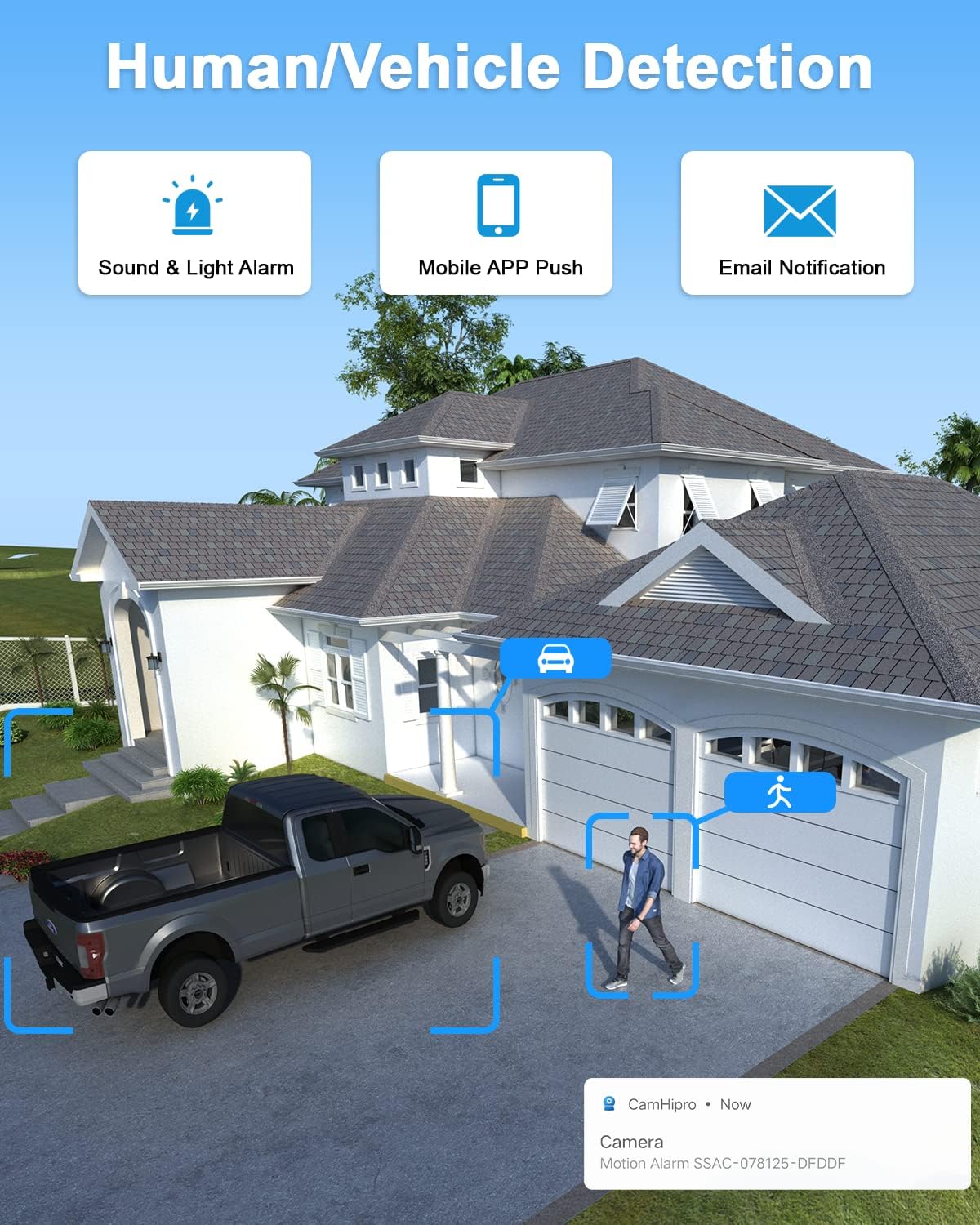
Figure 4.5: Visual representation of human and vehicle detection, triggering sound & light alarms, mobile app pushes, and email notifications.

Figure 4.6: Illustration of the real-time alarm system, showing a spotlight and siren activating upon detecting an intruder.

Figure 4.7: Image highlighting the camera's IP66 waterproof rating and TVS 4000V thunder-proof metal housing, suitable for various weather conditions.

Figure 4.8: Diagram showing the camera's dual-band Wi-Fi capability, indicating long-distance transmission for 2.4 GHz and fast transmission for 5 GHz.
5. Setup
5.1 Physical Installation
- Choose a Location: Select an outdoor location with a clear view of the area you wish to monitor. Ensure the location has access to a power outlet and a stable Wi-Fi signal.
- Mount the Bracket: Use the provided mounting bracket as a template to mark drill holes on the wall or ceiling. Drill the holes and insert wall anchors if necessary. Secure the mounting bracket with the screws.
- Attach the Camera: Securely attach the camera to the mounting bracket. Adjust the camera's orientation as needed.
- Connect Power: Connect the power adapter to the camera and then plug it into a power outlet. The camera will power on and initiate its self-test.
5.2 App Download and Initial Configuration
- Download CamHipro App: Search for "CamHipro" in your smartphone's app store (iOS or Android) and download the application.
- Register Account: Open the CamHipro app and follow the on-screen instructions to register a new account or log in if you already have one.
- Add Camera: Tap the "+" icon in the app to add a new device. Select the appropriate camera type (e.g., "Wireless Camera").
- Connect to Wi-Fi: Follow the app's instructions to connect the camera to your Wi-Fi network. The camera supports both 2.4GHz and 5GHz bands. Ensure your phone is connected to the same Wi-Fi network during the setup process.
- Set Password: Create a strong password for your camera to protect your privacy.
6. Operating
6.1 Live View and PTZ Control
- Open the CamHipro app and select your camera from the device list to access the live view.
- Use the on-screen controls to pan (355° horizontally) and tilt (90° vertically) the camera.
- Pinch to zoom in or out to utilize the 30X optical zoom.
6.2 Motion Detection and Tracking
- Navigate to the camera settings in the app to configure motion detection.
- Enable Person/Vehicle Detection for intelligent alerts.
- Set up detection zones and adjust sensitivity levels to reduce false alarms.
- Activate Auto Tracking to allow the camera to follow detected subjects automatically.
6.3 Two-Way Audio
- In the live view, tap the microphone icon to speak through the camera's speaker.
- Tap the speaker icon to listen to audio from the camera's microphone.
6.4 Recording and Storage
- Insert a microSD card (up to 128GB, not included) into the designated slot on the camera for local storage.
- Configure recording settings (continuous, motion-triggered) within the CamHipro app.
- Access recorded footage via the app's playback feature.
7. Maintenance
7.1 Cleaning
- Periodically clean the camera lens with a soft, dry cloth to ensure clear image quality.
- Wipe the camera housing with a damp cloth if it becomes dirty. Do not use harsh chemicals or abrasive cleaners.
7.2 Firmware Updates
- Check the CamHipro app regularly for available firmware updates.
- Follow the in-app instructions to update the camera's firmware, which can improve performance and add new features.
8. Troubleshooting
| Problem | Possible Cause | Solution |
|---|---|---|
| Camera not powering on | No power, faulty adapter, loose connection | Check power outlet, ensure adapter is securely connected, try a different outlet. |
| Unable to connect to Wi-Fi | Incorrect Wi-Fi password, camera too far from router, router issues | Verify Wi-Fi password, move camera closer to router, restart router, ensure 2.4/5GHz band is supported. |
| Poor image quality | Dirty lens, low light, network bandwidth issues | Clean the lens, ensure adequate lighting, check network speed. |
| Motion detection not working | Detection settings incorrect, sensitivity too low, object outside detection zone | Review motion detection settings in the app, adjust sensitivity, ensure objects are within configured zones. |
| Two-way audio not functioning | Microphone/speaker muted, app permissions, network issues | Check mute settings in the app, verify app permissions for microphone, ensure stable network connection. |
9. Specifications
| Feature | Specification |
|---|---|
| Model | B0DWN4N6TD |
| Brand | HXVIEW |
| Image Sensor | 1/2.8-inch IMX415 CMOS |
| Resolution | 8MP (4K Ultra HD) |
| Optical Zoom | 30X |
| Pan/Tilt Range | Pan 355°, Tilt 90° |
| Night Vision Range | Up to 1000 feet (Color Night Vision) |
| Connectivity | 2.4/5GHz Dual-Band Wi-Fi, Wireless |
| Storage | MicroSD card (up to 128GB, not included) |
| Weather Resistance | IP66 Waterproof, TVS 4000V Thunder-proof |
| Special Features | PTZ Technology, Auto Tracking, Person/Vehicle Detection, 2-Way Audio |
| Recommended Use | Outdoor Security |
10. Warranty and Support
For warranty information and technical support, please refer to the warranty card included with your product or visit the official HXVIEW website. You may also contact HXVIEW customer service directly through the contact information provided on their website or within the CamHipro app.


