
Introduction
This manual provides comprehensive instructions for the installation, operation, and maintenance of your HXVIEW 4K PTZ Security Camera. Please read this manual thoroughly before using the product to ensure proper setup and optimal performance. Keep this manual for future reference.
Product Overview and Features
The HXVIEW 4K PTZ Security Camera is an advanced outdoor surveillance solution designed for comprehensive monitoring. It features high-resolution imaging, extensive zoom capabilities, and intelligent detection functions.
Key Features:
- 4K Ultra HD and 30X Optical Zoom: Equipped with a 1/2.8-inch IMX415 CMOS sensor and wide-angle lens, this camera captures stunning 4K Ultra HD images. The 30X optical zoom and autofocus lens allow for clear viewing of distant details without compromising image quality.
- Advanced Night Vision and Motion Tracking: Super IR lights provide clear color night vision up to 1,000 feet. Auto cruise and human tracking features enable the camera to automatically follow detected motion and adjust its position.
- Intelligent Detection and Alerts: Features smart person/vehicle detection and real-time alerts. Users can customize detection areas, sensitivities, and schedules to minimize false alarms.
- Continuous Recording and Weatherproof Design: Supports up to 128GB microSD card storage for 24/7 continuous recording without additional cloud fees. The rugged aluminum casing and IP66 waterproof rating ensure reliable performance in various weather conditions.
- Seamless Connectivity and Control: Offers 2.4/5GHz dual-band Wi-Fi connectivity and remote viewing via the CamHipro app. The camera feed can be shared with multiple users for comprehensive monitoring.

Figure 1: HXVIEW 4K PTZ Security Camera, showcasing its robust design and dual antenna setup.

Figure 2: Illustration of 4K Super HD resolution, 30X optical zoom, and the camera's 355° pan and 90° tilt range.
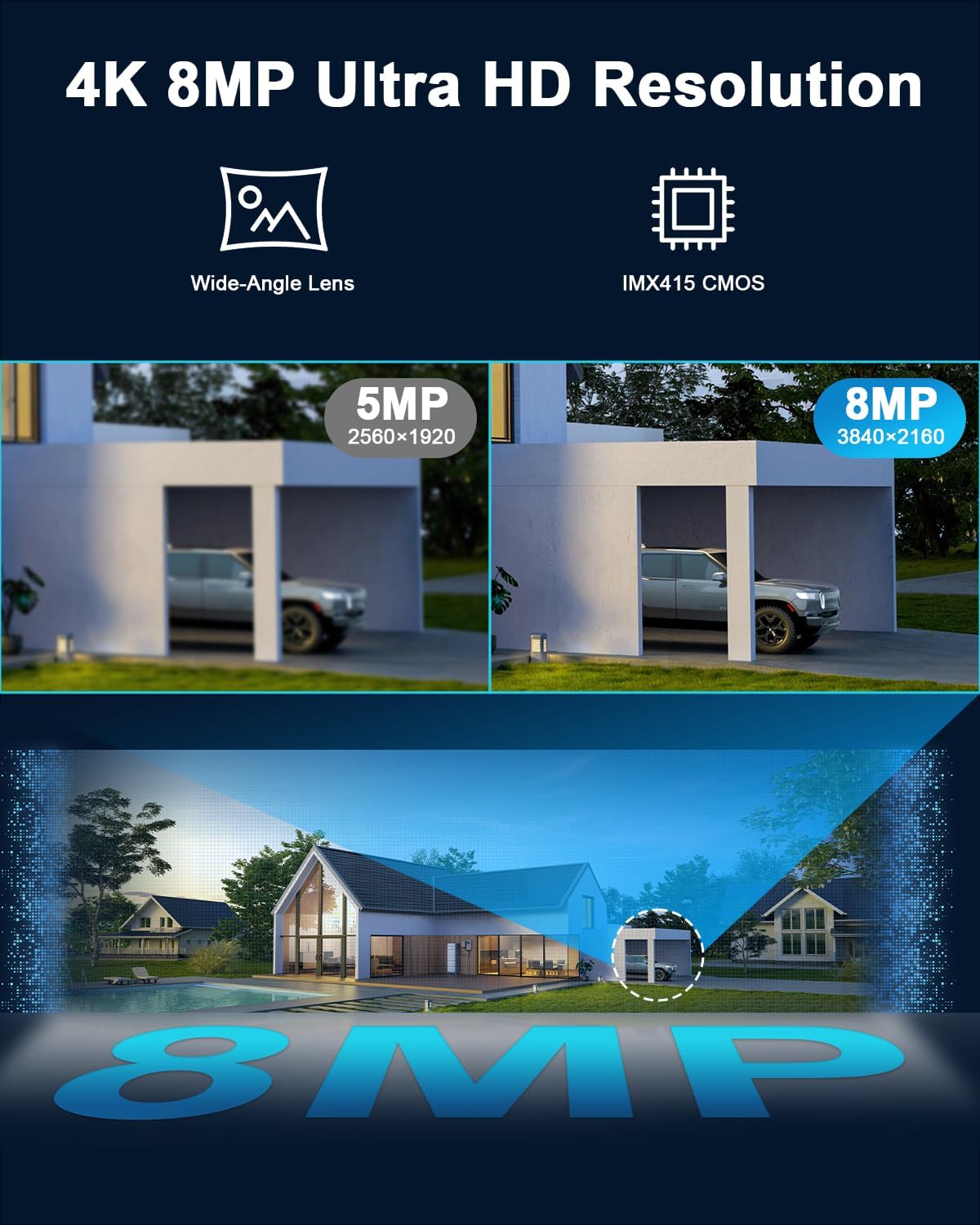
Figure 3: Visual comparison demonstrating the clarity of 4K 8MP Ultra HD resolution compared to 5MP, highlighting the IMX415 CMOS sensor.
Setup Guide
1. Unboxing and Initial Inspection:
- Carefully remove all components from the packaging.
- Verify that all listed accessories are present.
- Inspect the camera and accessories for any signs of damage. Do not proceed with installation if damage is found.
2. Choosing an Installation Location:
- Select a location that provides a clear, unobstructed view of the area you wish to monitor.
- Ensure the location is within range of your Wi-Fi network (2.4GHz or 5GHz).
- The camera is IP66 weatherproof, but installing it under an overhang or sheltered area can provide additional protection and extend its lifespan.
- Ensure access to a power outlet for the camera's power adapter.
3. Mounting the Camera:
- Use the provided mounting template (if included) or mark the drill holes on the wall/surface.
- Drill pilot holes using an appropriate drill bit for your surface type.
- Insert wall anchors (if necessary) into the drilled holes.
- Secure the camera mounting bracket to the surface using the provided screws.
- Attach the camera securely to the mounting bracket.
4. Powering On and Initial Configuration:
- Connect the power adapter to the camera and plug it into a power outlet.
- The camera will power on and perform a self-test, indicated by movement and LED lights.
- Download the "CamHipro" app from your smartphone's app store (iOS or Android).
- Open the app and follow the on-screen instructions to add your new camera. This typically involves scanning a QR code on the camera or manually entering its ID.
- Connect the camera to your Wi-Fi network within the app. Ensure you select the correct 2.4GHz or 5GHz network and enter the password accurately.
- Once connected, you can view the live feed and adjust initial settings.
Operating Instructions
1. Live View and PTZ Control:
- Open the CamHipro app and select your camera from the device list.
- The live video feed will appear.
- Use the on-screen controls to pan (horizontal movement), tilt (vertical movement), and zoom (optical zoom) the camera.
- Tap to focus or use the autofocus feature.

Figure 4: Depiction of the camera's auto cruise function, covering a 360° viewing angle with up to 30 preset guard points.
2. Recording and Storage:
- MicroSD Card: Insert a microSD card (up to 128GB, not included) into the designated slot on the camera. The camera will automatically begin 24/7 continuous recording or motion-triggered recording based on your settings.
- App Recording: You can manually record video clips directly to your phone via the app during live view.
- Playback: Access recorded footage through the app's playback feature, selecting specific dates and times.
3. Motion Detection and Alerts:
- Navigate to the "Detection Settings" or "Alarm Settings" within the CamHipro app.
- Enable Person/Vehicle Detection for intelligent filtering of alerts.
- Adjust sensitivity levels to reduce false alarms.
- Set up detection zones to monitor specific areas of interest.
- Configure push notifications to receive real-time alerts on your smartphone.
- Enable siren and police light functions for deterrence, if desired.

Figure 5: Illustration of the camera's smart detection capabilities, including automatic tracking of people, vehicles, and animals.
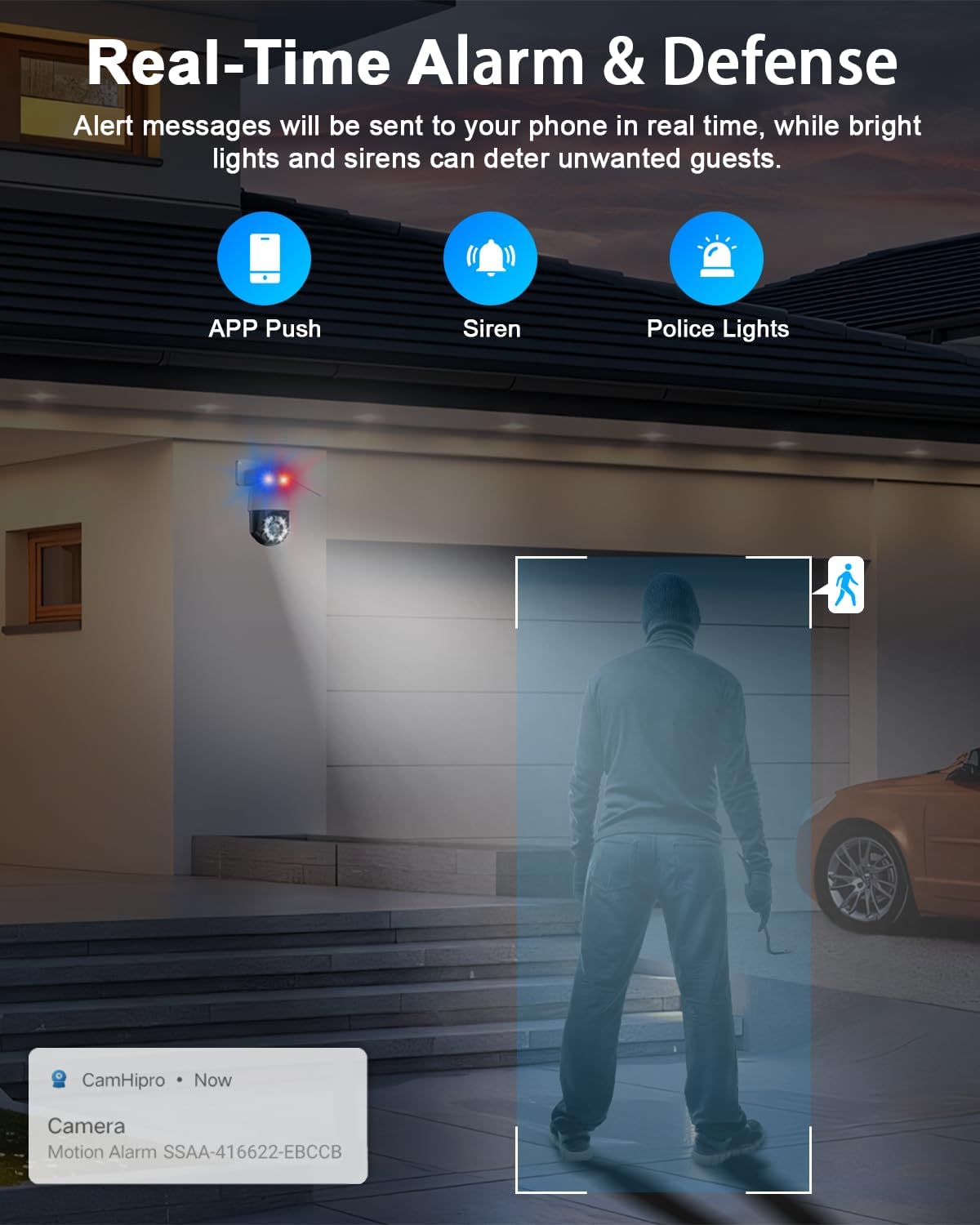
Figure 6: Overview of real-time alarm and defense features, including app push notifications, siren, and police lights for deterring intruders.
4. Two-Way Audio:
- During live view, tap the microphone icon in the app to speak through the camera's speaker.
- The camera's built-in microphone will pick up audio from the monitored area.
Maintenance
- Cleaning: Periodically clean the camera lens and housing with a soft, damp cloth. Avoid abrasive cleaners or solvents.
- Firmware Updates: Check the CamHipro app regularly for firmware updates. Keeping your camera's firmware up-to-date ensures optimal performance, security, and access to new features.
- Power Cycle: If the camera becomes unresponsive, try power cycling it by unplugging and re-plugging the power adapter.
- Environmental Protection: While IP66 rated, extreme weather conditions (e.g., prolonged heavy rain, snow, or direct sunlight) can still impact performance over time. Consider additional physical shielding if installed in highly exposed areas.

Figure 7: The camera's durable metal housing and IP66 waterproof rating, ensuring reliable operation in severe weather conditions from -14°F to 115°F (-10°C to 50°C).
Troubleshooting
| Problem | Possible Cause | Solution |
|---|---|---|
| Camera offline/Cannot connect to Wi-Fi | Weak Wi-Fi signal; Incorrect Wi-Fi password; Router issues; Camera too far from router. |
|
| No recording to SD card | SD card full or faulty; Incorrect recording settings; SD card not formatted. |
|
| Frequent false alarms | Motion sensitivity too high; Unwanted detection zones. |
|
| Poor image quality at night | IR lights obstructed; Lens dirty; Insufficient ambient light. |
|
Specifications
| Feature | Detail |
|---|---|
| Resolution | 4K Ultra HD (8MP) |
| Image Sensor | 1/2.8-inch IMX415 CMOS |
| Optical Zoom | 30X |
| Pan Range | 355° |
| Tilt Range | 90° |
| Night Vision Range | Up to 1,000 feet (IR lights) |
| Connectivity | 2.4/5GHz Dual-Band Wi-Fi, Wireless |
| Storage | MicroSD card (up to 128GB, not included) |
| Weatherproof Rating | IP66 |
| Audio | 2-Way Audio |
| Detection | Person/Vehicle Detection, Auto Tracking |
| Recommended Use | Outdoor Security |
| Power Source | Wired (Power Adapter) |
Warranty and Support
HXVIEW products are designed for reliability and performance. For specific warranty details, please refer to the warranty card included with your product or visit the official HXVIEW website. In most regions, a standard limited warranty covers manufacturing defects for a specified period from the date of purchase.
For technical support, troubleshooting assistance, or warranty claims, please contact HXVIEW customer service through the following channels:
- Email: Refer to your product packaging or the HXVIEW official website for the most current support email address.
- Online Support: Visit the HXVIEW support page on their official website for FAQs, guides, and contact forms.
- App Support: Some support features may be available directly within the CamHipro app.
When contacting support, please have your product model and purchase information ready to expedite assistance.