
ATTACK SHARK X68 HE Keyboard & T900 Mouse
ATTACK SHARK X68 HE Magnetic Switch Gaming Keyboard and Ajazz T900 Wireless Mouse User Manual
Model: X68 HE Keyboard & T900 Mouse
Brand: ATTACK SHARK
Introduction
This manual provides detailed instructions for the setup, operation, and maintenance of your ATTACK SHARK X68 HE Magnetic Switch Gaming Keyboard and Ajazz T900 Wireless Bluetooth Lightweight Mouse. Please read this manual thoroughly before using the products to ensure optimal performance and longevity.
Setup Guide
1. ATTACK SHARK X68 HE Gaming Keyboard Setup
The X68 HE keyboard utilizes magnetic pole switches and Hall effect triggering technology to achieve an 8000Hz polling rate and 0.125ms latency. It connects via a detachable coiled cable.
- Wired Connection: Connect the provided ATTACK SHARK coiled cable to the keyboard's USB-C port and then to an available USB port on your computer.
- Software Installation: For full customization of DKS, key combinations, macros, key remapping, and RGB lighting, download the professional customized web software from the official ATTACK SHARK website. This software is compatible with both Windows and Mac operating systems.

Image 1: ATTACK SHARK X68 HE Keyboard and Ajazz T900 Mouse. The image displays the keyboard with RGB lighting, a coiled USB cable, and the Ajazz T900 mouse.

Image 2: Key features of the ATTACK SHARK X68 HE Magnetic Gaming Keyboard. This graphic highlights features such as rapid trigger, magnetic switches, DKS support, detachable cable, 8000Hz polling rate, full RGB, gasket structure, custom web driver, Mac/Win support, and 0.125ms latency.
2. Ajazz T900 Wireless Mouse Setup
The Ajazz T900 mouse offers tri-mode connectivity (2x Bluetooth 5.1, 1x 2.4GHz wireless) and adjustable DPI settings.
- 2.4GHz Wireless Connection:
- Locate the USB receiver, typically stored within the mouse's magnetic cover.
- Plug the USB receiver into an available USB port on your computer.
- Turn on the mouse using the switch on its underside. The mouse should connect automatically.
- Bluetooth Connection (BT5.1):
- Turn on the mouse.
- Press the switch on the back of the mouse to select one of the Bluetooth modes (BT1 or BT2).
- On your computer or device, navigate to Bluetooth settings and search for new devices.
- Select "Ajazz T900" from the list of available devices to pair.
- The mouse supports connection to up to 3 devices (2 Bluetooth, 1 2.4GHz). Use the switch on the back to toggle between connected devices.
- Charging: Connect the mouse to a USB power source using a compatible cable when the battery is low. The mouse has a 400 mAh battery.

Image 3: Internal view of the Ajazz T900 Wireless Mouse. This image shows the transparent shell revealing the internal components, including the USB receiver, DPI button, and scroll wheel.

Image 4: Features of the Ajazz T900 Wireless Rechargeable Mouse. This graphic highlights plug-and-play functionality, adjustable DPI, 400 mAh battery, and 3-device connection capability.
Operating Instructions
1. ATTACK SHARK X68 HE Keyboard Operation
- Customizable Actuation Points: The magnetic switches allow for precise keystrokes with 0.01mm accuracy. Trigger points can be customized from 0.1mm to 3.4mm using the dedicated software. This enables fine-tuning for competitive gaming or typing.
- Dynamic Keystroke (DKS) and Key Remapping: Utilize the web driver software to configure DKS, create custom key combinations, set macros, and remap keys. This allows for personalized control and enhanced efficiency.
- RGB Lighting: The keyboard features full RGB lighting with 16 million color options. Customize lighting effects and colors through the web driver software.
- Rapid Trigger: This feature, enabled by the Hall effect technology, allows for immediate key reset upon release, providing ultra-fast response times. Configure rapid trigger settings via the software.

Image 5: Illustration of the ATTACK SHARK X68 HE Keyboard's 0.125ms response time. This graphic emphasizes the 8000Hz polling rate, 0.125ms response, and 128K scan rate, highlighting its hyper-polling technology.

Image 6: Software interface for customizing the ATTACK SHARK X68 HE's Hall Magnetic Linear Switches. This image shows options for DKS, MT, TGL, SNAP TAP, and defining trigger ranges from 0.1mm to 3.4mm, along with anti-misoperation mode and rapid trigger settings.
2. Ajazz T900 Wireless Mouse Operation
- Adjustable DPI: The mouse features 4 levels of adjustable DPI: 800, 1200, 1600, and 2400. Press the DPI button on the mouse to cycle through these settings to match your preference and task requirements.
- Multi-Device Switching: Use the switch on the back of the mouse to seamlessly switch between the 2.4GHz wireless connection and the two Bluetooth 5.1 connections.
- Visual Power Level: The mouse may include an indicator for its current power level. Refer to the mouse's display or LED indicators for battery status.

Image 7: Diagram illustrating the Ajazz T900 Wireless Bluetooth Mouse connecting to three devices. This graphic shows the mouse connected via 2.4GHz to a desktop and via Bluetooth to a laptop and a tablet, emphasizing its multi-device capability.
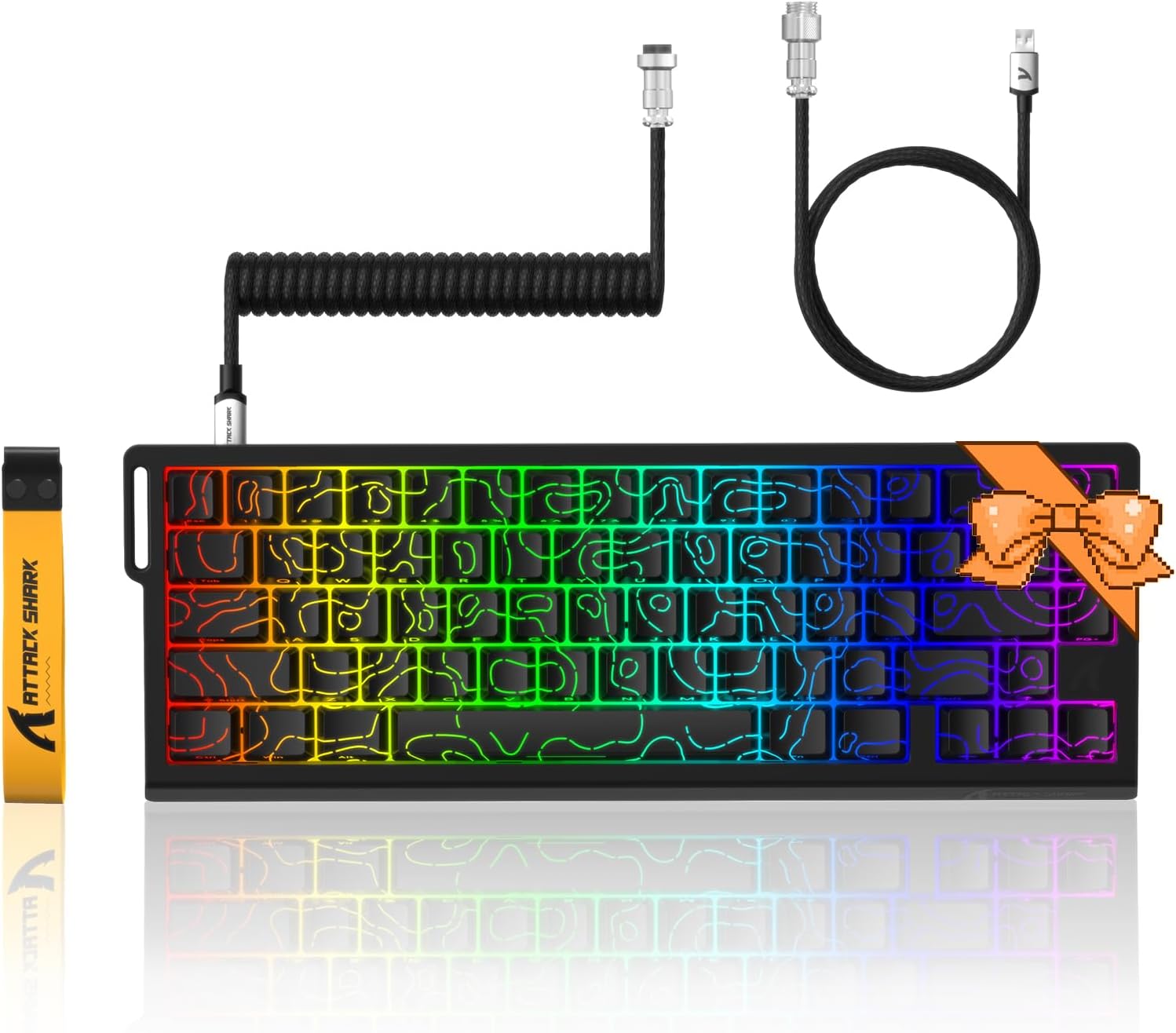
Image 8: Exploded view of the Ajazz T900 Wireless Mouse highlighting its features. This diagram points out the magnetic cover, hidden USB receiver, breathing light, left button, right button, DPI key, and metal scroll wheel.
Maintenance
- Cleaning: Use a soft, dry cloth to clean the surfaces of the keyboard and mouse. For stubborn dirt, slightly dampen the cloth with water or a mild cleaning solution. Avoid excessive moisture.
- Storage: Store the devices in a cool, dry place away from direct sunlight and extreme temperatures when not in use for extended periods.
- Cable Care: Avoid sharp bends or kinks in the keyboard's coiled cable to prevent damage.
Troubleshooting
- Keyboard/Mouse Not Responding:
- Ensure the USB cable (for keyboard) or USB receiver (for mouse 2.4GHz) is securely connected to the computer.
- For the mouse, check if it is powered on and if the correct connection mode (2.4GHz, BT1, BT2) is selected.
- Verify the mouse battery level and charge if necessary.
- Try connecting to a different USB port on your computer.
- Bluetooth Connection Issues (Mouse):
- Ensure Bluetooth is enabled on your device.
- Remove "Ajazz T900" from your device's Bluetooth list and attempt to re-pair.
- Ensure the mouse is in pairing mode (usually indicated by a blinking LED).
- Software Not Detecting Keyboard:
- Ensure the keyboard is connected via its coiled USB cable.
- Restart the software and/or your computer.
- Check for software updates on the official ATTACK SHARK website.
Specifications
| Feature | Detail |
|---|---|
| Brand | ATTACK SHARK |
| Keyboard Model | X68 HE |
| Mouse Model | T900 |
| Keyboard Switch Type | Magnetic Switches (Hall Effect Technology) |
| Keyboard Polling Rate | 8000Hz |
| Keyboard Response Time | 0.125ms |
| Keyboard Actuation Points | Customizable 0.1mm to 3.4mm |
| Keyboard Features | Rapid Trigger, DKS, Key Remapping, RGB Lighting, Gasket Structure, Custom Web Driver (Win/Mac) |
| Mouse Connectivity | Tri-Mode (2x Bluetooth 5.1, 1x 2.4GHz Wireless) |
| Mouse DPI Settings | 800/1200/1600/2400 (Adjustable) |
| Mouse Battery Capacity | 400 mAh |
| Compatible Devices | PC, Laptop, Gaming Console |
Warranty and Support
For warranty information, technical support, or further assistance, please visit the official ATTACK SHARK website or contact their customer service department. Keep your purchase receipt for warranty claims.
Official Website: ATTACK SHARK Store on Amazon
Related documentsX68 HE Keyboard & T900 Mouse


Ask a question about this manual
Ask about setup, troubleshooting, compatibility, parts, safety, or missing instructions. Manuals+ will review the question and use this page’s manual context to help answer it.