
Introduction
This manual provides detailed instructions for the installation, operation, and maintenance of your ID-COOLING FROZN A620 PRO SE Dual-Tower CPU Cooler. This high-performance air cooler is designed to efficiently dissipate heat from your CPU, ensuring stable and reliable system operation. It features a dual-tower heatsink, six copper heat pipes, and two 120mm PWM fans for effective cooling with minimal noise.

Image: The ID-COOLING FROZN A620 PRO SE Dual-Tower CPU Cooler, showcasing its dual-tower design and black aesthetic.
What's in the Box
Verify that all components are present before beginning installation:
- Heatsink
- Cooling Fan (x2)
- Mounting Hardware (for Intel and AMD sockets)
- Thermal Paste
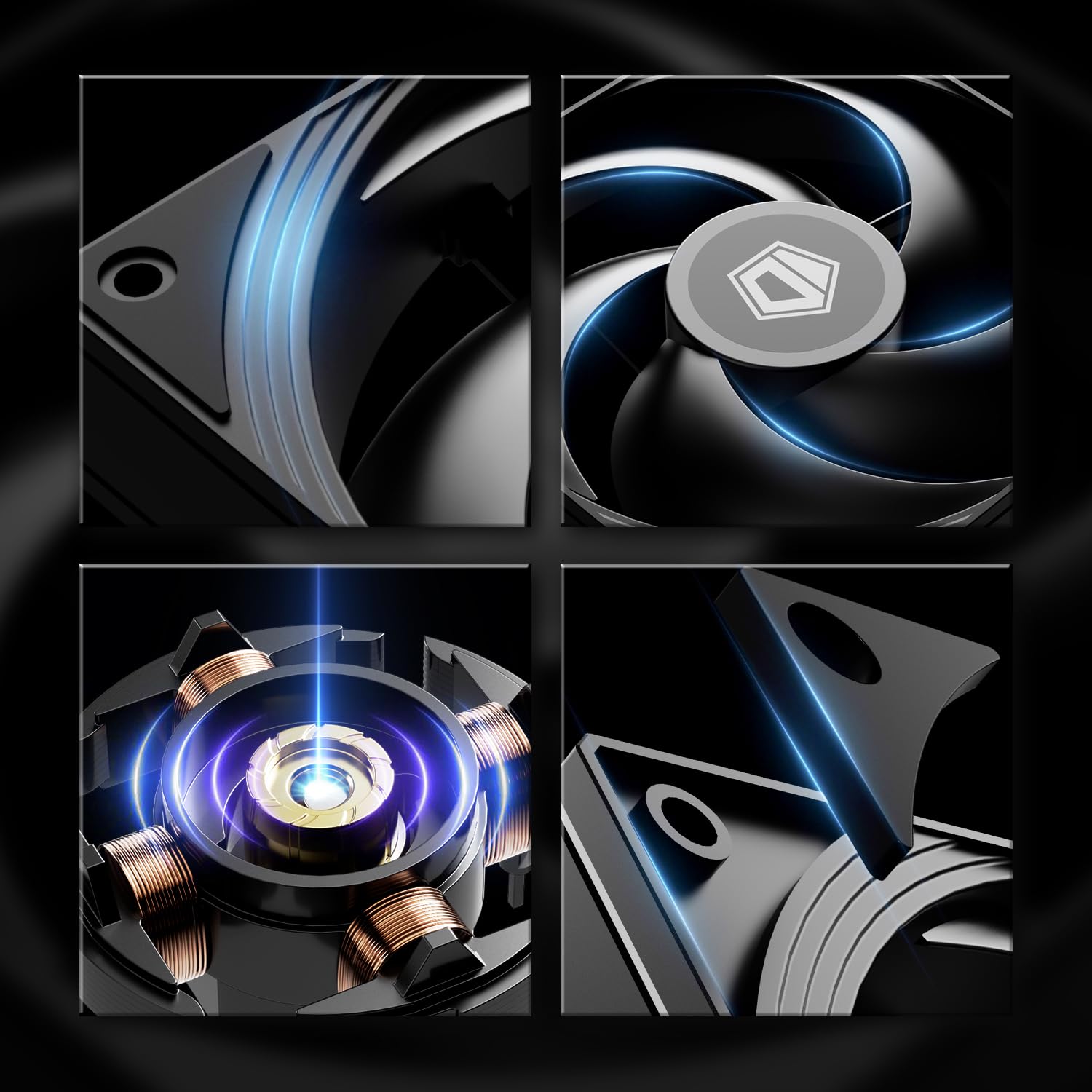
Image: All included components for the FROZN A620 PRO SE cooler, including the heatsink, fans, mounting brackets, screws, and thermal paste.
Specifications
| Feature | Detail |
|---|---|
| Product Dimensions | 5.59"L x 4.72"W x 6.18"H (142mm L x 120mm W x 157mm H) |
| Cooling Method | Air Cooling |
| Heat Pipes | 6 x Ф6mm Copper Heat Pipes |
| Fan Size | 120mm PWM (x2) |
| Maximum Rotational Speed | 2000 RPM |
| Air Flow Capacity | 58 CFM |
| Noise Level | 27.2 dB(A) Max. |
| Power Connector Type | 4-Pin |
| Compatible Devices | Desktop CPUs |
| Socket Compatibility | Intel LGA1851/1700/1200/115X & AMD AM5/AM4 |
| Material | Aluminum, Copper |
| Item Weight | 1190 g |
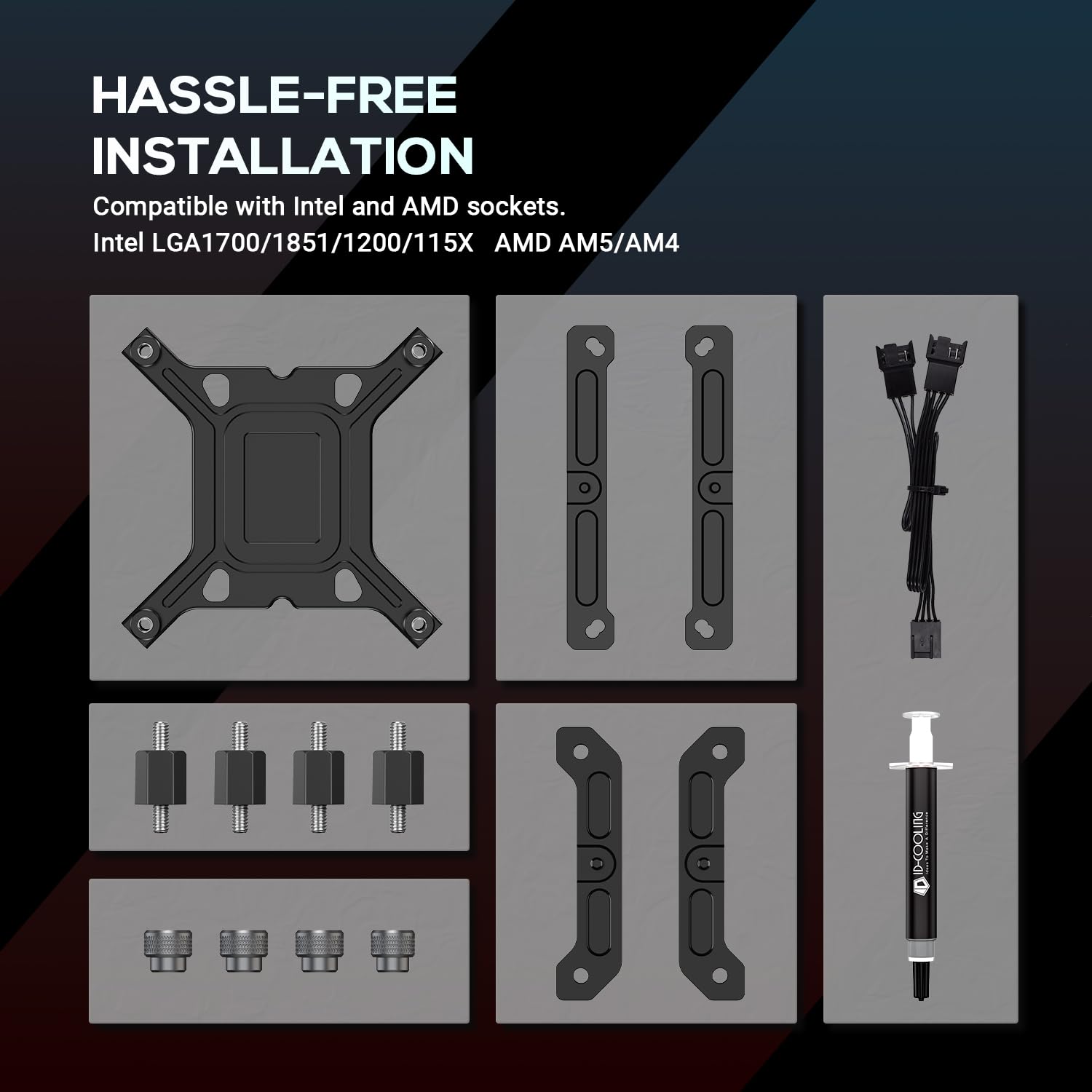
Image: Technical drawing illustrating the dimensions of the FROZN A620 PRO SE cooler, including its 157mm height and 142mm width.
Key Features
- Dual-Tower Heatsink: The cooler features a dual-tower heatsink design for enhanced heat dissipation capacity.
- Six Copper Heat Pipes: Six Ф6mm copper heat pipes efficiently transfer heat from the CPU to the heatsink fins.
- Dual 120mm PWM Fans: Two 120mm PWM fans provide optimal airflow and static pressure while allowing for automatic speed control and quiet operation.
- Low Noise Operation: Designed for ultra-quiet performance, with a maximum noise level of 27.2 dB(A).
- RAM Compatibility: Offers 40mm clearance for standard RAM modules and up to 63mm clearance with a cut-out fin design.
- 157mm Height: The overall height of 157mm ensures compatibility with a wide range of PC cases.

Image: Close-up view of the dual-tower heatsink and six copper heat pipes, highlighting the heat transfer mechanism.

Image: Diagram illustrating the low noise level of the fan, rated at 27.2 dB(A) maximum.

Image: Diagram showing the 40mm standard RAM clearance and 63mm clearance with the cut-out fin design.

Image: Close-up views of the fan blades, motor, and mounting points, indicating quality construction.
Setup and Installation
The ID-COOLING FROZN A620 PRO SE is compatible with various Intel and AMD sockets. Follow these general steps for installation. Refer to the official installation video for a visual guide.
Installation Video Guide
Video: Official installation guide for the FROZN A620 PRO SE, demonstrating steps for Intel LGA1851/1700/1200/115X and AMD AM5/AM4 sockets.
General Installation Steps:
- Prepare Motherboard: Ensure your motherboard is removed from the PC case or has sufficient access. For AMD sockets, the motherboard's stock backplate is typically required.
- Install Backplate (Intel): For Intel sockets, attach the appropriate backplate to the rear of the motherboard.
- Secure Stand-offs: Screw the correct stand-offs into the backplate (Intel) or directly into the motherboard's stock backplate (AMD).
- Apply Thermal Paste: Apply a small amount of thermal paste (included) to the center of your CPU's integrated heat spreader (IHS).
- Mount Heatsink: Place the heatsink onto the CPU, aligning the mounting holes with the stand-offs. Secure the heatsink using the provided mounting brackets and screws, tightening them evenly.
- Attach Fans: Clip the two 120mm fans to the heatsink using the included fan clips. Ensure the airflow direction is correct (typically blowing towards the rear exhaust fan of your PC case).
- Connect Fan Cables: Connect the 4-pin PWM fan cables to the CPU_FAN and CPU_OPT headers on your motherboard.

Image: Illustration of applying thermal paste to the CPU before heatsink installation.

Image: Diagrams showing the mounting hardware setup for Intel LGA1851/1700/1200/115X and AMD AM5/AM4 sockets.
Operating Instructions
Once installed, the ID-COOLING FROZN A620 PRO SE operates automatically through its PWM (Pulse Width Modulation) controlled fans. The motherboard's BIOS or operating system software will regulate fan speeds based on CPU temperature, ensuring efficient cooling and quiet operation.
- Automatic Fan Control: The 4-pin PWM fans will adjust their speed dynamically. At lower CPU temperatures, fans will spin slower, reducing noise. As temperatures rise under load, fan speeds will increase to provide more cooling.
- BIOS/Software Configuration: You can typically monitor and adjust fan curves within your motherboard's BIOS settings or through manufacturer-provided software. Ensure the fan control mode is set to PWM for optimal performance.
Product Overview Video
Video: An overview of the FROZN A620 PRO SE, showcasing its design and features.
Maintenance
Regular maintenance helps ensure the longevity and optimal performance of your CPU cooler.
- Dust Removal: Periodically clean dust from the heatsink fins and fan blades using compressed air or a soft brush. Ensure the fans are not spinning during cleaning to prevent damage.
- Thermal Paste: The thermal paste applied between the CPU and the cooler base may degrade over time. Consider reapplying thermal paste every 2-3 years, or if you notice a significant increase in CPU temperatures.
- Fan Inspection: Check fan cables for secure connections and ensure fan blades are free from obstructions. Listen for unusual noises that might indicate a fan bearing issue.
Troubleshooting
If you encounter issues with your CPU cooler, consider the following:
- High CPU Temperatures:
- Verify proper installation of the heatsink, ensuring firm contact with the CPU.
- Check if thermal paste was applied correctly and is evenly spread.
- Ensure fans are spinning and connected to the correct motherboard headers.
- Clean any dust accumulation on the heatsink and fans.
- Confirm adequate airflow within your PC case.
- Excessive Fan Noise:
- Check for loose fan cables or obstructions hitting the fan blades.
- Ensure fans are securely mounted to the heatsink.
- Adjust fan curves in BIOS or software to reduce speeds at lower temperatures.
- If a fan makes grinding or clicking noises, it may indicate a faulty bearing and require replacement.
- Fans Not Spinning:
- Verify that the fan cables are securely connected to the motherboard's CPU_FAN or CPU_OPT headers.
- Check BIOS settings to ensure fan control is enabled and not set to a mode that keeps fans off at low temperatures.
- Test fans by connecting them to a different fan header if available.
Warranty and Support
For warranty information, technical support, or further assistance, please refer to the official ID-COOLING website or contact their customer service directly. Keep your proof of purchase for warranty claims.
You can visit the ID-COOLING store on Amazon for more product information: ID-COOLING Store
