
Introduction
This manual provides detailed instructions for the setup, operation, maintenance, and troubleshooting of your DYONDER Wireless Controller. This controller is designed for use with PlayStation 4 (PS4, PS4 Pro, PS4 Slim) consoles and personal computers (PC), offering a versatile gaming experience with features such as a 6-axis motion sensor, dual vibration feedback, and an integrated audio jack.

Image: The DYONDER Wireless Controller in pink, showcasing its ergonomic design and button layout.
Setup
Charging the Controller
Before initial use, fully charge the controller. Use the included USB-C charging cable to connect the controller to a power source (e.g., PS4 console, PC, or USB wall adapter). A full charge typically takes approximately 2 hours and provides over 15 hours of playtime.

Image: The controller displaying its 1000mAh battery capacity, indicating 10 hours of playtime and 2 hours of charging time.

Image: A close-up of the controller's USB-C charging port, highlighting the modern connectivity.
Connecting to PS4/PS4 Pro/PS4 Slim
- Ensure your PS4 console is powered on.
- For the first connection, use the USB-C charging cable to connect the controller to your PS4 console.
- Press the PS button (Home button) on the controller. The controller will pair with the console.
- Once paired, you can disconnect the USB-C cable for wireless play. Subsequent connections will be automatic.
Connecting to PC
- Ensure your PC's Bluetooth is enabled.
- On the controller, simultaneously hold the SHARE button and the HOME button (PS button) for 3 seconds until the light bar starts flashing rapidly. This indicates pairing mode.
- On your PC, go to Bluetooth settings and search for new devices. Select the controller when it appears (it may be listed as a generic gamepad or similar).
- Follow any on-screen prompts to complete the pairing process.
Operating Instructions
Basic Functions
- Analog Sticks: Provide precise 360-degree movement for in-game control.
- Action Buttons (Triangle, Circle, Cross, Square): Used for various in-game actions.
- Directional Pad (D-Pad): For menu navigation and specific in-game commands.
- SHARE Button: Allows sharing gameplay moments, screenshots, and live broadcasts.
- OPTIONS Button: Accesses in-game menus or pause functions.
- PS Button (Home Button): Returns to the PS4 home screen or opens the quick menu.
- Touch Pad: Functions as a clickable button and multi-touch surface for specific game interactions.
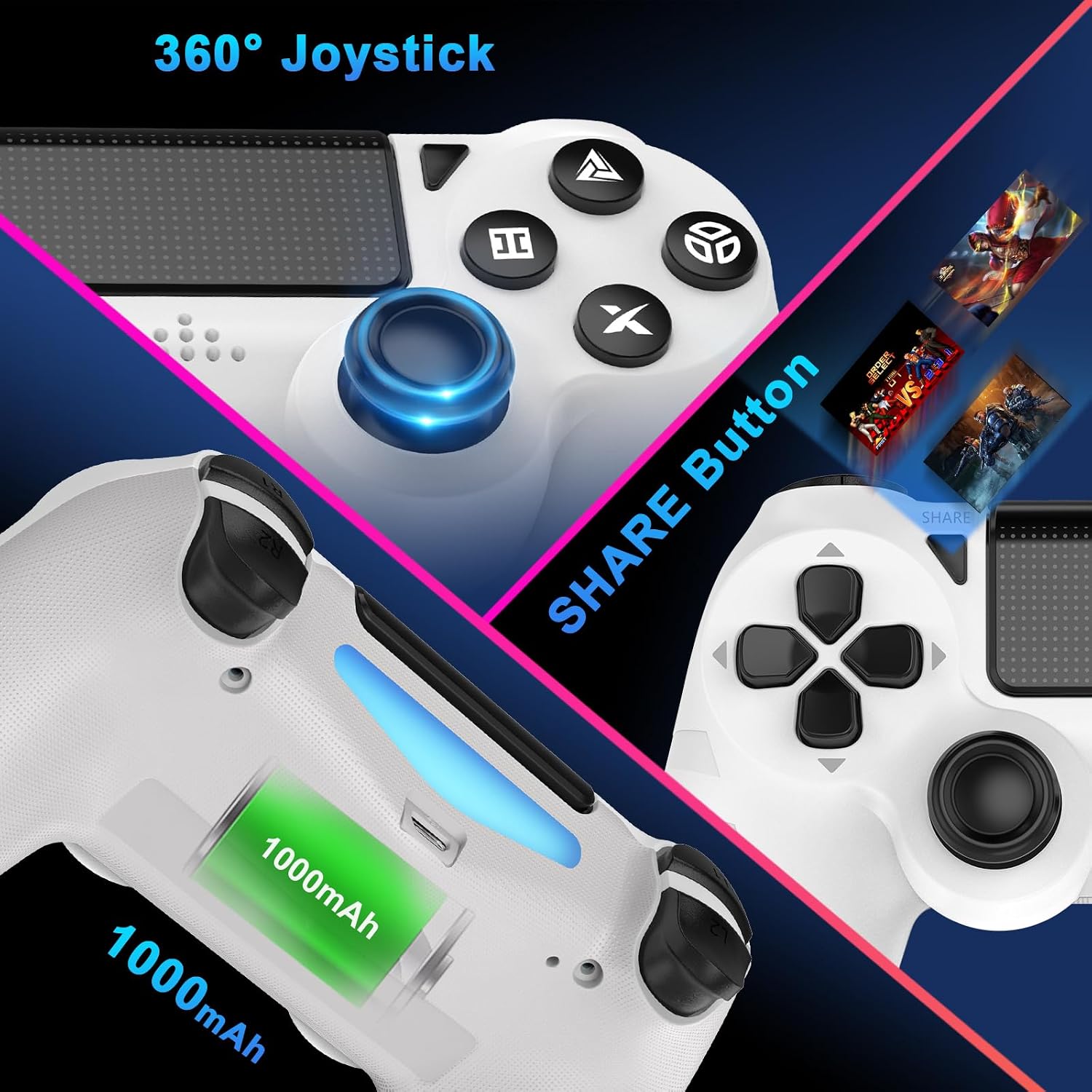
Image: The controller emphasizing the 360-degree joystick and the SHARE button for social features.
Advanced Features
- Dual Vibration Feedback: Experience immersive haptic feedback with dual vibration motors, offering 4 levels of intensity for realistic in-game sensations.
- 6-Axis Motion Sensor: Utilize the built-in accelerometer and gyroscope for intuitive motion control in supported games.
- Audio Jack: Connect a compatible 3.5mm headset to the controller's audio jack for in-game audio and voice chat.
- Upgraded Joystick: The joysticks and buttons are designed for enhanced responsiveness and precision, minimizing input lag and drift.
Maintenance
- Cleaning: Use a soft, dry cloth to wipe the controller. For stubborn dirt, slightly dampen the cloth with water. Avoid using harsh chemicals or abrasive cleaners.
- Storage: Store the controller in a cool, dry place away from direct sunlight and extreme temperatures.
- Battery Care: To prolong battery life, avoid fully discharging the controller frequently. Charge it regularly, even if not in constant use.
- Avoid Drops: Protect the controller from physical impact, as drops can damage internal components.
Troubleshooting
Controller Not Connecting/Pairing
- Check Battery: Ensure the controller is sufficiently charged. Connect it via USB-C cable to confirm.
- Reset Controller: Locate the small reset button on the back of the controller (often near the L2 shoulder button). Use a thin object (like a straightened paperclip) to press and hold the button for 3-5 seconds. Then, attempt to re-pair the controller.
- USB Cable: Try a different USB-C cable to rule out a faulty cable.
- PS4 Console Restart: Restart your PS4 console and try pairing again.
- PC Bluetooth: For PC, ensure Bluetooth is enabled and try removing the controller from your PC's device list before attempting to pair again.
Input Lag or Unresponsive Buttons/Joysticks
- Interference: Move closer to your console/PC to minimize wireless interference.
- Reset Controller: Perform a controller reset as described above.
- Wired Connection: Test the controller with a USB-C cable to see if the issue persists. If it works fine wired, the wireless connection might be experiencing interference.
- Firmware Update: Check the DYONDER official website for any available firmware updates for the controller.
No Vibration Feedback
- Game Settings: Ensure vibration is enabled in the game's settings.
- Console Settings: Verify that vibration is enabled in your PS4 system settings.
Specifications
| Feature | Detail |
|---|---|
| Product Dimensions | 10 x 3.5 x 16 cm (3.94 x 1.38 x 6.3 inches) |
| Weight | 270 g (0.6 lbs) |
| Battery Type | Rechargeable Lithium-ion (1000mAh) |
| Charging Time | Approx. 2 hours |
| Playtime | Over 15 hours |
| Connectivity | Wireless (Bluetooth), USB-C (wired) |
| Compatibility | PS4, PS4 Pro, PS4 Slim, PC |
| Special Features | 6-Axis Motion Sensor, Dual Vibration Feedback (4 levels), Audio Jack, Touch Pad |

Image: The controller with its physical dimensions clearly marked in centimeters and inches.
Warranty Information
DYONDER products are manufactured to high-quality standards. This product comes with a limited warranty against defects in materials and workmanship under normal use. Please refer to the warranty card included in your product packaging for specific terms, conditions, and duration. Keep your purchase receipt as proof of purchase for warranty claims.
Customer Support
If you encounter any issues not covered in this manual or require further assistance, please contact DYONDER customer support. Contact information can typically be found on the product packaging, the official DYONDER website, or through your retailer's support channels.
When contacting support, please have your product model number (B0DWMPHXWB) and a detailed description of the issue ready.
