
1. Introduction
This manual provides essential instructions for the installation, operation, and maintenance of your PHEZEN 9.7-inch Android 13 Car Stereo Radio. Please read this manual thoroughly before using the product to ensure proper function and safety. Keep this manual for future reference.
2. Product Overview
Key Features
- 9.7-inch Android 13 operating system with 2GB RAM + 32GB ROM.
- Integrated Wireless CarPlay and Android Auto for seamless smartphone integration.
- Dual navigation system supporting both offline and online maps.
- Built-in WiFi for internet access and app downloads.
- Bluetooth for hands-free calling and music streaming.
- FM Radio function with preset stations.
- Supports steering wheel controls for convenient operation.
- Includes AHD backup camera with 170° wide-angle, IP68 waterproof rating, and night vision.
- Compatible with Nissan Frontier and Xterra models from 2009 to 2014.
Included Components
The package contains the following items:
- 1 x Car Radio Stereo
- 1 x GPS Cable
- 2 x USB Cable
- 3 x Original Power Cables (select one to use)
- 1 x Canbus Box (two power cables share one canbus box)
- 1 x RCA Cable
- 1 x Camera Input Cable
- 1 x Instruction Manual
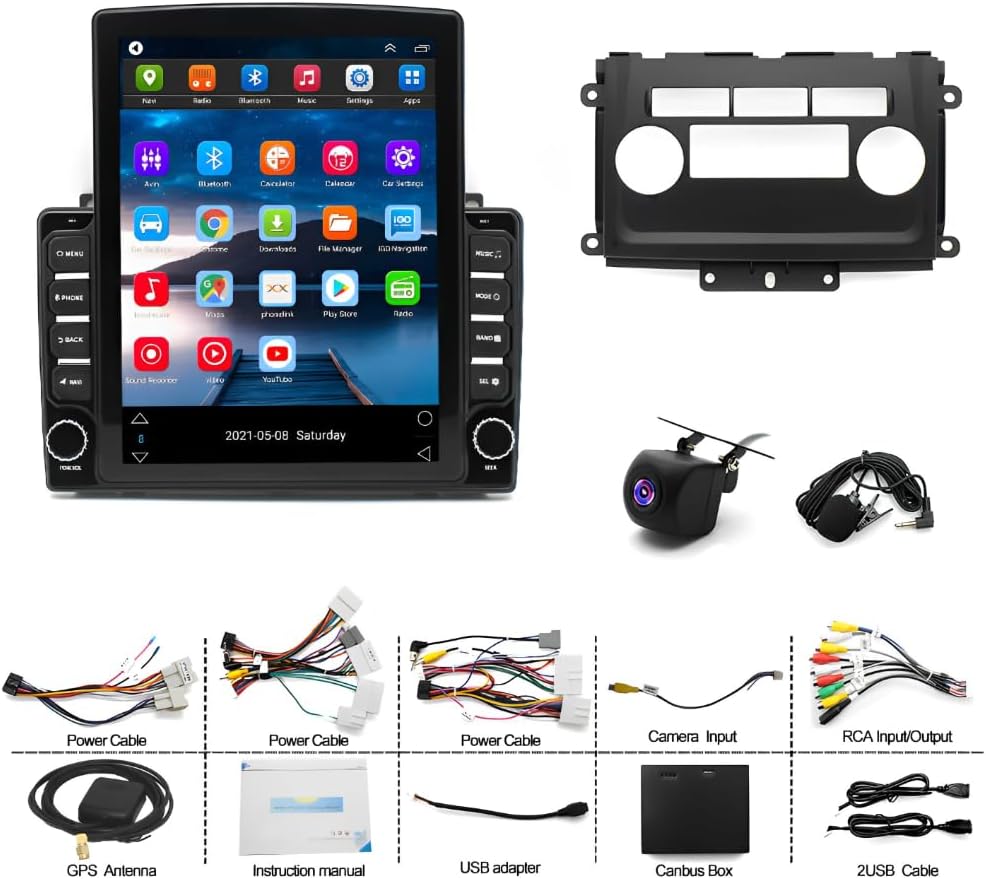
Figure 2.1: All included components.
3. Installation Guide
The PHEZEN car stereo is designed for specific Nissan Frontier and Xterra models (2009-2014). Ensure your vehicle matches the compatibility requirements before proceeding with installation.

Figure 3.1: Installed car stereo in dashboard.
Professional installation is highly recommended to prevent damage to the unit or your vehicle's electrical system. Refer to your vehicle's service manual for specific dashboard disassembly and wiring instructions. Connect all cables as indicated in the wiring diagram provided with your unit.
4. Operating Instructions
4.1 CarPlay & Android Auto
This car stereo supports both Wireless CarPlay and Android Auto, allowing you to integrate your smartphone's features directly onto the 9.7-inch touch screen. Connect your smartphone via Bluetooth and Wi-Fi to access navigation, music, calls, and other applications using voice commands (Siri or Google Assistant).
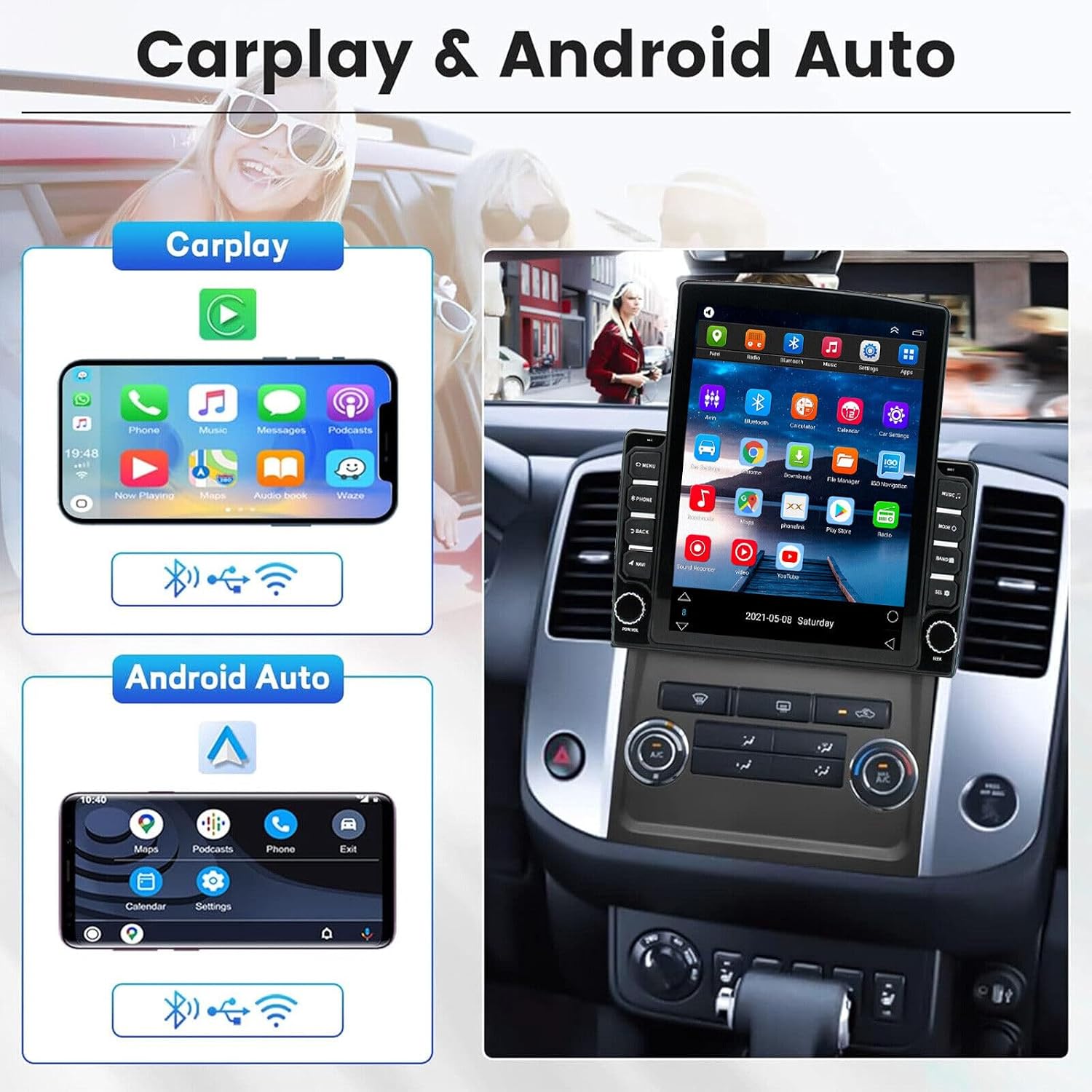
Figure 4.1: CarPlay and Android Auto functionality.
For detailed connection steps, please refer to the video below:
Video 4.1: How to connect your car stereo radio for CarPlay/Android Auto.
4.2 GPS Navigation & WiFi
The unit features a built-in GPS module that supports both offline and online navigation. You can download offline map data for use in areas with limited mobile signal. Connect to a Wi-Fi hotspot to access online maps, stream videos, and download various applications directly to the stereo.

Figure 4.2: GPS Navigation and WiFi Hotspot features.
4.3 Bluetooth & FM Radio
Utilize Bluetooth for hands-free calling and wireless audio streaming from your smartphone. The unit includes a built-in microphone and supports an external microphone for clear communication. The integrated FM radio allows you to tune into your favorite stations and stay updated with news and traffic information.

Figure 4.3: Bluetooth and FM Radio functions.
4.4 Steering Wheel Control & Reversing Display
The car stereo supports your vehicle's original steering wheel controls, allowing you to manage audio, calls, and other functions without taking your hands off the wheel. The included AHD reversing camera provides a 170° wide-angle view with IP68 waterproofing and night vision, automatically displaying the rear view when in reverse gear for safe parking.

Figure 4.4: Reversing Display and Steering Wheel Control setup.
To calibrate the car radio screen, please watch the following video:
Video 4.2: How to calibrate the car radio screen.
5. Troubleshooting
If you encounter issues with your car stereo, please refer to the following general troubleshooting tips:
- Connection Issues: If Bluetooth or ZLINK (CarPlay/Android Auto) connections are unsuccessful, ensure your phone's Bluetooth and Wi-Fi are enabled. For ZLINK, manually connect to the car stereo's Wi-Fi hotspot if automatic connection fails. Refer to Video 4.1 for detailed connection steps.
- Screen Calibration: If the touch screen is unresponsive or inaccurate, perform a screen calibration. Refer to Video 4.2 for instructions.
- No Power: Check all power connections and fuses. Ensure the unit is properly wired according to the installation guide.
- Sound Problems: Verify speaker connections and audio settings. Ensure volume is not muted.
- GPS Signal: Ensure the GPS antenna is properly installed and has a clear view of the sky.
For further assistance, please contact PHEZEN customer support.
6. Specifications
| Feature | Specification |
|---|---|
| Item Weight | 4.52 pounds |
| Product Dimensions | 14.96 x 11.81 x 6.3 inches |
| Item Model Number | RT-QA1777X-WUYA-02 |
| Display Size | 9.7 Inches |
| Voice Command | Touchscreen |
| Brand | PHEZEN |
| Vehicle Service Type | Car |
| Special Feature | Bluetooth |
| Connectivity Technology | Bluetooth, USB, Wi-Fi |
| Map Type | Worldwide |
| Audio Output Mode | Stereo |
| Operating System | Android |
| Memory Storage Capacity | 32 GB |
7. Warranty and Support
PHEZEN provides after-sales support for this product. If you have any questions regarding the car radio for your 2009-2014 Nissan Frontier or Xterra, please contact our customer service team. We aim to respond to inquiries within 24 hours to assist you with any issues.
For support, please refer to the contact information provided with your purchase or visit the official PHEZEN website.