
1. Introduction
This manual provides detailed instructions for the Redragon K558 Mechanical Gaming Keyboard. Please read this guide thoroughly to ensure proper setup, operation, and maintenance of your device. The K558 is designed for precision and durability, featuring responsive blue switches, customizable backlighting, and an ergonomic design for extended use.
Key Features:
- Responsive Clicky Blue Switches for tactile feedback.
- 11 Dynamic Rainbow Backlight Modes with adjustable speed and brightness.
- Ergonomic Design with integrated wrist rest and adjustable kickstands.
- 100% Anti-Ghosting for simultaneous key registration.
- 11 Multimedia Shortcuts for quick access to functions.
- Durable Metal Alloy and ABS Construction.
- Double-Injection ABS Keycaps for clear backlighting and longevity.
- Spill-resistant Protection.
2. Package Contents
Verify that all items are present in your package:
- Redragon K558 Mechanical Gaming Keyboard
- User Manual
- Keycap Puller Tool (may be included)
- Spare Switches (may be included)
3. Setup
Connecting the Keyboard:
- Locate an available USB-A port on your computer or gaming console.
- Plug the USB connector of the Redragon K558 keyboard into the USB-A port.
- The operating system will automatically detect and install the necessary drivers. No additional software installation is typically required.
- The keyboard is ready for use once the backlight illuminates.
Compatibility: The Redragon K558 is compatible with Windows 7/8/10/XP/VISTA/95/98/2000/ME, Mac OS, Xbox, PC, and Laptops.

Image: The Redragon K558 Mechanical Gaming Keyboard, showcasing its full layout and wired USB connection.
4. Operating Instructions
Basic Keyboard Functions:
The K558 features a full 104-key layout, including a numeric keypad. Its 100% anti-ghosting technology ensures that every keypress registers correctly, even when multiple keys are pressed simultaneously, which is crucial for fast-paced gaming and typing.

Image: A visual representation of the K558's full 104-key layout with arrows indicating simultaneous key presses, demonstrating its anti-ghosting capability.
Backlight Control:
The keyboard offers 11 dynamic rainbow backlight modes. You can adjust the speed and brightness of these effects to suit your preference.
- Change Backlight Mode: Press FN + INS to cycle through the 11 available backlight modes.
- Adjust Brightness: Press FN + ↑ (Up Arrow) to increase brightness, and FN + ↓ (Down Arrow) to decrease brightness. There are 5 adjustable levels.
- Adjust Speed: Press FN + ← (Left Arrow) to decrease the speed of dynamic effects, and FN + → (Right Arrow) to increase the speed. There are 5 adjustable levels.
- Turn Off Backlight: Press FN + ↓ five times to turn off the backlight completely.

Image: The K558 keyboard illuminated with rainbow backlighting, illustrating the controls for adjusting modes, brightness, and speed.
Multimedia Shortcuts:
The K558 includes 11 multimedia shortcuts for convenient access to common functions. Press the FN key in combination with the corresponding function key:
| Key Combination | Function |
|---|---|
| FN + F1 | My Computer |
| FN + F2 | Search |
| FN + F3 | Calculator |
| FN + F4 | Multimedia Player |
| FN + F5 | Previous Track |
| FN + F6 | Next Track |
| FN + F7 | Play/Pause |
| FN + F8 | Stop |
| FN + F9 | Mute |
| FN + F10 | Volume Down |
| FN + F11 | Volume Up |
| FN + WIN | Disable/Enable Windows Key |

Image: A visual guide to the K558's multimedia function keys, detailing each FN key combination and its corresponding action.
Customizable Profiles:
The keyboard supports three customizable profiles for recording key sequences or macros. Follow these steps to set up and use a profile:
- Select Profile: Press FN + 1/2/3 to select one of the three profiles (Profile 1, 2, or 3).
- Start Recording: Press FN + Home to enter recording mode. The indicator light will typically flash.
- Set Desired Keys: Type the sequence of keys you wish to record for the profile.
- Save and Quit: Press FN + End to save the recording and exit recording mode. The indicator light will stop flashing.
- Play Recording: Press FN + 1/2/3 (the selected profile) to execute the recorded sequence.
- Delete Recording: Press FN + PGUP to delete the recording for the currently selected profile.
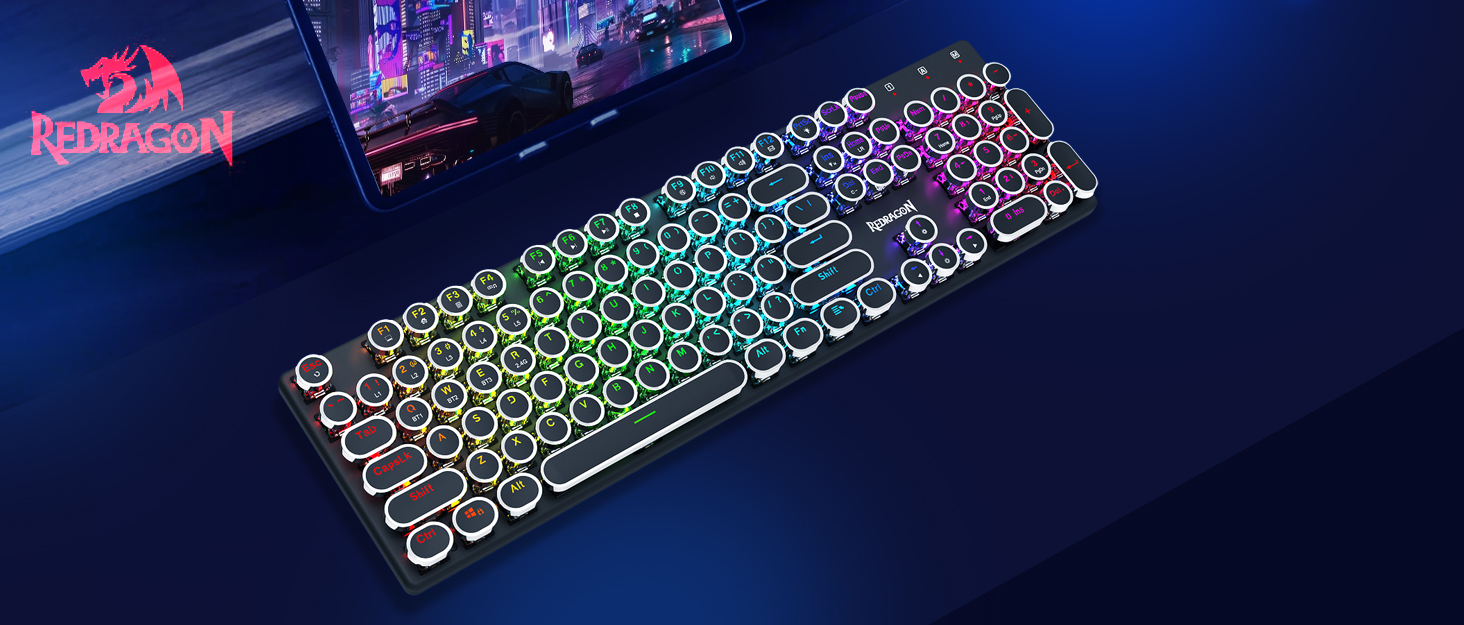
Image: The K558 keyboard demonstrating the steps for creating and managing three customizable user profiles.
5. Features Overview
Blue Switches:
The K558 is equipped with clicky blue mechanical switches, providing a distinct tactile bump and audible click with each keystroke. This design offers quick response times, enhanced accuracy, and a satisfying typing experience. These switches have a durability of up to 50 million keystrokes, a travel distance of 4.0mm, and an actuation force of 50±15g.

Image: A detailed view of the K558's blue mechanical switches, highlighting their construction and specifications like durability and travel distance.
Ergonomic Design:
Designed for comfort during prolonged use, the K558 features a scientific stair-up keycap layout and a spacious integrated wrist rest. This design helps maintain a natural arm position, reducing hand fatigue. Additionally, two sturdy, foldable rear kickstands allow you to adjust the keyboard's angle for optimal posture.

Image: A visual breakdown of the K558's ergonomic design, including the integrated wrist rest, stepped keycap layout, and adjustable kickstands.
Durable Construction:
The keyboard is constructed with a top-grade metal alloy and ABS material, providing a sturdy and scratch-resistant panel. The gold-plated USB connector ensures a stable and reliable connection, essential for consistent performance. Weighing 1.39kg, the keyboard offers significant stability during use.

Image: A view of the K558 keyboard highlighting its metal and ABS construction, along with its dimensions and weight.
Double-Injection ABS Keycaps:
The ultra-durable double-injection ABS keycaps ensure a crystal-clear, uniform backlight. This manufacturing process prevents legends from fading over time, maintaining readability and aesthetic appeal.
Spill-Resistant Protection:
The K558 is designed with spill-resistant features to help prevent accidental liquid damage from interrupting your usage. While it offers protection, it is not fully waterproof, and care should still be taken to avoid liquid exposure.

Image: A close-up of the K558 keyboard's surface, indicating its spill-resistant protection feature.
6. Maintenance
Cleaning the Keyboard:
- Disconnect the keyboard from your computer before cleaning.
- Use a soft, lint-free cloth slightly dampened with water or a mild cleaning solution to wipe the surface of the keyboard.
- For dust and debris between keycaps, use compressed air.
- Avoid using harsh chemicals, abrasive cleaners, or excessive moisture, as these can damage the keyboard.
Keycap and Switch Care:
- If removing keycaps for deeper cleaning or switch replacement, use the provided keycap puller tool to avoid damage.
- Gently pull keycaps straight up. When reattaching, align them carefully and press down firmly until they click into place.
7. Troubleshooting
Keyboard Not Responding:
- Ensure the USB cable is securely plugged into both the keyboard and the computer's USB port.
- Try plugging the keyboard into a different USB port on your computer.
- Test the keyboard on another computer to determine if the issue is with the keyboard or the computer.
- Restart your computer.
Backlight Not Working or Incorrect:
- Ensure the backlight is not turned off (press FN + ↑ to increase brightness).
- Cycle through backlight modes using FN + INS.
- Adjust brightness and speed using FN + ↑/↓ and FN + ←/→.
Keys Not Registering or Ghosting:
- The K558 features 100% anti-ghosting, so this should be rare. If it occurs, ensure no debris is lodged under the keycap.
- Try cleaning the affected key area.
- If the issue persists, contact customer support.
8. Specifications
| Feature | Detail |
|---|---|
| Model Number | K558 |
| Product Dimensions | 17.8 x 1.3 x 6.1 inches (45.2 x 3.3 x 15.5 cm) |
| Item Weight | 1.76 pounds (0.8 kg) |
| Connectivity Technology | USB-A (Wired) |
| Keyboard Description | Mechanical Gaming Keyboard |
| Switch Type | Clicky Blue Switches |
| Key Count | 104 Keys |
| Anti-Ghosting | 100% Anti-Ghosting |
| Backlighting | Rainbow Backlit (11 modes, 5 brightness, 5 speed levels) |
| Special Features | Backlit, Ergonomic, Integrated Stand, Wrist Rest, Spill-resistant |
| Compatible Devices | Gaming Console, Laptop, PC (Windows, Mac OS, Xbox) |
| Material | Metal Alloy and ABS |
9. Warranty and Support
Redragon products are designed for reliability and performance. For warranty information, technical support, or service inquiries, please refer to the warranty card included with your product or visit the official Redragon website. Keep your purchase receipt as proof of purchase for warranty claims.
Redragon Official Website: www.redragonusa.com