
1. Introduction
This manual provides essential instructions for the setup, operation, maintenance, and troubleshooting of your TCL 75-Inch QM6K QLED 4K Smart TV and TCL Q85H 7.1.4 Channel Sound Bar. Please read this manual thoroughly before using your products to ensure proper and safe operation.
2. Safety Information
Observe the following safety precautions to prevent damage to the product and ensure user safety:
- Do not expose the TV or Sound Bar to rain or moisture.
- Do not block ventilation openings. Ensure adequate space around the devices for proper airflow.
- Use only attachments/accessories specified by the manufacturer.
- Protect power cords from being walked on or pinched.
- Unplug the devices during lightning storms or when unused for long periods.
- Refer all servicing to qualified service personnel.
3. Package Contents
Verify that all items are present in the packaging:
- TCL 75-Inch QM6K QLED 4K Smart TV
- TV Remote Control with Batteries
- TV Stand (2 pieces) and Screws
- Power Cable for TV
- TCL Q85H Sound Bar
- Wireless Subwoofer
- Wireless Satellite Speakers (2)
- Sound Bar Remote Control with Batteries
- Power Cables for Sound Bar, Subwoofer, and Satellite Speakers
- HDMI Cable
- User Manuals (this document)
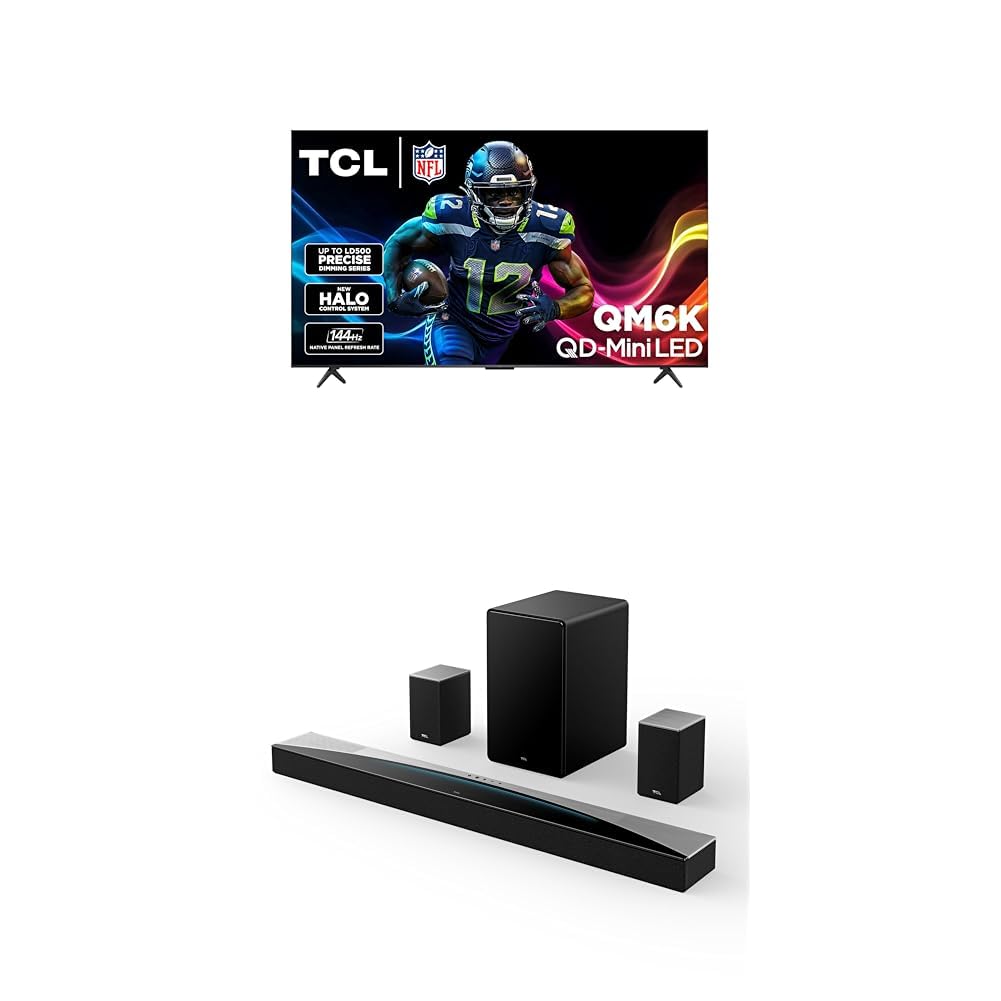
Image: The TCL 75-Inch QM6K QLED 4K Smart TV displaying a football game, alongside the TCL Q85H 7.1.4 Channel Sound Bar system, which includes the main soundbar unit, a wireless subwoofer, and two wireless satellite speakers.
4. TV Setup (TCL 75QM6K)
4.1 Unpacking and Placement
- Carefully remove the TV from its packaging. It is recommended that two or more people handle the 75-inch TV.
- Place the TV on a stable, flat surface or prepare for wall mounting. Ensure proper ventilation around the TV.
4.2 Stand Installation
If using the included stand:
- Lay the TV face down on a soft, clean surface to prevent screen damage.
- Align each stand leg with the corresponding slots on the bottom of the TV.
- Secure each leg with the provided screws.
For wall mounting, refer to the instructions provided with your wall mount kit. TCL recommends professional installation for wall-mounted TVs.
4.3 Connecting Power and Initial Setup
- Connect the TV's power cable to the power input on the back of the TV, then plug the other end into a power outlet.
- Press the power button on the TV or remote control to turn on the TV.
- Follow the on-screen instructions to complete the initial Google TV setup, including language selection, network connection, and Google account sign-in.
5. Sound Bar Setup (TCL Q85H)
5.1 Placement
- Place the main sound bar unit centrally below your TV.
- Position the wireless subwoofer in a corner of the room or near the TV for optimal bass response.
- Place the wireless satellite speakers behind your listening position, ensuring they are within range of the main sound bar unit.
5.2 Connecting to TV
For the best audio experience, connect the sound bar to your TV using the HDMI eARC/ARC port.
- Connect one end of the provided HDMI cable to the HDMI OUT (eARC/ARC) port on the sound bar.
- Connect the other end of the HDMI cable to the HDMI (eARC/ARC) port on your TCL TV.
- Alternatively, you can use an Optical Digital Audio cable if your TV does not support HDMI ARC/eARC.
5.3 Power Connection and Pairing
- Connect the power cables to the sound bar, subwoofer, and satellite speakers, then plug them into power outlets.
- The subwoofer and satellite speakers should automatically pair with the main sound bar unit. Indicators on the units will confirm successful pairing. If pairing fails, refer to the troubleshooting section.
6. Operating Instructions
6.1 TV Operation (TCL 75QM6K)
Remote Control
The TV remote control allows you to navigate the Google TV interface, adjust settings, and control playback. Key buttons include Power, Input, Volume Up/Down, Channel Up/Down, Navigation Pad, Back, Home, and dedicated app buttons.
Google TV Interface
- Home Screen: Access your favorite apps, movies, and shows.
- Voice Control: Use the built-in Google Assistant by pressing the microphone button on your remote.
- Inputs: Select connected devices (HDMI 1, HDMI 2, etc.) from the input menu.
Picture Settings
Access the Picture settings menu to customize your viewing experience. Features include:
- Picture Mode: Select from preset modes (e.g., Standard, Movie, Sport, Game) or customize your own.
- Brightness/Contrast/Color: Adjust these parameters for optimal image quality.
- QD-Mini LED: This technology provides precise lighting control.
- TCL Halo Control System: Advanced local dimming for enhanced contrast and reduced halo effects.
- LD500 Precise Dimming Series: Up to 500 local dimming zones for deep blacks and bright highlights.
- Motion Settings: Adjust motion smoothing for different content types.
Sound Settings
Adjust audio output from the Sound settings menu:
- Sound Mode: Choose from various sound modes (e.g., Standard, Dynamic, Movie).
- Audio Output: Select between TV speakers or external audio system (e.g., HDMI eARC to Sound Bar).
- Dolby Atmos/DTS:X: Ensure these settings are enabled for compatible content when using the Q85H Sound Bar.
Connectivity
- Wi-Fi: Connect to your home network for internet access and streaming.
- Bluetooth: Pair wireless headphones or other Bluetooth devices.
- HDMI Ports: Connect external devices like gaming consoles, Blu-ray players, or cable boxes.
- USB Ports: Play media files from USB storage devices.
6.2 Sound Bar Operation (TCL Q85H)
Remote Control
The sound bar remote control allows you to power on/off, select input sources, adjust volume, and change sound modes.
Input Selection
Press the 'Input' button on the remote to cycle through available sources (e.g., HDMI eARC, Optical, Bluetooth).
Sound Modes
Select different sound modes (e.g., Movie, Music, Voice) to optimize audio for various content types. The Q85H supports Dolby Atmos and DTS:X for immersive spatial audio.
Bluetooth Pairing
To pair a Bluetooth device:
- Press the Bluetooth button on the sound bar remote. The indicator will flash.
- Enable Bluetooth on your device and select "TCL Q85H" from the list of available devices.
- Once connected, the indicator will become solid.
7. Maintenance
7.1 Cleaning
- Screen: Gently wipe the screen with a soft, dry, lint-free cloth. For stubborn marks, use a screen cleaner specifically designed for TVs, applied to the cloth, not directly to the screen.
- Cabinet/Sound Bar: Wipe surfaces with a soft, dry cloth. Do not use abrasive cleaners or solvents.
- Ensure devices are unplugged before cleaning.
7.2 Software Updates
Your TCL TV may receive automatic software updates via its internet connection. Ensure your TV is connected to the internet to receive the latest features and performance improvements. You can also manually check for updates in the TV's settings menu.
8. Troubleshooting
| Problem | Possible Cause | Solution |
|---|---|---|
| No power (TV/Sound Bar) | Power cable not connected; Power outlet not working. | Check power cable connections; Try a different outlet; Ensure power switch is on. |
| No picture (TV) | Incorrect input source; Loose HDMI cable; Device not powered on. | Select correct input source; Reconnect HDMI cable; Power on connected device. |
| No sound (TV/Sound Bar) | Volume too low/muted; Incorrect audio output selected; Sound Bar not connected/paired. | Increase volume, unmute; Select correct audio output (e.g., HDMI eARC); Ensure Sound Bar is powered on and paired. |
| Remote control not working | Dead batteries; Obstruction between remote and device; Remote not paired. | Replace batteries; Remove obstructions; Re-pair remote if necessary (refer to TV settings). |
| Wi-Fi connection issues | Incorrect password; Router issues; Out of range. | Verify password; Restart router; Move TV closer to router or use a Wi-Fi extender. |
| Subwoofer/Satellite speakers not pairing | Out of range; Interference; Manual pairing required. | Ensure units are within range; Reduce interference; Refer to Sound Bar manual for manual pairing steps. |
9. Specifications
9.1 TCL 75QM6K QLED 4K Smart TV
- Display Size: 75 inches
- Display Technology: QLED 4K QD-Mini LED
- Resolution: 3840 x 2160 (4K UHD)
- Refresh Rate: 144Hz Native Panel Refresh Rate
- Backlight: Up to LD500 Precise Dimming Series (up to 500 local dimming zones)
- Control System: TCL Halo Control System
- Operating System: Google TV
- Audio Support: Dolby Atmos, DTS:X (via passthrough)
- Connectivity: Wi-Fi, Bluetooth, HDMI (eARC/ARC), USB, Ethernet
9.2 TCL Q85H 7.1.4 Channel Sound Bar
- Channels: 7.1.4 Channel
- Total Power: Up to 860 Watts
- Audio Technologies: Dolby Atmos, DTS:X
- Components: Main Sound Bar, Wireless Subwoofer, 2 Wireless Satellite Speakers
- Connectivity: HDMI eARC/ARC, Optical, Bluetooth
10. Warranty and Support
For detailed warranty information, please refer to the warranty card included with your product or visit the official TCL website. TCL provides customer support for product inquiries, technical assistance, and service requests.
TCL Support Website: www.tcl.com/us/en/support
Please have your model number (75QM6K for TV, Q85H for Sound Bar) and serial number ready when contacting support.


