
1. Introduction
This manual provides detailed instructions for the setup, operation, maintenance, and troubleshooting of your MOTOSPEED X1 4K Mini Wireless Gaming Mouse. Please read this manual thoroughly before using the product to ensure optimal performance and longevity.
2. Package Contents
- MOTOSPEED X1 Wireless Gaming Mouse
- USB-C to USB-A Charging/Data Cable
- 2.4G USB Receiver
- User Manual
3. Product Overview
Familiarize yourself with the components of your MOTOSPEED X1 mouse.
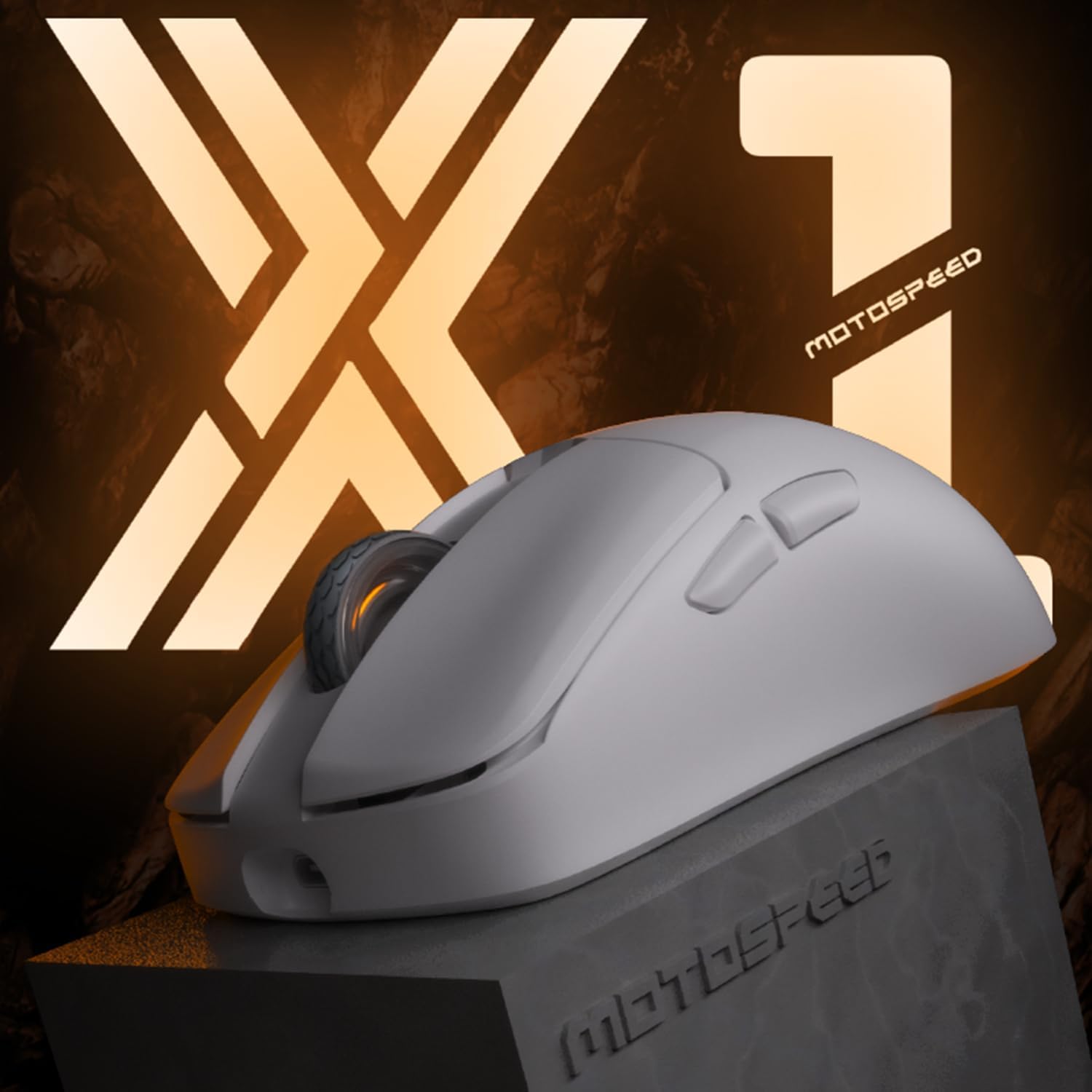
Image: The MOTOSPEED X1 Wireless Gaming Mouse.

Image: Exploded view showing internal components including Roller, Casing, Sensor (PAW3395), Encoder (TTC Golden Wheel), Micromotion (OMRON), Battery (300 mAh), IC (BK3633), PTFE feet, and Side Keys.
Key Components:
- Left/Right Click Buttons: Standard mouse functions.
- Scroll Wheel: For scrolling and middle-click function.
- DPI Adjustment Keys: Located near the scroll wheel to cycle through DPI settings.
- Forward/Back Buttons: Side buttons for navigation, programmable.
- Type-C Interface: For wired connection and charging.
- Wireless/OFF/Bluetooth Toggle Key: Located on the bottom of the mouse to switch between connection modes.
- PAW3395 Optical Sensor: High-performance sensor for precise tracking.
- OMRON Micromotion Switches: Durable switches for consistent click feedback.
4. Setup
4.1 Charging the Mouse
Before first use, it is recommended to fully charge the mouse. Connect the USB-C end of the charging cable to the mouse and the USB-A end to a powered USB port on your computer or a USB wall adapter. The mouse's indicator light will show charging status.
4.2 Connecting via 2.4G Wireless Mode
- Locate the 2.4G USB receiver in the package.
- Plug the 2.4G USB receiver into an available USB port on your computer.
- Slide the toggle switch on the bottom of the mouse to the 'G' position (2.4G mode).
- The green light at the scroll wheel position will illuminate for three seconds and then turn off, indicating a successful connection.
4.3 Connecting via Bluetooth Mode
- Slide the toggle switch on the bottom of the mouse to the 'B' position (Bluetooth mode).
- Press the left, center (scroll wheel click), and right buttons simultaneously to enter pairing mode. The blue light at the scroll wheel position will flash quickly.
- On your computer or device, open Bluetooth settings and search for new devices.
- Select 'MOTOSPEED X1' from the list of available devices to pair.
4.4 Connecting via USB-C Wired Mode
- Connect the USB-C end of the cable to the mouse and the USB-A end to your computer.
- The mouse will automatically prioritize the wired connection.

Image: Diagram illustrating 2.4G pairing, Bluetooth pairing, and Wired connection methods for the MOTOSPEED X1 mouse.
4.5 Software Installation (for Programmable Buttons and DPI Settings)
To customize DPI settings, key functions, and macro settings for the 5 programmable buttons, download the official MOTOSPEED X1 software from the manufacturer's website. Follow the on-screen instructions for installation and configuration.
5. Operating Instructions
5.1 Switching Connection Modes
Use the toggle switch on the bottom of the mouse to select your desired connection mode: 'OFF' to power off, 'B' for Bluetooth, or 'G' for 2.4G wireless. When connected via USB-C cable, the mouse will operate in wired mode.
5.2 DPI Adjustment
Press the DPI adjustment keys located near the scroll wheel to cycle through different DPI sensitivity levels. The current DPI setting may be indicated by an LED color change or through the software.
5.3 Using Programmable Buttons
The MOTOSPEED X1 features 5 programmable buttons. To assign custom functions, macros, or key bindings, use the dedicated MOTOSPEED X1 software. Refer to the software's help section for detailed instructions on customization.
5.4 Battery Status
The mouse is equipped with a 300 mAh lithium battery. When the battery level is low, an indicator light on the mouse may flash or change color. Connect the mouse via USB-C cable to charge it.
6. Maintenance
6.1 Cleaning
- Gently wipe the mouse surface with a soft, dry, or slightly damp cloth.
- Avoid using harsh chemicals, solvents, or abrasive cleaners.
- Keep the optical sensor clean and free from dust or debris for accurate tracking.
6.2 Battery Care
- Avoid exposing the mouse to extreme temperatures.
- Do not leave the mouse uncharged for extended periods.
- If storing the mouse for a long time, charge it to about 50% before storage.
7. Troubleshooting
7.1 Mouse Not Responding
- Ensure the mouse is powered on and the correct connection mode (2.4G, Bluetooth, or Wired) is selected.
- Check battery level and charge if necessary.
- For 2.4G mode, ensure the USB receiver is securely plugged in. Try a different USB port.
- For Bluetooth mode, ensure Bluetooth is enabled on your device and the mouse is paired. Try re-pairing.
- For wired mode, ensure the USB-C cable is properly connected to both the mouse and the computer.
- Restart your computer.
7.2 Lag or Intermittent Connection
- Ensure the mouse is within range of the 2.4G receiver or Bluetooth device.
- Minimize interference from other wireless devices (e.g., Wi-Fi routers, other wireless peripherals).
- Ensure the mouse's battery is sufficiently charged.
- Update your computer's USB or Bluetooth drivers.
7.3 Buttons Not Functioning Correctly
- Check if the buttons have been remapped using the MOTOSPEED X1 software. Reset to default settings if needed.
- Ensure no debris is obstructing the buttons.
8. Specifications

Image: Technical drawing showing the dimensions of the MOTOSPEED X1 mouse: Length 117mm, Width 62mm, Height 40mm.
| Feature | Description |
|---|---|
| Brand | MOTOSPEED |
| Model | X1 |
| Color | White |
| Connectivity Technology | 2.4G Wireless, Bluetooth, USB-C Wired (Tri-Mode) |
| Sensor | PAW3395 Optical Sensor |
| DPI Resolution | Up to 26000 DPI |
| Tracking Speed | 650 IPS |
| Acceleration | 50G |
| Polling Rate | 1000-4000Hz (4K) |
| Programmable Buttons | 5 |
| Weight | Approximately 48g (mouse only) |
| Battery | 1 Lithium Ion battery (300 mAh, included) |
| Hand Orientation | Right |
| Compatible Devices | Personal Computer (Laptop, PC, Mac) |
9. Warranty and Support
9.1 Warranty Information
The MOTOSPEED X1 Gaming Mouse comes with a 1-year limited warranty from the date of purchase. This warranty covers manufacturing defects and workmanship under normal use. It does not cover damage caused by misuse, accidents, unauthorized modifications, or normal wear and tear.
9.2 Customer Support
For technical assistance, warranty claims, or further inquiries, please contact MOTOSPEED customer support through their official website or the retailer where the product was purchased. Please have your product model and purchase details ready when contacting support.
