
1. Introduction
The Gogerit 3-in-1 Wireless CarPlay & Android Auto Adapter is designed to enhance your in-car entertainment and connectivity experience. This device converts your vehicle's existing wired CarPlay or Android Auto system into a wireless one, allowing for seamless integration with your smartphone. It also features built-in video streaming capabilities for platforms like Netflix and YouTube, and supports TF card playback for local media, providing versatile entertainment options during your journeys.

Image: The Gogerit 3-in-1 Wireless CarPlay & Android Auto Adapter, a compact black device, shown in a car interior with a smartphone and the car's display screen.
2. Package Contents
Please verify that all items listed below are included in your package:
- 1x Gogerit Wireless CarPlay and Android Auto Adapter
- 1x USB-A to USB-C Cable
- 1x USB-C to USB-C Cable
- 1x Instruction Manual
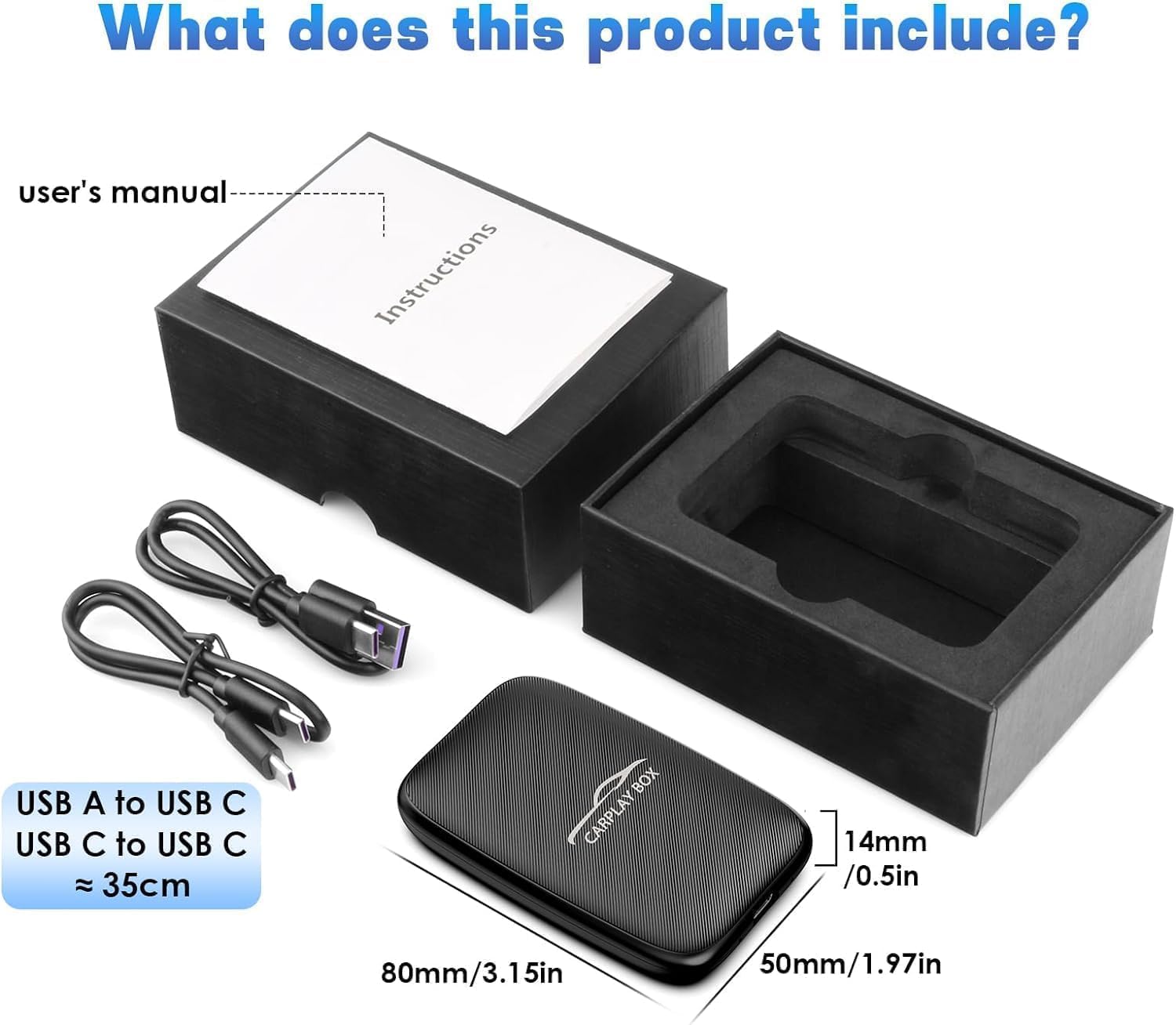
Image: The adapter, two USB cables (USB-A to C and USB-C to C), and the instruction manual neatly packaged in a box.
3. Compatibility
This adapter is designed for broad compatibility with vehicles and smartphones:
- Vehicle Compatibility: Fits over 800 models with wired CarPlay/Android Auto manufactured after 2016.
- Note: Not compatible with BMW or Tesla vehicles.
- Smartphone Compatibility:
- iPhones with iOS 10.0 and above
- Smartphones with Android 11.0 and above

Image: Various car brand logos and smartphone models illustrating the wide compatibility of the Gogerit adapter.
4. Setup & Installation
Follow these steps to set up your Gogerit Wireless Adapter:
- Connect the Adapter: Plug the wireless adapter into your car's original USB-A or USB-C port using the provided cable.
- Enable Bluetooth & Wi-Fi: On your smartphone, turn on both Bluetooth and Wi-Fi.
- Pair with the Adapter: Search for the adapter's Bluetooth name (e.g., "HI-BOX" or "SmartBox") on your phone and click "Pair".
- Confirm Connection: On your car's display, select "Use CarPlay" or "Android Auto" when prompted to establish the wireless connection.
Once the initial setup is complete, the adapter will automatically connect to your phone each time you start your vehicle, eliminating the need for additional drivers or cables.

Image: A visual guide showing the three steps for connecting the wireless adapter to a car's USB port and pairing it with a smartphone.
Setup Video Guide
Video: A demonstration of connecting the Gogerit Wireless CarPlay Adapter to a car's USB port and pairing it with a smartphone for wireless CarPlay functionality.
5. Operating Instructions
Wireless CarPlay/Android Auto
Once connected, your car's display will mirror your smartphone's CarPlay or Android Auto interface. You can navigate through apps, make calls, send messages, and access music using the car's touchscreen, steering wheel controls, or voice commands (e.g., Siri, Google Assistant).

Image: A car's infotainment screen displaying both Apple CarPlay and Android Auto interfaces, demonstrating the 2-in-1 wireless functionality of the adapter.
Streaming Video & Local Media Playback
The adapter allows you to stream video content directly on your car's screen. To use streaming apps like Netflix and YouTube, connect the adapter to a mobile hotspot from your smartphone or another device. For offline entertainment, insert a TF card into the adapter to play local music and videos.

Image: A car's display showing Netflix and YouTube icons, indicating support for streaming video content through the adapter.
General Operation Video Guide
Video: A comprehensive overview of the Gogerit 3-in-1 Wireless CarPlay and Android Auto Adapter, demonstrating its features and general usage in a vehicle.
6. Maintenance
- Cleaning: Use a soft, dry cloth to clean the adapter. Avoid liquid cleaners or abrasive materials.
- Storage: Store the adapter in a cool, dry place when not in use.
- Software Updates: Periodically check for software updates to ensure optimal performance and compatibility. Updates typically require an internet connection (e.g., via mobile hotspot).
7. Troubleshooting
Common Issues and Solutions:
- No Connection:
- Ensure the adapter is securely plugged into the car's USB port.
- Verify that Bluetooth and Wi-Fi are enabled on your smartphone.
- Restart both your smartphone and the car's infotainment system.
- Check if your car model and phone OS are compatible (refer to Section 3).
- Intermittent Connection:
- Ensure there are no obstructions between your phone and the adapter.
- Avoid placing other wireless devices directly next to the adapter.
- Check for software updates for the adapter.
- Video Streaming Issues:
- Confirm that the adapter is connected to a stable internet source (mobile hotspot).
- Check the strength of your mobile hotspot signal.
- Ensure your streaming app subscriptions are active.
- TF Card Not Recognized:
- Ensure the TF card is inserted correctly.
- Check if the TF card is formatted to a compatible file system (e.g., FAT32).
- Try a different TF card to rule out card issues.
8. Specifications
| Feature | Detail |
|---|---|
| Brand | Gogerit |
| Model | B0DWMCTBCK |
| Connector Type | USB-C (with USB-A adapter cable included) |
| Compatible Devices | iPhone (iOS 10.0+), Android (Android 11.0+) |
| Special Features | Wireless CarPlay, Wireless Android Auto, Plug and Play, Video Streaming (Netflix, YouTube), TF Card Support |
| Color | Black |
| Number of Items | 1 |
| Portable | Yes |
9. Warranty & Support
The Gogerit 3-in-1 Wireless CarPlay & Android Auto Adapter comes with a standard 1-year warranty. For any technical assistance, questions, or concerns, our professional technical support team is available 24/7.
For further support or to explore other Gogerit products, please visit the Gogerit Store on Amazon.