
1. Introduction
This manual provides detailed instructions for the setup, operation, and maintenance of your UYXOERA 26800 in 1 3D Box Arcade Game Console. Please read this manual thoroughly before using the product to ensure proper functionality and to maximize your gaming experience.
2. Package Contents
Verify that all items listed below are included in your package:
- 1 x 3D Game Box Arcade Console
- 1 x Power Adapter
- 1 x HDMI Data Cable
- 1 x VGA Data Cable
- 1 x User Manual
- 2 x Replacement Control Buttons
- 1 x Original Packaging Box

Figure 2.1: Arcade Console and Included Accessories
Video 2.1: Unboxing the UYXOERA Arcade Game Console. This video demonstrates the contents of the package and provides a visual overview of the console and its accessories.
3. Setup Instructions
Follow these steps to connect your arcade game console to a display device.
- Power Connection: Connect the provided power adapter to the DC 12V input port on the back of the console. Plug the adapter into a standard electrical outlet.
- Display Connection:
- HDMI: For high-definition output, connect one end of the HDMI cable to the HDMI port on the console and the other end to an HDMI input on your TV, monitor, or projector.
- VGA: For VGA output, connect one end of the VGA cable to the VGA port on the console and the other end to a VGA input on your monitor or projector.
- External Controller (Optional): To enable 3 or 4 player gameplay (if supported by the game), connect an extra USB joystick to the USB 1 port. To use the console as an external joystick for a PC or PS3, connect it via the USB 2 port.
- Power On: Flip the ON/OFF switch on the back of the console to the 'ON' position.
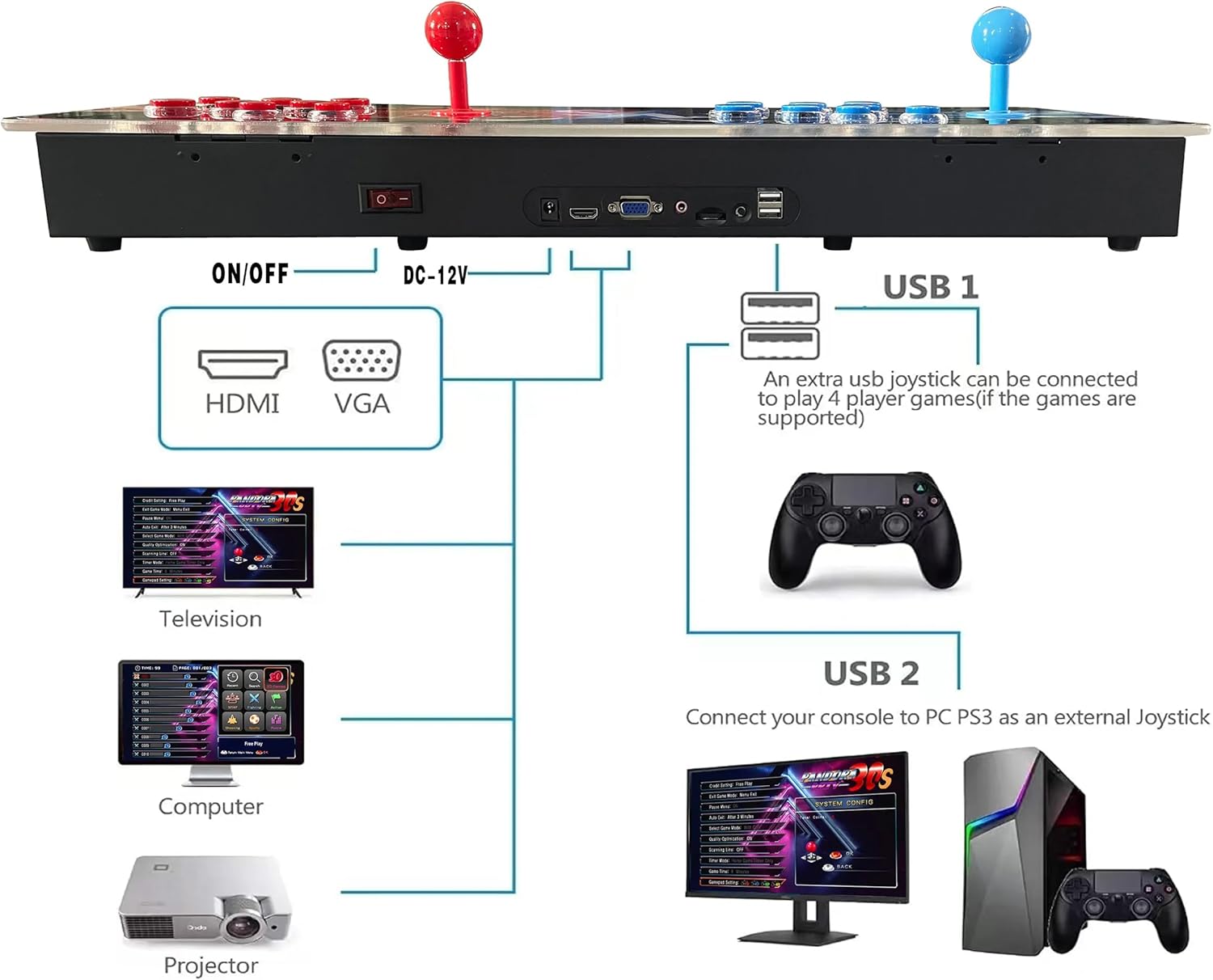
Figure 3.1: Connection Diagram for Arcade Console
4. Operating Instructions
Navigate the game console and utilize its features with these instructions.
4.1 Basic Controls
The console features a professional arcade-style control panel with dual joysticks and multiple buttons for each player. Refer to the diagram below for button layout.

Figure 4.1: Arcade Console Button Layout
4.2 Game Selection and Navigation
The console features an easy-to-navigate menu system. Use the joysticks to move between options and the action buttons to select.
- Game Categories: Games are categorized by genre, including 3D, Fighting, Sports, Action, Shooting, and Puzzle games.
- Recent Games: Access recently played games quickly.
- Search: Use the search function to find specific games within the extensive library.
- Favorite List: Add your preferred games to a favorite list for easy access.

Figure 4.2: Game Menu Interface
4.3 Advanced Features
- Save/Load Progress: During gameplay, you can pause the game and save your progress. This allows you to resume your game at a later time.
- Pause Functionality: Press the pause button to temporarily stop gameplay.
- Hide Games: This feature allows you to hide specific games from the main game list.
- Multiplayer Support: The console supports 1-4 players. For 3 or 4 players, an additional USB controller is required and connects to the USB 1 port.

Figure 4.3: In-Game Pause Menu

Figure 4.4: Console supporting up to four players
4.4 Lighting Effects
The console features integrated lighting effects that enhance the gaming atmosphere. These lights can change colors, as shown in the examples below.

Figure 4.5: Console with various lighting effects
5. Maintenance
To ensure the longevity and optimal performance of your arcade console, observe the following maintenance guidelines:
- Ventilation: Ensure adequate ventilation around the console to prevent overheating. Do not block air vents.
- Cleaning: Use a soft, dry cloth to clean the console's surface. Avoid abrasive cleaners or solvents.
- Storage: When not in use, store the console in a cool, dry place away from direct sunlight and extreme temperatures.
6. Troubleshooting
If you encounter issues with your arcade console, refer to the following common problems and solutions:
- No Power:
- Check if the power adapter is securely connected to both the console and the electrical outlet.
- Ensure the ON/OFF switch on the back of the console is in the 'ON' position.
- Verify the power outlet is functional.
- No Display:
- Confirm that the HDMI or VGA cable is securely connected to both the console and the display device.
- Ensure the display device is set to the correct input source (e.g., HDMI 1, VGA).
- Try a different HDMI or VGA cable if available.
- Buttons/Joystick Unresponsive:
- Restart the console.
- Ensure no debris is obstructing the buttons or joystick movement.
- If using external controllers, ensure they are properly connected to the USB 1 port.
- Game Freezes/Lags:
- Restart the console.
- Ensure the console has proper ventilation to prevent overheating, which can affect performance.
If problems persist, contact customer support for further assistance.
7. Specifications
| Feature | Detail |
|---|---|
| Model Number | PLUS 26800 |
| Number of Players | 2 (expandable to 4 with external USB controller) |
| Controller Type | Joystick |
| Screen Resolution | 1280x720p HD |
| Power Source | 12V DC |
| Hardware Interface | 2.5mm Audio, HDMI, USB 2.0, VGA |
| Display Type | LED (for console lighting) |
| Memory Storage Capacity | 64 GB |
| Assembly Required | No |
| Operation Mode | Plug And Play |
| Platform Compatibility | Windows (as external joystick) |
| Item Dimensions (L x W x H) | 25.2" x 8.66" x 2.75" |
| Item Weight | 11 Pounds |
| Material Type | Acrylic panels, Metal cabinets |
| Manufacturer | UYXOERA |
8. Warranty and Support
For warranty information or technical support, please refer to the contact details provided with your purchase documentation or visit the official UYXOERA website. Keep your purchase receipt as proof of purchase for warranty claims.